
A disorganized Mac doesn’t announce itself as a problem — it just quietly taxes every day you use it. The two minutes hunting for a document you know you saved. The Desktop so crowded that files hide behind other files. The Downloads folder with 3,000 items, most of them mysteries. The same photo existing in four places because filing it properly was never quite convenient. Individually trivial; compounded over a year, it’s hours of lost time and tens of gigabytes of wasted space.
The fix isn’t a complex productivity system — it’s a small set of durable habits plus a few macOS features most people never switch on. This guide covers a folder structure that actually works, Finder techniques that make filing nearly effortless, Desktop and Downloads discipline, and where a free cleanup tool like CleanMac fits as the maintenance layer that keeps an organized Mac organized.
Start With a Folder Structure You’ll Actually Use
The graveyard of organization systems is filled with elaborate folder trees abandoned by February. The structure that survives is the one with few enough categories that filing a file takes one decision, not five.
The five-folder core
For most people, everything inside `~/Documents` fits into five top-level folders:
- Work (or one folder per major client/project area)
- Personal (finance, health, home, admin)
- Projects (active things with an end date — each gets its own subfolder)
- Archive (finished projects and old years, moved here when done)
- Inbox (the temporary landing zone — more on this below)
That’s it. The rule that makes it work: top-level folders are few and permanent; subfolders are allowed to multiply freely inside them. When a file lands, you only choose between five doors — and the doors never change, so the decision becomes automatic within a week.
The Inbox rule
The single most important folder is Inbox — a deliberate holding pen for anything you can’t file in under five seconds. Download it, save it, airdrop it: it goes to Inbox. Then, once a week (calendar it — Friday afternoon works), you empty the Inbox completely: file, delete, or act on every single item. This one habit converts organization from a constant background guilt into a fifteen-minute weekly task with a defined end.
Naming files so search finds them
macOS search is excellent — if your file names contain the words you’ll search for later. A lightweight convention that pays off forever: `YYYY-MM-DD – topic – detail.ext` for documents with a date dimension (invoices, statements, contracts), and plain descriptive names for everything else. `2026-03-14 – Acme – signed contract.pdf` finds itself; `scan0047_final (2).pdf` never will. Rename on the way in — it takes three seconds in the moment and saves three minutes later.
Master the Finder Features That Do the Filing for You
macOS ships with organization machinery most users never touch. These four features do more than any willpower-based system.
Tags: the second dimension
Folders force every file into exactly one place; tags let a file belong to several categories at once. Tag that contract `Acme` 그리고 `Legal` 그리고 `2026`, and it surfaces under all three. Right-click any file → Tags, or drag files onto tags in the Finder sidebar.
The system that works: keep tags few and meaningful (a color per life area, or one per active client), and use them for status as much as category — a red `Action Needed` tag you clear weekly is a to-do list built into the filesystem.
Smart Folders: saved searches that stay live
A Smart Folder is a saved search that updates itself. File → New Smart Folder, set criteria, save to the sidebar. The genuinely useful ones:
- Recent Inbox: files added in the last 7 days, not yet in a project folder — your weekly filing queue
- Large files: anything over 500 MB — a standing watch on space hogs
- Untagged documents: files with no tags, if you’ve committed to the tag system
- Old Downloads: files in Downloads older than 90 days — candidates for deletion
Smart Folders turn “I should check on that sometime” into “it’s always in my sidebar.”
Finder favorites and the sidebar
Drag your five core folders into the Finder sidebar’s Favorites section, and remove shortcuts you never use. Filing a file should never require navigation — drag it onto the sidebar target and done. Similarly, set Finder to open new windows to your Documents or Inbox (Finder → Settings → General) instead of Recents, so every window starts somewhere useful.
Quick Look and Quick Actions
Space bar previews any file without opening an app — the fastest way to identify mystery files during cleanup. In recent macOS versions, the preview panel also offers Quick Actions: rotate images, trim video, create PDFs, and custom actions you build in Shortcuts, all without opening anything. During a filing session, Quick Look plus drag-to-sidebar is the entire workflow.
Tame the Two Disaster Zones: Desktop and Downloads
Every Mac’s organization fails in the same two places first.
The Desktop
A file-covered Desktop isn’t just ugly — every icon is a small ongoing cost in visual search time, and on older systems, thousands of Desktop items measurably slow Finder. Two tools fix it:
- Stacks (right-click the Desktop → Use Stacks) auto-groups Desktop files by kind, date, or tag into collapsible piles. It’s not organization, but it converts chaos into browsable order in one click.
- The weekly sweep: the Desktop is a workbench, not a warehouse. In your Friday Inbox session, sweep it to zero — file what’s done, delete what’s dead, leave only what you’re actively using this week. Some people go further and keep a single “Desktop – Active” folder as the only resident; the effect on focus is disproportionate to the effort.
Downloads
Downloads is where files go to be forgotten. The discipline is simple: Downloads is a conveyor belt, not a closet. Everything in it is either destined for a real folder or destined for the Trash.
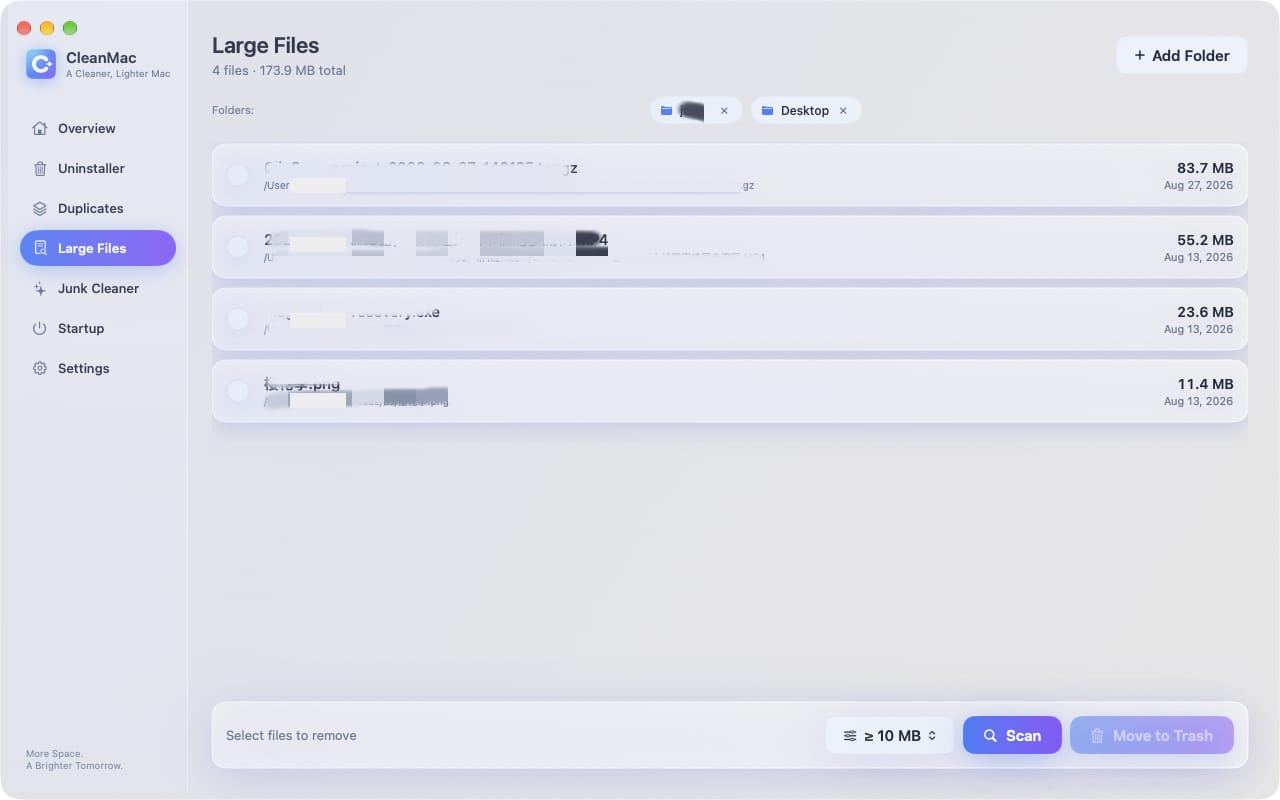
The practical routine: monthly, sort Downloads by size and delete the obvious dead weight — old `.dmg` installers for apps already installed, duplicate downloads with ` (1)` in the name, archives you already extracted. Then sort by date and clear the tail. If you’d rather not do this by hand, CleanMac의 무료 대용량 파일 정리 module surfaces the space-hogging portion of Downloads automatically as part of a whole-drive scan — a good monthly companion to the manual habit.
Deal With the Accumulated Past
Organizing going forward is easy; the backlog is the hard part. Don’t try to file three years of mess — that way lies a lost weekend and abandoned systems. Instead:
- Sweep everything old into Archive. Create `Archive/Pre-2026` and move every legacy folder into it wholesale. You haven’t filed anything, but you’ve quarantined the past from the present — new files get the new system, and the old stuff stays searchable when you need it.
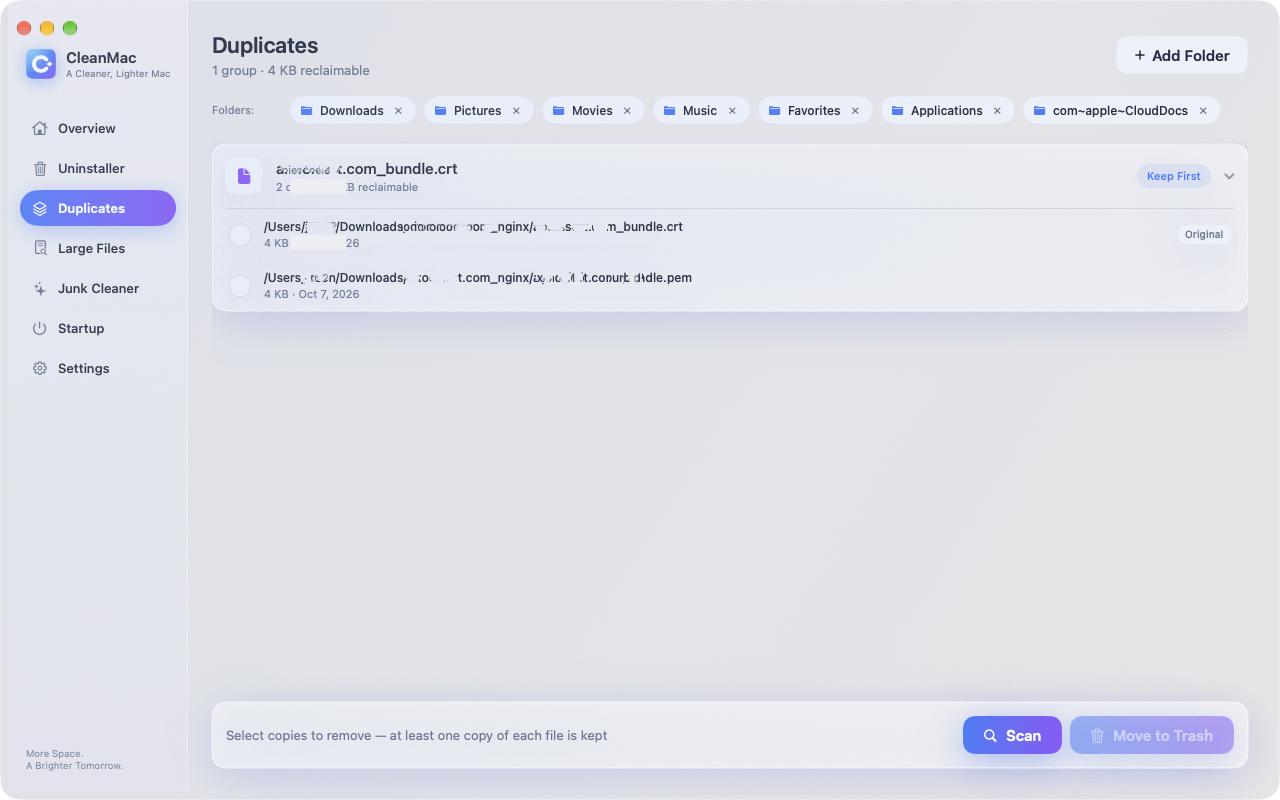
- Delete before you file. The backlog is always partly garbage. Run CleanMac의 중복 항목 module first — it matches files by content and finds the copies hiding across your Documents, Desktop, and Downloads under different names, always keeping one copy safe. Deleting duplicates OS보다 organizing means you never waste effort filing files that shouldn’t exist.
- File on demand. Archive folders get organized only when you actually open them looking for something. File that folder properly at that moment; leave the rest. Within a year, everything you actually use has been properly filed — and everything else has correctly stayed unfilled, because you never needed it.
The Maintenance Layer: Keeping It Organized
Systems decay without maintenance, but the maintenance can be tiny if it’s regular:
- Weekly (15 min, Friday): empty the Inbox, sweep the Desktop, clear the `Action Needed` tag.
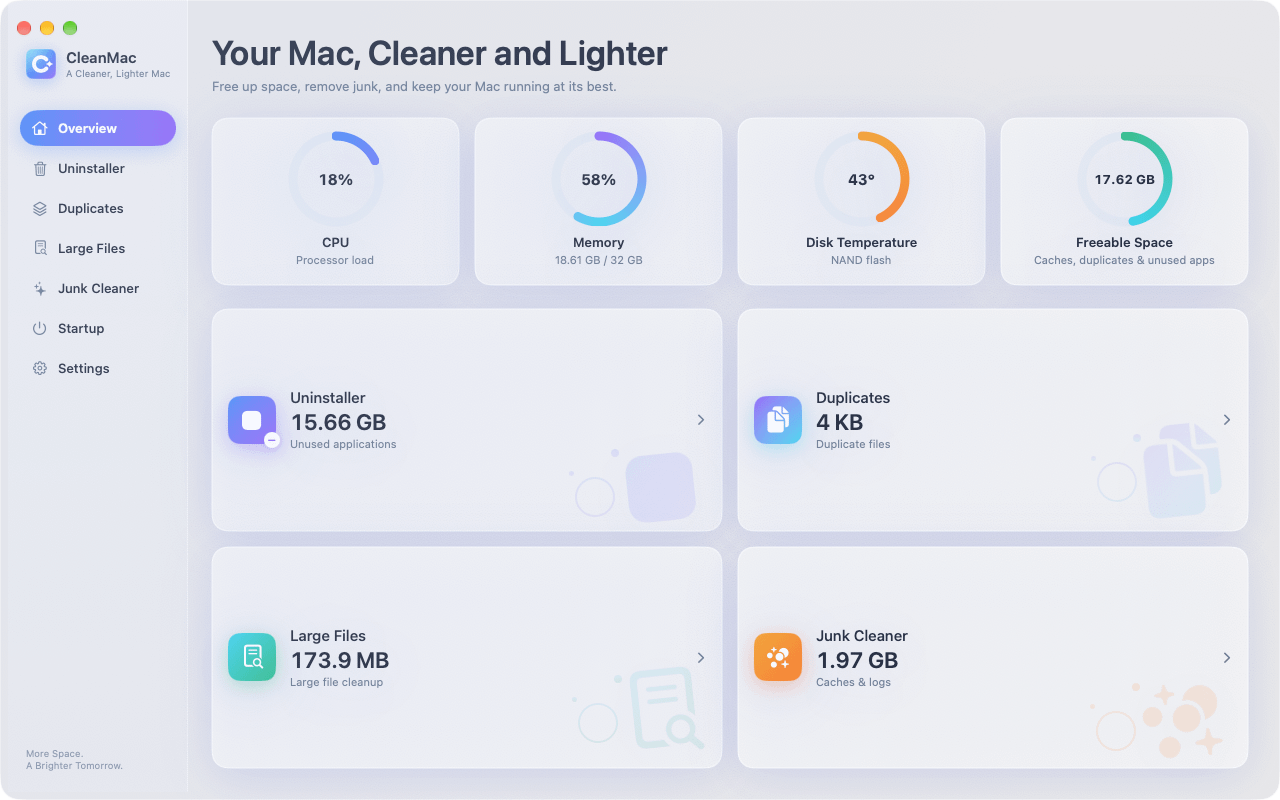
- Monthly (20 min): clear Downloads by size and date; run a cleanup scan — CleanMac의 Junk Cleaner and Large File modules keep caches and forgotten big files from quietly re-cluttering the drive you’ve organized. CleanMac is free, runs locally with no account, and requires macOS 13 Ventura or later on Intel or Apple Silicon.
- Quarterly (30 min): review the folder structure itself — merge folders that turned out redundant, archive finished projects, uninstall apps you stopped using (an organized Mac includes an organized Applications folder; CleanMac’s Uninstaller flags apps unused for 30+ days and removes them with their support files).
- Yearly: the full spring cleaning — which, conveniently, is the subject of its own checklist in this series.
결론
An organized Mac comes from three unglamorous decisions: a folder structure simple enough to use without thinking, an Inbox habit that converts filing into a weekly fifteen-minute task, and Finder’s own features — tags, Smart Folders, sidebar favorites, Stacks — doing the mechanical work. Quarantine the past in an Archive folder instead of trying to perfect it, delete duplicates before filing anything, and keep a light maintenance rhythm so the system survives contact with real life.
Do that, and “where did I save that?” becomes a question you stop asking — which is the entire point. For more free tools that keep a tidy Mac running well, browse our 앱 컬렉션.
자주 묻는 질문
What is the best folder structure for organizing a Mac?
The best structure is the simplest one you’ll actually maintain: a handful of permanent top-level folders inside Documents — typically Work, Personal, Projects, Archive, and an Inbox — with subfolders allowed to grow freely inside them. Filing should require exactly one decision at the top level. Elaborate hierarchies fail because every file becomes a five-minute deliberation, and systems that cost effort get abandoned.
Should I use tags or folders on Mac?
Use both, for different jobs. Folders answer “where does this live?” — every file gets one home. Tags answer “what else is this about?” — a file can carry several tags across projects, categories, and statuses, and tagged files surface in sidebar searches regardless of location. Folders provide structure; tags provide cross-cutting views of that structure.
How do I quickly clean up a messy Mac Desktop?
Enable Stacks first (right-click the Desktop → Use Stacks) for instant visual order, then do one full sweep: delete what’s dead, file the rest into your Documents structure, and leave only what you’re actively using this week. After that, a weekly two-minute sweep keeps it clean. Treat the Desktop as a workbench rather than storage and the problem stops recurring.
How often should I clean my Downloads folder?
Monthly is the right rhythm for most people. Sort by size to remove old installers and large forgotten files, then sort by date to clear the stale tail. Anything still needed gets filed into Documents; everything else goes. If Downloads regularly holds thousands of items, the fix is behavioral: file or delete each download within a day or two rather than letting the folder become an archive.
Is it better to organize files or just rely on Spotlight search?
Search is a complement to structure, not a replacement. Spotlight finds files fast when you remember distinctive names or content, but it can’t help you browse a project, hand work to a colleague, or remember what exists. A light folder structure plus good file naming makes search dramatically more effective — the two approaches multiply rather than compete.
How do I find and remove duplicate files while organizing?
Manually, sort folders by size and name and compare suspects with Quick Look — feasible for one folder, hopeless across a whole drive. A dedicated tool like CleanMac의 free Duplicates module matches files by content rather than name, groups all copies together, and always keeps one copy safe, which makes it practical to dedupe an entire drive before you invest time filing anything.
What’s the fastest way to maintain an organized Mac long-term?
Tiny regular habits beat occasional marathons: a weekly fifteen-minute session to empty your Inbox and sweep the Desktop, a monthly Downloads clear-out, and a quarterly review of folders and unused apps. Pair the filing habits with a periodic cleanup scan so junk and large forgotten files don’t silently refill the drive — organization is much easier to keep than to create.

