
열기 Apple 메뉴 → 이 Mac에 관하여 → 저장 공간 (또는 최신 macOS 버전에서는 시스템 설정 → 일반 → 저장 공간)을 열고 색상 막대를 바라보세요. 앱은 파란색, 문서는 노란색이고, 맨 끝에는 거대한 회색 블록이 있는데 — 라벨은 “기타” (구버전 macOS) 또는 “시스템 데이터” (macOS Monterey 이후)입니다. 많은 Mac에서 이 항목은 50GB, 100GB, 때로는 200GB 이상을 차지하며, macOS는 그 안에 무엇이 있는지 보거나 무언가를 할 수 있는 도구를 거의 제공하지 않습니다.
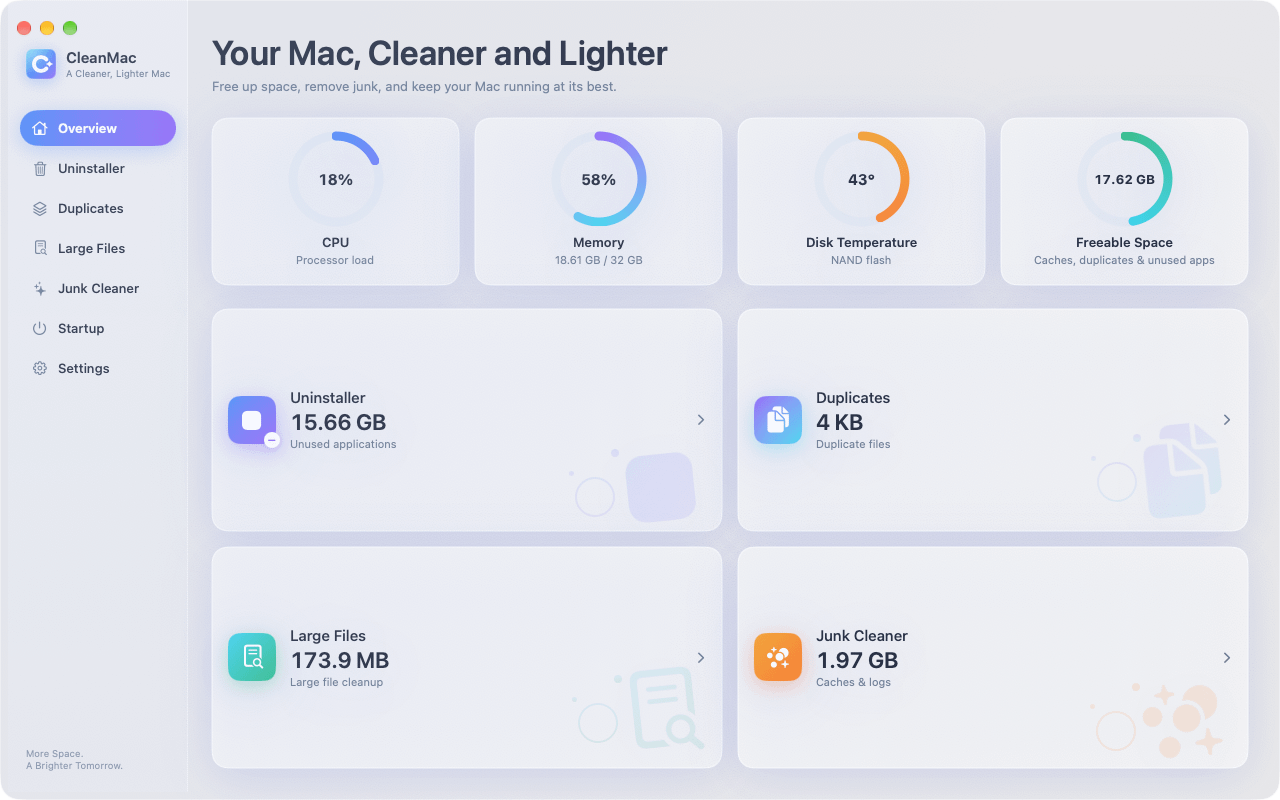
이런 미스터리 때문에 “Mac의 기타 저장 공간이란 무엇인가”는 역대 가장 많이 검색된 Mac 질문 중 하나입니다. 이 글은 그 질문에 완전히 답합니다: 이 카테고리에 실제로 무엇이 들어 있는지, 왜 그렇게 끊임없이 커지는지, 어떻게 검사하는지, 그리고 가장 중요한 — 시스템을 망가뜨리지 않고 안전하게 줄이는 방법입니다. 또한 무료 Mac 클리너인 CleanMac, 가 이 과정에서 어떤 역할을 하는지도 보여드리겠습니다. 기타 저장 공간의 가장 큰 구성 요소 중 여러 개가 바로 그 스캐너가 찾도록 만들어진 대상이기 때문입니다.
“기타”(시스템 데이터)란 실제로 무엇인가
이 Mac에 관하여의 저장 공간 막대는 macOS가 디스크의 모든 것을 앱, 문서, 사진, 음악, 메일, 메시지 등 몇 가지 친숙한 카테고리로 분류하려는 시도입니다. 시스템은 파일을 유형과 위치로 식별합니다 — 사진 보관함은 사진으로, 문서 폴더의 파일은 문서로 집계됩니다.
친숙한 카테고리에 맞지 않는 모든 것은 잔여 버킷에 던져집니다. macOS Catalina 이하에서 그 버킷의 라벨은 기타. 입니다. macOS Monterey부터 Apple은 이를 시스템 데이터 로 이름을 바꿨습니다 — 더 정직한 이름인데, 그 안의 대부분이 사용자가 의도적으로 저장한 파일이 아니라 시스템(또는 시스템처럼 행동하는 앱)이 자체 목적으로 만든 데이터이기 때문입니다.
그래서 “기타 저장 공간이란 무엇인가”에 대한 짧은 답은 이렇습니다: macOS가 사용자에게 직접 귀속시킬 수 없는 모든 것 — 캐시, 로그, 백업, 컨테이너, 디스크 이미지, 지원 파일입니다. 어느 것도 사용자의 이름으로 라벨이 붙지 않지만, 대부분은 사용자가 한 일 때문에 생성됩니다.
기타 저장 공간 안에 실제로 있는 것
다음은 잘 사용된 Mac에서 각 구성 요소가 일반적으로 차지하는 공간 순으로 대략 정리한 실제 분석입니다.
캐시 파일 (보통 가장 큰 부분)
Mac의 모든 앱은 캐시를 유지합니다 — 다시 계산하거나 다시 다운로드하지 않기 위해 보관하는 임시 작업 데이터입니다. 브라우저는 웹사이트 리소스를 캐시합니다. 스트리밍 앱은 비디오 세그먼트를 캐시합니다. 개발 도구는 빌드 산출물을 캐시합니다. macOS 자체도 폰트 데이터, 시스템 리소스, 업데이트 파일을 캐시합니다. 개별적으로는 수백 MB이지만, 1년 동안 정리하지 않은 Mac에서는 합쳐서 흔히 20–60GB에 달하며, 모두 시스템 데이터로 분류됩니다.
오래된 iPhone 및 iPad 백업
iPhone이나 iPad를 Mac에 백업한 적이 있다면 — 최신 macOS의 Finder 또는 구버전의 iTunes를 통해 — 그 백업은 `~/Library/Application Support/MobileSync/Backup/`에 있습니다. 각각은 기기에 따라 10–60GB일 수 있으며, Mac은 이를 조용히 축적합니다: 새 휴대폰을 연결하면 새 백업이 생기고, 오래된 것은 영원히 남습니다. 이 단일 폴더는 종종 기타 저장 공간에서 가장 큰 항목이며, 저장 공간 막대에서는 완전히 보이지 않습니다.
디스크 이미지 및 설치 패키지
다운로드한 모든 `.dmg` 파일과 실행한 모든 `.pkg` 설치 프로그램은 보통 다운로드 폴더에 있습니다. 이들은 문서가 아닌 컨테이너 파일이므로 macOS는 이를 기타로 분류합니다. 몇 개의 macOS 설치 이미지(각 6–13GB)와 수년간 축적된 앱 설치 프로그램이 쉽게 20–40GB를 추가합니다.
Time Machine 로컬 스냅샷
MacBook에서 macOS는 디스크의 로컬 스냅샷을 유지합니다 — 24시간 동안의 복원 지점 — 그래서 백업 드라이브가 연결되지 않아도 최근 파일을 복구할 수 있습니다. 이 스냅샷은 숨겨진 시스템 영역에 있으며 시스템 데이터로 집계됩니다. 많은 파일을 변경하는 Mac에서는 스냅샷이 10–50GB를 차지할 수 있습니다. macOS는 주장합니다 공간이 부족할 때 자동으로 제거한다고 하지만, 그 제거는 유명할 정도로 보수적입니다.
앱 지원 파일, 컨테이너 및 잔여물
모든 앱은 `~/Library/Application Support/`와 `~/Library/Containers/`에 데이터를 저장합니다. 일부는 작고(설정 파일), 일부는 거대합니다(비디오 편집기의 렌더 캐시, 가상 머신의 디스크 이미지, 채팅 앱의 메시지 기록). 앱을 휴지통으로 드래그하여 삭제하면 대부분의 지원 파일이 남습니다 — macOS가 영원히 기타 저장 공간으로 집계하는 고아 데이터입니다.
시스템 파일 및 로그
스왑 파일, 잠자기 이미지, 충돌 보고서, 진단 로그, 핵심 macOS 구성 요소가 이 카테고리를 완성합니다. 16GB RAM이 있는 Mac의 잠자기 이미지는 그 자체로 약 8–16GB입니다. 로그와 충돌 보고서는 개별적으로는 작지만 끝없이 축적됩니다.
기타 저장 공간이 그렇게 커지는 이유
기타 저장 공간이 커지는 이유는 잡동사니 서랍이 차는 이유와 같습니다: 지정된 자리가 없는 모든 것이 거기에 쌓이고, 거의 아무것도 떠나지 않습니다. 세 가지 힘이 성장을 이끕니다.
첫째, 캐시는 설계상 쓰기 위주입니다. 앱은 끊임없이 캐시에 추가하고 항목은 게을리 만료시키며, 심지어 만료시키지 않기도 합니다. 2년 동안 매일 사용한 브라우저는 무언가 지우지 않는 한 2년치 캐시 데이터를 보유합니다.
둘째, 아무것도 경고하지 않습니다. iPhone 백업이 쌓이거나 스냅샷이 부풀어도 Mac은 알려주지 않습니다. 저장 공간 막대는 증상(거대한 회색 블록)을 보여주지만 진단은 전혀 하지 않습니다.
셋째, 수동 정리는 정말 어렵습니다. 가장 큰 원인은 알 수 없는 이름의 숨겨진 `~/Library` 하위 폴더에 있습니다. 잘못된 폴더를 삭제하면 앱이 망가질 수 있어 대부분의 사람들은 현명하게 아무것도 삭제하지 않습니다 — 그리고 쌓인 것은 계속 늘어납니다.
기타 저장 공간에 실제로 무엇이 있는지 확인하는 방법
무엇이든 지우기 전에, 다루고 있는 것이 무엇인지 파악하세요.
방법 1: 시스템 설정 분석. 다음으로 이동 시스템 설정 → 일반 → 저장 공간 계산이 끝날 때까지 기다리세요. 카테고리 옆의 ⓘ 버튼을 클릭하세요. 이는 Apple의 관점을 보여줍니다 — 유용하지만 얕습니다; 시스템 데이터는 여전히 하나의 구분되지 않은 숫자로 남습니다.
방법 2: Finder의 라이브러리 검사. Finder를 열고 Cmd+Shift+G, 를 누른 다음, 이 폴더들을 방문하여 크기순으로 정렬하세요 (Cmd+J → 모든 크기 계산, 또는 각 항목에 정보 가져오기 사용):
- `~/Library/Caches/` — 앱 캐시
- `~/Library/Application Support/MobileSync/Backup/` — iOS 백업
- `~/Library/Containers/` — sandboxed app data
- `~/Library/Developer/` — Xcode artifacts (huge if you’re a developer)
- `~/Library/Logs/` and `~/Library/DiagnosticReports/` — logs and crashes
Method 3: Terminal spot checks. Commands like `du -sh ~/Library/Caches/* 2>/dev/null | sort -hr | head -20` reveal the twenty largest cache folders in seconds, and `tmutil listlocalsnapshots /` lists local Time Machine snapshots.
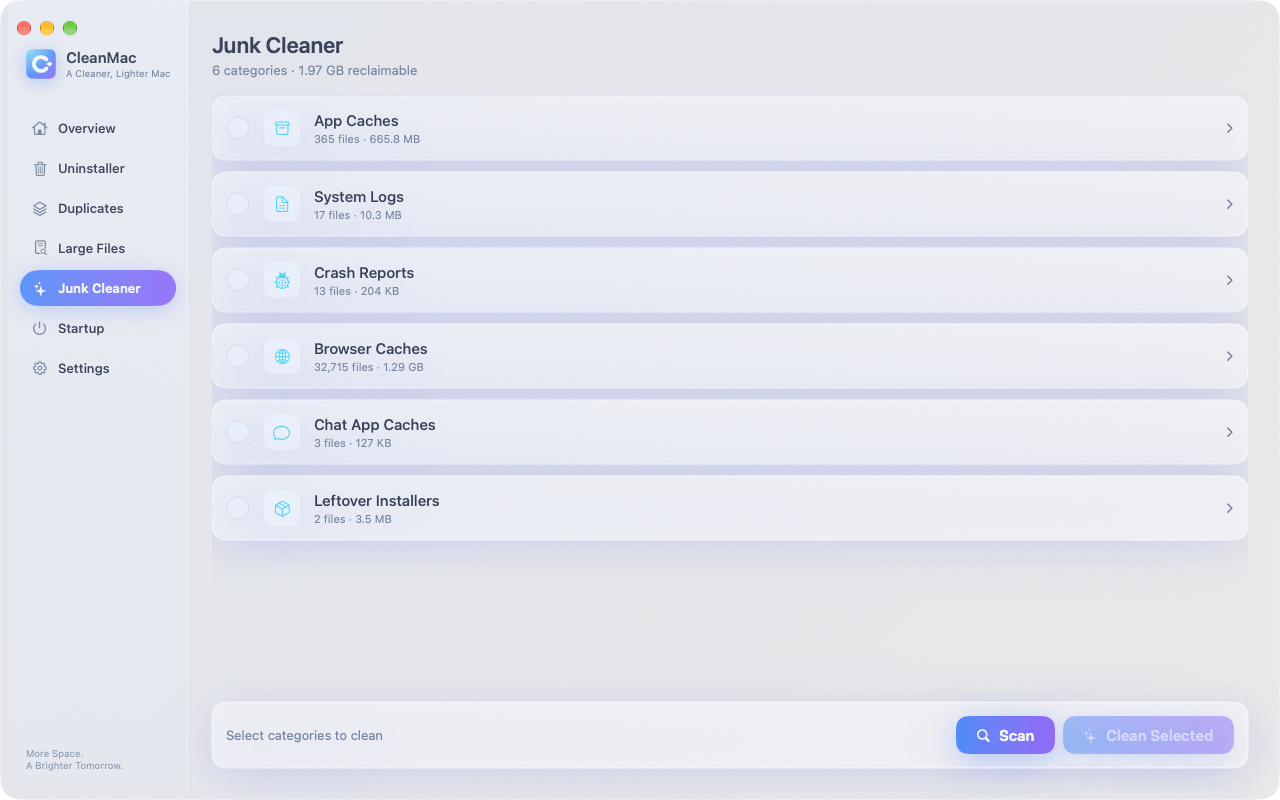
Method 4: Let a scanner do it. CleanMac’s free 정크 클리너 module scans exactly these locations — caches, logs, crash reports, browser caches — and presents the results as a readable, itemized list with sizes. It turns a half-hour of folder archaeology into a two-minute review.
How to Clear Other Storage Safely
Now the part everyone came for. Work through these in order — the early steps recover the most space with the least risk.
Step 1: Clear caches. Quit your apps, then delete the 내용 (not the folders themselves) inside `~/Library/Caches/`. Apps will rebuild what they need. Expect 10–40 GB back on a never-cleaned Mac. CleanMac’s Junk Cleaner automates this and knows which system-critical folders to skip — a meaningful safety margin over doing it by hand.
Step 2: Delete old iOS backups. In Finder, connect your iPhone, select it, and click Manage Backups — or delete the folders in `~/Library/Application Support/MobileSync/Backup/` directly. Keep only the most recent backup per device.
Step 3: Purge disk images and installers. Sort Downloads by size and delete old `.dmg` and `.pkg` files. If an app is already installed, its installer is dead weight.
Step 4: Thin local snapshots. Run `tmutil thinlocalsnapshots / 10000000000 4` to trim snapshots aggressively, or simply let them expire — they roll off after 24 hours anyway once the underlying need passes.
Step 5: Remove app leftovers. When you uninstalled apps in the past by dragging them to the Trash, their support files stayed. Hunting them folder-by-folder is tedious; CleanMac’s 제거 프로그램 module lists installed apps 와 함께 all their associated files and removes everything together — and for apps already gone, its scans surface orphaned leftovers.
Step 6: Restart. Some system-level Other storage (swap files, sleep images, temp directories) only shrinks on reboot. A restart after steps 1–5 finalizes the recovery.
What Not to Touch
A few areas inside System Data should be left alone unless you know exactly what you’re doing: `/System` and `/Library` at the root level (as opposed to your 사용자 `~/Library`), anything SIP-protected (macOS won’t let you delete it anyway), and app container folders for apps you still use daily. When in doubt, use a scanner with a curated safe-list rather than manual deletion — preview everything, and delete to the Trash rather than permanently so recovery is possible.
결론
“Other” or “System Data” storage isn’t mysterious once you unpack it: it’s mostly caches, old iPhone backups, disk images, local snapshots, and the digital residue of apps past and present. It grows because macOS files it away silently and provides no built-in way to inspect or trim it. The fix is systematic — clear caches, purge old backups and installers, thin snapshots, remove app leftovers, restart — and most of it can be done safely in under an hour. CleanMac automates the cache and leftover portions of that job for free, with preview-before-delete and Trash-based removal so nothing is ever unrecoverable. A Mac with 100 GB of System Data usually has 50–70 GB of pure recoverable space hiding inside that gray bar. For more free Mac utilities, browse our 앱 컬렉션.
자주 묻는 질문
What is Other storage on Mac?
Other storage — renamed System Data in macOS Monterey and later — is the catch-all category in your Mac’s storage bar for everything macOS can’t attribute to a standard user category like Apps, Documents, or Photos. It’s mostly caches, iOS device backups, disk images, local Time Machine snapshots, app support files, logs, and core system data. Most of it was created automatically by macOS and your apps rather than by files you deliberately saved.
Why is my Mac’s Other storage so huge?
Other storage grows huge because its biggest components accumulate silently and nothing clears them automatically. Caches grow continuously as you use apps, old iPhone and iPad backups stay forever after you replace devices, downloaded disk images and installers pile up in Downloads, and local Time Machine snapshots can hold tens of gigabytes. On a Mac that has never been cleaned, Other storage of 80–200 GB is common and mostly recoverable.
Is it safe to delete Other storage on Mac?
It is safe to delete the user-level components of Other storage: app caches, logs, crash reports, old iOS backups you no longer need, disk images for apps you’ve already installed, and orphaned files from uninstalled apps. You should avoid touching root-level system folders and current app container data for apps you actively use. Deleting to the Trash first, rather than permanently, gives you a recovery window if anything behaves oddly afterward.
How do I clear Other storage on Mac quickly?
The fastest path is: clear your user caches, delete old iOS device backups from `~/Library/Application Support/MobileSync/Backup/`, remove old `.dmg` and `.pkg` installers from Downloads, thin local Time Machine snapshots with `tmutil`, and restart. A free scanner like CleanMac’s Junk Cleaner automates the cache and log portions, which are usually the largest and most tedious to clear by hand.
Does Apple provide a way to clear System Data?
Only partially. System Settings → General → Storage offers recommendations like emptying the Trash automatically and optimizing TV storage, but it cannot break down or clear the System Data category itself. For the components that make up most of System Data — caches, backups, snapshots — Apple expects you to use Finder, Terminal, or third-party tools.
Will clearing Other storage delete my personal files?
No — your personal documents, photos, and downloads are categorized separately and are not part of the Other/System Data bucket. Clearing Other storage targets caches, backups, installers, and leftovers, none of which are your documents. That said, always review before deleting and keep at least one current iPhone backup if you remove old ones.
How often should I clean System Data?
A monthly cache sweep plus a quarterly deeper pass through backups, installers, and leftovers keeps System Data in check for most users. After each macOS major upgrade is another good moment, since update caches and old system files inflate the category. Regular light maintenance prevents the 100 GB gray-block scenario from developing in the first place.

