
Time Machine is the best backup system most Mac users never think about — until the day it announces “Time Machine backup disk is full,” or until you notice your internal drive mysteriously missing 100 GB that you can’t account for. Both problems have the same root: Time Machine keeps history, history accumulates, and eventually something has to give.
This guide explains how Time Machine actually stores backups (understanding this makes every fix obvious), how to delete old backups safely from the backup drive, how to manage the hidden 로컬 스냅샷 that eat space on your Mac’s internal disk, and when it makes sense to start over or switch strategies entirely. We’ll also show where a free space-reclamation tool like CleanMac fits when the real problem is that your whole drive — backups aside — needs attention.
How Time Machine Works (The 60-Second Version)
Everything in this guide follows from three facts about Time Machine’s design:
- It keeps versions, not copies. Each hourly backup only stores what changed since the last one, linked against everything unchanged. A year of backups isn’t 8,000 full copies of your drive — it’s one full copy plus a year of deltas. This is why you can browse “last March” without owning a dozen drives.
- It self-prunes — but only on its own schedule. Time Machine keeps hourly backups for 24 hours, daily backups for the past month, and weekly backups until the disk is full. When the backup disk fills, it automatically deletes the oldest weekly backups to make room. “Disk full” warnings appear when it’s running out of pruning room.
- It also backs up to your internal drive. When the backup disk isn’t connected, macOS keeps 로컬 스냅샷 on your Mac’s own storage — a safety net for laptop users on the go. These are invisible in the Finder and are the usual answer to “where did 80 GB of my internal storage go?”
So there are really two separate “delete old Time Machine backups” problems: pruning the external backup drive, 및 clearing local snapshots from your internal drive. They have completely different solutions.
Part 1: Deleting Old Backups from the Backup Drive
The normal case: let Time Machine prune itself
If your only symptom is the occasional “backup disk is nearly full” notice, the honest answer is that you don’t have to do anything. Time Machine deletes the oldest weekly backups automatically when it needs room. The system is designed to run this way indefinitely, and a backup drive that’s 90% full of history is a backup drive working as intended.
Deleting specific backups manually
Sometimes you want specific backups gone — backups of a huge folder you’ve since deleted, or ancient history you don’t need. The proper method:
- Connect the backup drive.
- 를 클릭합니다. Time Machine icon in the menu bar (enable it in System Settings → Control Center if hidden) and choose Browse Time Machine Backups.
- Navigate to the date or the folder you want to remove.
- Right-click (or use the Action/gear menu) and choose Delete Backup — for a whole snapshot — or Delete All Backups of [item] — to purge a specific file or folder from every snapshot at once.
- Authenticate with your admin password and wait. Deleting linked backups takes time; don’t disconnect the drive mid-operation.
The “Delete All Backups of” option is the hidden gem here: it’s the clean way to scrub a 200 GB folder of old video projects from your entire backup history, instantly relieving the fullness problem.
What NOT to do
Don’t drag `Backups.backupdb` folders to the Trash in Finder. The backup database uses hard links that Finder doesn’t understand, and manual deletion this way is slow, error-prone, and can corrupt the backup set. Use the Time Machine interface (or `tmutil` in Terminal, for advanced users) — never the Finder — for surgery on backup data.
The nuclear option: erase and start fresh
If the backup drive’s history is a tangled mess, or it’s inherited backups from a Mac you no longer own, starting over is legitimate:
- System Settings → General → Time Machine → Select Disk — remove the old disk from Time Machine’s configuration.
- 열기 디스크 유틸리티, select the backup drive, and 지우기 it (APFS for modern macOS, GUID Partition Map).
- Re-add it in Time Machine settings and let a fresh full backup run — expect hours for the first one.
You lose all historical versions, so do this only when the history genuinely has no value — and ideally when you have a second backup (even a recent clone or cloud backup) covering the gap.
파트 2: 로컬 스냅샷 삭제하기 (내부 드라이브의 숨겨진 용량 욕구)
이 섹션은 대부분의 사람들이 실제로 필요한 부분입니다. 로컬 스냅샷은 Mac의 internal 저장 공간에 존재하며, 다음과 같은 곳에 나타납니다 시스템 설정 → 일반 → 저장 공간 불투명한 “시스템 데이터” 카테고리 내부에 — Finder에는 전혀 표시되지 않습니다.
스냅샷이 문제인지 확인하기
열기 터미널 (응용 프로그램 → 유틸리티)을 열고 다음을 실행하세요:
“`
tmutil listlocalsnapshots /
“`
`com.apple.TimeMachine.2026-10-01-103521.local`과 같은 목록이 표시됩니다 — 스냅샷당 하나의 항목으로, 일반적으로 백업 디스크가 연결되지 않았을 때 매시간 생성되며, 시스템 업데이트 전에 macOS가 자동으로 만드는 스냅샷도 포함됩니다. 각각은 “삭제된” 파일 데이터를 기가바이트 단위로 보관할 수 있습니다.
삭제하기 전에 상황을 이해하세요
로컬 스냅샷은 자체 관리형입니다: macOS는 드라이브에 공간이 필요할 때 자동으로 삭제하며, 대략 최근 24시간 분량만 유지하도록 정리합니다. 수동으로 삭제하면 공간이 즉시 확보되지만 — 마지막 실제 백업 이후 삭제된 파일을 복구할 수 있는 능력도 사라집니다. 백업 디스크가 연결되어 있고 최신 상태라면 일반적으로 이 거래는 괜찮습니다. 백업 드라이브에서 일주일 동안 떨어져 있었다면 두 번 생각하세요.
삭제하기
목록에 표시된 날짜로 특정 스냅샷을 제거하세요:
“`
tmutil deletelocalsnapshots 2026-10-01-103521
“`
또는 대량으로 정리하세요 — 이는 macOS에 목표 용량(여기서는 10GB)을 긴급히 회수하도록 요청합니다:
“`
tmutil thinlocalsnapshots / 10000000000 4
“`
삭제 후 저장 공간 설정을 다시 확인하세요 — 공간이 실제로 회수되면서 “시스템 데이터” 카테고리가 1~2분 이내에 줄어들 것입니다.
스냅샷 누적 방지
지속적인 해결책은 단순히 백업 드라이브를 정기적으로 연결하는 것 입니다 — 스냅샷은 실제 백업 사이의 공백을 메우기 위해 존재하며, 매일 저녁 백업하는 Mac은 하루치 이상 누적되지 않습니다. Mac이 집에 머무는 데스크톱이라면 백업 드라이브를 영구적으로 연결해 두어 Time Machine이 매시간 작동하고 스냅샷이 전혀 쌓이지 않도록 고려하세요.
“백업이 가득 참”이 사실은 “모든 것이 가득 참”일 때”
흔한 시나리오: Mac의 드라이브가 거의 가득 차서 Time Machine 공간을 찾아 나섰는데, 스냅샷이 이야기의 일부일 뿐임을 발견합니다. 시스템 데이터가 부풀어 있지만 자신의 파일도 마찬가지입니다 — 그리고 50GB가 필요할 때 스냅샷을 삭제하면 몇 GB만 확보됩니다.
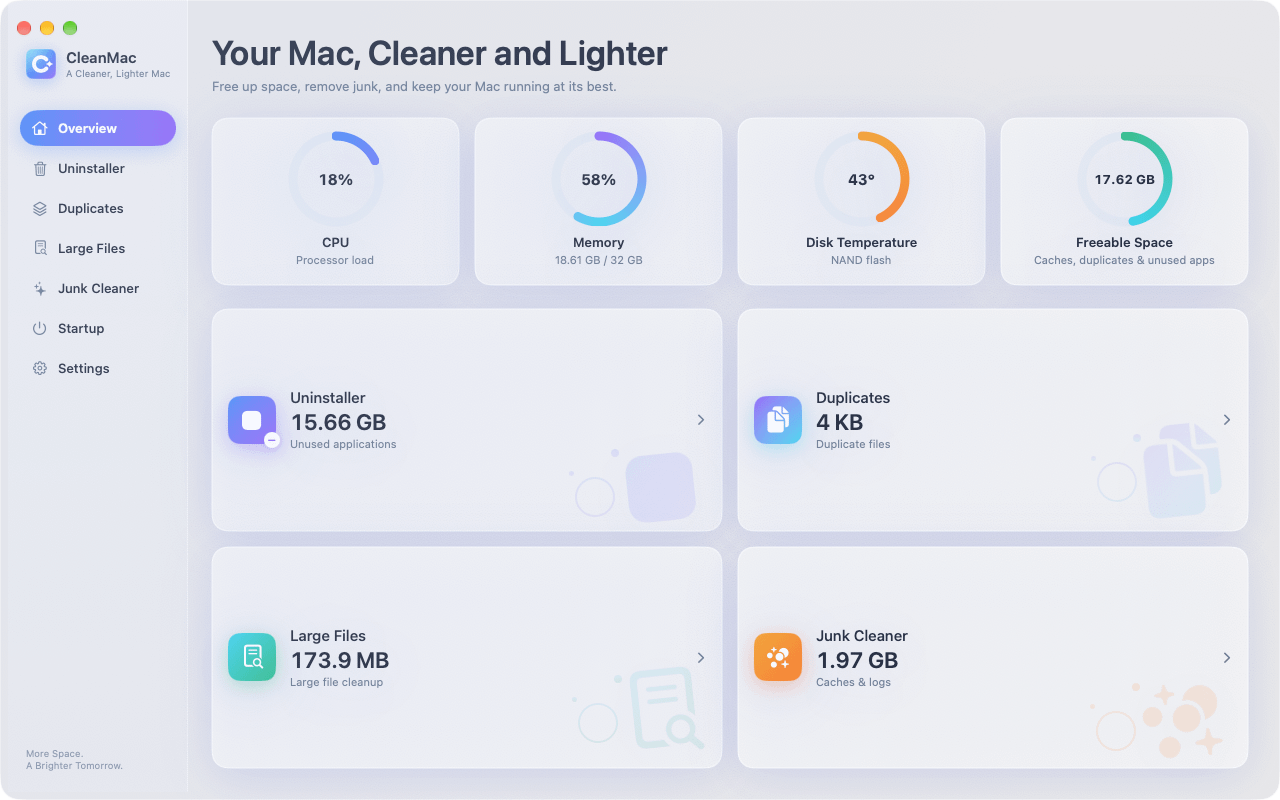
그때가 바로 드라이브 전체 정리가 필요한 순간이며, 그것이 CleanMac 가 만들어진 이유입니다. 이 무료 앱의 6개 모듈은 실제로 드라이브를 채우는 카테고리를 다룹니다:
- 대용량 파일 정리 10MB 이상의 모든 파일을 크기순으로 나열합니다 — 오래된 내보내기, 디스크 이미지, 잊힌 다운로드 — 상당한 공간을 회수하는 가장 빠른 방법입니다.
- 중복 항목 내용 기준으로 동일한 파일을 찾아내며, 흔히 5~15GB를 더 숨기고 있습니다.
- 정크 클리너 캐시, 로그, 충돌 보고서를 정리합니다(“시스템 데이터”를 부풀리는 나머지 부분).
- 제거 프로그램 지원 파일과 함께 사용하지 않는 앱을 제거합니다.
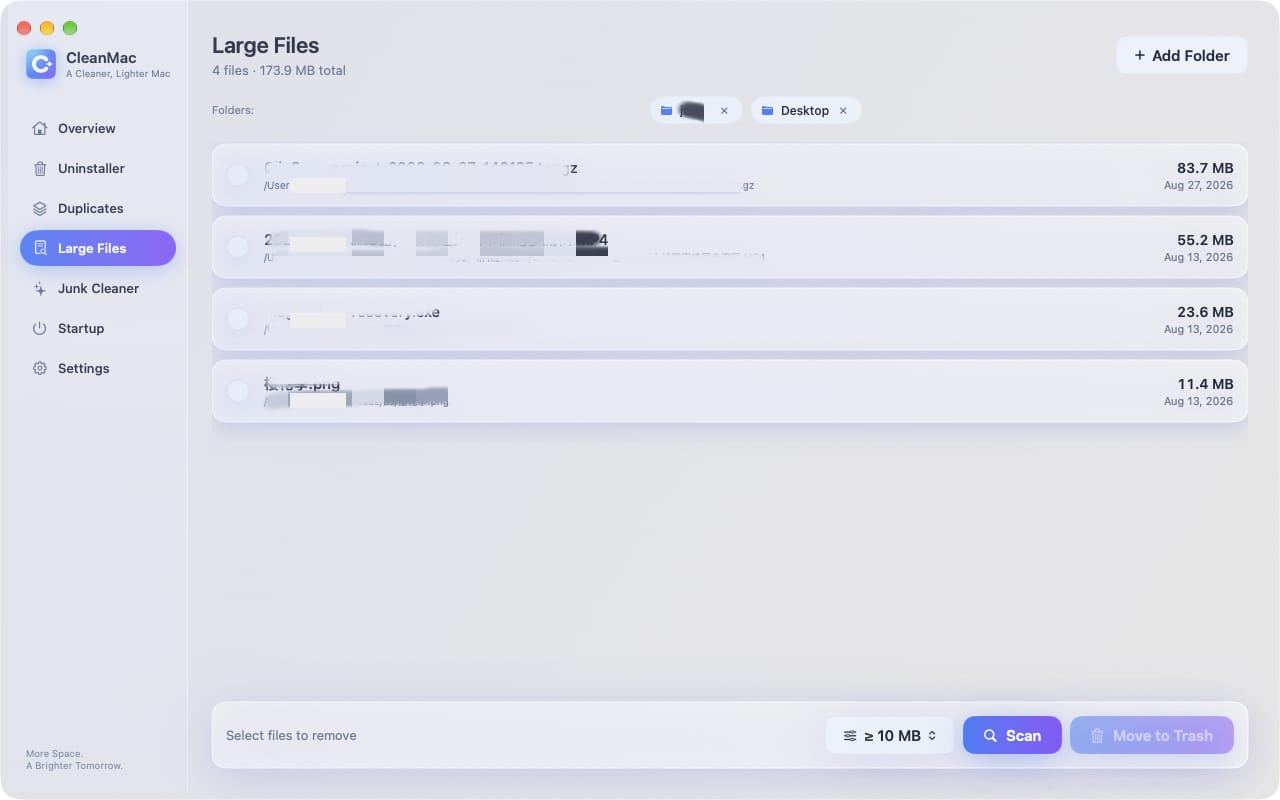
CleanMac이 삭제하는 모든 것은 복구를 위해 휴지통으로 이동되며, 스캔은 계정이나 업로드 없이 전적으로 로컬에서 실행되고, 이 앱은 Intel 또는 Apple Silicon에서 macOS 13 Ventura 이상을 요구합니다. CleanMac을 무료로 다운로드하세요 — Time Machine 관리와 자연스럽게 어울립니다: 스냅샷과 백업은 데이터를 보호하고, 정기적인 정리는 드라이브가 애초에 가득 차지 않도록 합니다.
알아둘 만한 Time Machine 대안
Time Machine의 용량 욕구를 관리하다 보면 다른 옵션을 고려하게 될 수 있는데, 솔직한 현황은 다음과 같습니다:
- 더 큰 백업 드라이브. 가장 영리하지도 않지만 가장 효과적인 해결책: Time Machine은 데이터 크기의 최소 2배 드라이브를 원하며, 3~4배면 기록이 여유롭게 숨 쉴 공간이 생깁니다. 드라이브는 저렴하고, 기록은 값을 매길 수 없습니다.
- 클라우드 백업 (Backblaze, Mac 저장 공간 최적화를 사용하는 iCloud Drive). 도난과 화재에 대한 오프사이트 보호 — Mac 옆에 놓인 백업 드라이브는 제공하지 못하는 것입니다. iCloud의 “최적화” 기능은 또한 로컬 저장 공간 압박을 줄여 오래된 파일을 클라우드에만 보관합니다.
- 부팅 가능한 클론 (Carbon Copy Cloner, SuperDuper). 다른 철학: 드라이브의 정확한 부팅 가능 복사본을 일정에 따라 업데이트합니다. 전체 머신 복구가 더 빠르지만 깊은 버전 기록은 없습니다.
가장 강력한 설정은 하나를 선택하는 것이 아니라 계층화입니다: 버전과 편의성을 위한 Time Machine, 그리고 오프사이트 또는 재앙적 상황 대비를 위한 이들 중 하나.
앞으로의 좋은 Time Machine 위생
- 백업이 필요 없는 것은 제외하세요. Time Machine 설정 → 옵션에서 크고 다시 다운로드 가능한 폴더를 제외 항목으로 추가하세요: 이미 다른 곳에서 보호되는 클라우드 동기화 폴더, Steam 게임 라이브러리, 별도로 백업하는 경우 가상 머신 디스크. 백업이 작을수록 같은 드라이브에서 더 긴 기록을 유지할 수 있습니다.
- 그냥 실행하게 두세요. 백업을 계속 중단하는 것이 바로 스냅샷 부채를 쌓는 원인입니다.
- Check in monthly. A glance at Storage settings and the last-backup time in the Time Machine menu catches problems while they’re small.
- Test a restore occasionally. A backup you’ve never restored from is a hypothesis, not a backup.
결론
Deleting old Time Machine backups is really two tasks wearing one name. On the backup drive, prune through Time Machine’s own interface — “Delete Backup” and the powerful “Delete All Backups of” — or erase and restart when history has no value; never surgery the backup database through Finder. On your internal drive, list local snapshots with `tmutil`, thin or delete the ones you don’t need, and keep your backup disk connected so they stop accumulating.
And when the fullness runs deeper than snapshots — as it usually does — sweep the rest of the drive with CleanMac’s free tools so you’re solving the problem once instead of monthly. For more hand-picked free Mac utilities, browse our 앱 컬렉션.
자주 묻는 질문
Why is my Time Machine backup disk full?
Time Machine keeps hourly backups for 24 hours, daily backups for a month, and weekly backups until the disk fills — so a full disk usually just means the history has grown into all available space. Time Machine prunes the oldest weekly backups automatically to make room, but if your data is large relative to the drive, you’ll see fullness warnings regularly. A drive 2–3 times the size of your data eliminates the issue.
What are Time Machine local snapshots, and can I delete them?
Local snapshots are backups stored on your Mac’s internal drive when the backup disk isn’t connected — a safety net for recent changes. You can list them with `tmutil listlocalsnapshots /` and delete them with `tmutil deletelocalsnapshots
Can I delete Time Machine backups from the Finder?
You shouldn’t. The backup database uses hard links that Finder mishandles, and dragging backups to the Trash is slow and risks corrupting the entire backup set. Delete backups through the Time Machine interface instead — browse your backups, right-click a snapshot, and choose Delete Backup — or use `tmutil delete` in Terminal for advanced control.
Will deleting old backups delete my current files?
No. Time Machine backups are entirely separate from the live data on your Mac — deleting any snapshot, even the oldest or the most recent, touches only the backup drive’s history. Your current files are never affected. The one caution is the reverse: deleting backups removes your ability to recover older versions, which is the entire point of keeping them.
How do I stop local snapshots from filling my internal drive?
Connect your backup drive regularly — ideally daily or permanently for a desktop Mac. Snapshots exist to bridge the gap between real backups, so frequent backups keep them naturally thin. macOS also deletes snapshots automatically when space is needed, but manual thinning with `tmutil thinlocalsnapshots` reclaims space immediately when you can’t wait.
Why did my “System Data” storage shrink after deleting snapshots?
Because local snapshots live inside the System Data category — they’re invisible to the Finder and counted as system storage. Deleting snapshots releases the “deleted” file data they were preserving, which shows up as System Data shrinking within a minute or two. If System Data stays huge afterward, the next suspects are caches, logs, and old iOS backups.
Should I erase my Time Machine drive and start over?
Starting fresh is reasonable when the backup history covers Macs you no longer own, the backup set has become unreliable, or you’re repurposing a drive inherited from another machine. You lose all version history, so only do it when history has no value — and ideally when a second backup covers you during the fresh full backup, which takes hours. For most full-drive complaints, pruning or a bigger drive is the better answer.


