
Time Machine 是大多数 Mac 用户从未想过的、最好的备份系统——直到有一天它提示“Time Machine 备份磁盘已满”,或者直到你发现你的 内置 硬盘莫名其妙少了 100 GB,而你根本不知道去了哪里。这两个问题根源相同:Time Machine 保留历史记录,历史记录不断累积,最终总得有所取舍。.
本指南将解释 Time Machine 实际是如何存储备份的(理解这一点,所有修复方法都会变得显而易见)、如何从备份磁盘中安全删除旧备份、如何管理那些占用 Mac 内置磁盘空间的隐藏 本地快照 ,以及何时适合重新开始或彻底更换策略。我们还会展示,当真正的问题是你的整个硬盘——备份除外——都需要关注时,像 CleanMac 这样的免费空间回收工具能派上什么用场。.
Time Machine 的工作原理(60 秒速览版)
本指南中的所有内容都源于 Time Machine 设计的三个事实:
- 它保留的是版本,而不是副本。. 每次每小时备份只存储自上次备份以来 发生变化 的内容,并与所有未变化的内容建立链接。一年的备份并不是你硬盘的 8,000 份完整副本——而是一份完整副本加上一年的增量。这就是为什么你无需拥有十几块硬盘就能浏览“去年三月”的文件。.
- 它会自动清理——但只按自己的时间表进行。. Time Machine 会保留 24 小时的每小时备份、过去一个月的每日备份,以及直到磁盘满为止的每周备份。当备份磁盘填满时,它会自动删除最旧的每周备份以腾出空间。当清理空间即将耗尽时,就会出现“磁盘已满”警告。.
- 它还会备份到你的内置硬盘。. 当备份磁盘未连接时,macOS 会将 本地快照 保留在 Mac 自身的存储上——这是为外出使用笔记本电脑的用户提供的安全网。这些内容在访达中不可见,通常就是“我的 80 GB 内置存储去哪了?”的答案。”
所以实际上存在两个不同的“删除旧 Time Machine 备份”问题: 清理外部备份磁盘, ,以及 清除内置硬盘上的本地快照. 。它们的解决方案完全不同。.
第一部分:从备份磁盘中删除旧备份
正常情况:让 Time Machine 自行清理
如果你唯一的症状是偶尔出现“备份磁盘即将已满”的提示,那么实话实说,你什么都不用做。Time Machine 在需要空间时会自动删除最旧的每周备份。系统就是这样设计来无限期运行的,一块 90% 满历史记录的备份磁盘,正是备份磁盘按预期工作的状态。.
手动删除特定备份
有时你想删除特定的备份——比如你后来已删除的巨大文件夹的备份,或者你不再需要的古老历史记录。正确的方法:
- 连接备份磁盘。.
- 点击 菜单栏中的 Time Machine 图标 (如果隐藏了,请在“系统设置”→“控制中心”中启用)并选择 浏览 Time Machine 备份.
- 导航到你想删除的日期或文件夹。.
- 右键点击(或使用操作/齿轮菜单)并选择 删除备份 ——用于删除整个快照——或者 删除 [项目] 的所有备份 ——用于一次性从 每一个 快照中清除特定文件或文件夹。.
- 输入管理员密码进行验证并等待。删除链接的备份需要时间;操作过程中不要断开磁盘连接。.
“删除所有备份”选项是这里隐藏的宝藏:它是从整个备份历史中清除 200 GB 旧视频项目文件夹的干净方法,能立即缓解磁盘已满的问题。.
不要做的事
不要在访达中将 `Backups.backupdb` 文件夹拖到废纸篓。备份数据库使用了访达无法理解的硬链接,通过这种方式手动删除既慢又容易出错,还可能损坏备份集。请使用 Time Machine 界面(或高级用户使用终端中的 `tmutil`)——绝不要用访达——来对备份数据进行操作。.
终极方案:抹掉并重新开始
如果备份磁盘的历史记录一团糟,或者它继承了你不再拥有的 Mac 的备份,重新开始是合理的:
- 系统设置 → 通用 → Time Machine → 选择磁盘 ——从 Time Machine 配置中移除旧磁盘。.
- 打开 磁盘工具, ,选择备份磁盘,并 抹掉 它(现代 macOS 使用 APFS,GUID 分区图)。.
- 在 Time Machine 设置中重新添加它,让全新的完整备份运行——第一次备份预计需要数小时。.
你会丢失所有历史版本,因此只有在历史记录确实毫无价值时才这样做——最好还要有第二份备份(哪怕是近期的克隆或云备份)来覆盖这段空白。.
第 2 部分:删除本地快照(你内置硬盘隐藏的胃口)
这是大多数人真正需要的部分。本地快照存放在 Mac 的 内置 存储空间中,它们会出现在 系统设置 → 通用 → 存储空间 不透明的“系统数据”类别内部——它们根本不会出现在访达中。.
检查快照是否是问题所在
打开 终端 (应用程序 → 实用工具)并运行:
“`
tmutil listlocalsnapshots /
“`
你会看到类似 `com.apple.TimeMachine.2026-10-01-103521.local` 的列表——每个快照一条记录,通常在备份磁盘不在时每小时创建一次,外加 macOS 在系统更新前自动创建的快照。每个快照都可能占用数 GB 的“已删除”文件数据。.
删除前先了解其中的取舍
本地快照是 自我管理的:当你的硬盘需要空间时,macOS 会自动删除它们,并会精简它们以保留大约最近 24 小时的内容。手动删除它们会 立即 释放空间——但这也会让你无法恢复自上次真正备份以来删除的文件。如果你的备份磁盘已连接且是最新的,这种取舍通常没问题。如果你已经一周没连接备份磁盘了,请三思。.
删除它们
按列出的日期删除特定快照:
“`
tmutil deletelocalsnapshots 2026-10-01-103521
“`
或者批量精简它们——这会要求 macOS 紧急回收目标容量(此处显示为 10 GB):
“`
tmutil thinlocalsnapshots / 10000000000 4
“`
删除后,再次检查存储设置——“系统数据”类别应在一两分钟内缩小,因为空间确实被回收了。.
防止快照堆积
持久的解决办法很简单,就是 定期连接你的备份磁盘 ——快照的存在是为了填补真实备份之间的空白,而每晚都备份的 Mac 永远不会积累超过一天的快照。如果你的 Mac 是留在家里的台式机,可以考虑让备份磁盘永久连接,这样时间机器每小时都会工作,快照就完全不会堆积。.
当“备份已满”其实是“一切都满了”
一个常见场景:你因为 Mac 硬盘快满了而去寻找时间机器空间,结果发现快照只是故事的一部分。系统数据膨胀了,但你自己的文件也膨胀了——而删除快照只能为你换来几 GB,而你需要的是五十 GB。.
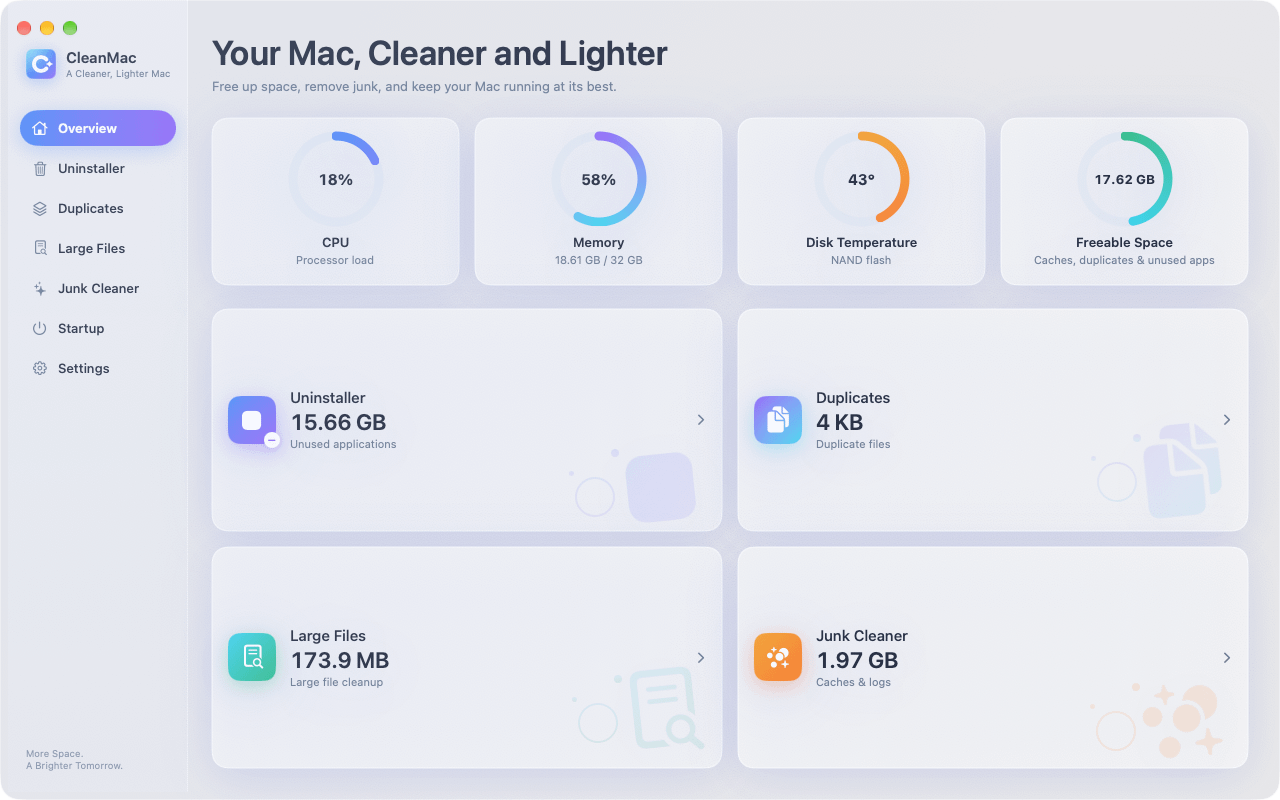
这正是进行全盘清理的时刻,而这正是 CleanMac 的用途。这款免费应用的六个模块涵盖了真正占满硬盘的类别:
- 大文件清理 按大小列出所有大于 10 MB 的文件——旧的导出文件、磁盘映像、被遗忘的下载——这是回收大量空间最快的方法。.
- 重复项 按内容查找完全相同的文件,这通常还能再隐藏 5–15 GB。.
- 垃圾清理器 清理缓存、日志和崩溃报告(这些是让“系统数据”膨胀的其余部分)。.
- 卸载程序 移除未使用的应用及其支持文件。.
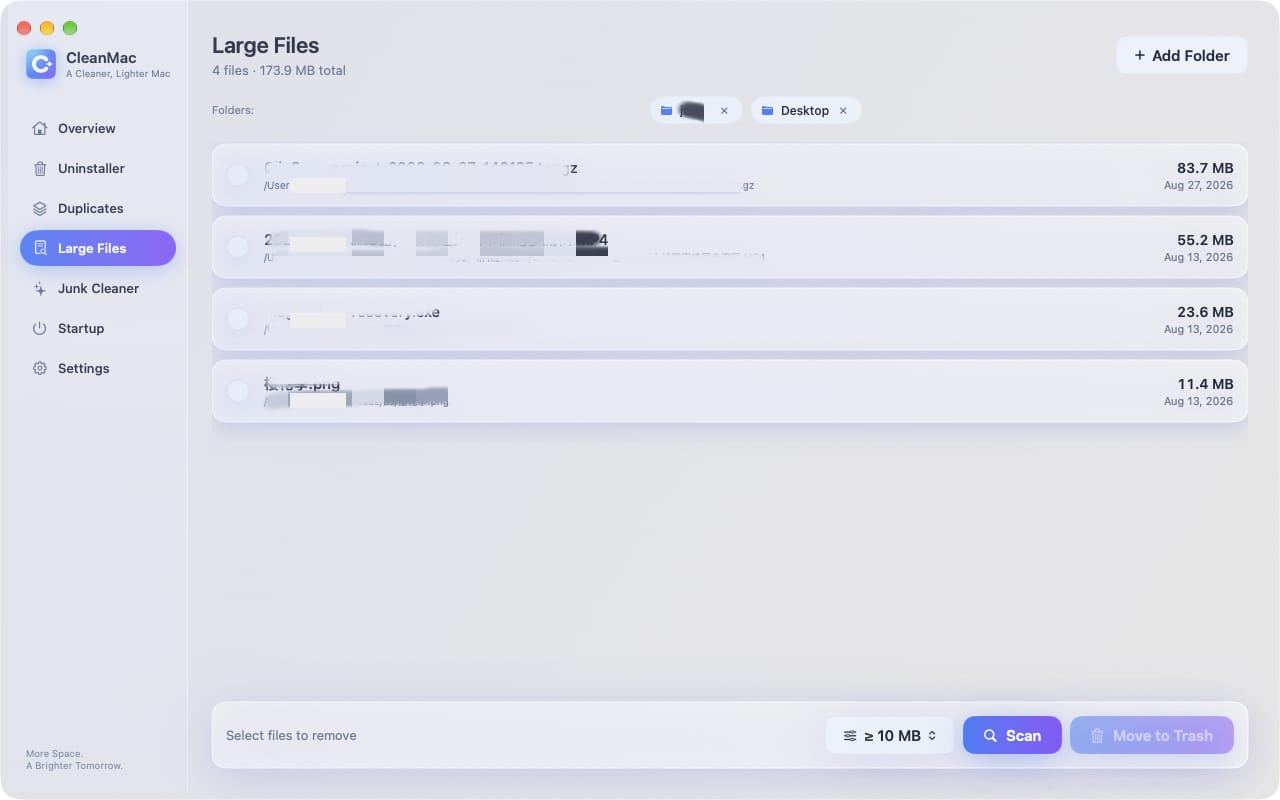
CleanMac 删除的所有内容都会进入废纸篓以便恢复,扫描完全在本地运行,无需账户或上传,并且该应用需要 macOS 13 Ventura 或更高版本,支持 Intel 或 Apple Silicon。. 免费下载 CleanMac ——它与时间机器维护天然搭配:快照和备份保护你的数据,而定期清理则从一开始就防止硬盘被填满。.
值得了解的时间机器替代方案
如果管理时间机器的胃口让你开始考虑其他选择,以下是诚实的全景:
- 更大的备份磁盘。. 最不聪明却最有效的解决办法:时间机器需要一块至少是你数据大小 2 倍的磁盘,而 3–4 倍则能给历史记录留出呼吸空间。磁盘很便宜;历史记录无价。.
- 云备份(Backblaze、开启“优化 Mac 存储”的 iCloud 云盘)。. 针对盗窃和火灾的异地保护——这是放在 Mac 旁边的备份磁盘无法提供的。iCloud 的“优化”功能还能通过让较旧的文件仅保留在云端来减轻 本地 存储压力。.
- 可启动克隆(Carbon Copy Cloner、SuperDuper)。. 一种不同的理念:对你硬盘进行精确、可启动的副本,并按计划更新。从中恢复整台机器更快,但没有深入的版本历史。.
最强的方案不是只选一个——而是分层:时间机器负责版本和便利,再加上其中任意一种来实现异地或灾难性覆盖。.
今后良好的时间机器使用习惯
- 排除不需要备份的内容。. 在时间机器设置 → 选项中,为体积巨大且可重新下载的文件夹添加排除项:已在别处受保护的云同步文件夹、Steam 游戏库、如果你单独备份的虚拟机磁盘。更小的备份意味着同一块磁盘上更长的历史记录。.
- 让它运行。. Interrupting backups constantly is what builds snapshot debt.
- Check in monthly. A glance at Storage settings and the last-backup time in the Time Machine menu catches problems while they’re small.
- Test a restore occasionally. A backup you’ve never restored from is a hypothesis, not a backup.
结论
Deleting old Time Machine backups is really two tasks wearing one name. On the backup drive, prune through Time Machine’s own interface — “Delete Backup” and the powerful “Delete All Backups of” — or erase and restart when history has no value; never surgery the backup database through Finder. On your internal drive, list local snapshots with `tmutil`, thin or delete the ones you don’t need, and keep your backup disk connected so they stop accumulating.
And when the fullness runs deeper than snapshots — as it usually does — sweep the rest of the drive with CleanMac’s free tools so you’re solving the problem once instead of monthly. For more hand-picked free Mac utilities, browse our 应用合集.
常见问题
Why is my Time Machine backup disk full?
Time Machine keeps hourly backups for 24 hours, daily backups for a month, and weekly backups until the disk fills — so a full disk usually just means the history has grown into all available space. Time Machine prunes the oldest weekly backups automatically to make room, but if your data is large relative to the drive, you’ll see fullness warnings regularly. A drive 2–3 times the size of your data eliminates the issue.
What are Time Machine local snapshots, and can I delete them?
Local snapshots are backups stored on your Mac’s 内置 drive when the backup disk isn’t connected — a safety net for recent changes. You can list them with `tmutil listlocalsnapshots /` and delete them with `tmutil deletelocalsnapshots
Can I delete Time Machine backups from the Finder?
You shouldn’t. The backup database uses hard links that Finder mishandles, and dragging backups to the Trash is slow and risks corrupting the entire backup set. Delete backups through the Time Machine interface instead — browse your backups, right-click a snapshot, and choose Delete Backup — or use `tmutil delete` in Terminal for advanced control.
Will deleting old backups delete my current files?
No. Time Machine backups are entirely separate from the live data on your Mac — deleting any snapshot, even the oldest or the most recent, touches only the backup drive’s history. Your current files are never affected. The one caution is the reverse: deleting backups removes your ability to recover older versions, which is the entire point of keeping them.
How do I stop local snapshots from filling my internal drive?
Connect your backup drive regularly — ideally daily or permanently for a desktop Mac. Snapshots exist to bridge the gap between real backups, so frequent backups keep them naturally thin. macOS also deletes snapshots automatically when space is needed, but manual thinning with `tmutil thinlocalsnapshots` reclaims space immediately when you can’t wait.
Why did my “System Data” storage shrink after deleting snapshots?
Because local snapshots live inside the System Data category — they’re invisible to the Finder and counted as system storage. Deleting snapshots releases the “deleted” file data they were preserving, which shows up as System Data shrinking within a minute or two. If System Data stays huge afterward, the next suspects are caches, logs, and old iOS backups.
Should I erase my Time Machine drive and start over?
Starting fresh is reasonable when the backup history covers Macs you no longer own, the backup set has become unreliable, or you’re repurposing a drive inherited from another machine. You lose all version history, so only do it when history has no value — and ideally when a second backup covers you during the fresh full backup, which takes hours. For most full-drive complaints, pruning or a bigger drive is the better answer.


