
“Mac은 바이러스에 걸리지 않는다”는 말은 결코 완전히 사실이 아니었고, 2026년에는 그냥 틀린 말입니다. Mac 악성코드는 실재하고, 증가하고 있으며, 즐겨 쓰는 위장 수단이 있습니다. 보통 사용자가 설득되어 설치한 것, 즉 가짜 브라우저 업데이트, 다운로드 사이트의 “무료” 앱, 공식처럼 보이는 스폰서 검색 결과입니다. 좋은 소식은 Mac 악성코드도 압도적으로 제거 가능하다는 점입니다, 어디를 봐야 하는지 안다면 종종 무료로 말이죠.
이 가이드는 솔직한 그림을 다룹니다. 실제로 Mac을 노리는 악성코드 유형, 기기에 감염되었다는 징후, 단계별 수동 제거, 신뢰할 만한 무료 스캐너, 그리고 무엇을 CleanMac 하고 하지 않는지에 대한 중요한 공개입니다. 우리는 Mac 정리 도구를 만들며, 악성코드 제거에서 그것이 어디에 맞고 어디에 맞지 않는지에 대해 정직한 답을 드려야 하기 때문입니다.
먼저, 솔직한 공개: CleanMac은 안티바이러스가 아닙니다
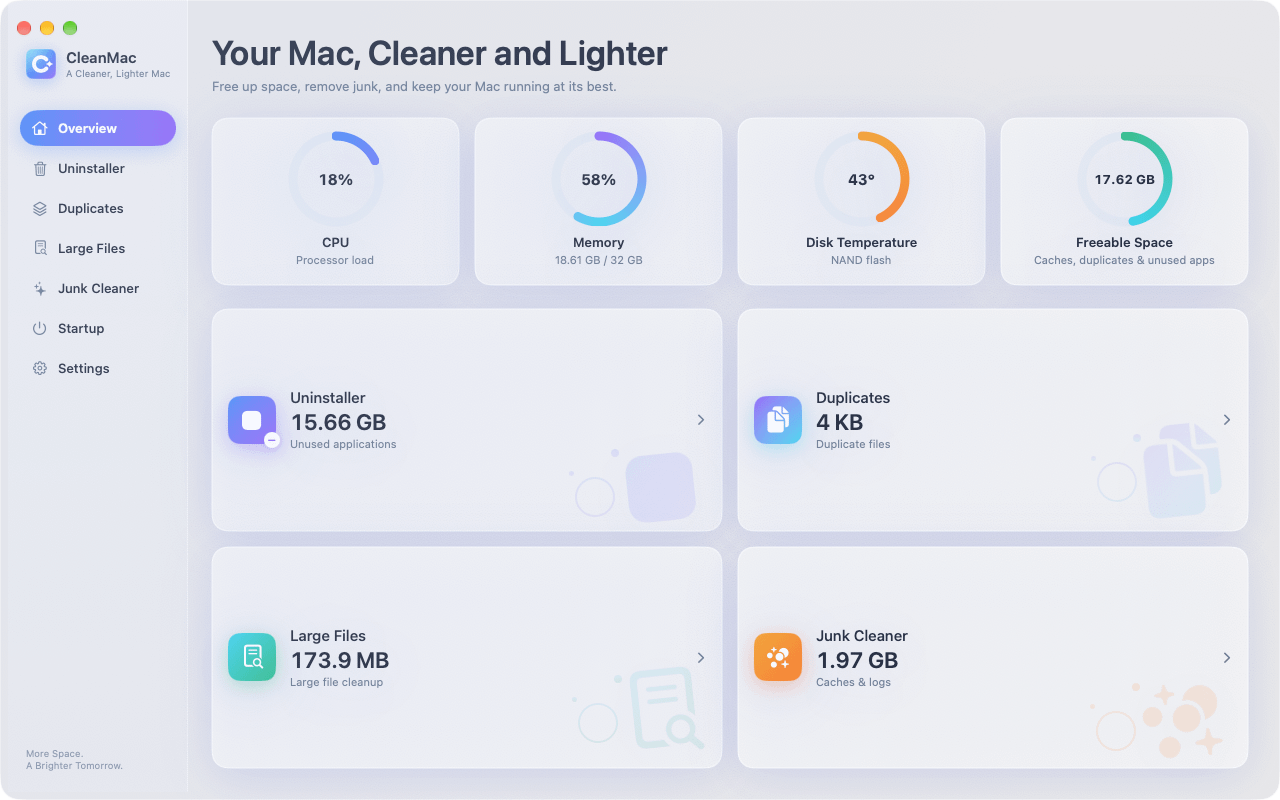
다운로드보다 신뢰가 더 중요하니, 다른 무엇보다 먼저 이 점을 짚고 넘어가겠습니다. CleanMac 는 저장 공간 및 성능 정리 도구이지 보안 소프트웨어가 아닙니다. 정크 파일, 중복 파일, 대용량 파일, 사용하지 않는 앱, 시작 항목을 찾습니다. 악성코드를 검사, 탐지, 제거하지 않으며, 이 글의 어떤 내용도 그렇다고 주장하는 것으로 읽혀서는 안 됩니다.
CleanMac이 감염 상황에서 진정으로 도움이 되는 부분은 제거의 메커니즘입니다. 악성 앱을 지원 파일과 함께 완전히 제거하고, 애드웨어가 숨기 좋아하는 시작 항목을 점검하는 것입니다. 하지만 탐지와 치료는 전용 보안 도구의 몫이며, 아래에서 사용할 만한 도구를 언급하겠습니다. 안티바이러스 역할도 한다고 주장하는 어떤 “정리” 앱이든 돈이 아니라 의심을 받아 마땅합니다.
실제로 Mac을 노리는 악성코드 유형
무엇을 다루고 있는지 알면 대응 방식이 달라집니다. Mac 악성코드 환경은 몇 가지 뚜렷한 범주로 나뉘며, 모두 똑같이 흔한 것은 아닙니다.
애드웨어와 브라우저 하이재커 (단연 가장 흔함)
대부분의 “내 Mac에 바이러스가 있다”는 신고가 실제로 이것입니다. 증상: 브라우저 홈페이지가 저절로 바뀜, 검색이 들어본 적 없는 검색 엔진으로 리디렉션됨, 있어서는 안 될 사이트에 팝업 광고가 나타남, 또는 초대받지 않은 새 툴바와 확장 프로그램이 생김. 애드웨어는 타사 다운로드 사이트의 무료 소프트웨어에 묶여 오거나, 가짜 “Flash Player가 오래되었습니다” 프롬프트를 통해 들어옵니다. 파괴적이라기보다 짜증나지만, 침입적이며(브라우징을 추적하고 광고를 삽입함) 제거해야 합니다.
잠재적으로 원치 않는 프로그램 (PUP)
회색 지대: 문제를 과장하거나 만들어내서 결제를 유도하는 “최적화” 및 “정리” 앱, 가짜 업데이트 유틸리티, 알지 못한 채 동의한 번들 소프트웨어입니다. 아이러니하게도 겁주는 정리 앱은 가장 흔한 Mac 감염 중 하나입니다. “당신의 Mac이 3개의 바이러스에 감염되었습니다!”라고 알리는 팝업이” 바로 악성코드입니다.
트로이 목마와 다운로더
정품 소프트웨어로 위장한 악성 코드로, 불법 복제 앱이 전형적인 운반체입니다. 토렌트 사이트의 크랙된 Photoshop, 오피스 제품군, 인기 유틸리티는 백도어를 설치하거나 브라우저에 저장된 비밀번호를 훔치거나 추가 페이로드를 가져오는 트로이 목마를 정기적으로 묶어 배포합니다. 이것이 불법 복제 소프트웨어를 반대하는 가장 강력한 근거입니다. 단호하게 말입니다.
정보 탈취 악성코드
최근 몇 년간 가장 빠르게 성장한 범주로, 브라우저 쿠키, 저장된 비밀번호, 암호화폐 지갑 데이터, 세션 토큰을 수집한 뒤 조용히 유출하도록 만들어진 악성코드입니다. 정보 탈취 악성코드는 보통 트로이 목마화된 앱이나 특정 검색을 노리는 악성 광고를 통해 들어옵니다. 팝업도 없고 홈페이지 변경도 없이 조용히 작동하기에 위험합니다.
랜섬웨어와 암호화폐 채굴기 (Mac에서는 드묾)
둘 다 macOS용으로 존재하지만 흔하지 않습니다. 암호화폐 채굴기는 지속적인 높은 CPU 사용과 발열로 드러나고, 랜섬웨어는 당연히 스스로를 알립니다. 둘 중 하나에 해당하면 DIY 섹션을 건너뛰고 곧바로 전용 스캐너로 가십시오.
Mac이 감염되었을 수 있다는 징후
단일 증상으로 감염이 증명되지는 않으며 — 대부분은 무해한 설명이 있습니다 — 하지만 이러한 증상의 조합 이 있다면 검사를 받아야 합니다:
- 브라우저 홈페이지나 기본 검색 엔진이 사용자 조작 없이 변경됨
- 검색 결과가 낯선 사이트를 통해 리디렉션됨
- 원래 없던 사이트에 팝업이나 광고가 나타나거나, 광고가 여러 기기에 걸쳐 따라다님
- 설치하지 않은 새 브라우저 확장 프로그램이나 툴바
- 응용 프로그램 폴더나 로그인 항목에 낯선 앱
- 지속적인 “당신의 Mac이 감염되었습니다!” 경고 (기억하세요: 보통 이것은 치료제가 아니라 악성코드입니다)
- 활성 상태 보기에서 설명 없는 지속적인 높은 CPU/팬 소음
- 보내지 않은 메시지를 친구들이 받음
정신을 붙잡아 주는 반론: 느린 Mac, 꽉 찬 디스크, 시끄러운 팬은 보통 중복이 아니며 악성코드가 아닙니다. 먼저 평범한 원인을 확인하십시오 — 악성코드는 배제를 통한 진단이지 기본 가정이 아닙니다.
Mac에서 악성코드를 수동으로 제거하는 방법
대부분의 Mac 애드웨어와 PUP는 직접 제거할 수 있습니다. 다음 단계를 순서대로 진행하고, 활성 정보 탈취 악성코드가 의심되면 먼저 인터넷 연결을 끊으십시오 (이더넷 분리, Wi-Fi 끄기).
1단계: 의심스러운 프로세스 종료
열기 활성 상태 보기 (응용 프로그램 → 유틸리티)에서 프로세스 목록을 훑어 모르는 이름, 특히 CPU 사용이 높은 항목을 찾으십시오. 의심 항목을 선택하고 ✕ → 강제 종료. 를 클릭하십시오. 조치하기 전에 낯선 프로세스 이름을 온라인에서 검색하십시오 — 정상 시스템 프로세스는 문서가 풍부하지만, 악성코드 프로세스는 보통 제거 가이드에 나타납니다.
2단계: 악성 앱 완전히 제거
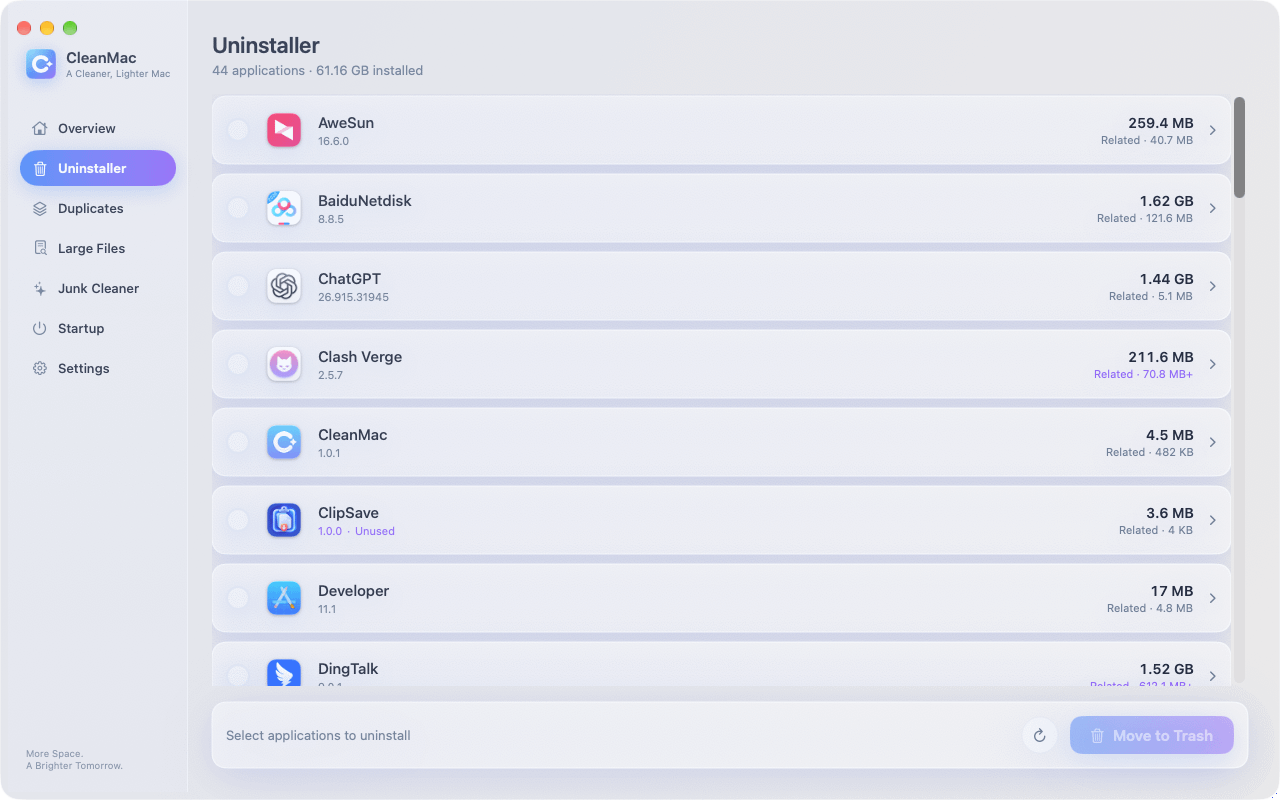
응용 프로그램 폴더에서 설치한 기억이 없는 항목을 확인하십시오. 의심스러운 앱을 휴지통으로 드래그하면 앱 자체는 제거되지만 leaves its support files behind — and adware often regenerates from exactly those leftovers.
This is where a proper uninstaller matters: CleanMac의 무료 제거 프로그램 module removes an app 와 함께 its caches, preferences, and support folders in one pass, which closes the “it came back after I deleted it” loop that plagues manual adware removal. It also flags apps you haven’t opened in 30+ days — a useful audit view when you’re hunting for software you never knowingly installed at all.
Step 3: Clean out LaunchAgents and LaunchDaemons
This is where Mac malware establishes persistence — the mechanism that relaunches it after every restart. In Finder, press Cmd+Shift+G and check each of these folders:
- `~/Library/LaunchAgents/`
- `/Library/LaunchAgents/`
- `/Library/LaunchDaemons/`
Look for recently-modified `.plist` files with names you don’t recognize — random-looking strings, misspellings of legitimate companies, or names mimicking system processes. Move suspects to the Trash (don’t delete permanently yet). 주의: these folders also contain legitimate entries from Adobe, Google, Microsoft, and your other real software — search any name before removing it, and when in doubt, leave it.
Step 4: Audit Login Items and browser extensions
In 시스템 설정 → 일반 → 로그인 항목 및 확장 프로그램, remove anything unfamiliar from both the “Open at Login” list and the “Allow in Background” section. CleanMac’s 시작 항목 module shows the same launch points consolidated in one list, which makes the audit faster.
Then clean each browser:
- Safari: Settings → Extensions → uninstall anything you didn’t install; Settings → Websites → check Notifications and remove unknown entries; Settings → Privacy → Manage Website Data if redirects persist
- Chrome: Settings → Extensions → remove unknowns; Settings → Reset settings → “Restore settings to their original defaults” if the hijack survives extension removal
- 확인하세요 System Settings → Privacy & Security → Profiles too — if a “configuration profile” you didn’t install is present (some adware installs one to lock browser settings), remove it. On a personal Mac, it’s normal to have no profiles at all.
Step 5: Restart and verify
Restart, then re-check the folders and settings above. Malware that survives a restart has a persistence mechanism you missed — look again at LaunchAgents, Login Items, and profiles. If everything stays clean across two restarts, the manual removal worked.
The Free Scanners Worth Using
For anything beyond simple adware — or simply for confirmation — run a dedicated scanner. The trustworthy options:
- Malwarebytes for Mac (free version): the standard recommendation, and deservedly so. The free tier scans and removes on demand (real-time protection is the paid feature), and its Mac malware definitions are the most current in the business. For a suspected infection, this should be your first download — from the official site only.
- Apple’s built-in defenses: macOS already includes XProtect (signature-based malware detection that updates silently in the background) and Gatekeeper/Notarization (blocking unsigned, unvetted software). These catch known-bad apps at install time, but they’re a perimeter, not a cleanup crew — XProtect won’t remove an infection that’s already established.
- A second opinion: if Malwarebytes finds nothing but symptoms persist, a scan with another reputable engine (CleanMyMac’s malware module, or Bitdefender’s free scanner) can catch what one engine misses.
One warning that can’t be repeated enough: only download security tools from their official websites. Searching “mac virus cleaner” and clicking the first ad is precisely how many infections happen — fake cleaners ranking for exactly that query are a real and thriving scam category.
Prevention: Not Getting Infected Again
Removal is an afternoon; prevention is a set of habits:
- Install software from the App Store or the developer’s official site — never from download aggregators or sponsored search results. This single habit eliminates the majority of Mac malware exposure.
- Never enter your Mac’s admin password because a website or installer told you to. Your password is the keys to the kingdom; legitimate macOS prompts come from the system, not a browser page.
- Don’t pirate software. Cracked apps are the number-one trojan carrier on the Mac platform.
- Keep macOS updated. Apple ships XProtect definition updates and security patches continuously; automatic updates are your silent immune system.
- Be skeptical of urgency. “Act now,” “your Mac is infected,” “update required immediately” — urgency is the signature of social engineering. Real system updates come from System Settings, full stop.
- Audit periodically. A monthly glance at Login Items, browser extensions, and your installed apps catches squatters early — the same habit that keeps your Mac fast keeps it clean.
결론
Removing malware from a Mac is usually less dramatic than the infection itself: quit the process, uninstall the malicious app completely — support files and all, which is where CleanMac’s free Uninstaller genuinely helps — purge its persistence from LaunchAgents and Login Items, reset the browser, and confirm with a scan from Malwarebytes’ free tier. Trust Apple’s built-in XProtect as your always-on perimeter, and treat any cleaning app — ours included — as exactly what it honestly claims to be.
Then close the door behind you: official sources only, no pirated software, no passwords for websites, automatic updates on. Those four habits make a repeat infection genuinely unlikely. For more trustworthy free Mac tools, browse our 앱 컬렉션.
자주 묻는 질문
Can Macs actually get viruses?
Yes. Mac-specific malware is less common than Windows malware but absolutely real, and adware, browser hijackers, trojans, and infostealers all target macOS actively. The most common infection route isn’t a drive-by exploit — it’s social engineering that talks the user into installing the malware themselves, which is why skepticism toward installers and pop-ups is the core defense.
Does my Mac have built-in antivirus protection?
Yes, two layers of it. XProtect provides signature-based detection of known malware and updates silently in the background, while Gatekeeper and notarization block unsigned or unvetted apps from launching. These defenses are good at stopping known threats at install time, but they don’t remove established infections — for that you need an on-demand scanner like Malwarebytes.
Is “Your Mac is infected with 3 viruses!” a real warning?
No — it’s a scam, and usually it’s the infection itself rather than the cure. Legitimate macOS security warnings never appear as web page pop-ups with countdown timers and phone numbers. Close the tab (force-quit the browser if it resists), never call the number, and never install the “cleaner” it advertises — that fake cleaner is the payload.
What’s the best free malware remover for Mac?
Malwarebytes for Mac is the consensus answer: its free version scans and removes infections on demand, its Mac-specific definitions are the most current available, and it doesn’t nag aggressively for upgrades. Download it only from the official Malwarebytes website — fake clones of popular security tools rank in search ads precisely to catch people looking for malware removal.
Will resetting my Mac to factory settings remove malware?
Yes, a full erase and reinstall eliminates any malware on the drive — it’s the nuclear option and it’s effective. But it’s rarely necessary: the manual removal steps plus a reputable scanner clear the vast majority of Mac infections in under an hour. Reserve the erase for persistent infections that survive proper removal attempts, or for peace of mind after a serious infostealer incident.
Does CleanMac remove viruses?
No — and we say so plainly. CleanMac is a storage and performance cleaner, not an antivirus; it doesn’t detect or disinfect malware. Its role in an infection scenario is mechanical: completely uninstalling a malicious app along with its leftover files, and auditing startup items where adware hides. Detection and removal belong to dedicated tools like Malwarebytes.
How do I know if a Mac “cleaner” app is legitimate?
Legitimate cleaners show you exactly what they’ll delete before deleting it, move files to the Trash rather than erasing permanently, and never invent threat counts to frighten you. The red flags of scareware: it arrived via an ad or pop-up, it demands payment before showing scan details, it claims to have found hundreds of “viruses” on a healthy Mac, or it installs a configuration profile. When in doubt, search the app’s name plus “scam” before installing.

