
Time Machine is the best backup system most Mac users never think about — until the day it announces “Time Machine backup disk is full,” or until you notice your internal drive mysteriously missing 100 GB that you can’t account for. Both problems have the same root: Time Machine keeps history, history accumulates, and eventually something has to give.
This guide explains how Time Machine actually stores backups (understanding this makes every fix obvious), how to delete old backups safely from the backup drive, how to manage the hidden ローカルスナップショット that eat space on your Mac’s internal disk, and when it makes sense to start over or switch strategies entirely. We’ll also show where a free space-reclamation tool like CleanMac fits when the real problem is that your whole drive — backups aside — needs attention.
How Time Machine Works (The 60-Second Version)
Everything in this guide follows from three facts about Time Machine’s design:
- It keeps versions, not copies. Each hourly backup only stores what changed since the last one, linked against everything unchanged. A year of backups isn’t 8,000 full copies of your drive — it’s one full copy plus a year of deltas. This is why you can browse “last March” without owning a dozen drives.
- It self-prunes — but only on its own schedule. Time Machine keeps hourly backups for 24 hours, daily backups for the past month, and weekly backups until the disk is full. When the backup disk fills, it automatically deletes the oldest weekly backups to make room. “Disk full” warnings appear when it’s running out of pruning room.
- It also backs up to your internal drive. When the backup disk isn’t connected, macOS keeps ローカルスナップショット on your Mac’s own storage — a safety net for laptop users on the go. These are invisible in the Finder and are the usual answer to “where did 80 GB of my internal storage go?”
So there are really two separate “delete old Time Machine backups” problems: pruning the external backup drive, そして clearing local snapshots from your internal drive. They have completely different solutions.
Part 1: Deleting Old Backups from the Backup Drive
The normal case: let Time Machine prune itself
If your only symptom is the occasional “backup disk is nearly full” notice, the honest answer is that you don’t have to do anything. Time Machine deletes the oldest weekly backups automatically when it needs room. The system is designed to run this way indefinitely, and a backup drive that’s 90% full of history is a backup drive working as intended.
Deleting specific backups manually
Sometimes you want specific backups gone — backups of a huge folder you’ve since deleted, or ancient history you don’t need. The proper method:
- Connect the backup drive.
- をクリックする。 Time Machine icon in the menu bar (enable it in System Settings → Control Center if hidden) and choose Browse Time Machine Backups.
- Navigate to the date or the folder you want to remove.
- Right-click (or use the Action/gear menu) and choose Delete Backup — for a whole snapshot — or Delete All Backups of [item] — to purge a specific file or folder from every snapshot at once.
- Authenticate with your admin password and wait. Deleting linked backups takes time; don’t disconnect the drive mid-operation.
The “Delete All Backups of” option is the hidden gem here: it’s the clean way to scrub a 200 GB folder of old video projects from your entire backup history, instantly relieving the fullness problem.
What NOT to do
Don’t drag `Backups.backupdb` folders to the Trash in Finder. The backup database uses hard links that Finder doesn’t understand, and manual deletion this way is slow, error-prone, and can corrupt the backup set. Use the Time Machine interface (or `tmutil` in Terminal, for advanced users) — never the Finder — for surgery on backup data.
The nuclear option: erase and start fresh
If the backup drive’s history is a tangled mess, or it’s inherited backups from a Mac you no longer own, starting over is legitimate:
- System Settings → General → Time Machine → Select Disk — remove the old disk from Time Machine’s configuration.
- 開く ディスクユーティリティ, select the backup drive, and 消去 it (APFS for modern macOS, GUID Partition Map).
- Re-add it in Time Machine settings and let a fresh full backup run — expect hours for the first one.
You lose all historical versions, so do this only when the history genuinely has no value — and ideally when you have a second backup (even a recent clone or cloud backup) covering the gap.
パート2:ローカルスナップショットの削除(内蔵ドライブの隠れた食欲)
これはほとんどの人が実際に必要とするセクションです。ローカルスナップショットはMacの internal ストレージ上に存在し、 システム設定 → 一般 → ストレージ 不透明な「システムデータ」カテゴリの中に表示されます — Finderには一切現れません。.
スナップショットが問題かどうかを確認する
開く ターミナル (アプリケーション → ユーティリティ)を開いて実行します:
“`
tmutil listlocalsnapshots /
“`
`com.apple.TimeMachine.2026-10-01-103521.local` のようなリストが表示されます — スナップショットごとに1エントリで、通常はバックアップディスクが接続されていないときに毎時作成され、さらにシステムアップデート前にmacOSが自動的に作成するスナップショットもあります。それぞれが「削除された」ファイルデータを数ギガバイト保持している可能性があります。.
削除する前に仕組みを理解する
ローカルスナップショットは 自己管理型です:macOSはドライブにスペースが必要になると自動的に削除し、およそ直近24時間分を保持するように間引きます。手動で削除すると 今すぐ スペースが解放されます — ただし、最後の実際のバックアップ以降に削除されたファイルを復元する能力も失われます。バックアップディスクが接続され最新であれば、そのトレードオフは通常問題ありません。バックアップドライブから1週間離れていた場合は、よく考えてください。.
削除する
リストに表示された日付を指定して特定のスナップショットを削除します:
“`
tmutil deletelocalsnapshots 2026-10-01-103521
“`
または一括で間引きます — これはmacOSに目標量(ここでは10 GB)を緊急に回収するよう要求します:
“`
tmutil thinlocalsnapshots / 10000000000 4
“`
削除後、ストレージ設定を再度確認してください — スペースが実際に回収されるにつれて、「システムデータ」カテゴリは1〜2分以内に縮小するはずです。.
スナップショットの蓄積を防ぐ
持続的な解決策は、単純に バックアップドライブを定期的に接続する ことです — スナップショットは実際のバックアップ間の隙間を埋めるために存在し、毎晩バックアップするMacは1日分以上蓄積されることはありません。Macが自宅に置かれたデスクトップなら、バックアップドライブを常時接続したままにしてTime Machineが毎時動作するようにすれば、スナップショットがまったく溜まりません。.
「バックアップがいっぱい」が実は「すべてがいっぱい」であるとき“
よくあるシナリオ:Macのドライブがほぼ満杯なのでTime Machineのスペースを探し回ると、スナップショットは話の一部に過ぎないことに気づきます。システムデータは膨らんでいますが、自分のファイルも同様です — 50ギガバイト必要なときにスナップショットを削除しても数ギガバイトしか稼げません。.
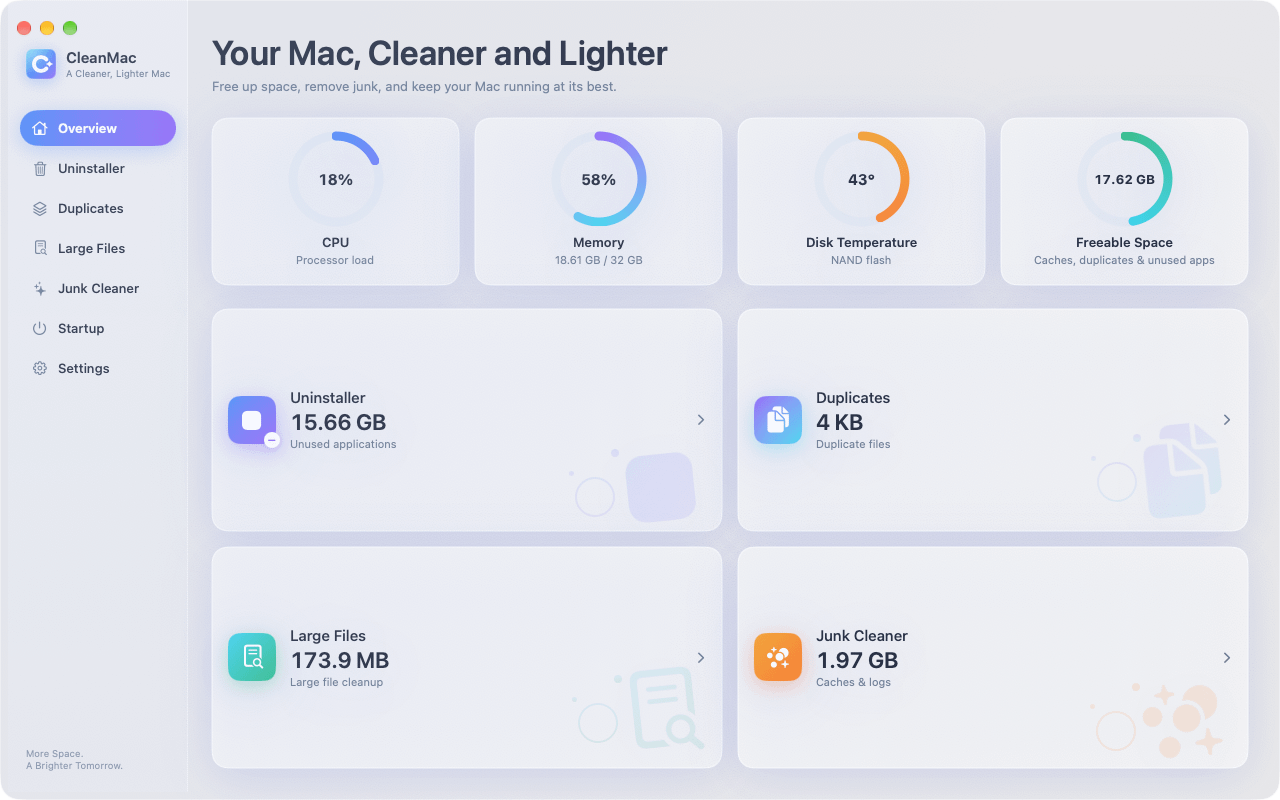
その瞬間がドライブ全体のクリーンアップの出番であり、それが CleanMac の目的です。この無料アプリの6つのモジュールは、実際にドライブを埋めるカテゴリをカバーします:
- 大容量ファイルの整理 10 MBを超えるすべてのファイルをサイズ順にリストします — 古いエクスポート、ディスクイメージ、忘れられたダウンロード — 本格的なスペースを回収する最速の方法です。.
- 重複 内容によって同一のファイルを検出します。これにより通常さらに5〜15 GBが隠れています。.
- ジャンククリーナー キャッシュ、ログ、クラッシュレポートを一掃します(「システムデータ」を膨らませている残りの部分)。.
- アンインストーラー 未使用のアプリをサポートファイルごと削除します。.
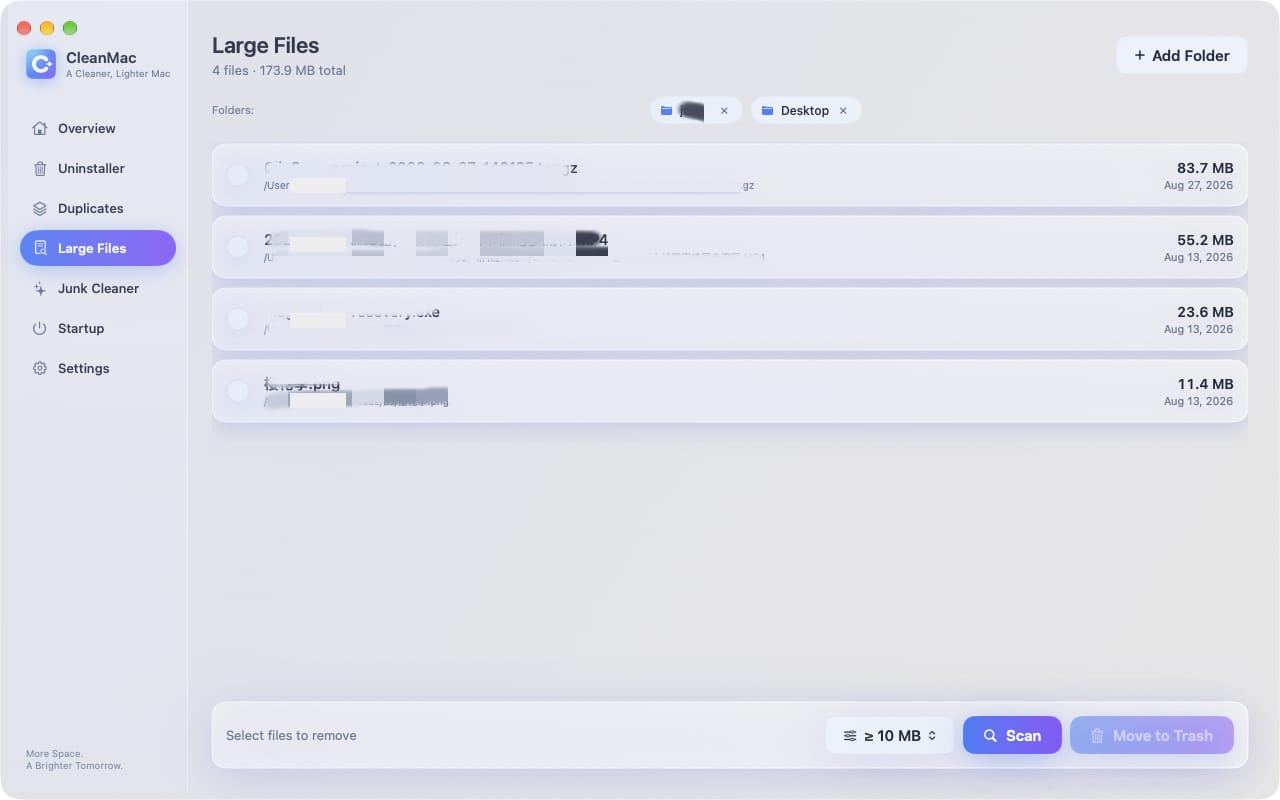
CleanMacが削除するものはすべて復元用にゴミ箱に入り、スキャンは完全にローカルで実行されアカウントやアップロードは不要で、アプリはIntelまたはApple Silicon上でmacOS 13 Ventura以降が必要です。. CleanMacを無料でダウンロード — Time Machineのハウスキーピングと自然に組み合わせられます:スナップショットとバックアップがデータを保護し、定期的なクリーニングがそもそもドライブが満杯になるのを防ぎます。.
知っておく価値のあるTime Machineの代替手段
Time Machineの食欲を管理することで選択肢を検討しているなら、正直な状況は:
- より大きなバックアップドライブ。. 最も賢くなく最も効果的な修正:Time Machineはデータサイズの少なくとも2倍のドライブを求め、3〜4倍あれば履歴に余裕が生まれます。ドライブは安価で、履歴は値段がつけられません。.
- クラウドバックアップ(Backblaze、Macストレージを最適化したiCloud Drive)。. 盗難や火災に対するオフサイト保護 — Macの隣に置かれたバックアップドライブでは提供できないものです。iCloudの「最適化」機能はまた、 ローカル ストレージの負荷を軽減し、古いファイルをクラウドのみに保ちます。.
- 起動可能なクローン(Carbon Copy Cloner、SuperDuper)。. 異なる哲学:ドライブの正確で起動可能なコピーをスケジュールで更新します。マシン全体の復元は速いですが、深いバージョン履歴はありません。.
最強のセットアップは1つを選ぶことではなく、重ねることです:バージョンと利便性のためのTime Machine、そしてオフサイトまたは壊滅的な事態への備えとしてこれらのいずれか1つ。.
今後のための良いTime Machineの習慣
- バックアップ不要なものを除外する。. Time Machine設定 → オプションで、巨大で再ダウンロード可能なフォルダを除外に追加します:すでに他の場所で保護されているクラウド同期フォルダ、Steamのゲームライブラリ、別途バックアップしている場合は仮想マシンのディスク。バックアップが小さければ、同じドライブでより長い履歴が得られます。.
- 実行させておく。. バックアップを絶えず中断することがスナップショットの負債を生みます。.
- Check in monthly. A glance at Storage settings and the last-backup time in the Time Machine menu catches problems while they’re small.
- Test a restore occasionally. A backup you’ve never restored from is a hypothesis, not a backup.
結論
Deleting old Time Machine backups is really two tasks wearing one name. On the backup drive, prune through Time Machine’s own interface — “Delete Backup” and the powerful “Delete All Backups of” — or erase and restart when history has no value; never surgery the backup database through Finder. On your internal drive, list local snapshots with `tmutil`, thin or delete the ones you don’t need, and keep your backup disk connected so they stop accumulating.
And when the fullness runs deeper than snapshots — as it usually does — sweep the rest of the drive with CleanMac’s free tools so you’re solving the problem once instead of monthly. For more hand-picked free Mac utilities, browse our アプリコレクション.
よくある質問
Why is my Time Machine backup disk full?
Time Machine keeps hourly backups for 24 hours, daily backups for a month, and weekly backups until the disk fills — so a full disk usually just means the history has grown into all available space. Time Machine prunes the oldest weekly backups automatically to make room, but if your data is large relative to the drive, you’ll see fullness warnings regularly. A drive 2–3 times the size of your data eliminates the issue.
What are Time Machine local snapshots, and can I delete them?
Local snapshots are backups stored on your Mac’s internal drive when the backup disk isn’t connected — a safety net for recent changes. You can list them with `tmutil listlocalsnapshots /` and delete them with `tmutil deletelocalsnapshots
Can I delete Time Machine backups from the Finder?
You shouldn’t. The backup database uses hard links that Finder mishandles, and dragging backups to the Trash is slow and risks corrupting the entire backup set. Delete backups through the Time Machine interface instead — browse your backups, right-click a snapshot, and choose Delete Backup — or use `tmutil delete` in Terminal for advanced control.
Will deleting old backups delete my current files?
No. Time Machine backups are entirely separate from the live data on your Mac — deleting any snapshot, even the oldest or the most recent, touches only the backup drive’s history. Your current files are never affected. The one caution is the reverse: deleting backups removes your ability to recover older versions, which is the entire point of keeping them.
How do I stop local snapshots from filling my internal drive?
Connect your backup drive regularly — ideally daily or permanently for a desktop Mac. Snapshots exist to bridge the gap between real backups, so frequent backups keep them naturally thin. macOS also deletes snapshots automatically when space is needed, but manual thinning with `tmutil thinlocalsnapshots` reclaims space immediately when you can’t wait.
Why did my “System Data” storage shrink after deleting snapshots?
Because local snapshots live inside the System Data category — they’re invisible to the Finder and counted as system storage. Deleting snapshots releases the “deleted” file data they were preserving, which shows up as System Data shrinking within a minute or two. If System Data stays huge afterward, the next suspects are caches, logs, and old iOS backups.
Should I erase my Time Machine drive and start over?
Starting fresh is reasonable when the backup history covers Macs you no longer own, the backup set has become unreliable, or you’re repurposing a drive inherited from another machine. You lose all version history, so only do it when history has no value — and ideally when a second backup covers you during the fresh full backup, which takes hours. For most full-drive complaints, pruning or a bigger drive is the better answer.


