
時光機是大多數 Mac 使用者從未想過的最佳備份系統——直到某天它宣告「時光機備份磁碟已滿」,或者直到你發現你的 內接 磁碟神秘地少了 100 GB,而你怎麼也無法解釋。這兩個問題有相同的根源:時光機保留歷史記錄,歷史記錄不斷累積,最終總得有所取捨。.
本指南說明時光機實際上是如何儲存備份的(理解這一點會讓每個解決方法都變得顯而易見)、如何從備份磁碟安全地刪除舊備份、如何管理佔用 Mac 內接磁碟空間的隱藏 本機快照 ,以及何時該從頭開始或完全改變策略。我們也會展示,當真正的問題在於你的整個磁碟——撇開備份不談——都需要關注時,像 CleanMac 這樣的免費空間回收工具該派上用場。.
時光機的運作方式(60 秒版本)
本指南的一切都源自時光機設計的三個事實:
- 它保留的是版本,而非副本。. 每次每小時備份只儲存自上次備份以來 變更 的內容,並與所有未變更的內容連結。一年的備份並不是 8,000 份磁碟的完整副本——而是一份完整副本加上一年的差異資料。這就是為什麼你可以瀏覽「去年三月」的內容,而不需要擁有十幾個磁碟。.
- 它會自我修剪——但只按自己的時間表。. 時光機會保留 24 小時內的每小時備份、過去一個月的每日備份,以及每週備份直到磁碟已滿。當備份磁碟滿了,它會自動刪除最舊的每週備份以騰出空間。當修剪空間即將耗盡時,就會出現「磁碟已滿」警告。.
- 它也會備份到你的內接磁碟。. 當備份磁碟未連接時,macOS 會將 本機快照 保留在 Mac 自身的儲存空間上——這是筆記型電腦使用者在外出時的安全網。這些在 Finder 中是不可見的,也是「我的內接儲存空間那 80 GB 去哪了?」的常見答案。“
所以實際上存在兩個獨立的「刪除舊時光機備份」問題: 修剪外接備份磁碟, 以及 清除內接磁碟上的本地快照. 。它們有完全不同的解決方法。.
第一部分:從備份磁碟刪除舊備份
正常情況:讓時光機自行修剪
如果你唯一的症狀是偶爾出現「備份磁碟即將已滿」的通知,老實說,你什麼都不必做。時光機在需要空間時會自動刪除最舊的每週備份。系統的設計就是這樣無限期地運作,而一個 90% 滿是歷史記錄的備份磁碟,正是備份磁碟按預期運作的樣子。.
手動刪除特定備份
有時你想刪除特定的備份——例如你後來已刪除的巨大資料夾的備份,或你不再需要的古老歷史記錄。正確的方法:
- 連接備份磁碟。.
- 按一下 選單列中的時光機圖示 (若隱藏,請在「系統設定」→「控制中心」中啟用)並選擇 瀏覽時光機備份.
- 導覽至你想移除的日期或資料夾。.
- 按右鍵(或使用「動作」/齒輪選單)並選擇 刪除備份 ——用於整個快照——或 刪除 [項目] 的所有備份 ——以一次從 每個 快照中清除特定檔案或資料夾。.
- 輸入你的管理員密碼進行驗證並等待。刪除連結的備份需要時間;操作過程中請勿中斷連接磁碟。.
「刪除所有備份」選項是這裡的隱藏珍寶:這是從你的整個備份歷史中清除 200 GB 舊影片專案資料夾的乾淨方法,能立即緩解已滿的問題。.
切勿做的事
不要在 Finder 中將 `Backups.backupdb` 資料夾拖到垃圾桶。備份資料庫使用 Finder 無法理解的硬連結,以這種方式手動刪除既慢又容易出錯,還可能損壞備份集。請使用時光機介面(或進階使用者可在終端機中使用 `tmutil`)——絕不要用 Finder——來對備份資料進行操作。.
終極選項:清除並重新開始
如果備份磁碟的歷史記錄是一團亂麻,或者它繼承了你已不再擁有的 Mac 的備份,從頭開始是合理的:
- 系統設定 → 一般 → 時光機 → 選擇磁碟 ——從時光機的設定中移除舊磁碟。.
- 開啟 磁碟工具程式, ,選擇備份磁碟,並 清除 它(現代 macOS 使用 APFS,GUID 分割區配置表)。.
- 在時光機設定中重新加入它,並讓全新的完整備份執行——第一次預計需要數小時。.
你會失去所有歷史版本,所以只有在歷史記錄確實毫無價值時才這樣做——而且理想情況下,當你有第二個備份(甚至是最近的克隆或雲端備份)涵蓋這段空檔時才進行。.
第 2 部分:刪除本機快照(你的內部磁碟隱藏的胃口)
這是大多數人真正需要的部分。本機快照存放在你的 Mac 內接 儲存空間上,而且它們會顯示在 系統設定 → 一般 → 儲存空間 不透明的「系統資料」類別內部——它們根本不會出現在 Finder 中。.
檢查快照是否是你的問題
開啟 終端機 (應用程式 → 工具程式)並執行:
“`
tmutil listlocalsnapshots /
“`
你會看到像 `com.apple.TimeMachine.2026-10-01-103521.local` 這樣的清單——每個快照一筆,通常在備份磁碟不在時每小時建立一次,再加上 macOS 在系統更新前自動建立的快照。每個快照都可能佔用數 GB 的「已刪除」檔案資料。.
刪除前先了解這筆交易
本機快照是 自我管理的:當你的磁碟需要空間時,macOS 會自動刪除它們,並會精簡它們以保留大約最近 24 小時的份量。手動刪除它們會 立即 釋放空間——但這也會讓你失去還原自上次真正備份以來所刪除檔案的能力。如果你的備份磁碟已連接且是最新的,這筆交易通常沒問題。如果你已經一週沒接上備份磁碟,請三思。.
刪除它們
依列出的日期移除特定快照:
“`
tmutil deletelocalsnapshots 2026-10-01-103521
“`
或大量精簡它們——這會要求 macOS 緊急回收目標容量(此處顯示 10 GB):
“`
tmutil thinlocalsnapshots / 10000000000 4
“`
刪除後,再次檢查儲存空間設定——隨著空間實際被回收,「系統資料」類別應在一兩分鐘內縮小。.
防止快照累積
持久的解決方法很簡單,就是 定期連接你的備份磁碟 ——快照的存在是為了填補真正備份之間的空隙,而每晚都備份的 Mac 永遠不會累積超過一天的份量。如果你的 Mac 是留在家裡的桌上型電腦,可以考慮讓備份磁碟永久保持連接,這樣 Time Machine 就能每小時運作,快照也完全不會堆積。.
當「備份已滿」其實是「全部已滿」“
常見的情況:你因為 Mac 的磁碟幾乎滿了而到處尋找 Time Machine 空間,結果發現快照只是故事的一部分。系統資料膨脹了,但你自己的檔案也一樣——而刪除快照只為你換來幾 GB,你需要的卻是五十 GB。.
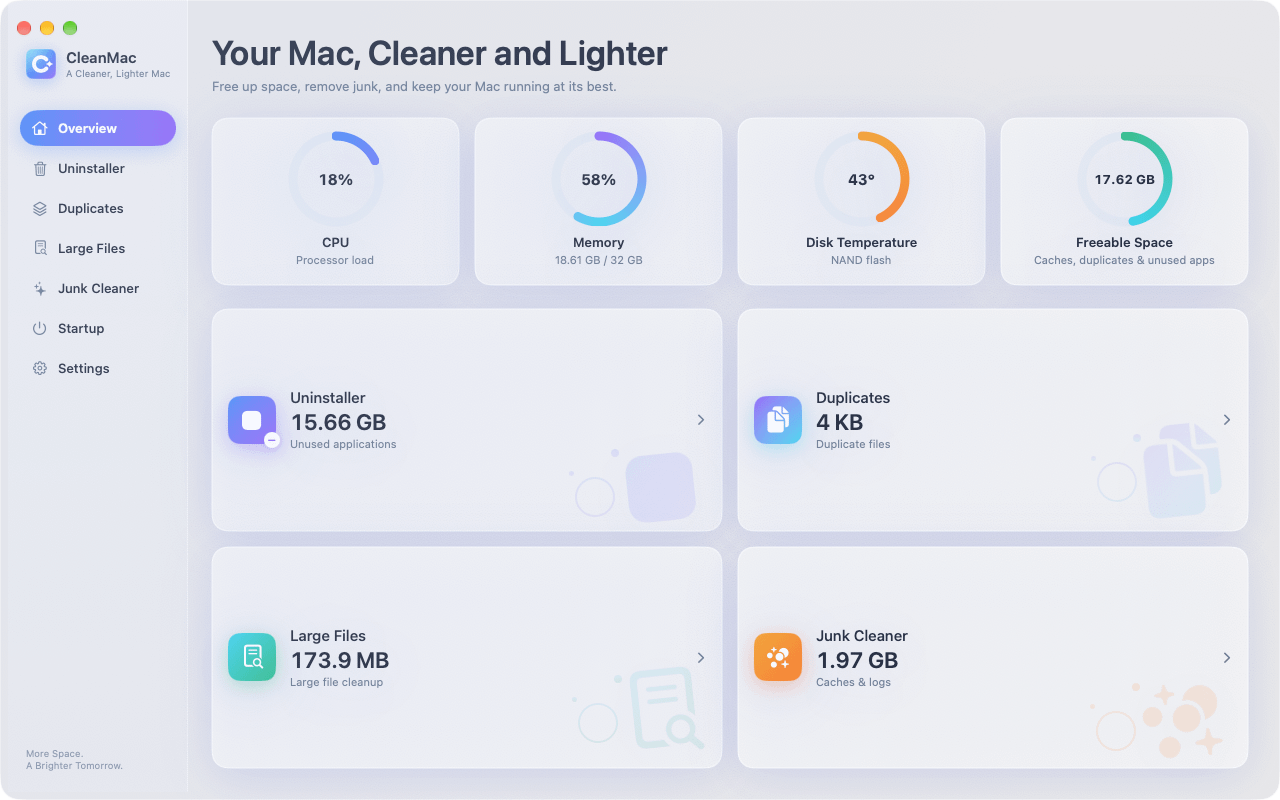
那就是進行整顆磁碟清理的時刻,而這正是 CleanMac 的用途。這款免費應用程式的六個模組涵蓋了真正會塞滿磁碟的類別:
- 大型檔案清理 列出所有大於 10 MB 的檔案並依大小排序——舊的匯出檔、磁碟映像檔、被遺忘的下載檔——這是回收大量空間最快的方法。.
- 重複項目 依內容找出完全相同的檔案,這通常還藏著另外 5–15 GB。.
- 垃圾清理工具 清掃快取、日誌和當機報告(「系統資料」膨脹的其餘部分)。.
- 解除安裝工具 移除未使用的應用程式及其支援檔案。.
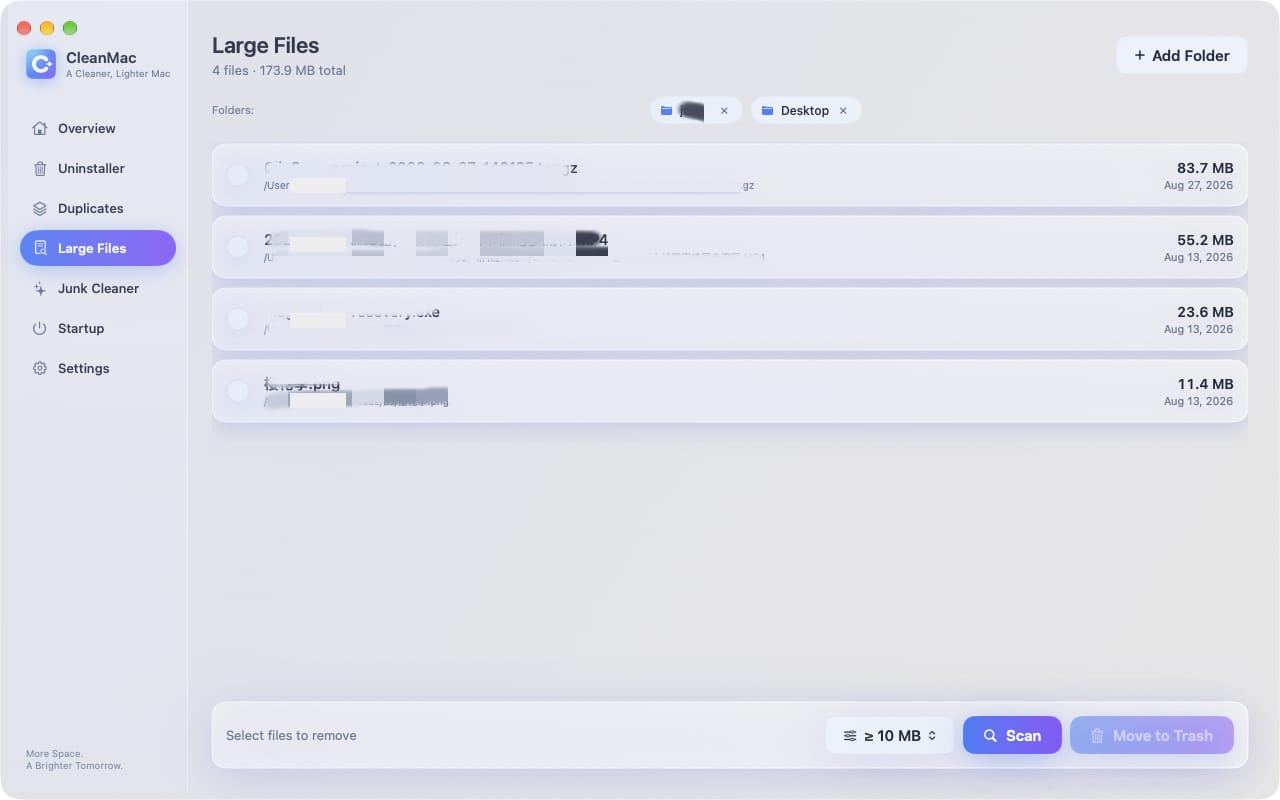
CleanMac 刪除的所有內容都會移到垃圾桶以便還原,掃描完全在本機執行,無需帳號或上傳,且該應用程式需要 macOS 13 Ventura 或更新版本,支援 Intel 或 Apple Silicon。. 免費下載 CleanMac ——它與 Time Machine 的日常維護自然搭配:快照和備份保護你的資料,而定期清理則從一開始就防止磁碟被塞滿。.
值得了解的 Time Machine 替代方案
如果管理 Time Machine 的胃口讓你開始考慮其他選項,以下是誠實的概況:
- 更大的備份磁碟。. 最不聰明卻最有效的修正:Time Machine 需要至少是你資料大小 2 倍的磁碟,而 3–4 倍則能讓歷史記錄有喘息的空間。磁碟很便宜;歷史記錄無價。.
- 雲端備份(Backblaze、搭配「最佳化 Mac 儲存空間」的 iCloud Drive)。. 防範竊盜和火災的異地保護——這是放在你 Mac 旁邊的備份磁碟所無法提供的。iCloud 的「最佳化」功能也會透過讓較舊的檔案僅保留在雲端,來減輕 本機 儲存壓力。.
- 可開機複製(Carbon Copy Cloner、SuperDuper)。. 一種不同的理念:你磁碟的精確、可開機副本,依排程更新。從它還原整台機器更快,但沒有深入的版本歷史記錄。.
最強的設定不是只選一種——而是層層疊加:Time Machine 負責版本與便利性,再加上其中任一種作為異地或災難性覆蓋。.
今後良好的 Time Machine 習慣
- 排除不需要備份的內容。. 在 Time Machine 設定 → 選項中,為龐大且可重新下載的資料夾新增排除項目:已在其他地方受保護的雲端同步資料夾、Steam 遊戲庫、若你另行備份的虛擬機磁碟。較小的備份意味著同一個磁碟上能有更長的歷史記錄。.
- 讓它持續運作。. 不斷中斷備份正是累積快照債務的原因。.
- Check in monthly. A glance at Storage settings and the last-backup time in the Time Machine menu catches problems while they’re small.
- Test a restore occasionally. A backup you’ve never restored from is a hypothesis, not a backup.
總結
Deleting old Time Machine backups is really two tasks wearing one name. On the backup drive, prune through Time Machine’s own interface — “Delete Backup” and the powerful “Delete All Backups of” — or erase and restart when history has no value; never surgery the backup database through Finder. On your internal drive, list local snapshots with `tmutil`, thin or delete the ones you don’t need, and keep your backup disk connected so they stop accumulating.
And when the fullness runs deeper than snapshots — as it usually does — sweep the rest of the drive with CleanMac’s free tools so you’re solving the problem once instead of monthly. For more hand-picked free Mac utilities, browse our 應用程式精選集.
常見問題
Why is my Time Machine backup disk full?
Time Machine keeps hourly backups for 24 hours, daily backups for a month, and weekly backups until the disk fills — so a full disk usually just means the history has grown into all available space. Time Machine prunes the oldest weekly backups automatically to make room, but if your data is large relative to the drive, you’ll see fullness warnings regularly. A drive 2–3 times the size of your data eliminates the issue.
What are Time Machine local snapshots, and can I delete them?
Local snapshots are backups stored on your Mac’s 內接 drive when the backup disk isn’t connected — a safety net for recent changes. You can list them with `tmutil listlocalsnapshots /` and delete them with `tmutil deletelocalsnapshots
Can I delete Time Machine backups from the Finder?
You shouldn’t. The backup database uses hard links that Finder mishandles, and dragging backups to the Trash is slow and risks corrupting the entire backup set. Delete backups through the Time Machine interface instead — browse your backups, right-click a snapshot, and choose Delete Backup — or use `tmutil delete` in Terminal for advanced control.
Will deleting old backups delete my current files?
No. Time Machine backups are entirely separate from the live data on your Mac — deleting any snapshot, even the oldest or the most recent, touches only the backup drive’s history. Your current files are never affected. The one caution is the reverse: deleting backups removes your ability to recover older versions, which is the entire point of keeping them.
How do I stop local snapshots from filling my internal drive?
Connect your backup drive regularly — ideally daily or permanently for a desktop Mac. Snapshots exist to bridge the gap between real backups, so frequent backups keep them naturally thin. macOS also deletes snapshots automatically when space is needed, but manual thinning with `tmutil thinlocalsnapshots` reclaims space immediately when you can’t wait.
Why did my “System Data” storage shrink after deleting snapshots?
Because local snapshots live inside the System Data category — they’re invisible to the Finder and counted as system storage. Deleting snapshots releases the “deleted” file data they were preserving, which shows up as System Data shrinking within a minute or two. If System Data stays huge afterward, the next suspects are caches, logs, and old iOS backups.
Should I erase my Time Machine drive and start over?
Starting fresh is reasonable when the backup history covers Macs you no longer own, the backup set has become unreliable, or you’re repurposing a drive inherited from another machine. You lose all version history, so only do it when history has no value — and ideally when a second backup covers you during the fresh full backup, which takes hours. For most full-drive complaints, pruning or a bigger drive is the better answer.


