
Every app on your Mac is quietly hoarding files you’ll never see. Browsers stash copies of every image on every page you visit. Apps write logs about their own activity, keep crash reports from months ago, and cache data “temporarily” — then never delete it. Chat apps save every meme your friends send. None of this is harmful, exactly, but none of it ever goes away on its own, and the pile grows every single day you use your Mac.
On a machine that’s been running for a year or two without a cleanup, these junk files typically account for 5–15 GB of storage — and we’ve seen neglected Macs carrying over 30 GB of pure disposable data. This guide explains exactly what junk files are, where each type hides, how to clear them manually (and where the manual method gets risky), and how to automate the whole thing safely with a free tool like CleanMac.
What Are Junk Files, Exactly?
“Junk” has a precise meaning in this context: files that exist to serve a temporary purpose, contain nothing irreplaceable, and are safe to delete because the system or app will recreate whatever it still needs. Your Mac generates six main categories.
App caches
The biggest category by far. When an app needs the same data repeatedly — thumbnails, downloaded content, rendered pages, compiled resources — it saves a copy in a cache folder so it doesn’t have to recreate or re-download it. Caches make apps faster, and they’re designed to be disposable: delete an app’s cache and it simply rebuilds what it needs on next launch. The problem is that apps almost never clean their own caches, so they grow without limit. Video editors, browsers, and music apps routinely hold 1–5 GB each.
System and app logs
macOS and your apps keep running diaries of their activity: what launched, what connected, what errored. Logs are invaluable when troubleshooting a problem — and useless a week later. They live in `~/Library/Logs` and `/Library/Logs`, and while individual log files are small, verbose apps and long uptimes let them accumulate into hundreds of megabytes or more.
Crash reports
Every time an app crashes, macOS writes a detailed diagnostic report to `~/Library/DiagnosticReports`. If you’ve ever sent a crash report to Apple or a developer, this is where they come from. A stack of old crash reports from apps you’ve since updated (or uninstalled) serves no purpose at all.
Browser caches and data
Your browser is a junk-generating machine: cached pages, images, and scripts for every site you visit, plus cookies, download histories, and autofill data. The cache portion is pure junk — clearing it frees space and often fixes weird website behavior. Cookies and saved logins are not junk (deleting them signs you out of everything), so browser cleaning needs a scalpel, not a hammer.
Temporary files and leftover installers
macOS and apps write scratch data to temp directories, which are supposed to be purged automatically — a restart clears most of them. But leftovers linger: `.dmg` installer images in Downloads long after the app is installed, half-finished downloads, and orphaned update packages. Old iOS device backups in `~/Library/Application Support/MobileSync` belong in this conversation too — they’re not strictly “temp” files, but backups for devices you no longer own are pure dead weight, often 10–60 GB.
Chat and media app caches
Messaging apps deserve special mention because they surprise everyone: WeChat, WhatsApp, Telegram, Slack, and Discord all cache every image, video, voice message, and file that flows through them. An active group chat can generate gigabytes of cached media per month. The cache exists so media loads instantly when you scroll back — but you almost never scroll back two years.
Where Junk Files Hide on Your Mac
All the paths below are in hidden Library folders. In Finder, press Cmd+Shift+G and paste a path to jump straight to it.
| Junk type | Location |
|---|---|
| App caches (yours) | `~/Library/Caches/` |
| App caches (system-wide) | `/Library/Caches/` |
| App and system logs | `~/Library/Logs/`, `/Library/Logs/` |
| Crash reports | `~/Library/DiagnosticReports/` |
| Browser caches (Safari) | `~/Library/Caches/com.apple.Safari/` and `~/Library/Safari/` |
| Browser caches (Chrome) | `~/Library/Caches/Google/Chrome/` |
| Temp files | `/private/tmp/`, `/private/var/folders/` (auto-purged) |
| Leftover installers | `~/Downloads/` |
| iOS device backups | `~/Library/Application Support/MobileSync/Backup/` |
| Mail attachments | `~/Library/Mail/` |
| Trash (forgotten space) | `~/.Trash/` |
Two important boundaries. First, `~/Library/Caches` is yours to explore; `/System/Library/Caches` is not — anything under `/System` belongs to macOS and should be left alone. Second, caches and logs are safe; Application Support, Containers, and Preferences are a different matter — those hold real data and settings, and deleting the wrong folder there can cost you saved data. Junk cleaning means caches, logs, crash reports, and temp files — nothing more.
How to Clean Junk Files Manually
The manual method works, and doing it once teaches you a lot about your Mac. Here’s the safe version.
Step 1: Empty the Trash and clear Downloads
Files in the Trash still take up space. Right-click the Trash icon → Empty Trash. Then open Downloads, sort by size, and delete old `.dmg` installers and anything you no longer need. This is the fastest free space on any Mac.
Step 2: Clear app caches
- Quit your running apps (caches of running apps may be locked or immediately rewritten).
- In Finder, press Cmd+Shift+G, go to `~/Library/Caches/`.
- Open folders named after apps you recognize, select the contents (Cmd+A inside the folder), and move them to the Trash.
- Delete the contents, not the folders themselves — apps expect their cache folders to exist.
- Skip anything you don’t recognize. When in doubt, leave it.
Step 3: Clear logs and crash reports
Visit `~/Library/Logs/` and `~/Library/DiagnosticReports/`. Old logs and crash reports can be deleted freely — they’re records of past events, not data anything depends on. Sort by date if you want to keep the most recent few days for reference.
Step 4: Clear browser caches
- Safari: Settings → Privacy → Manage Website Data → Remove All (clears cookies too — you’ll be signed out of sites), or for cache only: enable the Develop menu (Settings → Advanced → “Show Develop menu”), then Develop → Empty Caches.
- Chrome: Settings → Privacy and security → Delete browsing data → choose “Cached images and files” only, uncheck cookies if you want to stay signed in.
Step 5: Restart
A restart purges temp directories, clears system-level caches, and removes swap files. Always finish a manual cleanup with a restart, then empty the Trash once you’ve confirmed everything works.
Time cost: 30–60 minutes for a thorough pass. Risk level: moderate — the Library rewards care and punishes guessing. If that sounds like more effort than the space is worth, that’s exactly the calculation that makes automated cleaners popular.
The Automated Way: CleanMac’s Junk Cleaner
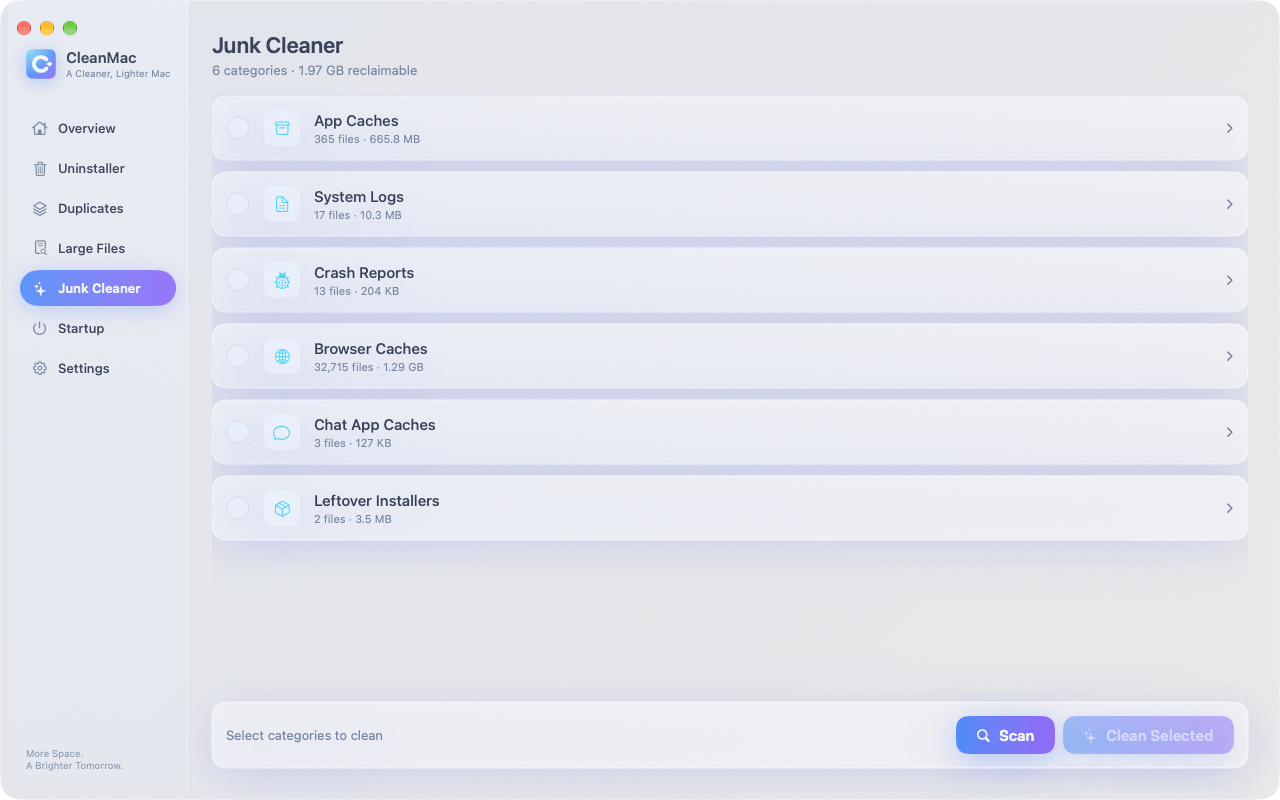
CleanMac includes a Junk Cleaner module that sweeps every category above in one scan — and like all six of its modules, it’s completely free.
The workflow:
- Open CleanMac and choose Junk Cleaner.
- Click scan. In about a minute it inspects app caches, system logs, crash reports, browser caches, chat app caches, and leftover installer packages, organized by category with sizes for each.
- Review the preview — every item is listed before anything happens, so you see exactly what will be removed and can uncheck anything you’d rather keep.
- Confirm, and the selected items move to the Trash — not permanent deletion — so everything is recoverable until you empty it.
On a well-used Mac, a first scan typically finds 5–15 GB of safe-to-remove junk. Monthly scans after that are quicker and smaller, usually 1–3 GB.
The trust details matter here, because a cleaner reads deep into your system:
- Preview-first, always. Nothing is deleted behind your back; you approve the exact list.
- Trash-based deletion. No permanent erasure, no “shredder” behavior — the Trash is your undo button.
- Local-only processing. Scans run entirely on your Mac. No account, no activation, no uploads, no analytics touching your file list.
- Conservative targets. The cleaner targets categories that are disposable by design — caches, logs, crash reports, temp data — not your documents, settings, or app support data.
CleanMac requires macOS 13 Ventura or later, runs natively on Intel and Apple Silicon, and is available in 11 languages. Download CleanMac free.
Beyond Junk: Complete the Cleanup
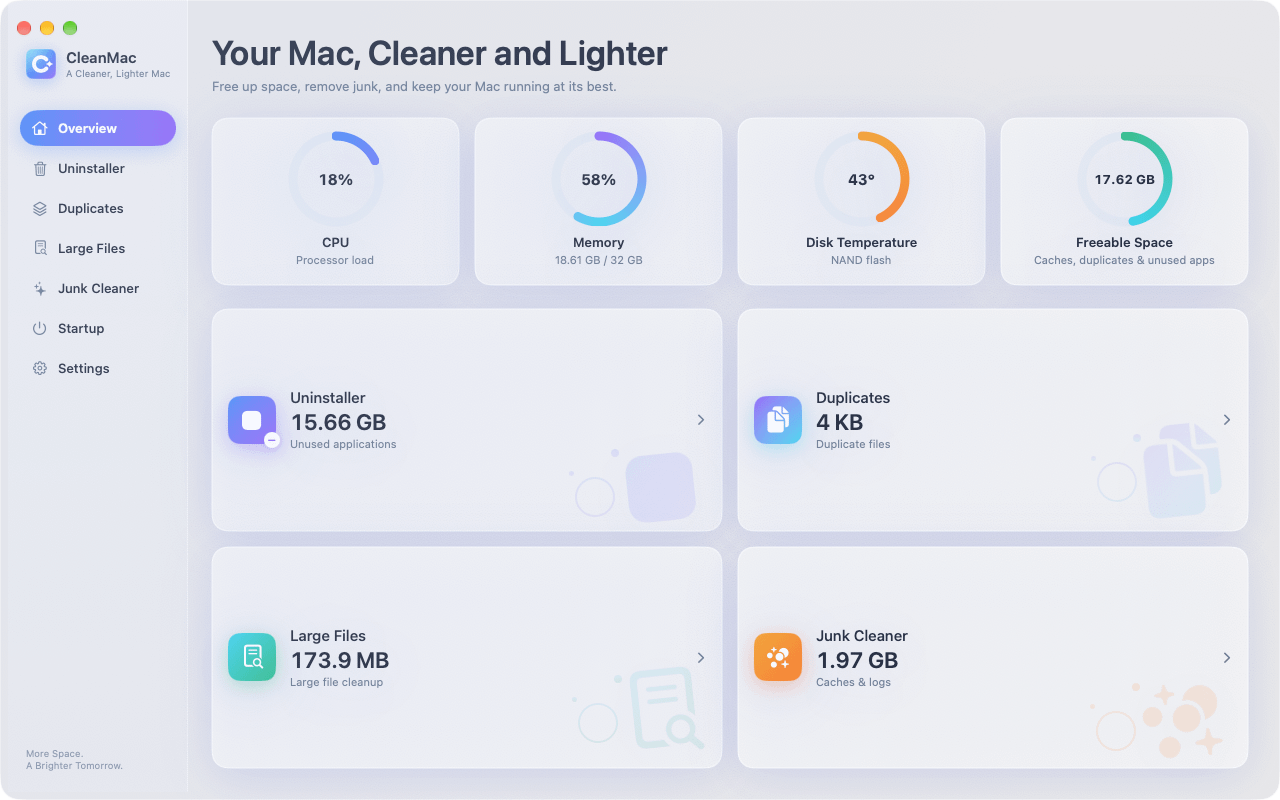
Junk files are the safest and fastest space to reclaim, but they’re usually not the whole story. Once the junk is gone, three neighbors are worth a look — all in the same app:
- Large files. The forgotten 4 GB screen recording or 20 GB disk image dwarfs anything in your caches. CleanMac’s Large File Cleanup surfaces everything 10 MB and up, sorted by size.
- Duplicate files. Re-downloaded installers and twice-imported photos hide another 5–15 GB on most Macs. The Duplicates module matches files by content and always keeps one copy safe.
- Unused apps. Apps you haven’t opened in months carry their own junk with them. The Uninstaller module removes apps with their caches and leftovers, and flags anything unused for 30+ days.
If your Mac is also feeling slow rather than just full, check the Startup Items module — junk on disk and junk in your login sequence usually go together.
How Often Should You Clean Junk Files?
The right rhythm depends on how you use your Mac:
- Monthly is the sweet spot for most people. Junk accumulates predictably — browser caches, chat media, logs — and a monthly pass keeps it from ever becoming a problem. Each session takes a few minutes.
- Immediately when storage drops below 15% free, when your Mac feels sluggish, or before a macOS major upgrade (installers want 20+ GB of breathing room).
- After heavy seasons. Finished a video project, a big download spree, or a trip with thousands of photos imported? That’s a junk-generating event — clean after it.
One caution about over-cleaning: daily cache deletion is counterproductive. Caches exist to make things faster; wiping them constantly just forces every app to rebuild them. Monthly is maintenance; daily is churn.
Conclusion
Junk files are the one category of storage you can reclaim with total confidence: caches rebuild themselves, logs describe the past, crash reports diagnose problems already fixed, and old installers duplicate what you already have. Whether you spend an hour clearing them by hand or a minute with CleanMac’s free Junk Cleaner, the result is the same — gigabytes back, a Mac with room to breathe, and zero risk to anything you care about.
Make it a monthly habit, pair it with the large-file and duplicate sweeps when you want a deeper clean, and your storage problems mostly disappear. For more hand-picked free Mac utilities, browse our app collection.
Frequently Asked Questions
What are cache files, and why do apps create them?
Cache files are copies of data an app saves so it doesn’t have to recreate or re-download that data next time — thumbnails, rendered web pages, downloaded media, compiled resources. They exist purely for speed. When you delete an app’s cache, the app simply rebuilds what it needs on its next launch, which is why caches are the safest category of files to delete on your entire system.
Is it safe to delete cache and junk files on Mac?
Yes, with one boundary: stick to caches, logs, crash reports, and temp files — categories that are disposable by design. Your documents, photos, and app settings live in different folders and are not touched by junk cleaning. For extra safety, delete to the Trash rather than permanently, restart, and empty the Trash after a few days of normal use. Tools like CleanMac add a preview step so you approve the exact list before anything is removed.
Will clearing caches make my Mac slower?
Only briefly and barely noticeably. The first launch of an app after its cache is cleared may take a second or two longer while it rebuilds what it needs, and websites may load slightly slower on your first visit after clearing a browser cache. Within a day of normal use, everything is re-cached and performance is back to normal — with gigabytes of stale data gone.
How often should I clean junk files on my Mac?
Monthly is the right rhythm for most people: often enough that junk never piles up, not so often that you’re constantly forcing apps to rebuild useful caches. Add an extra cleaning when your disk drops below 15% free, before a major macOS upgrade, or after a heavy period like a video project or a large photo import.
What’s the difference between junk files and “Other”/System Data storage?
Junk files are a large part of what macOS reports as System Data (formerly “Other”), but not all of it. System Data also includes iOS device backups, Mail attachments, virtual machine disks, snapshots, and general app support data. Cleaning junk files usually shrinks System Data noticeably, but if the category remains huge afterward, old device backups and app support folders are the next places to look.
Can I delete files in ~/Library/Caches safely?
Yes — the folders there belong to your apps, and deleting their contents is safe because apps rebuild what they need. Two rules make it risk-free: delete the contents of cache folders rather than the folders themselves, and skip folders you can’t identify. Quit apps before clearing their caches, and stay out of `/System/Library`, which belongs to macOS itself.
Do junk file cleaners actually work, or are they scams?
Both exist, which is why the category has a mixed reputation. Legitimate cleaners do exactly what this article describes — remove caches, logs, crash reports, and temp files — and show you a preview before deleting anything. The scams are the scareware clones pushed through ads that invent “1,247 problems” to frighten you into paying. The tells of a trustworthy cleaner: preview-first deletion, Trash-based removal instead of permanent erasure, no fake threat counts, and no paywall between scanning and cleaning.


