

There’s a particular joy in a new Mac: the perfect trackpad, the untouched desktop, the disk that’s 95% free space. There’s also a brief window — the first few hours — where the choices you make shape how that Mac will run for years. Set it up thoughtfully and you’ll have a fast, secure, backed-up machine with good habits built in from day one. Set it up carelessly and you’ll spend the next three years tripping over decisions you don’t remember making.
Short on space already? CleanMac finds junk, leftover apps, and duplicates on your Mac — and shows you exactly what it will remove before anything is deleted. Download free →
This guide walks the whole first-day process in order: the settings worth changing immediately, the security and backup foundation that should exist before anything else, the essential apps to install (including CleanMac for keeping the machine as clean as it is today), and the migration decisions that determine whether your new Mac starts fresh or inherits a decade of clutter.
First Decision: Migrate or Start Fresh?
Before any settings, one fork in the road. macOS’s Migration Assistant can move everything — apps, files, settings — from your old Mac, a Time Machine backup, or even a Windows PC. It’s impressively thorough. It’s also a clutter conveyor belt: every orphaned preference, every leftover from apps you deleted in 2019, every launch agent you never wanted comes along for the ride.
Our recommendation for most people: migrate your files, not your system. Move your Documents, Photos, and media — the irreplaceable stuff — but reinstall apps fresh from their developers. Modern life makes this easier than it sounds: passwords live in your password manager, photos in iCloud, files in cloud sync, and app settings increasingly sync too. What you lose is an hour of reinstalling; what you gain is a Mac with zero inherited debris — no orphaned launch agents, no mystery background processes, no gigabytes of leftovers from apps gone by. If your old Mac was well-maintained, full migration is fine. If it was three years of accumulated chaos, fresh is a gift to your future self.
The Settings to Change Immediately
Once you’re past the setup assistant, these settings pay dividends from day one.
Trackpad: enable tap to click. System Settings → Trackpad → Tap to click. Apple ships this off; virtually everyone who tries it keeps it on forever.
Finder: show what matters. In Finder’s Settings → Sidebar, enable your home folder. In Settings → Advanced, set “Show all filename extensions” — seeing `.pdf` vs `.app` vs `.dmg` is a small security and sanity win. Then View → Show Path Bar and Show Status Bar.
Dock: shrink the noise. System Settings → Desktop & Dock: remove apps you’ll never launch from the Dock, enable “Automatically hide and show the Dock” if you value screen space, and turn off “Show suggested and recent apps in Dock” to stop it repopulating with things you closed.
Updates: automate them. System Settings → General → Software Update → Automatic updates — enable everything. Security patches are not the place for manual scheduling.
Battery (MacBooks): enable Optimized Battery Charging in System Settings → Battery → Battery Health. It holds charge at 80% when you routinely stay plugged in, measurably extending battery lifespan.
Display and Night Shift: enable True Tone and schedule Night Shift for evenings — your eyes will notice by day three.
Security Setup: Do This Before Anything Else
Security is easiest to get right on day one, before bad habits form. Four items, fifteen minutes total.
FileVault — full-disk encryption. On Apple Silicon Macs it’s effectively already protecting your data at the hardware level, but verify it’s on: System Settings → Privacy & Security → FileVault. Store the recovery key somewhere that isn’t the Mac itself.
Firewall — off by default, inexplicably. System Settings → Network → Firewall → on. It takes ten seconds and blocks unsolicited incoming connections.
A password manager — install one before you start logging into things, so every account on the new Mac gets a unique generated password from the start. Bitwarden’s free tier covers unlimited passwords and devices.
Find My Mac — System Settings → Apple Account → Find My → on. A Mac that can’t be located or remotely locked when lost is an unencrypted diary with a keyboard. This also enables Activation Lock, making a stolen Mac worthless to thieves.
Backup Setup: The Non-Negotiable Hour
Do this in the first day, not “soon.” Connect an external drive (anything with 2× your Mac’s storage), and when macOS asks whether to use it for Time Machine, say yes. That’s the entire setup: hourly incremental backups, forever, automatically. Your new Mac will spend the next years accumulating irreplaceable things — photos, documents, work — and the only wrong time to start backing up is after the first loss. If you want a belt-and-suspenders approach, add cloud sync (iCloud Drive or otherwise) for your active Documents and Desktop folders, so current work is protected even away from the backup drive.
Essential Apps: The Day-One Install List
Install lean. Every app you add now is one you’ll either use or eventually have to clean up — so start with the ones that earn their place immediately.
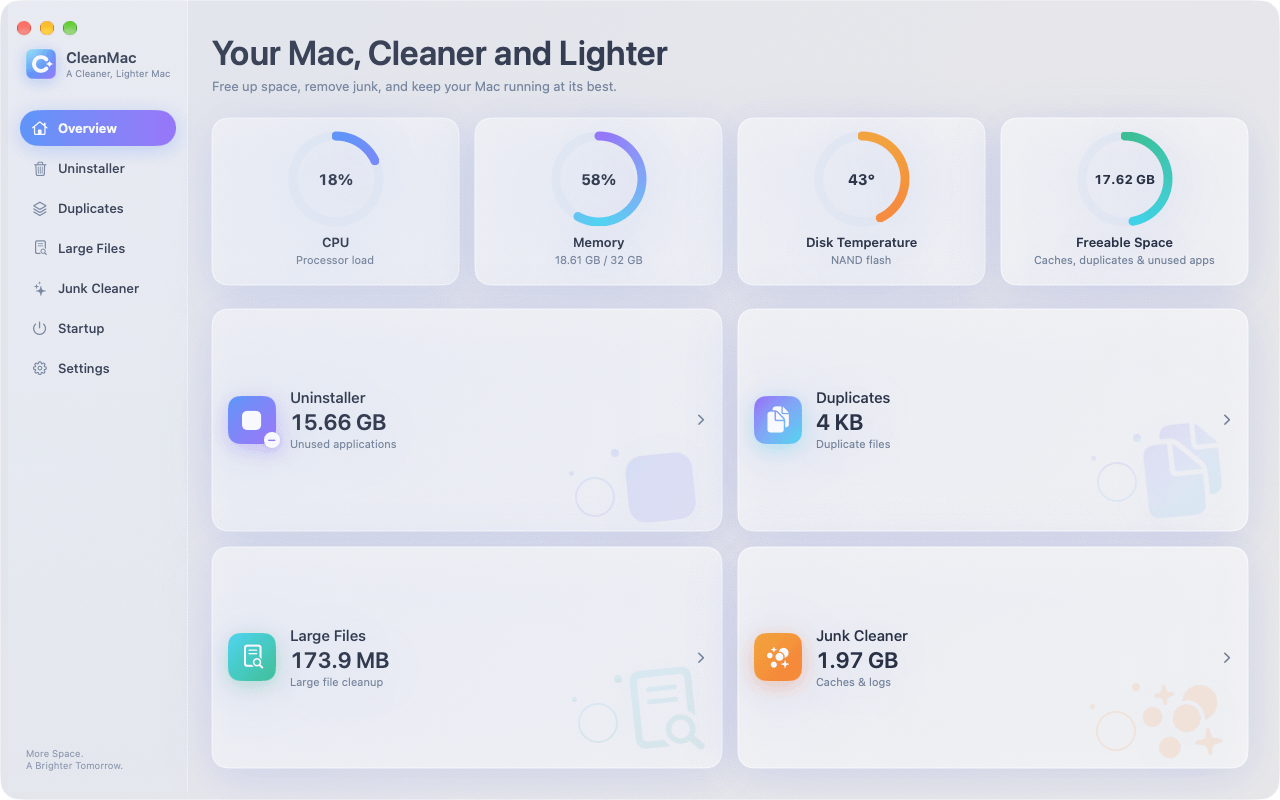
Maintenance: CleanMac. A new Mac is the perfect time to install the tool that keeps it new. CleanMac is free — no subscription, no trial — and its six modules map onto the clutter a Mac accumulates over time: Junk Cleaner for caches and logs, Uninstaller for complete app removal (so the leftovers problem never starts on this machine), Duplicate Finder, Large File Cleanup, Startup Items for keeping boot fast, and a system dashboard. Run it monthly from day one and the “my Mac is full and slow” moment simply never arrives. It also runs a useful baseline: its dashboard shows CPU, memory, and disk temperature on your new hardware, so you know what healthy looks like.
Browser beyond Safari: Firefox or Brave, for the sites and extensions that need Chromium or for Firefox’s container tabs.
Archive and media pragmatics: The Unarchiver (opens every compressed format) and VLC (plays every video format). Install once, never think about again.
Ergonomics: Rectangle for window snapping and Hidden Bar for menu bar decluttering — small tools, daily impact.
Your work essentials: whatever your actual work requires — and resist installing anything beyond that on day one. Apps are easy to add later; the discipline of a lean install is what keeps a Mac fast in year three.
The Habit That Keeps It “New”
A new Mac stays new through one habit more than any setting: a ten-minute monthly check. Empty Downloads, glance at Login Items for anything that added itself, run a CleanMac junk scan, and restart the machine. That’s the entire ritual. It prevents, rather than fixes, every slow-down story you’ve ever heard — and it’s far easier to maintain a clean Mac than to rehabilitate a cluttered one after years of neglect. When the day eventually comes to pass the Mac on or upgrade, the same toolkit — a verified backup and a thorough clean — makes that transition painless too.
Conclusion
Setting up a new Mac well is an afternoon’s work with years of payoff: migrate files but reinstall apps fresh, fix the handful of settings Apple ships oddly, establish security (FileVault, firewall, password manager, Find My) and Time Machine backup before anything else, and install a lean set of essential apps led by maintenance — CleanMac keeps the machine at its day-one speed with free, local, preview-first cleaning, and its Uninstaller ensures apps you remove later leave nothing behind. Then a ten-minute monthly habit preserves it all. Do it right once, and the last thing you’ll think about your Mac in 2030 is how well it’s aged. For more free Mac utilities, browse our app collection.
Frequently Asked Questions
Should I use Migration Assistant or set up my new Mac from scratch?
For most people, a hybrid approach works best: migrate your personal files — Documents, Photos, media — but reinstall applications fresh rather than copying them. Full migration carries over years of orphaned preferences, leftover files, and unwanted launch agents from your old machine. Fresh app installs take an extra hour but give your new Mac a genuinely clean start with no inherited background clutter.
What are the first settings to change on a new Mac?
The high-value ones: enable tap to click in Trackpad settings, show filename extensions and the Path Bar in Finder, trim the Dock and disable suggested recent apps, turn on automatic macOS updates, enable Optimized Battery Charging on MacBooks, and schedule Night Shift. Each takes under a minute and improves daily use permanently.
Is FileVault worth enabling on a new Mac?
Yes — FileVault encrypts your entire disk so that a lost or stolen Mac reveals nothing without your password. On Apple Silicon Macs, encryption is hardware-accelerated with no perceptible performance cost, so there’s no trade-off to weigh. Enable it in System Settings → Privacy & Security, and store the recovery key somewhere separate from the Mac itself.
How do I set up Time Machine on a new Mac?
Connect an external drive with at least twice your Mac’s storage capacity, and macOS will ask whether to use it for Time Machine — confirm, and setup is done. Backups then run hourly, automatically, keeping incremental history so you can restore files from any point. The one ongoing task is quarterly verification: browse into a past backup and confirm a file actually restores.
What apps should I install first on a new Mac?
Start lean: a password manager before you log into anything, a maintenance tool like CleanMac for ongoing cleaning, a second browser, The Unarchiver and VLC for file pragmatics, and Rectangle for window management. Add work-specific apps as you need them rather than installing everything preemptively — a lean install is what keeps a Mac fast in its third year.
How do I keep my new Mac running fast long-term?
One habit: a ten-minute monthly check covering Downloads cleanup, a review of Login Items for self-added background programs, a junk scan with a tool like CleanMac, and a restart. This prevents the gradual accumulation — caches, duplicates, orphaned app files, startup bloat — that makes three-year-old Macs feel slow. Maintaining a clean Mac is far easier than rehabilitating a cluttered one.
Should I install antivirus on a new Mac?
For most users, macOS’s built-in protections — Gatekeeper, XProtect, notarization, and the app sandbox — provide a solid baseline, supplemented by sensible habits like downloading only from official sources. A free on-demand scanner like Malwarebytes Free is worth having for occasional second opinions, especially if something behaves strangely. Real-time antivirus is most justified for users who frequently handle files from untrusted sources or who share files with Windows machines.


