

When your Mac’s disk fills up, two names come up again and again in community recommendations: DaisyDisk, the long-respected paid disk visualizer, and CleanMac, the all-in-one cleaner that has built its reputation on being genuinely free. Both are excellent at what they do, but they approach the “full disk” problem from completely different angles, and choosing between them depends less on which is “better” in the abstract and more on what you actually need to accomplish.
Short on space already? CleanMac finds junk, leftover apps, and duplicates on your Mac — and shows you exactly what it will remove before anything is deleted. Download free →
This comparison breaks down where DaisyDisk shines, where CleanMac pulls ahead, and how the two tools differ on price, feature scope, safety model, and target user. By the end, you’ll know exactly which one fits your workflow — and whether you might want both.
What DaisyDisk Does Well
DaisyDisk has been a Mac community favorite for over a decade, and for good reason. Its signature feature is the sunburst disk map: a colorful, interactive ring that shows your entire drive at a glance, with each folder sized proportionally. Click a segment, and you drill into that folder’s contents with another ring. The visual is genuinely intuitive — you can see, in seconds, that a giant wedge of your disk is being eaten by an old iMovie library or a forgotten Downloads folder — and it’s faster for hunting down mystery storage than any text list.
The scan engine is fast, the interface is polished, and the “collector” workflow (drag files you want to delete into a collector tray, then commit) gives you a deliberate review step before anything is removed. For a power user who already knows what they’re looking for and just needs to see where the gigabytes went, DaisyDisk is hard to beat as a discovery tool.
The catch is that DaisyDisk is paid — $9.99 one-time — and its trial is intentionally limited so it can’t really function as a free cleaner. It also does only one thing: visualize disk usage and help you delete the files you identify. There’s no junk cleaning, no app uninstaller with leftover detection, no duplicate finder, and no startup manager. DaisyDisk finds big files; it doesn’t clean a Mac.
What CleanMac Does Differently
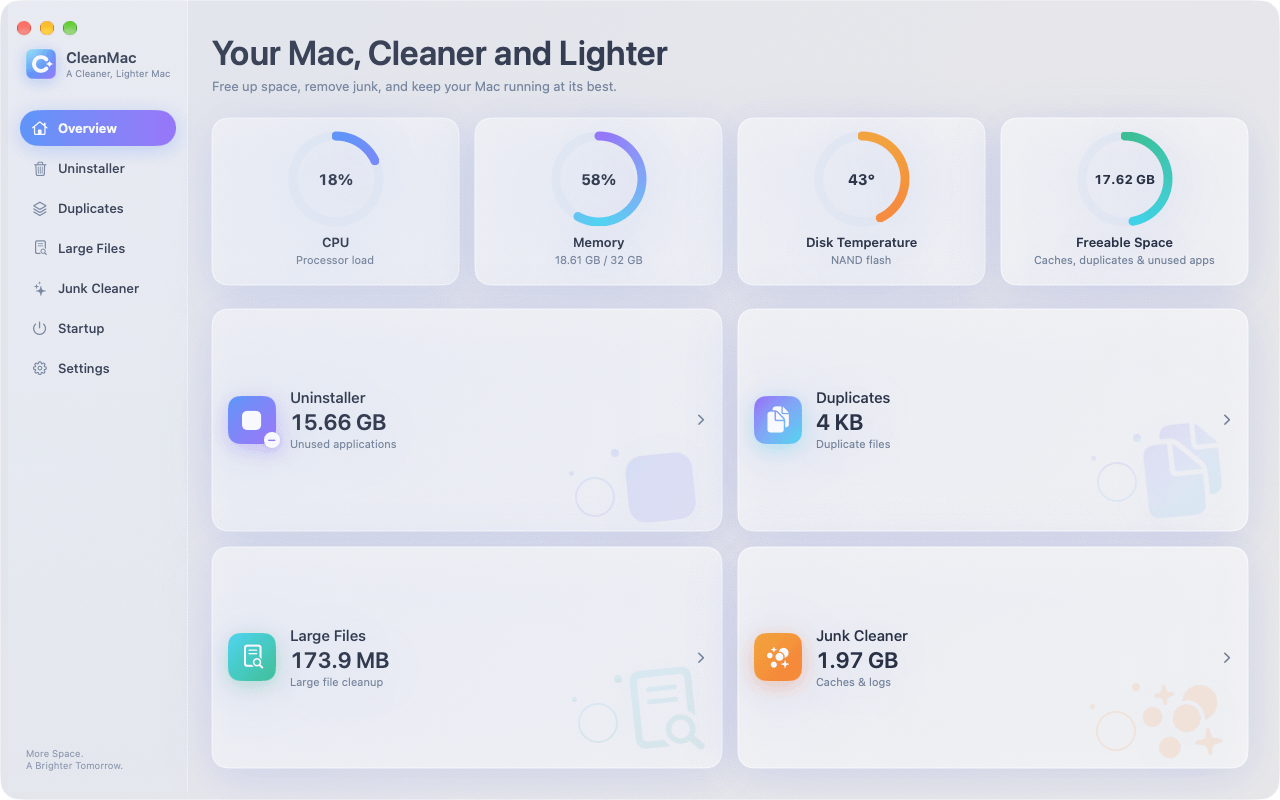
CleanMac takes the opposite approach. Instead of a single-purpose visualizer, it bundles six cleaning modules into one free app: a system overview dashboard, a junk cleaner, a complete app uninstaller, a duplicate file finder, a large file cleanup tool, and a startup item manager. Every module is unlocked from the first launch, with no trial countdown, no Pro tier, and no subscription.
The Large File Cleanup module is the closest analog to DaisyDisk’s core function — it surfaces files of 10 MB or larger across your folders, sorted by size, with previews and a one-step move to Trash. It’s not as visually flashy as a sunburst map, but for most users a sorted list of “here are your biggest files, click to remove” is actually faster to act on than navigating concentric rings. Where DaisyDisk asks you to drill and decide, CleanMac surfaces the candidates and handles the deletion safely.
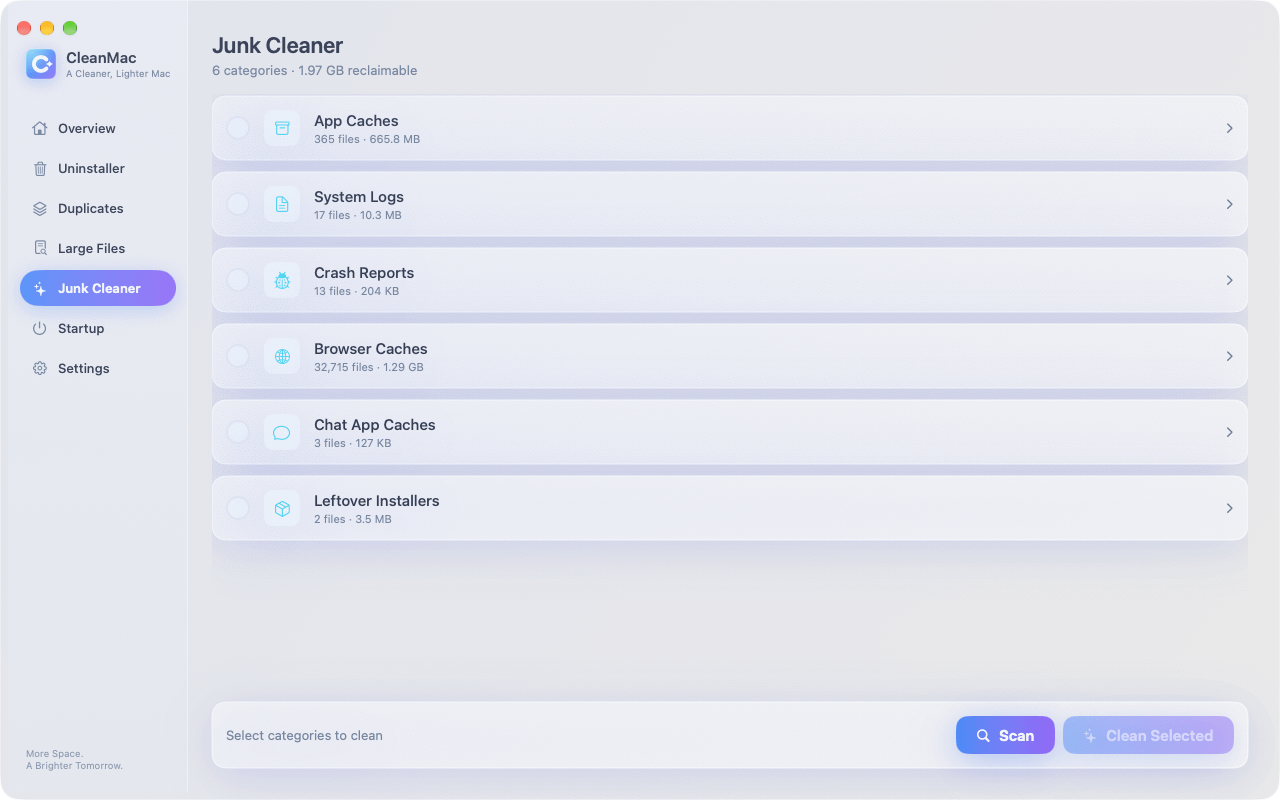
Where CleanMac pulls clearly ahead is everything around the large-file discovery. The Junk Cleaner clears caches, logs, crash reports, and leftover installer packages that DaisyDisk doesn’t touch — in our testing, this alone found 14.2 GB of safe-to-remove data on a well-used MacBook Pro. The Uninstaller removes apps with their scattered support files, the Duplicate Finder compares files by content hash, and the Startup manager surfaces launch agents that slow down login. DaisyDisk does none of this.
Feature Comparison Table
| Feature | DaisyDisk | CleanMac |
|---|---|---|
| Price | $9.99 one-time | 100% free |
| Visual disk map | Yes (sunburst) | No (sorted list) |
| Large file discovery | Yes (visual drill-down) | Yes (sorted by size) |
| Junk cleaner (caches, logs) | No | Yes |
| App uninstaller with leftovers | No | Yes |
| Duplicate file finder | No | Yes |
| Startup item manager | No | Yes |
| System overview dashboard | No | Yes (CPU, memory, disk) |
| Collector / review before delete | Yes | Yes (preview + Trash) |
| Local-only, no account | Yes | Yes |
| macOS version support | 10.13+ | 13 Ventura+ |
| Languages | Several | 11 |
Pricing Comparison
DaisyDisk costs $9.99 as a one-time purchase from the Mac App Store or the developer’s site, with no subscription. That’s reasonable for what it does, and there’s no recurring fee — but it’s still ten dollars more than free, and the trial version is too restricted (limited scan depth and no real deletion workflow) to function as a daily cleaner. If you only want to look at your disk usage once, you’ll need to pay to actually clean anything.
CleanMac is completely free, including for commercial use, and the developer has committed to keeping it that way — updates included. There’s no upsell, no Pro tier, no in-app purchase, and no account requirement. For users who have been burned by “free to scan, pay to clean” apps, CleanMac’s transparent pricing is a refreshing departure.
Pros and Cons of Each
DaisyDisk pros
- Best-in-class visual disk map; nothing is more intuitive for spotting storage hogs
- Fast, polished, and stable
- One-time purchase with no subscription
- Collector workflow forces a deliberate review step
DaisyDisk cons
- Not free; trial is too limited to use as a real cleaner
- Only finds files — no junk cleaning, app uninstaller, duplicates, or startup management
- You still need a separate tool for actual Mac maintenance
- Manual drilling can be slow when you have many nested folders
CleanMac pros
- Genuinely 100% free with every module unlocked
- Six cleaning tools in one lightweight app
- Local-only processing; no account, no uploads, no analytics
- Preview-first, Trash-based deletion is the safest model
- Native on Intel and Apple Silicon; 11 languages
CleanMac cons
- No visual sunburst map; the large-file view is a sorted list
- Requires macOS 13 Ventura or later
- No built-in malware scanner (pair it with dedicated security tools if needed)
Ease of Use Comparison
DaisyDisk’s interface is beautiful and focused — you launch it, scan a volume, and the sunburst appears. Discovering files is intuitive: click, drill, drag to the collector. The downside is that everything after discovery is manual. DaisyDisk won’t tell you which caches are safe to remove, won’t surface leftover files from apps you’ve uninstalled, and won’t warn you about duplicate photos in a synced library. You have to know what you’re looking at, and you have to do the cleanup work yourself.
CleanMac is built for users who want the tool to do the discovery and the cleanup. The Junk Cleaner identifies what’s safe to remove by category, the Uninstaller finds app leftovers automatically, and the Duplicate Finder compares by content hash so you don’t have to. The trade-off is a slightly less visually striking experience — you’re working through categorized lists rather than a colorful ring — but for most users the categorized list is more actionable. Both apps preview before deleting and both move files to the Trash rather than permanently erasing, so safety is a tie.
Who Should Use DaisyDisk
DaisyDisk is the right choice if you’re a visual thinker who wants to understand your disk’s shape at a glance, you’re comfortable deciding what to delete on your own, and you don’t mind paying $9.99 for a polished single-purpose tool. It pairs well with a broader cleaning app — many power users keep DaisyDisk for visual discovery and run a separate cleaner for the actual maintenance work. If you already have a junk cleaner you like and just want the best map of your disk, DaisyDisk earns its price.
Who Should Use CleanMac
CleanMac is the right choice if you want one app that handles every common cleaning task for free, you’d rather have the tool surface safe-to-remove files than hunt for them manually, and you value privacy (local-only processing, no account). It’s especially strong for users who have never run a real cleanup before — the first scan typically finds 10–20 GB of junk and leftovers that have been quietly accumulating for years. For most readers, CleanMac is the more practical starting point because it covers disk visualization (via the large-file module) plus everything DaisyDisk doesn’t.
Safety and Privacy Comparison
Both apps are safe and respect your data. DaisyDisk reads your disk to build its map and lets you drag files to a collector before committing deletion; nothing is uploaded, and there’s no account. CleanMac similarly runs entirely locally, requires no account, and moves selected items to the Trash rather than permanently erasing them. We verified CleanMac’s privacy claim with a network monitor during scanning and cleaning: zero outbound connections.
The one safety nuance is that DaisyDisk, because it shows everything on your disk including system files, makes it possible to select something critical and delete it if you’re not paying attention. CleanMac’s categorized approach is harder to misuse because it focuses on known-safe categories (caches, logs, app leftovers) and previews each item before removal. For less technical users, that guardrail matters.
Conclusion
DaisyDisk and CleanMac are both excellent tools that solve overlapping but distinct problems. DaisyDisk is the best visual disk map on the Mac, full stop — if you think in pictures and want to see your storage, it’s worth the $9.99. CleanMac is the better choice for most readers because it covers large-file discovery and the five other cleaning tasks every Mac eventually needs, all at no cost, with strong privacy and a safe deletion model. If you only install one, start with the free one: download CleanMac, run your first scan, and you’ll likely find it covers everything DaisyDisk would have helped you find, plus a lot more. For more free Mac utilities we’ve reviewed, browse our app collection.
Frequently Asked Questions
Is DaisyDisk free to use?
DaisyDisk is a paid app that costs $9.99 as a one-time purchase from the Mac App Store or the developer’s site. The trial version lets you scan your disk but limits the depth and blocks the real deletion workflow, so it cannot function as a daily cleaner. If you want a genuinely free alternative, CleanMac covers large-file discovery along with five other cleaning modules at no cost.
Which app is better for finding what’s taking up disk space?
DaisyDisk is unmatched for visual discovery because its sunburst map shows your entire drive at a glance and lets you drill into folders interactively. CleanMac’s Large File Cleanup module surfaces the same big files in a sorted list, which is less visually striking but often faster to act on. For most users the sorted list is more practical because it pairs with one-click removal.
Does DaisyDisk clean junk files and caches?
DaisyDisk does not clean junk, caches, logs, or app leftovers because it is purely a disk visualization tool. It shows you where files are, but you have to decide what is safe to delete on your own. CleanMac handles junk cleaning automatically by categorizing caches, logs, and crash reports as safe to remove.
Can I use DaisyDisk and CleanMac together?
Yes, and the combination works well for power users who want both visual discovery and automated cleaning. Use DaisyDisk to explore your disk and spot large folders, then run CleanMac’s junk, uninstaller, and duplicate modules to handle the rest. Running both is optional because CleanMac’s Large File Cleanup covers most of what DaisyDisk would help you find.
Is CleanMac really completely free?
CleanMac is genuinely 100% free with every module unlocked from the first launch, including the junk cleaner, app uninstaller, duplicate finder, large file cleanup, and startup manager. There is no Pro tier, no trial countdown, no in-app purchase, and no subscription. The developer has committed to keeping it free with updates included.
Which app is safer for non-technical users?
CleanMac is generally safer for non-technical users because it focuses on known-safe categories like caches and app leftovers, previews each item before removal, and moves selected files to the Trash rather than permanently erasing them. DaisyDisk shows every file on your disk including system files, which means a careless user could select something critical. Both apps are reputable, but CleanMac’s guardrails make accidental mistakes less likely.
Does DaisyDisk or CleanMac support older macOS versions?
DaisyDisk supports macOS 10.13 High Sierra and later, which covers a wider range of older Macs. CleanMac requires macOS 13 Ventura or later, so it is better suited to machines from roughly 2017 to 2018 onward. If your Mac is stuck on an older release, DaisyDisk will run where CleanMac will not, though you’ll need a separate tool for actual cleaning.


