

The notification arrives like clockwork: “iCloud Storage Full.” Your iPhone stops backing up, your photos stop syncing, and Apple helpfully suggests the solution — a monthly payment. The free tier is still 5 GB, the same as it was in 2011, which in 2026 is roughly one vacation’s worth of photos. But before you upgrade your plan, it’s worth knowing something: a huge portion of what’s filling most people’s iCloud is recoverable. Old device backups from phones you no longer own, message attachments from years ago, duplicate and forgotten photos, documents from apps you deleted long since.
Short on space already? CleanMac finds junk, leftover apps, and duplicates on your Mac — and shows you exactly what it will remove before anything is deleted. Download free →
This guide walks through the complete cleanup: how to see exactly what’s eating your iCloud storage, the seven places to reclaim it (on both iPhone and Mac), the settings that stop it refilling, and the local angle people forget — cleaning your Mac with a tool like CleanMac so you’re not paying Apple to store files that shouldn’t exist anywhere.
See What’s Actually Using Your iCloud Storage
Every fix starts with the audit. On iPhone: Settings → [your name] → iCloud → Manage Account Storage (sometimes labeled Manage Storage). On Mac: System Settings → [your name] → iCloud → Manage. Both show the same ranked breakdown: which categories and which apps hold your gigabytes.
On a typical account that’s hit the wall, the breakdown is remarkably consistent: Photos dominates (usually 40–70% of total usage), followed by device backups, Messages, iCloud Drive documents, and Mail. Your own numbers will vary, but the cleanup order below follows the typical ranking — biggest wins first.
Fix 1: Tame the Photo Library
Photos is almost always the main event, and it responds to several distinct strategies.
Cull the obvious dead weight. Bursts, screenshots, screen recordings, and the fifty near-identical shots of the same sunset. On iPhone, the Recently Deleted album also holds deleted photos for 30 days — empty it to reclaim space immediately. Videos deserve special attention: one minute of 4K footage is 300–400 MB, and old videos are the densest recoverable space in any library.
Find duplicates. Photo libraries accumulate exact duplicates through import loops, shared-album saves, and sync glitches. On iPhone, iOS’s built-in Duplicates album (in Photos → Collections) merges exact pairs automatically — check it first. For the deeper problem — duplicates that live on your Mac before they ever sync to iCloud — a content-hash finder is the thorough answer; more on that in the local cleanup section below.
Reconsider what needs iCloud at all. If your photo library is huge and you don’t need every photo on every device, an alternative is keeping your library on your Mac backed up locally (Time Machine) and syncing only a curated album set. Most people prefer full sync, but knowing the option exists reframes the subscription decision as a choice rather than a necessity.
Fix 2: Purge Old Device Backups
This is the most satisfying fix on the list, because it’s pure waste by definition. In Manage Storage → Backups, most people find a graveyard: backups of iPhones traded in years ago, an iPad that broke, sometimes multiple backups of the same current device. Each backup can be several gigabytes to tens of gigabytes.
Delete every backup belonging to a device you no longer own — instantly, without ceremony. Then tap your current device’s backup and look at its app list: you can exclude apps whose data doesn’t need cloud backup. That 2 GB podcast app’s downloaded episodes? Excludable. Games whose saves sync through their own accounts? Excludable. Trimming backup scope typically shrinks each device backup by 20–50%.
Fix 3: Clean Out Messages
iCloud Messages sync means every photo, video, and voice memo anyone has ever sent you lives in your cloud storage. In Manage Storage → Messages → Top Conversations, iOS shows your heaviest threads ranked by attachment weight — frequently several gigabytes in family group chats alone.
Two moves: delete the heavy attachments from old conversations (the messages can stay; the 4K birthday videos from 2023 can go), and set Settings → Apps → Messages → Keep Messages to 1 Year (or 30 Days) so attachment cleanup becomes automatic going forward. Conversations with people you love stay; their ancient media stops taxing your storage monthly.
Fix 4: Audit iCloud Drive
iCloud Drive fills with a quieter kind of clutter: app document folders for apps you deleted years ago, desktop-synced files you forgot were syncing, and downloads that wandered in. In Manage Storage, tap through the app list and delete data from apps you no longer use — WhatsApp, old games, departed productivity apps all leave document stores behind.
On your Mac, check whether Desktop & Documents Folders sync is enabled (System Settings → Apple Account → iCloud → iCloud Drive → Options). When it is, everything on your Mac’s Desktop and in Documents counts against iCloud — which makes your local clutter a cloud billing problem. This is where the two cleanups connect directly.
Fix 5: Empty iCloud Mail and the Forgotten Corners
iCloud Mail counts against your storage, and heavy users carry gigabytes of attachments in ancient messages. Deleting large-attachment emails (search “has:attachment” in Mail, sort by size) and emptying the trash reclaims it. Similarly check the smaller buckets: old iCloud.com documents, Keynote/Numbers/Pages files from years back, and Health data from devices long gone.
The Local Angle: Clean Your Mac to Shrink Your Cloud
Here’s the connection most iCloud guides miss: if your Mac syncs to iCloud, your Mac’s mess is your iCloud bill. Duplicate photos in a synced library sync twice. The 4 GB screen recording on a synced Desktop syncs to the cloud. Old iPhone backups sitting on your Mac (in `~/Library/Application Support/MobileSync/`) don’t touch iCloud — but the synced folders around them do.
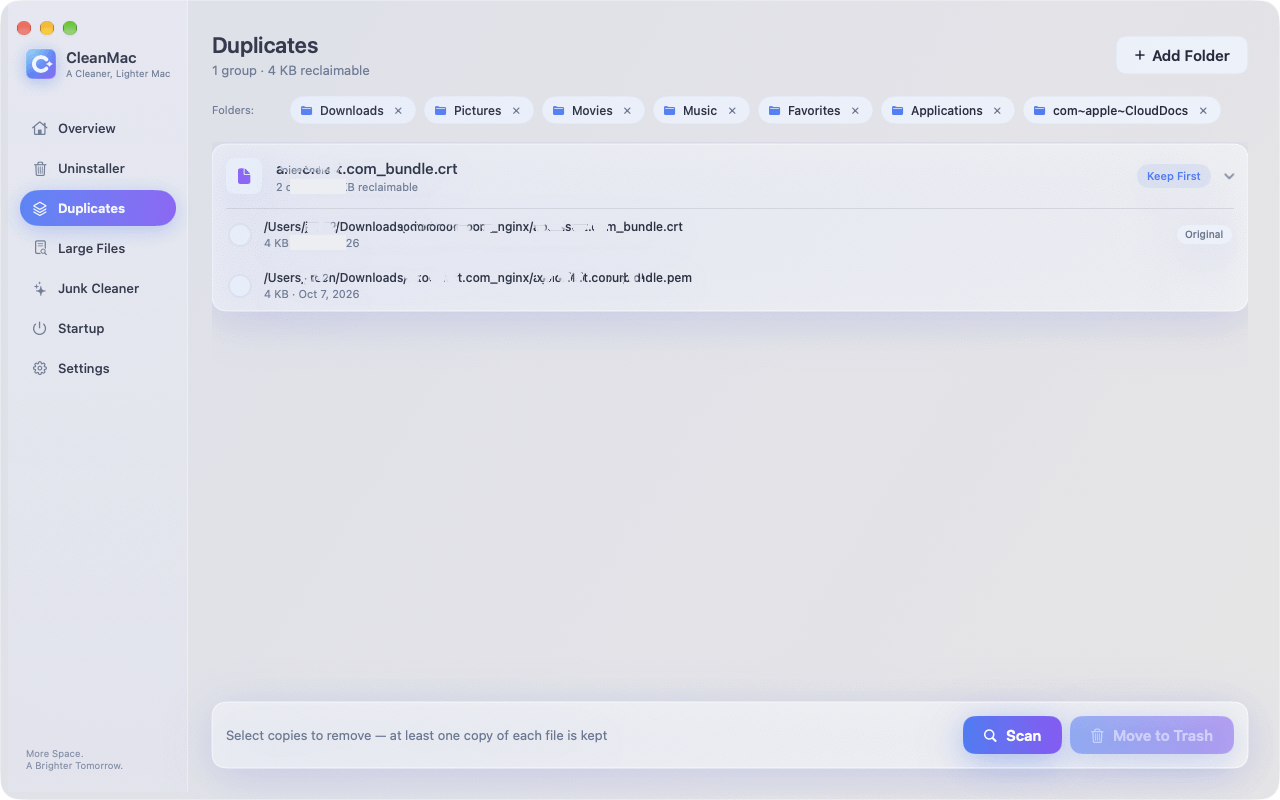
So a thorough local cleanup is an iCloud cleanup. CleanMac — free, no subscription (a pleasant contrast to the bill you’re trying to avoid) — handles the relevant passes: the Duplicate Finder removes redundant photo and file copies by content hash before they sync; the Large File Cleanup surfaces the forgotten multi-gigabyte files sitting in synced folders; and the Junk Cleaner clears caches and old device backups locally. Clean first, let iCloud sync the deletions, and watch your cloud usage drop without deleting a single thing “from the cloud” directly.
Fix 6: Settings That Stop the Refill
Cleanup without prevention is a treadmill. Three settings change the trajectory:
- Optimize Mac Storage / Optimize iPhone Storage (Photos settings on both platforms): keeps full-resolution originals in iCloud and lightweight versions locally — doesn’t reduce iCloud usage, but makes living with a large library painless on your devices.
- Messages: Keep 1 Year — automatic attachment hygiene.
- Review backups annually — every new device should trigger a deletion of the old one’s backup, or the graveyard regrows.
And one honest note about the paid tiers: after a genuine cleanup, many people discover 5 GB is still tight for two devices and a photo library — and that’s fine. iCloud+ at 50 GB costs little and buys real convenience. The point of this guide isn’t to avoid paying Apple at all costs; it’s to pay for storage you actually need, rather than renting gigabytes for a 2019 iPad backup and ten thousand message attachments.
Conclusion
An “iCloud Storage Full” warning is usually a cleanup opportunity before it’s a subscription decision. Audit in Manage Account Storage, then work the levers in order: cull and deduplicate photos, delete backups of devices you no longer own, trim heavy message threads, purge dead apps’ iCloud Drive data, and clear attachment-heavy mail. Then fix the local side — because synced folders make your Mac’s clutter a cloud problem, a pass with CleanMac’s free Duplicate Finder and Large File Cleanup shrinks your iCloud footprint from the source. Finish with the preventive settings, and the warning stays gone — whether you ultimately keep the free tier or upgrade to a plan that’s finally sized to what you actually use. For more free Mac utilities, browse our app collection.
Frequently Asked Questions
Why is my iCloud storage full when I barely use it?
The usual culprits are automatic and invisible: device backups (including old ones from devices you no longer own), your photo library syncing in full resolution, message attachments accumulating over years, and app data from apps you’ve long deleted. Because these grow silently in the background, most people’s first awareness of their iCloud usage is the “storage full” notification itself.
How do I see what’s taking up my iCloud storage?
On iPhone, go to Settings → your name → iCloud → Manage Account Storage. On Mac, go to System Settings → your name → iCloud → Manage. Both show a ranked breakdown by category and app, so you can see exactly how many gigabytes Photos, Backups, Messages, and each app’s data are consuming.
Can I delete old iPhone backups from iCloud?
Yes, and you should — backups from devices you’ve traded in or replaced are pure waste. In Manage Account Storage → Backups, select any backup belonging to a device you no longer own and delete it; each one typically frees several gigabytes instantly. You can also tap your current device’s backup to exclude individual apps whose data doesn’t need cloud backup.
Does deleting photos from iCloud delete them from my iPhone?
If iCloud Photos is enabled, yes — the library is synced, so deleting a photo anywhere deletes it everywhere, including from the device and the cloud, after the 30-day Recently Deleted grace period. To free iCloud space without losing photos entirely, first move the ones you want to keep to local-only storage on your Mac with iCloud Photos disabled there, or export them to an external drive before deleting.
How can my Mac help free up iCloud storage?
If your Mac syncs Desktop and Documents or a Photos library to iCloud, local clutter is cloud clutter — duplicates and large forgotten files consume iCloud space through sync. Running a local cleanup with CleanMac’s free Duplicate Finder and Large File Cleanup removes the redundancy at the source, and the deletions sync to iCloud automatically, shrinking your cloud usage without touching anything directly in the cloud.
Is 5 GB of iCloud storage enough in 2026?
For a single device with modest photo habits and trimmed backups, it can be — especially after the cleanup steps in this guide. For most people with an iPhone, a photo library, and messages, 5 GB runs out quickly no matter how well it’s managed, and the 50 GB iCloud+ tier is a reasonable purchase. The key is making that decision after cleaning, so you pay for storage you need rather than for accumulated waste.
Will emptying Recently Deleted in Photos free iCloud space immediately?
Yes — deleted photos and videos count against your iCloud storage for 30 days while they sit in Recently Deleted, waiting for possible recovery. Emptying that album (in Photos on iPhone or Mac) reclaims their space immediately rather than waiting out the month. On a library where you’ve just done a large cull, this step alone can free several gigabytes instantly.


