

Somewhere along the way, every Mac owner hears the same tip: “Your disk is full? Delete `~/Library/Caches`. It’s all just cache — totally safe.” The advice is mostly true, which is exactly what makes it dangerous. The Caches folder really is disposable by design, and clearing it really does recover tens of gigabytes on a typical Mac. But “delete Library caches” done carelessly — wrong folders, running apps, permanent deletion — is also how people lose app data and end up in forums asking how to get it back. The difference between a safe cleanup and an expensive mistake is about fifteen minutes of understanding.
Short on space already? CleanMac finds junk, leftover apps, and duplicates on your Mac — and shows you exactly what it will remove before anything is deleted. Download free →
This article gives you the complete, honest answer: what’s actually inside `~/Library/Caches`, what happens when you delete it (the good and the mildly annoying), which parts are safe and which need care, the correct deletion method step by step, and how tools like CleanMac make the whole thing safer by construction.
What’s Actually Inside ~/Library/Caches
First, decode the path. `~/Library/Caches` means the Caches folder inside the Library folder of your user account — the tilde is shorthand for your home directory. This is distinct from `/Library/Caches` (system-wide caches) and `/System/Library/Caches` (macOS’s own, protected). This article is about the user-level folder, which is both the largest and the safest of the three.
Inside it you’ll find one subfolder per app (plus some per macOS component), named by bundle identifier — `com.apple.Safari`, `com.spotify.client`, `com.microsoft.VSCode`, and so on. Each holds that app’s temporary working data:
- Browser caches — downloaded images, scripts, and pages so sites load faster on revisit. Often 2–10 GB per browser.
- Streaming buffers — Spotify’s music cache, podcast downloads, video segments. Routinely 5–15 GB for heavy listeners.
- Chat app caches — images, files, and previews from Slack, Discord, WeChat, Teams. Frequently 2–10 GB each.
- App working data — thumbnails, previews, computed indexes, autosave scratch data.
- Developer tool caches — simulators, build caches, package manager downloads. Xcode-adjacent data can reach tens of gigabytes on its own.
Every one of these files exists under a single design contract: the app must behave correctly if the cache disappears. That’s what makes something a cache rather than data. When you delete a cache, the worst legitimate outcome is that the app rebuilds it — slower once, then normal.
What Actually Happens When You Delete It
Deleting the contents of `~/Library/Caches` produces three predictable consequences — one good, two temporary.
The good: immediate space recovery. On a Mac that has never been cache-cleaned, expect 10–40 GB back; quarterly cleaners typically see 5–15 GB. Unlike many cleanup targets, this space is genuinely free — no analysis needed, no irreplaceable files involved.
The temporary annoyance: a rebuild period. The first launch of each app after clearing is slower. Websites re-download resources, photo apps re-render thumbnails, music apps re-buffer. This is the cache doing its job in reverse, and it settles within a day or two of normal use. Notably, the caches that rebuild are the ones that were actually being used — the 60% that never rebuilds was pure dead weight.
The edge case: misbehaving apps. A small minority of apps store things in Caches that aren’t purely disposable — offline mode data for a streaming app, an unsynced draft in a poorly designed client. Well-built apps never do this, but “well-built” describes most apps, not all. This is why the safe method below includes a verification period.
The Rules That Make It Safe
The difference between safe cache clearing and a bad afternoon comes down to five rules.
Rule 1: Delete contents, not folders. Open each app’s cache subfolder, select its contents, and delete those — leaving the empty subfolder in place. Apps expect their cache directories to exist. Most recreate a missing folder gracefully, but some don’t, and there’s no benefit to removing the folders anyway.
Rule 2: Quit apps first. Deleting an app’s cache while it runs risks the app writing into an inconsistent state — at best a wasted cache, at worst a crash with unsaved work lost. Close everything, then clear.
Rule 3: Delete to the Trash, never permanently. `Cmd+Delete` to the Trash, not `Cmd+Option+Delete` into oblivion. Keep the Trash unemptied for several days of normal use. If an app turns out to miss something, restore it. Only empty the Trash once everything works.
Rule 4: Stay in your user Library. `~/Library/Caches` — yes. `/Library/Caches` — more caution, since system services use it. `/System/Library/Caches` — no, and SIP stops you anyway. The user-level folder is where the space is and where the risk isn’t.
Rule 5: Don’t touch non-cache Library folders. This is the mistake that actually hurts people. The Library also holds `Application Support`, `Containers`, and `Preferences` — which are not caches. Deleting an app’s `Containers` folder destroys its data: saved sessions, local databases, everything. The names look similar; the consequences are not. If you’re clearing by hand, clear only folders under a Caches path.
Which Caches Deserve Individual Attention
A few cache subfolders justify a second look before bulk deletion:
- Spotify / Apple Music / podcast apps — their caches are your offline downloads. Deleting the cache deletes music saved for offline listening; it’ll re-download on demand, but only when you’re back on Wi-Fi. If offline listening matters this week, skip these folders.
- Xcode and developer tools — DerivedData, simulator caches, and device support files are safe to delete with Xcode quit, and they’re often the largest single win on a developer Mac (20–80 GB). They rebuild as projects demand.
- Browsers — clearing from inside the browser (Safari → Settings → Privacy; Chrome → Clear browsing data) is tidier than folder deletion, since it also clears cookies and site data only if you choose. Folder-level deletion is fine too, but browsers handle their own caches competently.
- VM and container tools — Docker, Parallels, and similar tools keep disk images in cache-adjacent locations. Deleting an actual virtual machine image is not cache clearing — verify what a folder holds before removing it.
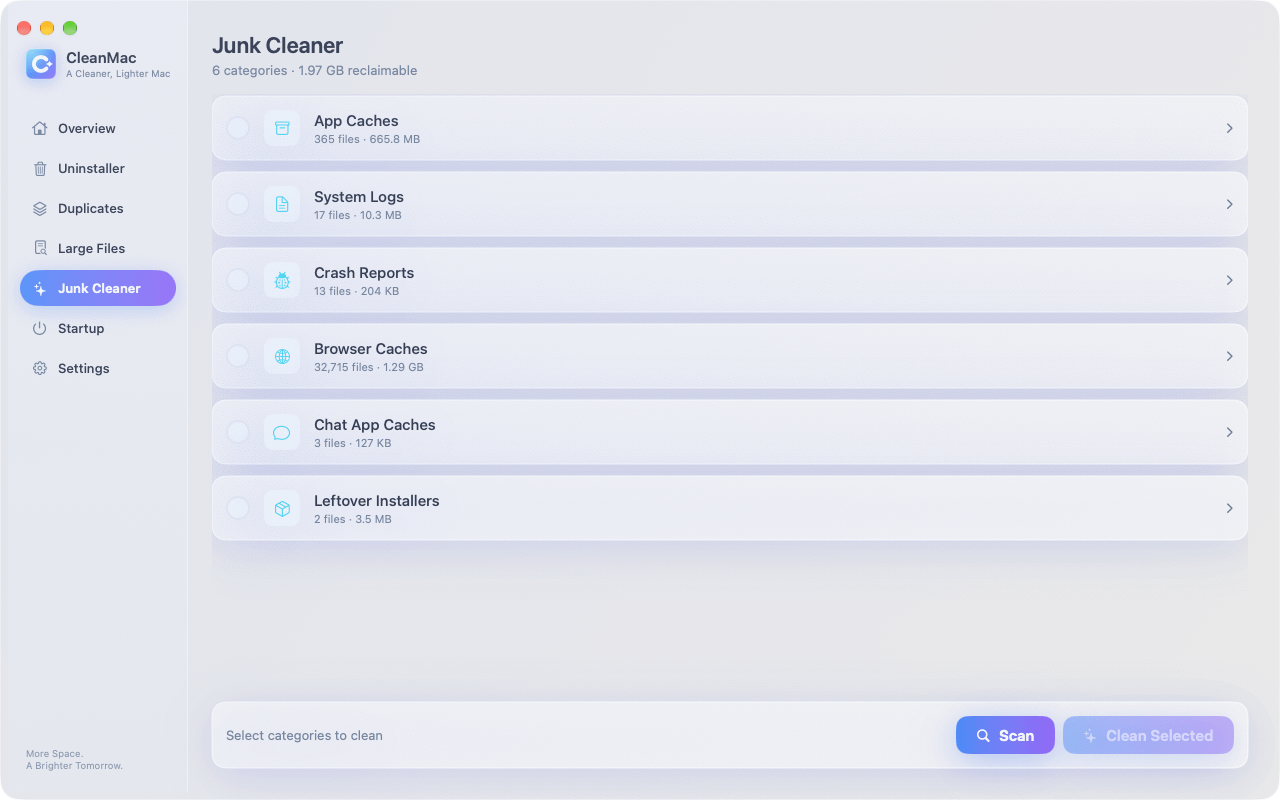
If sorting these distinctions by hand sounds like work — it is. This is precisely the layer a curated tool automates: CleanMac’s free Junk Cleaner scans the cache categories against a maintained safe-list, skips offline-download stores and active-app data, shows you every item with its size before deletion, and removes to the Trash. The judgment calls above become checkboxes instead of research.
The Safe Method, Step by Step
- Save your work and quit all applications (Cmd+Q, not just closing windows).
- In Finder, press Cmd+Shift+G and go to `~/Library/Caches`.
- Open subfolders one at a time; inside each, Cmd+A to select the contents, then Cmd+Delete to move them to the Trash. Leave the subfolders themselves. Skip the offline-media caches if you need them this week.
- Restart the Mac. Some system-level temp data only clears on reboot, and a fresh start confirms everything launches cleanly.
- Use the Mac normally for a few days. If every app behaves — they will, in the overwhelming majority of cases — empty the Trash and bank the recovered space.
Alternatively, run CleanMac’s Junk Cleaner scan, review the itemized results, and click clean — steps 1 through 3 compressed into about two minutes, with the safe-list doing the folder discrimination for you.
Conclusion
Deleting `~/Library/Caches` is safe — genuinely, by-design safe — provided you follow the rules: contents not folders, apps quit first, Trash not permanent deletion, user Library only, and never confuse Caches with Containers or Application Support. What you’ll get is 10–40 GB of immediate space recovery and a day of slightly slower first launches while caches rebuild; what you won’t lose is anything irreplaceable, because cache data is expendable by definition. If you’d rather skip the manual care entirely, CleanMac does the same job with a curated safe-list, preview-before-delete, and Trash-based removal — free, local, and reversible. For more free Mac utilities, browse our app collection.
Frequently Asked Questions
Is it safe to delete ~/Library/Caches on Mac?
Yes, with the right method. Every file in your user Caches folder is disposable by design — apps save temporary data there and rebuild it if it disappears. The safe method is: quit all apps first, delete the contents of subfolders rather than the subfolders themselves, move everything to the Trash rather than deleting permanently, and wait a few days of normal use before emptying the Trash. Followed this way, the risk is essentially zero.
What happens if I delete the entire Caches folder?
Deleting contents is safe; deleting the folder structure itself is mildly risky, because apps expect their cache directories to exist. Most well-built apps recreate a missing cache folder automatically on next launch, but some apps malfunction until the folder exists again. There is no space benefit to removing the folders — they’re empty directories — so delete contents only.
Will deleting caches delete my passwords or personal data?
No — passwords, autofill data, and login sessions are not stored in the Caches folder. Credentials live in the Keychain, browser profiles live in Application Support, and app data lives in Containers. Clearing caches may sign you out of some websites if you clear browser caches from the folder level, since session cookies are adjacent to cache data in some browsers, but your saved passwords remain intact.
How much space will I get back by clearing caches?
On a Mac that has never had its caches cleared, expect to recover 10–40 GB, with browsers, streaming apps, and chat clients as the largest contributors. With regular quarterly cleaning, each pass typically recovers 5–15 GB. Developer Macs are outliers — Xcode’s derived data and simulator caches alone can exceed 50 GB.
What is the difference between Caches and Containers in the Library?
Caches holds temporary, rebuildable data that apps can recreate at any time — safe to delete. Containers holds the actual data of sandboxed apps: documents, settings, databases, saved sessions — deleting it destroys the app’s data as surely as deleting the app itself. The folders sit side by side in your Library with similar-looking names, which is why confusing them is the one cache-clearing mistake that genuinely hurts.
How often should I clear my Mac’s caches?
A monthly sweep of app and browser caches is a good rhythm for most users, or immediately whenever free disk space drops below 15%. Also clear an individual app’s cache when that app starts misbehaving, since corrupted cache data is a common cause of strange behavior. Clearing more often than monthly has no benefit — caches rebuild anyway, and their whole purpose is making your Mac faster.
Do I need a special app to clear caches safely?
No — the manual method (quit apps, delete folder contents to Trash, restart, verify, empty Trash) is perfectly effective and takes 15–30 minutes. A tool earns its place by automating the judgment calls: CleanMac’s free Junk Cleaner scans cache locations against a curated safe-list, skips offline-download stores and system-critical folders, previews everything with sizes before deletion, and removes to the Trash, compressing the whole job into a couple of minutes.


