
Every Mac accumulates debt — storage debt, performance debt, organizational debt — quietly, day by day, until the machine that was once fast and clean feels sluggish and full. Annual spring cleaning is the deliberate reset that pays that debt off: a structured pass through every corner of the machine, physical and digital, to restore the baseline of speed and space. Done once a year in a focused session, it prevents the slow erosion that most people only notice once it’s become frustrating.
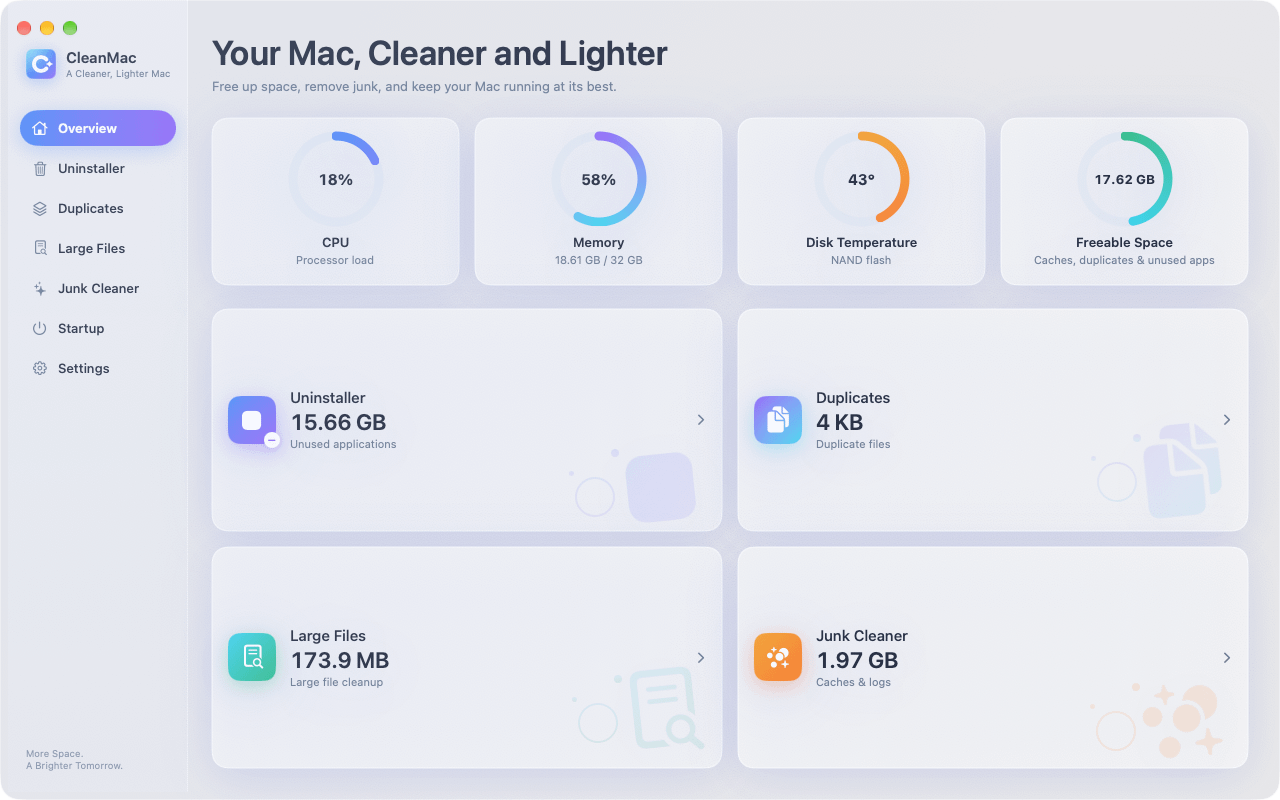
This guide presents a complete checklist, organized by frequency: the monthly habits that prevent problems, the quarterly tasks that catch them early, and the annual deep clean that resets the whole machine. We pair each task with CleanMac where it saves time, and with macOS’s own built-in tools where they’re the better option. By the end you’ll have a Mac that’s faster, freer of clutter, and protected by a backup you know works.
Monthly Habits: The Lightweight Prevention Layer
These three habits take under ten minutes each and prevent 90% of the problems that make people think their Mac is broken.
Empty the Downloads folder
Downloads is a conveyor belt, not storage. Set a monthly reminder, sort the folder by size, and delete old `.dmg` installers, duplicate downloads, and anything you don’t recognize. File what you need into Documents. This single habit prevents the most common source of forgotten space hogs.
Review startup items
Every month, open System Settings → General → Login Items & Extensions and remove anything you don’t need launching at boot. Updates, app reinstalls, and third-party tools add background agents silently — this monthly review catches them before they multiply. For a faster consolidated view, CleanMac’s free Startup Items module shows every launch and background item in one list with a toggle to disable.
Restart
On a modern Mac it’s easy to forget: uptime accumulates memory leaks, stuck processes, and temp directory bloat. A simple restart once a month — ideally after the downloads sweep and startup audit — clears it all. Leave it off for thirty seconds before powering back on.
Quarterly Tasks: Maintenance Before It Becomes Repair
Every three months, schedule a focused maintenance block — an hour on a Sunday morning is plenty. These tasks catch problems while they’re still small.
Run a full junk cleanup
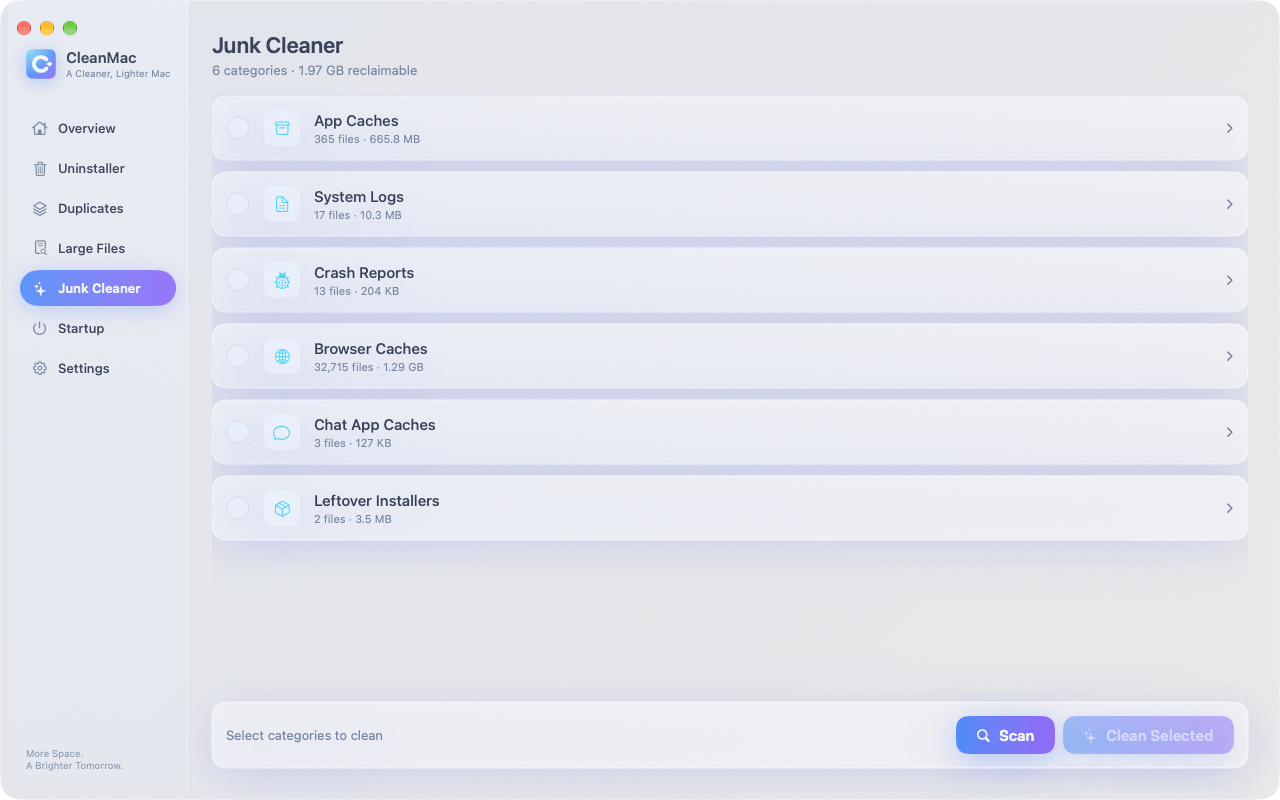
Caches, logs, crash reports, and temp files grow continuously. On a well-used Mac, a quarterly sweep finds 3–8 GB of safe-to-remove data. You can clear them manually by visiting `~/Library/Caches`, `~/Library/Logs`, and `~/Library/DiagnosticReports`, quitting apps first, deleting contents (not the folders), and restarting afterward — but a manual pass takes 20–30 minutes and requires knowing which system folders to avoid.
The faster path: open CleanMac, choose Junk Cleaner, and scan. It inspects app caches, system logs, crash reports, browser caches, and chat app caches, sorted by category with sizes for each, and presents a preview before anything is removed. Files go to the Trash, not permanent deletion. On most Macs, this takes about a minute and frees several gigabytes. The app is free, runs locally only with no account or uploads, and requires macOS 13 Ventura or later.
Uninstall apps you haven’t opened in 90 days
Every unused app carries support files, caches, and update agents. Quarterly, review your Applications folder honestly: if you haven’t launched it in three months and can’t name a specific future use, uninstall it. CleanMac’s free Uninstaller module flags apps unused for 30+ days and removes them with their leftover caches and preferences in one pass, which is cleaner than dragging to the Trash and leaves no ghost data behind.
Check storage health and free space
Open System Settings → General → Storage and note the percentage free. The warning threshold is 15% free — below that, macOS struggles with virtual memory swap, temp files, and its own housekeeping, and the machine starts to feel sluggish regardless of what else is going on. If you’re near or below 15%, it’s time for a deeper space audit: the annual tasks below, accelerated.
Update everything
Don’t rely on automatic updates alone. Open the App Store, open each third-party app and check for updates, and note whether a macOS minor update is pending. Outdated apps after a major macOS version are a leading cause of unexplained beachballs.
Audit browser extensions and permissions
Extensions accumulate over time; some break after updates; some are from services you no longer use. Remove anything inactive. Then check System Settings → Privacy & Security — scroll through the permission categories and revoke access for apps you no longer trust.
The Annual Deep Clean: A Complete Reset Session
Once a year, block out a morning. These seven tasks together transform a sluggish, cluttered Mac back to its best.
Step 1: Verify your backup
Before you touch anything, confirm your Time Machine backup is current and functional. Open Time Machine, enter the backup browser, and confirm that a few recent files and a few older files both open normally. If something is wrong — the backup is old, the drive is failing, or files won’t restore — fix that before any cleanup. A backup you haven’t tested is a hypothesis, not protection. While you’re at it, consider adding a second layer: a cloud backup like Backblaze, or at minimum, confirm your iCloud photos and documents are fully synced.
Step 2: Run the full suite of storage scans
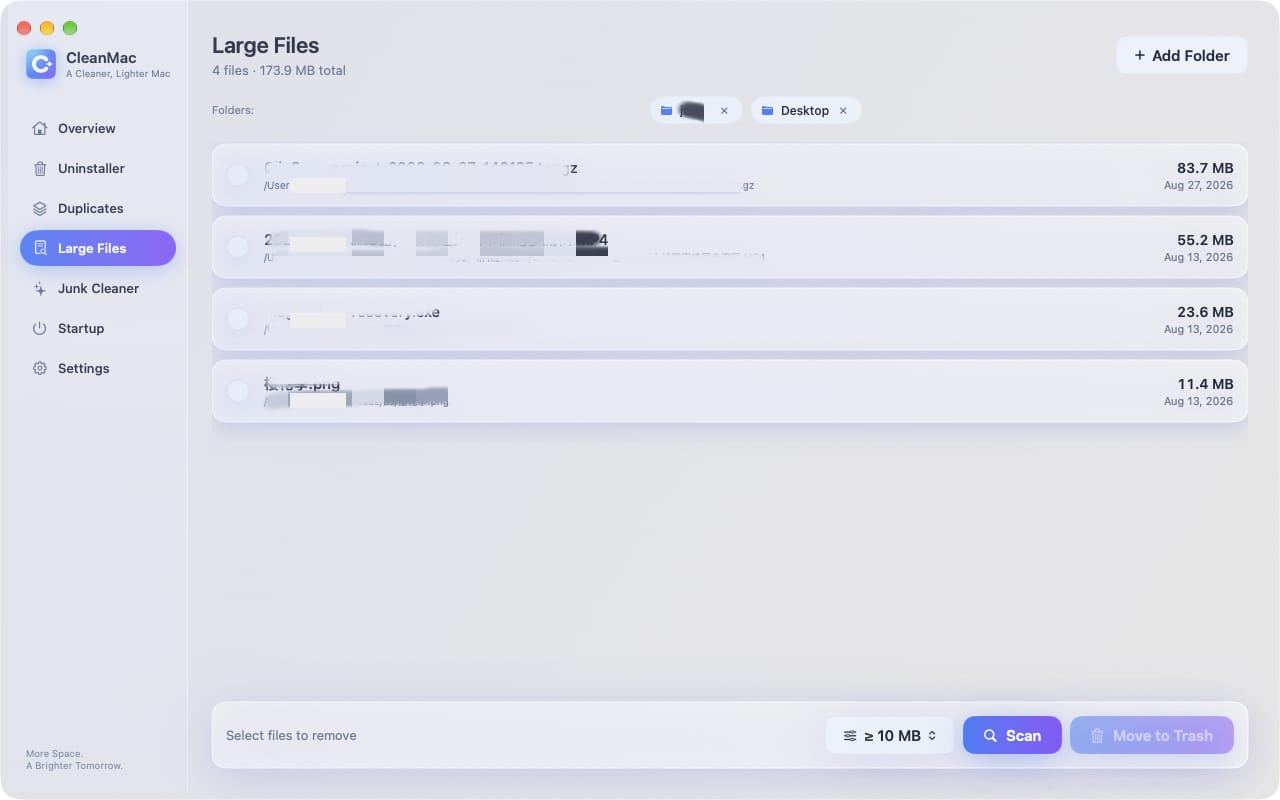
This is where the serious space recovery happens. With CleanMac, work through its six modules in order — they build on each other:
- Junk Cleaner. Start here for the easy wins: caches, logs, crash reports, and temp files. First pass on a neglected Mac often finds 10–15 GB.
- Large File Cleanup. Everything 10 MB and up, sorted by size descending. This is where the 20 GB disk image and the forgotten screen recording live — the files that make the biggest single impact on free space.
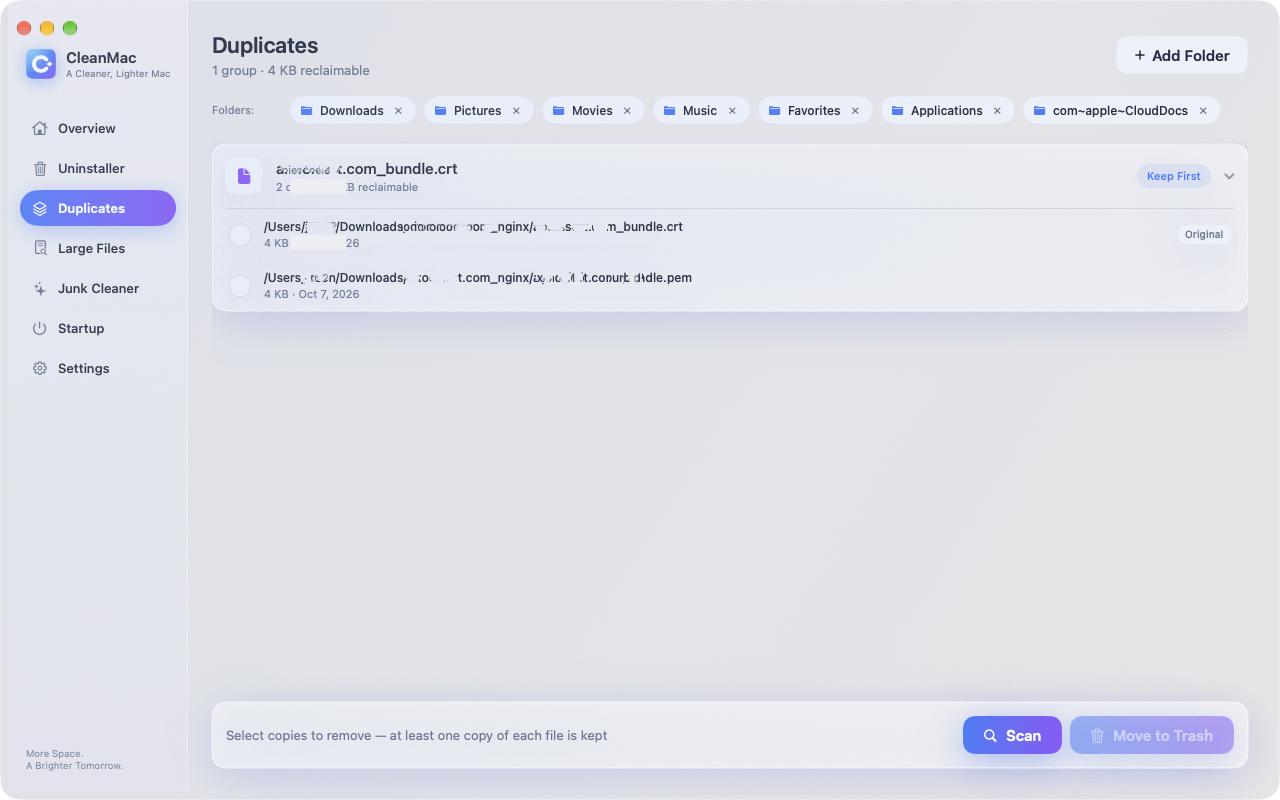
- Duplicates. Files matched by content, not name. On most Macs, duplicates hide 5–15 GB of redundant copies: re-downloaded installers, twice-imported photos, duplicated exports. CleanMac always keeps one copy safe.
- Uninstaller. Remove unused apps with their support files. If an app hasn’t been opened in months, it’s a candidate.
Between these four modules, a typical annual cleanup reclaims 20–50 GB — the difference between a full, stressed Mac and one with room to breathe.
Step 3: Reorganize your file structure
See the folder structure guidance from the organization article: five core folders (Work, Personal, Projects, Archive, Inbox), Archive for anything older than the current year, and a weekly Inbox habit. During the annual session, create the Archive for the year just ended, sweep your Desktop to zero, and rename the worst offenders in Downloads. Don’t try to file three years of history — quarantine it in Archive and move on.
Step 4: Purge the Downloads and Mail downloads
Beyond the monthly sweep, the annual purge is deeper: sort Downloads by size and delete anything above 100 MB you don’t actively need. Then open Mail, search for large attachments, and delete or save the ones that are no longer relevant — Mail’s hidden attachment cache can occupy multiple gigabytes over years.
Step 5: Clean local Time Machine snapshots
If your backup drive isn’t always connected, your internal storage may be carrying months of local snapshots. Open Terminal and run `tmutil listlocalsnapshots /` — if the list is long, thin them with `tmutil thinlocalsnapshots / 10000000000 4` or delete specific dates with `tmutil deletelocalsnapshots
Step 6: Physical cleaning
The outside matters too — for resale value, for hygiene, and because dust in vents eventually affects cooling and noise.
- Shut down and unplug.
- Wipe the screen with a barely-damp microfiber cloth — never window cleaner, which damages coatings.
- Wipe the exterior with a soft, slightly damp lint-free cloth.
- Hold the Mac at an angle and clear keyboard and vent dust with compressed air in short bursts.
- For older Intel MacBooks, consider opening the bottom case (a P5 screwdriver and an iFixit guide) and clearing the fans and heatsink directly.
Step 7: Performance and security check
Finish the session with a health check:
- Restart the Mac and note boot time — should be well under a minute on Apple Silicon, under two on most Intel Macs.
- Open Activity Monitor and confirm no process is pinning the CPU at idle.
- Run Apple Diagnostics (Apple Silicon: shut down, hold power until startup options appear, then press Cmd+D; Intel: restart holding D) to catch hardware warnings.
- Check System Settings → Privacy & Security → Profiles for unexpected profiles — a sign of past adware.
- Sign out and back into iCloud if sync has been unreliable — it’s a benign cure for subtle cloud state issues.
Building the Habit: Calendar It
The difference between a checklist that works and one that gathers dust is scheduling. Put the recurring tasks on your calendar:
| Frequency | Task | Time |
|---|---|---|
| Monthly | Downloads sweep, startup review, restart | 10 min |
| Quarterly | Full junk scan, app audit, storage check, updates | 60 min |
| Annually | Full deep clean (all seven steps above) | Half-day |
Treat the annual session like a dentist appointment: non-negotiable, once a year, with the calendar event set weeks ahead so you don’t skip it for something “more urgent.” The urgent things feel more important; the preventive things are more important.
Conclusion
A Mac that feels slow and full isn’t failing — it’s just carrying a year of accumulated debris. The remedy is structured and predictable: monthly habits that prevent buildup, quarterly maintenance that catches problems early, and an annual deep clean that resets the machine entirely. CleanMac’s free modules — Junk Cleaner, Duplicates, Large File Cleanup, Uninstaller, and Startup Items — handle the mechanical heavy lifting of the annual session, while macOS’s own built-in tools cover backup verification, diagnostics, and permission audits.
Done once a year, this checklist returns a Mac to a state it hasn’t felt in months: fast, clean, with space to work, and protected by a backup you know actually restores. That’s the real definition of a spring cleaning — not cosmetic tidying, but a functional reset. For more free Mac utilities, browse our app collection.
Frequently Asked Questions
How often should I deep clean my Mac?
A focused deep clean once a year is the right rhythm for most users — enough to prevent the slow accumulation of junk, duplicates, and forgotten files from becoming a problem, not so often that it becomes a chore. Monthly lightweight habits (downloads sweep, restart) and quarterly maintenance scans fill the gaps between annual sessions.
What is included in a Mac spring cleaning?
A complete annual spring cleaning includes verifying your backup, running storage scans for junk, duplicates, and large files, uninstalling unused apps, reorganizing files and archiving old projects, purging Downloads and Mail attachments, clearing local Time Machine snapshots, physically cleaning the machine, and finishing with a performance and security health check. The checklist in this article covers each step in order.
Will cleaning my Mac make it faster?
Yes, but selectively. Freeing disk space (especially above the 15% free threshold), removing background startup items, and clearing resource-hungry caches all remove performance bottlenecks. For a Mac that already has plenty of free space and no runaway processes, the speed gain from cleaning alone is modest — the main benefit is responsiveness and storage headroom rather than raw processing speed.
Should I reinstall macOS as part of spring cleaning?
Usually no — an erase and reinstall is overkill for routine maintenance. The checklist above resolves the overwhelming majority of performance and clutter issues without touching the system installation. Reserve a reinstall for persistent software problems that survive all other fixes, or as part of preparing a Mac for sale, where a true factory reset is warranted.
How do I keep my Mac clean all year?
Three habits: a monthly downloads sweep and restart, a quarterly run through junk files and unused apps, and an annual deep clean session calendar-blocked as non-negotiable. Pair the habit with a lightweight cleanup tool that makes the mechanical work fast — a free scanner like CleanMac turns an hour of manual folder diving into a ten-minute review.
Is it safe to delete cache files during a Mac cleanup?
Yes, if you stay within the standard safe categories: app caches, system logs, crash reports, browser caches, and temp files. These are disposable by design — apps rebuild their caches, logs describe past events, and crash reports diagnose problems already fixed. For extra safety, delete to the Trash rather than permanently, restart, and empty the Trash after a few days of normal use confirm nothing is broken.
What’s the best free tool for Mac spring cleaning?
CleanMac covers the mechanical cleanup tasks in one free app: junk cleaning, duplicate finding, large file scanning, app uninstallation with leftovers, and startup item management. It previews everything before deletion, moves files to the Trash rather than erasing permanently, and runs entirely locally with no account required. For the parts of spring cleaning that aren’t about storage — backup verification, diagnostics, physical cleaning — macOS’s own built-in tools are the right choice.


