

When your Mac was new, it went from pressing the power button to a usable desktop in seconds. Now you watch a progress bar, wait out a beachball, and give your browser another thirty seconds before it can open a tab without stuttering. If that sounds familiar, here’s the good news: most Mac slowdowns aren’t caused by aging hardware — they’re caused by accumulated software, and the biggest single culprit is the pile of programs that launch themselves every time you log in.
The average two-year-old Mac has a dozen or more background items fighting for CPU, memory, and disk attention from the moment you sign in: updaters, sync agents, menu bar helpers, “helper” processes for apps you barely use. Each one is small; together they can double your boot time and leave your Mac permanently short on RAM. This guide explains why Macs slow down, how to find and disable startup items (both manually and with a free tool like CleanMac), and the other fixes that actually move the needle on a slow Mac.
Why Macs Slow Down Over Time
A slow Mac is almost never one problem — it’s several small ones compounding. These are the usual suspects, roughly in order of how often they’re to blame.
Too many startup and login items
Every app that adds itself to your login sequence delays your boot and keeps consuming resources all day. Updaters for apps you open twice a year, cloud sync clients, audio drivers, browser helpers, vendor “agents” — they pile up silently because apps add themselves without asking prominently. This is the most common cause of both slow booting and a Mac that feels busy when it should be idle.
A nearly full startup disk
macOS needs free space to breathe: virtual memory swap files, caches, temporary files, and system updates all compete for room. Once your drive drops below roughly 10–15% free, performance degrades noticeably — apps take longer to launch, Finder lags, and you start seeing the beachball during ordinary tasks. A full disk is the second most common slowdown cause, and it amplifies every other problem on this list.
Memory pressure from too many open apps
Apple Silicon Macs are efficient, but 8 GB of unified memory fills up fast with a dozen browser tabs, Slack, a video call, and a photo editor. When RAM runs out, macOS swaps to the SSD — fast, but far slower than memory — and heavy swap usage is what you feel as stuttering and lag when switching between apps.
Runaway processes
A single misbehaving app or browser tab can pin a CPU core at 100% for hours. Sync clients stuck in a loop, crashed-but-not-quite helpers, and browser tabs running heavy scripts are the classic offenders. Activity Monitor (in Applications → Utilities) shows you exactly what’s eating your CPU.
Declining battery and thermal throttling (MacBooks)
When a MacBook gets hot or its battery degrades, macOS deliberately slows the processor to protect the hardware. If your Mac is only slow sometimes — especially during long sessions or on battery — thermal throttling may be part of the story. Check battery health in System Settings → Battery.
Startup Items: The Hidden Tax on Every Boot
Of all the causes above, startup items deserve the deepest look because they’re invisible, they affect every single session, and most users have never reviewed them even once.
What actually launches when you log in
macOS has three distinct mechanisms for auto-starting software, and a thorough cleanup covers all three:
- Login Items — the visible list in System Settings → General → Login Items. Apps here open (or hide) at login. This is the list most people know about.
- Launch Agents — background processes defined by plist files in `~/Library/LaunchAgents` (per-user) and `/Library/LaunchAgents` (all users). They run in the background at login or on a schedule, with no windows and often no visible trace. Updaters and sync helpers live here.
- Launch Daemons — system-wide background processes in `/Library/LaunchDaemons` that start at boot, before anyone logs in, and run with elevated privileges. Hardware drivers, VPN clients, and system-level helpers use these.
A typical Mac accumulates 15–30 items across these three lists. Each one costs boot time, RAM, and background CPU for as long as your Mac is on.
How much do startup items actually matter?
The impact is real and measurable. Every launch agent that loads at login adds to the critical path of your boot; a Mac with twenty login items can take two to three times longer to reach a responsive desktop than the same Mac with five. The ongoing cost matters more: a dozen idle background helpers typically hold 500 MB to 2 GB of RAM combined, and several of them wake periodically to check for updates or sync — small CPU spikes that add up to fan noise, heat, and shorter battery life on MacBooks.
The fix isn’t to disable everything — some items genuinely serve you (your password manager, your backup client). The fix is to audit the list and keep only what earns its place.
How to See and Manage Startup Items Manually
macOS gives you partial tools for this. Here’s what you can do without any third-party app.
Review Login Items in System Settings
- Open System Settings → General → Login Items.
- Under Open at Login, select apps you don’t need and click the minus button.
- Below, under Allow in the Background, toggle off helpers you recognize and don’t want running.
This screen is a good start, but be warned: the background items list is flat, often cryptically named (vendor names instead of app names), and gives you no information about what each item does or how much it costs you.
Inspect LaunchAgents folders by hand
In Finder, press Cmd+Shift+G and visit these locations:
- `~/Library/LaunchAgents` — your per-user agents
- `/Library/LaunchAgents` — all-user agents
- `/Library/LaunchDaemons` — system daemons (admin password needed to change)
Each `.plist` file defines a background item. Deleting the plist (and restarting) removes the item. The risks are obvious: names are opaque bundle identifiers, some items belong to the system or to apps you still use, and deleting the wrong one can break an app’s updater or licensing component. Move plists to a folder on your Desktop rather than deleting outright, restart, and verify everything works before emptying anything.
The honest limitation: the manual route works, but it’s scattered across four locations, two settings screens, and files named like `com.vendor.helper.plist`. Most people give up halfway — which is exactly why startup managers exist.
The Faster Way: CleanMac’s Startup Item Manager
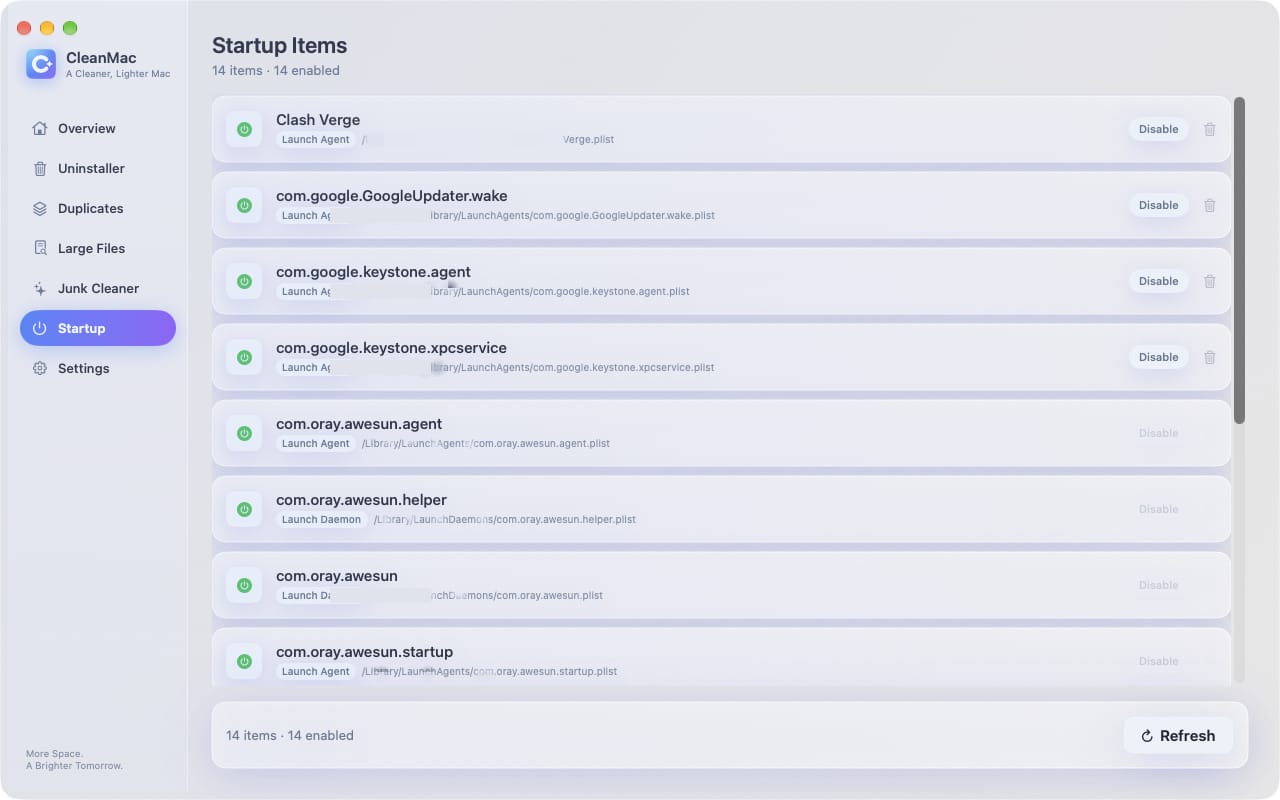
CleanMac includes a Startup Items module that pulls every login item, launch agent, and launch daemon into one readable list — and it’s completely free, like every other module in the app.
Here’s the workflow:
- Open CleanMac and choose the Startup Items module.
- CleanMac lists Launch Agents and Launch Daemons in one place, labeled clearly, so you can see everything that runs at boot or login without digging through hidden Library folders.
- For each item you have three options: disable it (stops it from launching, but keeps it so you can re-enable later), enable it again, or remove it entirely.
- Work through the list with a simple rule: if you don’t recognize it, or it belongs to an app you rarely use, disable it first. If nothing breaks after a few days, remove it.
The disable-first approach is what makes this safe for cautious users. Disabling is reversible in one click — unlike deleting plist files by hand — so you can experiment confidently. Your cloud backup client and password manager stay enabled; the three updaters for apps you open quarterly get disabled; anything tied to software you’ve already uninstalled gets removed.
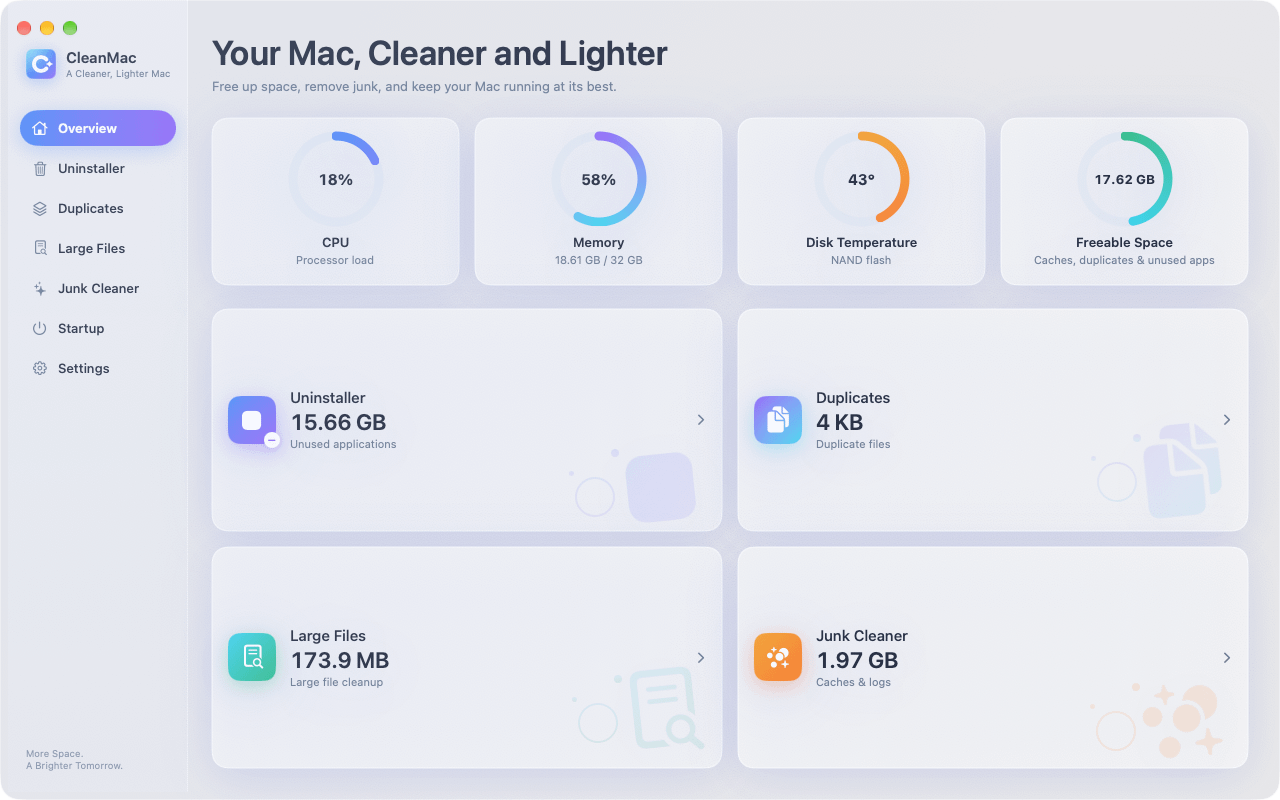
Startup Items is one of six free modules in CleanMac — alongside the junk cleaner, complete uninstaller, duplicate finder, large file cleanup, and system dashboard — all running locally on your Mac with no account and no uploads. It requires macOS 13 Ventura or later. Download CleanMac free.
Beyond Startup Items: Other Fixes That Actually Work
Disabling startup freeloaders is the highest-leverage fix, but pair it with these for a Mac that feels new again.
Free up disk space
Get your startup disk above 15% free and you’ll feel the difference immediately. The fastest wins: run a junk cleanup (caches, logs, and crash reports typically hold 5–15 GB), hunt down large forgotten files, and uninstall apps you haven’t opened in months. CleanMac’s Junk Cleaner, Large File Cleanup, and Uninstaller modules cover all three from the same window — or work through macOS’s own System Settings → General → Storage recommendations first.
Kill runaway processes
Open Activity Monitor, click the CPU tab, and sort by % CPU. Anything sitting above 50% while you’re doing nothing is a problem: quit it normally first, force-quit if needed, and if the same process keeps misbehaving, update or reinstall the app it belongs to. Check the Memory tab the same way — and watch the Memory Pressure graph at the bottom. If it’s yellow or red during normal use, you need fewer open apps, fewer browser tabs, or more RAM.
Reset your browser
Browsers are the real operating system most of us live in, and they’re resource hogs. Prune extensions you don’t use (each one consumes memory in every tab), clear bloated caches, and consider tab-suspending habits if you keep dozens open. A browser with three extensions and ten tabs runs circles around one with twenty extensions and eighty tabs.
Reduce visual effects and declutter
On older or base-model Macs, small tweaks add up: reduce transparency (System Settings → Accessibility → Display), clear the hundreds of icons off your Desktop (each one is rendered and tracked by Finder), and empty Mail’s junk and trash folders if you use the Mail app.
Restart more often
It sounds too simple, but a restart clears swap files, flushes stale caches, kills leaked memory, and resets stuck processes. If you keep your Mac in sleep for weeks at a time, a weekly restart is free performance.
Keep macOS and apps updated
Performance fixes ship in updates constantly — both from Apple and from app developers. An app that’s been beachballing for months often stops after an update. Turn on automatic updates in System Settings → General → Software Update.
Conclusion
A slow Mac is usually a cluttered Mac, not a dying one. Start where the payoff is biggest: audit everything that launches at login, disable what you don’t need, and remove what’s left over from apps you no longer use. CleanMac’s free Startup Items manager puts all of it — Launch Agents, Daemons, and login items — in one list with safe, reversible disable options, so the whole job takes ten minutes instead of an afternoon in hidden Library folders.
Then finish the job: reclaim disk space, close the runaway processes, tame your browser, and restart weekly. Do those things and most Macs — even five-year-old ones — go back to feeling fast. For more utilities that keep a Mac healthy, browse our hand-picked app collection.
Frequently Asked Questions
Why is my Mac so slow all of a sudden?
A sudden slowdown usually points to one specific cause rather than gradual clutter: a runaway process pinning the CPU, a disk that just crossed below 10% free, a macOS update doing background indexing (Spotlight and Photos re-index for hours after an upgrade), or a failing drive on very old Macs. Open Activity Monitor first — if one process is eating the CPU or your disk is nearly full, you’ve found your answer. If the slowdown started right after a macOS update, give it a day of being plugged in and idle before troubleshooting further.
Do startup items really slow down my Mac?
Yes, in two distinct ways. At boot, every login item and launch agent adds to the time before your desktop becomes responsive — a heavily loaded Mac can take two to three times longer to boot than a lean one. After boot, those background items hold memory and wake periodically to sync or check for updates, which contributes to fan noise, heat, and battery drain. Disabling five to ten unnecessary items is often the single most effective speed fix available.
How do I know which startup items are safe to disable?
Apply a simple test: if you recognize the item and use its app daily (your password manager, cloud backup, or sync client), keep it. If it belongs to an app you use occasionally, disable it — the app will still work when you launch it manually, only its background helper won’t pre-load. If it belongs to software you’ve uninstalled, remove it. When in doubt, disable rather than remove, since disabling is fully reversible after a few days of testing.
How much RAM does my Mac need to run smoothly?
For everyday use — browsing, email, documents, video calls — 8 GB is workable but tight, and 16 GB is comfortable. If you regularly edit photos or video, run virtual machines, or keep many heavy apps open, 16–24 GB makes a visible difference. Check Activity Monitor’s Memory Pressure graph during a typical work session: green means your RAM is fine, yellow or red means you’d benefit from closing apps or, on your next Mac, buying more memory.
Will freeing up disk space make my Mac faster?
Yes, noticeably — once your startup disk drops below about 10–15% free, macOS struggles to manage virtual memory swap files, caches, and temporary data, and everything from app launches to Finder browsing slows down. Reclaiming even 10–20 GB of space often produces an immediate, felt improvement. The fastest wins come from clearing junk caches, deleting large forgotten files, and removing duplicate files.
Is it better to disable or remove a startup item?
Disable first, remove later. Disabling stops the item from launching but keeps it on your system, so if an app misbehaves or you miss a feature, you can re-enable it in one click. After a week or two with no problems, removal is the tidy final step — especially for items belonging to apps you’ve already uninstalled, since those will never be useful again.
Will restarting my Mac actually help with speed?
Yes, and it’s underrated. Restarting clears virtual memory swap files, flushes stale caches, frees memory leaked by long-running apps, and terminates stuck background processes. If you normally sleep your Mac for weeks, a weekly restart is genuinely useful maintenance — it’s the fastest way to recover from the gradual sluggishness that builds up over long uptimes.


