
“「Macはウイルスに感染しない」というのは決して完全に正しかったわけではなく、2026年には単純に間違いです。Macのマルウェアは実在し、増加しており、お気に入りの変装があります。それは通常、ユーザーが説得されてインストールした何かです — 偽のブラウザアップデート、ダウンロードサイトからの「無料」アプリ、公式に見えたスポンサー付き検索結果などです。良いニュースは、Macのマルウェアも圧倒的に 削除可能, であり、多くの場合無料で、どこを見ればよいか知っていれば対処できます。.
このガイドでは正直な全体像を扱います。実際にMacを標的にするマルウェアの種類、マシンが感染した兆候、ステップバイステップの手動削除、信頼する価値のある無料スキャナー — そして、 CleanMac が何をして何をしないかについての重要な開示です。なぜなら私たちはMacクリーニングツールを作っており、マルウェア除去においてそれがどこに適合し(そして適合しないか)について正直な答えを提供するべきだからです。.
まず、正直な開示:CleanMacはアンチウイルスではありません
何よりも先にこれを片付けましょう。信頼はダウンロードよりも重要だからです: CleanMac はストレージとパフォーマンスのクリーナーであり、セキュリティソフトウェアではありません。. ジャンクファイル、重複ファイル、大きなファイル、未使用のアプリ、起動項目を見つけます。マルウェアをスキャン、検出、削除することはなく、この記事のいかなる内容もそう主張するものとして読まれるべきではありません。.
CleanMacが感染シナリオで本当に役立つのは、 仕組み の部分です — 悪意のあるアプリをそのサポートファイルとともに完全にアンインストールし、アドウェアが隠れるのが大好きな起動項目を監査することです。しかし検出と消毒は専用のセキュリティツールの役割であり、以下に使う価値のあるものを挙げます。アンチウイルスも兼ねると主張する「クリーナー」アプリは、お金ではなく疑いの目に値します。.
実際にMacを標的にするマルウェアの種類
何を扱っているかを知ることが対応を形作ります。Macのマルウェア状況はいくつかの異なるカテゴリに分かれ、それらは同じ頻度ではありません。.
アドウェアとブラウザハイジャッカー(圧倒的に最も一般的)
これがほとんどの「私のMacはウイルスに感染した」という報告の実態です。症状:ブラウザのホームページが勝手に変わる、検索が聞いたことのない検索エンジンにリダイレクトされる、本来出ないはずのサイトにポップアップ広告が表示される、新しいツールバーや拡張機能が勝手に現れる。アドウェアはサードパーティのダウンロードサイトからの無料ソフトにバンドルされて、または偽の「Flash Playerが古くなっています」というプロンプトを通じてやってきます。破壊的というより迷惑ですが、侵入的であり — 閲覧を追跡し広告を挿入します — 削除すべきです。.
潜在的に不要なプログラム(PUP)
グレーゾーン:「オプティマイザー」や「クリーナー」アプリで、問題を誇張または捏造して支払いを怖がらせるもの、偽のアップデートユーティリティ、知らないうちに同意したバンドルソフト。皮肉なことに、 scarewareクリーナーは最も一般的なMac感染の一つです — 「あなたのMacは3つのウイルスに感染しています!」というポップアップは“ それ自体がマルウェアです.
トロイの木馬とダウンローダー
正規のソフトウェアに偽装した悪意のあるコード — 海賊版アプリが典型的な運び屋です。トレントサイトからのPhotoshop、オフィススイート、人気ユーティリティのクラック版は、バックドアをインストールし、ブラウザに保存されたパスワードを盗み、追加のペイロードを取得するトロイの木馬を定期的にバンドルしています。これは海賊版ソフトウェアに対する最強の反論です、断言します。.
インフォスティーラー
近年最も急速に成長しているカテゴリ:ブラウザのCookie、保存されたパスワード、暗号通貨ウォレットのデータ、セッショントークンを収集し、静かに外部に送信するために作られたマルウェア。インフォスティーラーは通常、トロイの木馬化されたアプリや特定の検索を標的にする悪意のある広告を通じて到着します。彼らは静かです — ポップアップもなく、ホームページの変更もありません — それが彼らを危険にしているのです。.
ランサムウェアとクリプトマイナー(Macでは稀)
どちらもmacOS向けに存在しますが、一般的ではありません。クリプトマイナーは常に高いCPUと熱で自らを明らかにします。ランサムウェアは明らかに自らを告げます。どちらかに遭遇したら、DIYセクションを飛ばして専用のスキャナーに直行してください。.
Macが感染している可能性のある兆候
単一の症状が感染を証明することはありません — ほとんどには無害な説明があります — しかし 組み合わせ がこれらに当てはまる場合はスキャンする価値があります:
- ブラウザのホームページやデフォルトの検索エンジンがあなたの操作なしに変わった
- 検索結果がなじみのないサイトにリダイレクトされる
- 本来なかったサイトにポップアップや広告が表示される、または広告があなたを追跡する デバイス間 のサイトにわたって
- インストールしていない新しいブラウザ拡張機能やツールバー
- アプリケーションフォルダやログイン項目に見慣れないアプリ
- しつこい「あなたのMacは感染しています!」という警告(覚えておいてください:これらは通常、治療法ではなくマルウェアです)
- アクティビティモニタで説明のない持続的な高いCPU/ファン
- 送っていないメッセージを友人が受け取る
正気を保つための対抗点:遅いMac、いっぱいのディスク、うるさいファンは通常 重複では マルウェアではありません。まずありふれた原因を確認してください — マルウェアは除外診断であり、デフォルトの仮定ではありません。.
Macからマルウェアを手動で削除する方法
ほとんどのMacアドウェアとPUPは手動で削除できます。これらのステップを順番に進め、アクティブなインフォスティーラーが疑われる場合はまずインターネットから切断してください(イーサネットを抜き、Wi-Fiをオフにします)。.
ステップ1:疑わしいプロセスを終了する
開く アクティビティモニタ (アプリケーション → ユーティリティ)を開き、プロセスリストで見覚えのない名前、特に高いCPUを使用しているものをスキャンします。疑わしいものを選択し、 ✕ → 強制終了. をクリックします。行動する前に、なじみのないプロセス名をオンラインで検索してください — 正規のシステムプロセスには豊富なドキュメントがありますが、マルウェアプロセスは通常削除ガイドに現れます。.
ステップ2:悪意のあるアプリを完全に削除する
アプリケーションフォルダでインストールした覚えのないものを確認してください。疑わしいアプリをゴミ箱にドラッグするとアプリ自体は削除されますが leaves its support files behind — and adware often regenerates from exactly those leftovers.
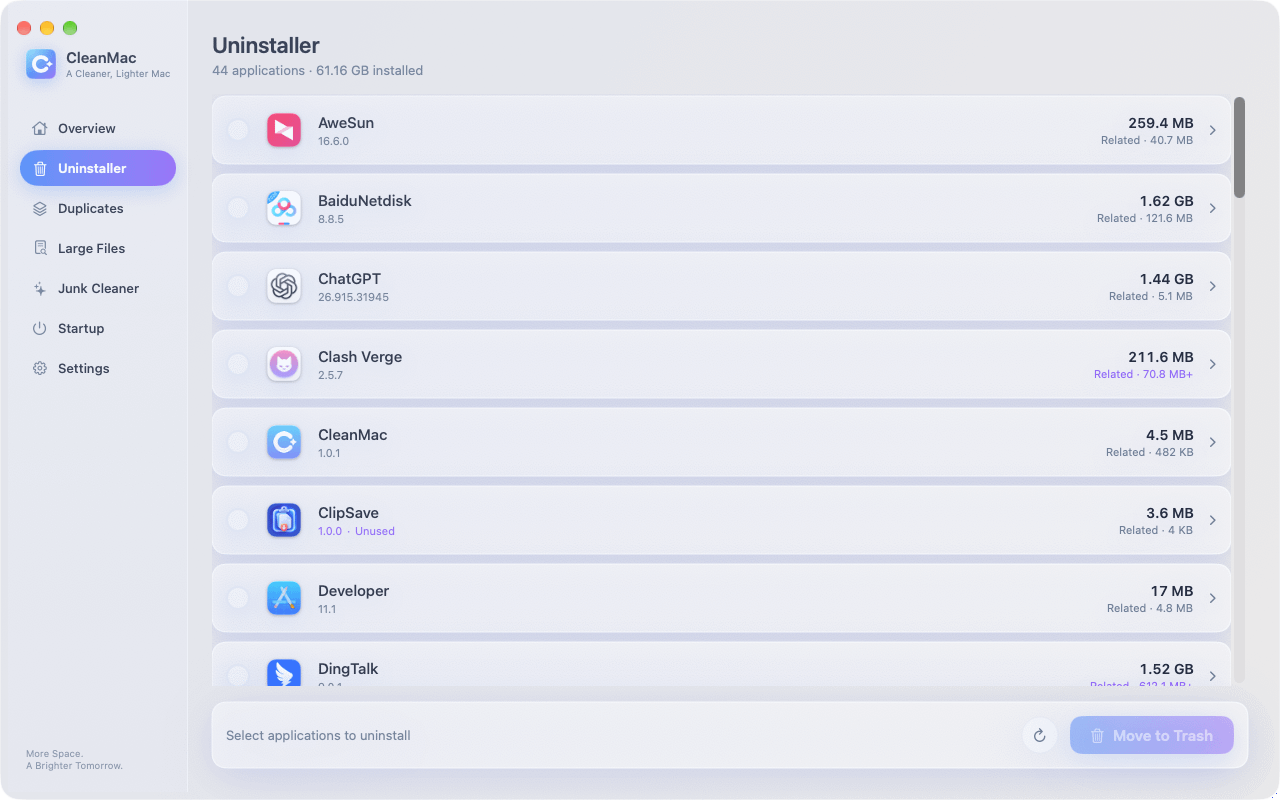
This is where a proper uninstaller matters: CleanMacの 無料 アンインストーラー module removes an app と its caches, preferences, and support folders in one pass, which closes the “it came back after I deleted it” loop that plagues manual adware removal. It also flags apps you haven’t opened in 30+ days — a useful audit view when you’re hunting for software you never knowingly installed at all.
Step 3: Clean out LaunchAgents and LaunchDaemons
This is where Mac malware establishes persistence — the mechanism that relaunches it after every restart. In Finder, press Cmd+Shift+G and check each of these folders:
- `~/Library/LaunchAgents/`
- `/Library/LaunchAgents/`
- `/Library/LaunchDaemons/`
Look for recently-modified `.plist` files with names you don’t recognize — random-looking strings, misspellings of legitimate companies, or names mimicking system processes. Move suspects to the Trash (don’t delete permanently yet). 注意: these folders also contain legitimate entries from Adobe, Google, Microsoft, and your other real software — search any name before removing it, and when in doubt, leave it.
Step 4: Audit Login Items and browser extensions
In システム設定 → 一般 → ログイン項目と拡張機能, remove anything unfamiliar from both the “Open at Login” list and the “Allow in Background” section. CleanMac’s Startup Items module shows the same launch points consolidated in one list, which makes the audit faster.
Then clean each browser:
- Safari: Settings → Extensions → uninstall anything you didn’t install; Settings → Websites → check Notifications and remove unknown entries; Settings → Privacy → Manage Website Data if redirects persist
- Chrome: Settings → Extensions → remove unknowns; Settings → Reset settings → “Restore settings to their original defaults” if the hijack survives extension removal
- 確認してください System Settings → Privacy & Security → Profiles too — if a “configuration profile” you didn’t install is present (some adware installs one to lock browser settings), remove it. On a personal Mac, it’s normal to have no profiles at all.
Step 5: Restart and verify
Restart, then re-check the folders and settings above. Malware that survives a restart has a persistence mechanism you missed — look again at LaunchAgents, Login Items, and profiles. If everything stays clean across two restarts, the manual removal worked.
The Free Scanners Worth Using
For anything beyond simple adware — or simply for confirmation — run a dedicated scanner. The trustworthy options:
- Malwarebytes for Mac (free version): the standard recommendation, and deservedly so. The free tier scans and removes on demand (real-time protection is the paid feature), and its Mac malware definitions are the most current in the business. For a suspected infection, this should be your first download — from the official site only.
- Apple’s built-in defenses: macOS already includes XProtect (signature-based malware detection that updates silently in the background) and Gatekeeper/Notarization (blocking unsigned, unvetted software). These catch known-bad apps at install time, but they’re a perimeter, not a cleanup crew — XProtect won’t remove an infection that’s already established.
- A second opinion: if Malwarebytes finds nothing but symptoms persist, a scan with another reputable engine (CleanMyMac’s malware module, or Bitdefender’s free scanner) can catch what one engine misses.
One warning that can’t be repeated enough: only download security tools from their official websites. Searching “mac virus cleaner” and clicking the first ad is precisely how many infections happen — fake cleaners ranking for exactly that query are a real and thriving scam category.
Prevention: Not Getting Infected Again
Removal is an afternoon; prevention is a set of habits:
- Install software from the App Store or the developer’s official site — never from download aggregators or sponsored search results. This single habit eliminates the majority of Mac malware exposure.
- Never enter your Mac’s admin password because a website or installer told you to. Your password is the keys to the kingdom; legitimate macOS prompts come from the system, not a browser page.
- Don’t pirate software. Cracked apps are the number-one trojan carrier on the Mac platform.
- Keep macOS updated. Apple ships XProtect definition updates and security patches continuously; automatic updates are your silent immune system.
- Be skeptical of urgency. “Act now,” “your Mac is infected,” “update required immediately” — urgency is the signature of social engineering. Real system updates come from System Settings, full stop.
- Audit periodically. A monthly glance at Login Items, browser extensions, and your installed apps catches squatters early — the same habit that keeps your Mac fast keeps it clean.
結論
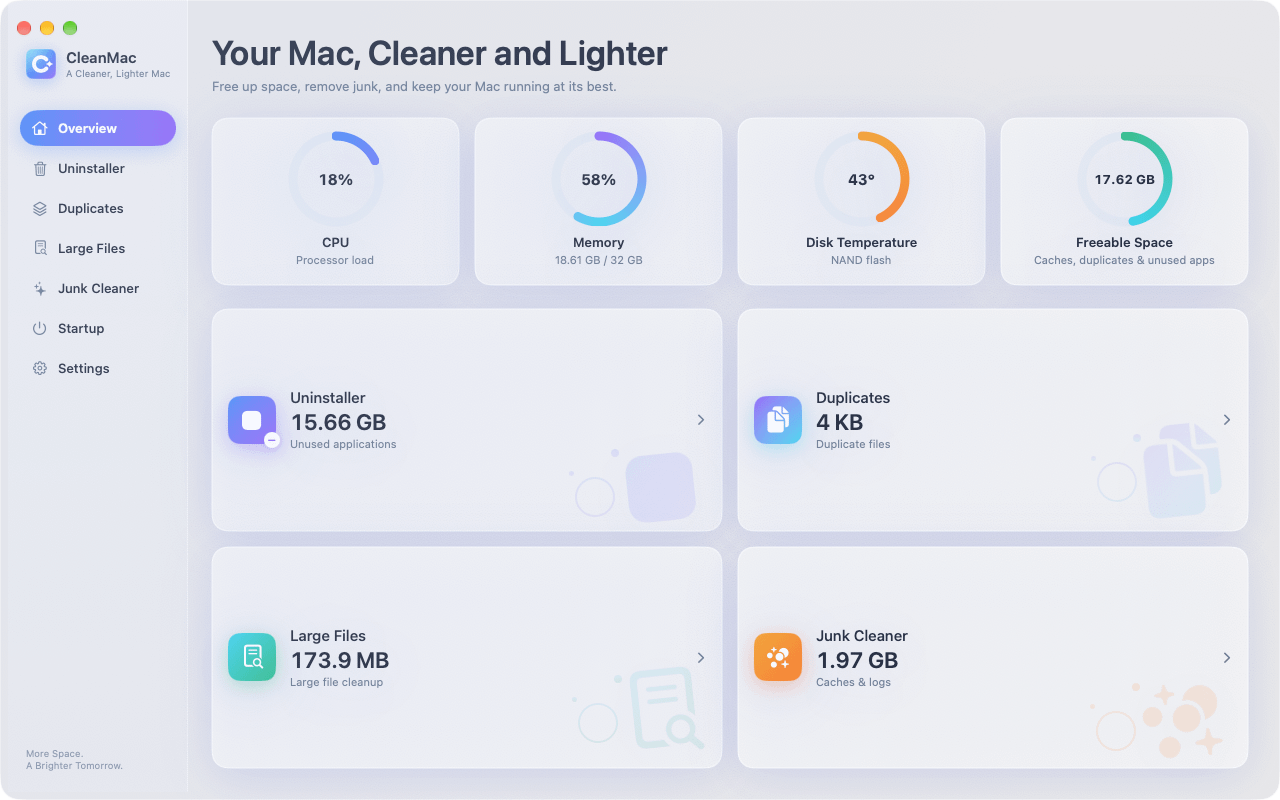
Removing malware from a Mac is usually less dramatic than the infection itself: quit the process, uninstall the malicious app completely — support files and all, which is where CleanMac’s free Uninstaller genuinely helps — purge its persistence from LaunchAgents and Login Items, reset the browser, and confirm with a scan from Malwarebytes’ free tier. Trust Apple’s built-in XProtect as your always-on perimeter, and treat any cleaning app — ours included — as exactly what it honestly claims to be.
Then close the door behind you: official sources only, no pirated software, no passwords for websites, automatic updates on. Those four habits make a repeat infection genuinely unlikely. For more trustworthy free Mac tools, browse our アプリコレクション.
よくある質問
Can Macs actually get viruses?
Yes. Mac-specific malware is less common than Windows malware but absolutely real, and adware, browser hijackers, trojans, and infostealers all target macOS actively. The most common infection route isn’t a drive-by exploit — it’s social engineering that talks the user into installing the malware themselves, which is why skepticism toward installers and pop-ups is the core defense.
Does my Mac have built-in antivirus protection?
Yes, two layers of it. XProtect provides signature-based detection of known malware and updates silently in the background, while Gatekeeper and notarization block unsigned or unvetted apps from launching. These defenses are good at stopping known threats at install time, but they don’t remove established infections — for that you need an on-demand scanner like Malwarebytes.
Is “Your Mac is infected with 3 viruses!” a real warning?
No — it’s a scam, and usually it’s the infection itself rather than the cure. Legitimate macOS security warnings never appear as web page pop-ups with countdown timers and phone numbers. Close the tab (force-quit the browser if it resists), never call the number, and never install the “cleaner” it advertises — that fake cleaner is the payload.
What’s the best free malware remover for Mac?
Malwarebytes for Mac is the consensus answer: its free version scans and removes infections on demand, its Mac-specific definitions are the most current available, and it doesn’t nag aggressively for upgrades. Download it only from the official Malwarebytes website — fake clones of popular security tools rank in search ads precisely to catch people looking for malware removal.
Will resetting my Mac to factory settings remove malware?
Yes, a full erase and reinstall eliminates any malware on the drive — it’s the nuclear option and it’s effective. But it’s rarely necessary: the manual removal steps plus a reputable scanner clear the vast majority of Mac infections in under an hour. Reserve the erase for persistent infections that survive proper removal attempts, or for peace of mind after a serious infostealer incident.
Does CleanMac remove viruses?
No — and we say so plainly. CleanMac is a storage and performance cleaner, not an antivirus; it doesn’t detect or disinfect malware. Its role in an infection scenario is mechanical: completely uninstalling a malicious app along with its leftover files, and auditing startup items where adware hides. Detection and removal belong to dedicated tools like Malwarebytes.
How do I know if a Mac “cleaner” app is legitimate?
Legitimate cleaners show you exactly what they’ll delete before deleting it, move files to the Trash rather than erasing permanently, and never invent threat counts to frighten you. The red flags of scareware: it arrived via an ad or pop-up, it demands payment before showing scan details, it claims to have found hundreds of “viruses” on a healthy Mac, or it installs a configuration profile. When in doubt, search the app’s name plus “scam” before installing.

