

Somewhere on your Mac right now, gigabytes of files exist for exactly one purpose: to be eventually deleted. Cache files are the disposable scratch paper of your operating system — data your Mac saves temporarily so it doesn’t have to fetch or compute the same thing twice. They’re essential to how fast your Mac feels, and they’re also, paradoxically, one of the most common reasons a Mac runs out of space. Understanding what cache files are, which ones exist on your system, and when it’s safe to clear them turns a scary-sounding maintenance task into a routine five-minute habit.
Short on space already? CleanMac finds junk, leftover apps, and duplicates on your Mac — and shows you exactly what it will remove before anything is deleted. Download free →
This guide explains the whole picture: what caches actually do, the different types of caches on macOS, how big they get, when clearing them helps (and when it doesn’t), and the safe way to do it — manually or with a free tool like CleanMac that handles the risk assessment for you.
What a Cache File Actually Does
A cache is a copy of something expensive to get, stored somewhere cheap to reach. When Safari loads a website, it downloads the site’s images, scripts, and stylesheets — then saves copies of them locally. The next time you visit that site, Safari reads the copies from your disk instead of downloading them again. The page loads in half a second instead of three. That saved data is the browser cache.
The same logic applies everywhere. Apps cache thumbnails so folders of photos render instantly. macOS caches font data so text draws without re-reading font files. Music and video apps cache streaming segments so playback survives a network hiccup. Developer tools cache compiled code so rebuilds take seconds instead of minutes. Without caches, your Mac would feel broken — every action would pay the full cost of fetching or computing everything from scratch.
The crucial detail is the design assumption behind every cache: the cached copy is expendable. If a cache file vanishes, the app simply recreates it the next time it’s needed — slower for that one moment, then back to normal. That expendability is what makes caches safe to delete in principle. The complications come from scale and from a few important exceptions.
The Main Types of Cache on macOS
Not all caches are equal. They live in different places, grow at different rates, and carry different levels of deletion risk. Here’s the taxonomy that matters.
User app caches (`~/Library/Caches/`)
Every app you run keeps its working cache in your user Library. This is the largest and safest category: browser caches, Spotify’s streamed music buffer, Slack’s message and image cache, Photoshop’s scratch data, and so on. On an actively used Mac, this folder commonly holds 10–40 GB. Deleting the contents of subfolders here is safe — apps rebuild what they need on next launch.
System caches (`/Library/Caches/`)
The root-level Library cache serves system-wide services and components shared across users. It grows more slowly than the user cache and carries slightly more risk — some folders here support background system services. Light-touch clearing is fine, but this is an area where a curated tool with a safe-list is preferable to manual deletion.
True system caches (`/System/Library/Caches/`)
These belong to macOS itself — font caches, kernel caches, system resource caches. Most are protected by System Integrity Protection and can’t be deleted anyway, and they shouldn’t be. macOS manages them competently on its own. Leave this category alone.
Browser caches
Worth calling out separately because they’re both huge and dual-purpose. Safari, Chrome, and Firefox each maintain their own caches — frequently 2–10 GB each for heavy users. Browser caches also carry a privacy dimension: they contain local copies of pages you’ve visited. You can clear them from within each browser’s settings, or as part of a system-wide sweep.
Font caches
A special case. Corrupted font caches cause real, visible problems — garbled text, slow app launches, crashes in design apps. Clearing them (via `atsutil databases -remove` on older macOS, or simply as part of a cache sweep followed by a restart) is a legitimate troubleshooting step, not just housekeeping.
App-specific heavyweight caches
Some apps deserve individual mention because their caches dwarf everything else: Xcode’s DerivedData and device support folders routinely hit 20–80 GB on developer Macs; video editors accumulate render caches; Docker and virtual machines store multi-gigabyte disk images in cache-adjacent locations. These are safe to clear when the app isn’t running, and they rebuild on demand.
Are Cache Files Safe to Delete?
The honest answer is: yes, with three caveats.
Caveat one: the folder, not the folder structure. Delete the contents of cache folders, not the folders themselves. Apps expect their cache directories to exist; deleting the directory can cause a misbehaving app to fail on launch until it recreates its structure (which well-written apps do automatically, but not all apps are well-written).
Caveat two: quit apps first. Deleting an app’s cache while the app is running can cause that app to write into a now-inconsistent state — at best it recreates the cache, at worst it crashes or loses unsaved in-memory work. Close everything, then clear.
Caveat three: the first launch after clearing is slower. That’s the cache doing its job in reverse — everything must be re-fetched and recomputed once. Websites load slower on first visit, apps open a beat slower, photo libraries re-render thumbnails. Within a day of normal use, the caches that matter have rebuilt and performance returns to normal. Any cache that doesn’t rebuild wasn’t being used anyway — which is exactly the point of clearing.
What’s genuinely unsafe is deleting indiscriminately outside the cache categories: preference files, container data for apps you actively use, and root system folders are not caches, and treating them as such breaks things. This is where tooling earns its place. CleanMac’s free Junk Cleaner module scans the cache categories with a curated safe-list — it knows which folders are pure cache, which system folders to skip entirely, and it previews everything before deleting to the Trash (never permanent erasure), so a mistake is always recoverable.
When Clearing Caches Actually Helps
Cache clearing has a deserved reputation as a cargo-cult fix — people do it expecting miracles it can’t deliver. Here’s when it genuinely helps and when it doesn’t.
It helps when you’re low on disk space. This is the unambiguous win. A Mac under 10–15% free space slows down for structural reasons — the SSD needs free blocks for wear leveling, and virtual memory needs room for swap. Clearing 20 GB of caches restores that headroom immediately.
It helps when an app misbehaves. A corrupted cache is behind a surprising share of “this app is acting weird” reports: stale data, visual glitches, features that stopped working after an update. Clearing that app’s cache is the first thing support teams will tell you to do, because it forces the app to rebuild clean state.
It helps for privacy. Browser and chat app caches contain local copies of what you’ve viewed and received. If you’re selling or lending a Mac, clearing caches is part of a thorough clean.
It doesn’t help as generic speed medicine. If your Mac has plenty of free space and no app is misbehaving, clearing caches won’t make anything meaningfully faster — you’ll just pay the rebuild cost for nothing. Caches make your Mac faster; that’s their entire purpose. Clear them for space, for troubleshooting, or for privacy — not as a ritual.
How to Clear Cache Files Safely
The manual method: Quit all apps. In Finder, press Cmd+Shift+G, go to `~/Library/Caches/`, open each subfolder, select the contents (Cmd+A), and move them to the Trash — leaving the subfolders themselves in place. Restart. Keep the Trash unemptied for a few days of normal use; if everything works, empty it.
The browser method: Safari → Settings → Privacy → Manage Website Data → Remove All (or Develop → Empty Caches). Chrome → Settings → Privacy and security → Clear browsing data → Cached images and files. Firefox → Settings → Privacy & Security → Clear Data.
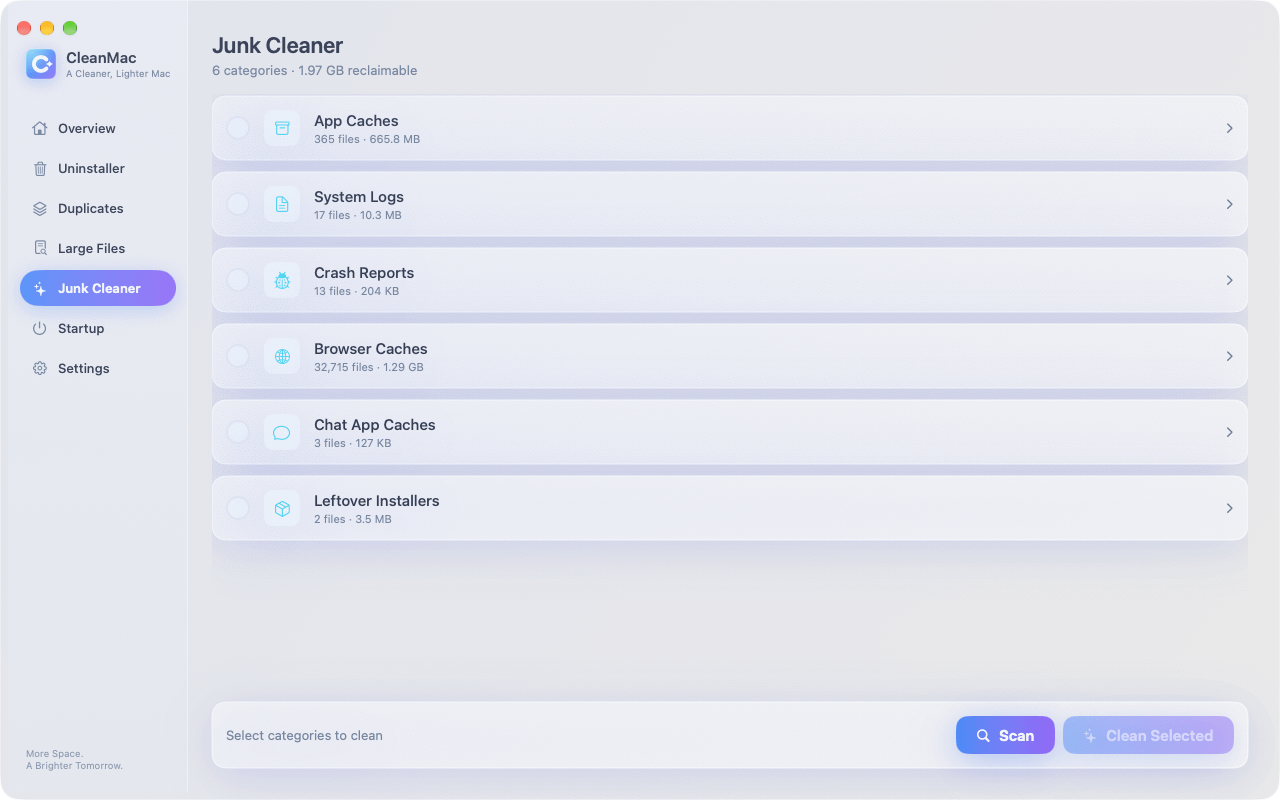
The automated method: Run CleanMac’s Junk Cleaner scan, review the itemized results — app caches, browser caches, system logs, crash reports, each with its size — select what to remove, and clean. The whole pass takes a few minutes, touches nothing outside the safe-list, and deletes to the Trash for recoverability.
Conclusion
Cache files are temporary by design: copies your Mac keeps to avoid redundant work, all of them expendable, all of them rebuilt on demand. They accumulate relentlessly — tens of gigabytes per year of normal use — and clearing them is safe when you follow the three rules: delete contents not folders, quit apps first, and expect a brief rebuild slowdown afterward. Clear caches to reclaim disk space, to fix a misbehaving app, or before handing your Mac to someone else — not as a superstition. CleanMac makes the whole job a five-minute, preview-first, fully recoverable routine instead of a nervous expedition through hidden Library folders. For more free Mac utilities, browse our app collection.
Frequently Asked Questions
What are system cache files on Mac?
System cache files are temporary data that macOS and your applications save to avoid repeating expensive work — downloaded web resources, rendered thumbnails, computed results, and streamed media segments. They live mainly in `~/Library/Caches/` for your apps, `/Library/Caches/` for system-wide services, and within each browser’s data folders. Every cache file is designed to be expendable: if deleted, the app that created it simply rebuilds it when needed.
Is it safe to delete cache files on Mac?
Yes, provided you follow three rules: delete the contents of cache folders rather than the folders themselves, quit applications before clearing their caches, and stay within recognized cache locations rather than deleting Library folders indiscriminately. The only real cost is a temporary slowdown on first launch after clearing, while apps rebuild the caches they actually need. Using a tool with a curated safe-list removes the risk of deleting the wrong thing.
Will deleting cache files speed up my Mac?
It depends on your situation. If your disk is nearly full, clearing caches restores free space and removes a genuine performance bottleneck, so your Mac will feel faster. If a specific app is misbehaving due to corrupted cache data, clearing that app’s cache often fixes it. But if your Mac already has ample free space and no app problems, clearing caches won’t increase speed — caches exist to make things faster, so removing them without cause just triggers a rebuild.
How much space do cache files take on a Mac?
On an actively used Mac that has never been cleaned, user app caches typically total 10–40 GB, with browsers, streaming apps, chat clients, and developer tools as the largest contributors. A quarterly cleanup usually recovers 5–15 GB. Developer Macs are outliers — Xcode’s derived data and device support caches alone can exceed 50 GB.
Where are cache files stored on Mac?
The main location is `~/Library/Caches/` (your user Library), which holds caches for the apps you run. System-wide caches live in `/Library/Caches/`, macOS’s own protected caches in `/System/Library/Caches/`, and each browser keeps its cache inside its own profile folders. You can reach the user cache folder in Finder with Cmd+Shift+G and typing the path.
How often should I clear my Mac’s cache?
A monthly light sweep of app and browser caches is a good rhythm for most users, with a deeper pass quarterly or whenever free disk space drops below 15%. Also clear a specific app’s cache immediately when that app starts behaving strangely — stale or corrupted cache data is a common cause. More frequent clearing than that has no benefit, since caches rebuild anyway.
Do I need an app to clear cache files, or can I do it manually?
You can do it manually — quit your apps, open `~/Library/Caches/`, delete folder contents to the Trash, and restart. The manual method takes 15–30 minutes and requires care to avoid non-cache folders. A free tool like CleanMac’s Junk Cleaner automates the scan with a safe-list of cache locations, shows you sizes before deleting, and moves everything to the Trash so the process stays reversible.


