
“Mac 不会感染病毒”从来就不完全正确,到了 2026 年更是大错特错。Mac 恶意软件真实存在,而且还在不断增长,它有一个最喜欢的伪装:通常是用户被说服安装的东西——伪造的浏览器更新、下载网站上的“免费”应用、看起来像官方的赞助搜索结果。好消息是,Mac 恶意软件绝大多数也是 可移除的, ,而且往往是免费的,只要你知道去哪里找。.
本指南呈现真实情况:真正针对 Mac 的恶意软件类型、机器被感染的迹象、分步手动清除方法、值得信赖的免费扫描工具——以及一项关于 CleanMac 能做什么、不能做什么的重要披露,因为我们开发了一款 Mac 清理工具,你应该得到一个关于它在恶意软件清除中适合(和不适合)哪里的明确答案。.
首先,诚实披露:CleanMac 不是杀毒软件
让我们先把这一点说清楚,因为信任比下载量更重要: CleanMac 是一款存储和性能清理工具,不是安全软件。. 它能找出垃圾文件、重复文件、大文件、未使用的应用和启动项。它不会扫描、检测或移除恶意软件,本文中的任何内容都不应被解读为相反的声明。.
在感染场景中,CleanMac 真正能帮上忙的地方是清除的 机制 ——将恶意应用连同其支持文件彻底卸载,并审查广告软件喜欢藏身的启动项。但检测和消毒属于专用安全工具,我们会在下面列出值得使用的工具。任何声称同时是你的杀毒软件的“清理”应用都值得怀疑,而不是你的钱。.
真正针对 Mac 的恶意软件类型
了解你面对的是什么,才能决定如何应对。Mac 恶意软件的版图分为几个不同的类别,它们的常见程度并不相同。.
广告软件和浏览器劫持程序(迄今为止最常见)
大多数“我的 Mac 中病毒了”的报告实际上就是这类东西。症状:浏览器主页自行改变,搜索被重定向到一个你从未听说过的搜索引擎,本不该有弹窗广告的网站出现弹窗广告,或者未经邀请就出现了新的工具栏和扩展。广告软件通过第三方下载网站的免费软件捆绑传播,或通过伪造的“你的 Flash Player 已过期”提示传播。它令人烦恼而非具有破坏性,但它具有侵入性——它会跟踪浏览行为并注入广告——应该被移除。.
潜在不受欢迎程序(PUP)
灰色地带:夸大或捏造问题来吓唬你付费的“优化器”和“清理器”应用、伪造的更新工具,以及你从未明确同意过的捆绑软件。讽刺的是,恐吓式清理器是最常见的 Mac 感染之一——声称“你的 Mac 感染了 3 个病毒!”的弹窗” 本身就是恶意软件.
木马和下载器
伪装成合法软件的恶意代码——盗版应用是典型的载体。来自种子网站的破解版 Photoshop、办公套件和流行工具经常捆绑木马,这些木马会安装后门、窃取浏览器保存的密码或获取额外的载荷。这是反对盗版软件最有力的论据,句号。.
信息窃取程序
近年来增长最快的类别:旨在收集浏览器 Cookie、保存的密码、加密钱包数据和会话令牌,然后悄悄外泄的恶意软件。信息窃取程序通常通过木马化应用或针对特定搜索的恶意广告传播。它们是无声的——没有弹窗,没有主页更改——这正是它们危险的原因。.
勒索软件和挖矿程序(在 Mac 上罕见)
两者都存在于 macOS 上,但并不常见。挖矿程序会通过持续的高 CPU 占用和发热暴露自己;勒索软件则会明显地自我宣告。如果你遇到其中任何一种,请跳过 DIY 部分,直接使用专用扫描工具。.
你的 Mac 可能被感染的迹象
没有单一症状能证明感染——大多数都有无害的解释——但这些迹象的 组合 值得进行一次扫描:
- 浏览器主页或默认搜索引擎在你未操作的情况下被更改
- 搜索结果被重定向到陌生网站
- 从未有过弹窗或广告的网站出现弹窗或广告,或广告跨 设备 跟随你
- 你未安装的新浏览器扩展或工具栏
- 应用程序文件夹或登录项中出现陌生应用
- 持续出现“你的 Mac 已感染!”警告(记住:这些通常是恶意软件本身,而不是解药)
- 活动监视器中无解释的持续高 CPU/风扇转速
- 朋友收到你未发送的消息
让你保持理智的反面观点:Mac 变慢、磁盘已满和风扇噪音大通常 不是 不是恶意软件。先检查常见原因——恶意软件是排除法得出的诊断,而不是默认假设。.
如何手动从 Mac 移除恶意软件
大多数 Mac 广告软件和 PUP 可以手动移除。按顺序执行以下步骤,如果你怀疑有活跃的信息窃取程序,请先断开互联网连接(拔掉网线,关闭 Wi-Fi)。.
第 1 步:退出可疑进程
打开 活动监视器 (应用程序 → 实用工具),扫描进程列表,寻找你不认识的名称,尤其是任何高 CPU 占用的进程。选择一个可疑进程,点击 ✕ → 强制退出. 。在采取行动之前,先在网上搜索任何陌生的进程名称——合法的系统进程有大量文档记录,而恶意软件进程通常会在清除指南中出现。.
第 2 步:彻底移除恶意应用
检查你的应用程序文件夹,看是否有你不记得安装过的任何东西。将可疑应用拖到废纸篓会移除应用本身,但 会留下它的支持文件 — 而广告软件往往正是从这些残留物中重新生成。.
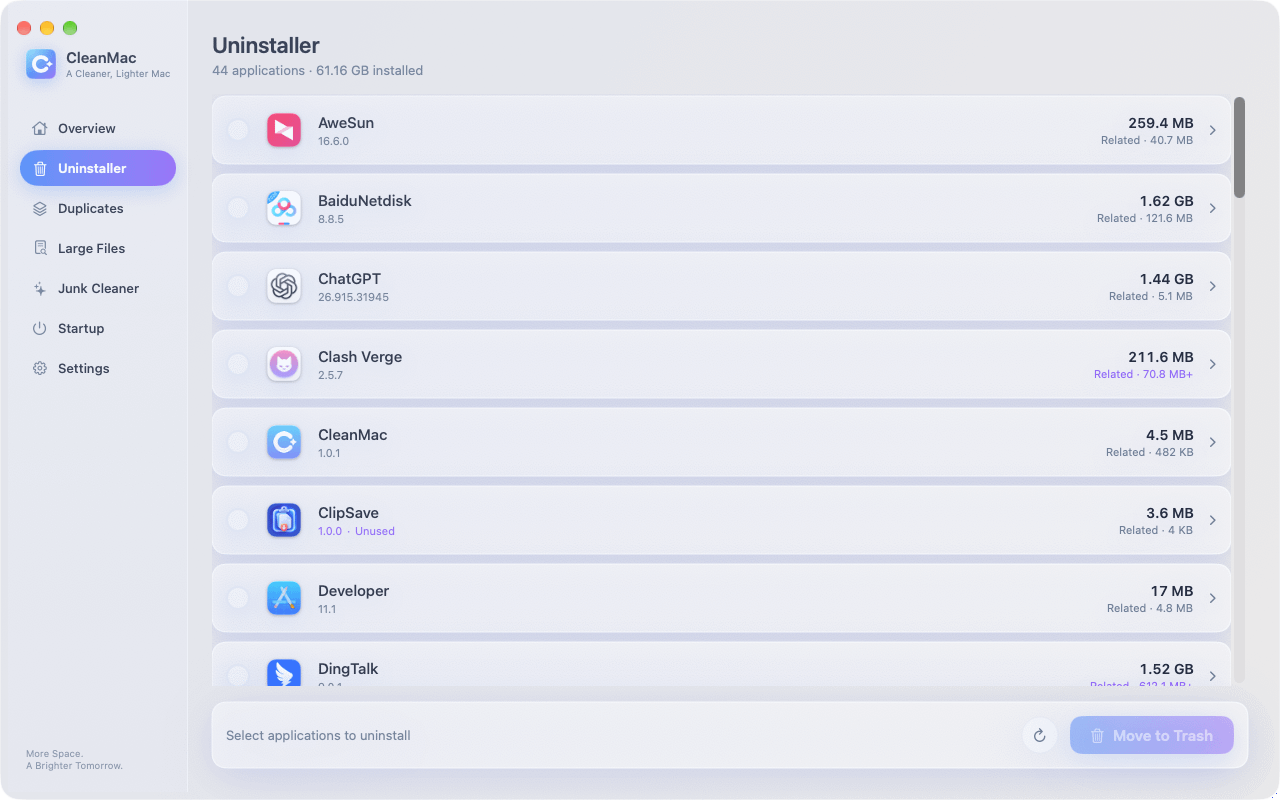
这正是需要正规卸载工具的原因: CleanMac 的 免费 卸载程序 模块可一次性移除应用 与 及其缓存、偏好设置和支持文件夹,从而堵住“我删了它又回来了”这个困扰手动清除广告软件的循环。它还会标记你 30 多天未打开的应用——当你寻找从未有意安装的软件时,这是一个有用的审计视图。.
第 3 步:清理 LaunchAgents 和 LaunchDaemons
这是 Mac 恶意软件建立持久化的地方——即每次重启后重新启动它的机制。在 Finder 中,按 Cmd+Shift+G 并检查以下每个文件夹:
- `~/Library/LaunchAgents/`
- `/Library/LaunchAgents/`
- `/Library/LaunchDaemons/`
查找最近修改的 `.plist` 文件,其名称你不认识——看起来随机的字符串、合法公司名称的拼写错误,或模仿系统进程的名称。将可疑项移到废纸篓(暂时不要永久删除)。. 注意: 这些文件夹也包含来自 Adobe、Google、Microsoft 及其他真实软件的合法条目——移除任何名称前先搜索一下,拿不准时就保留。.
第 4 步:审查登录项和浏览器扩展
在 系统设置 → 通用 → 登录项与扩展, 中,从“登录时打开”列表和“允许在后台”部分移除任何不熟悉的内容。CleanMac 的 启动项 模块将相同的启动点整合在一个列表中显示,使审查更快。.
然后清理每个浏览器:
- Safari: 设置 → 扩展 → 卸载任何非你安装的内容;设置 → 网站 → 检查通知并移除未知条目;设置 → 隐私 → 管理网站数据(如果重定向持续存在)
- Chrome: 设置 → 扩展 → 移除未知项;设置 → 重置设置 → “将设置恢复为原始默认值”(如果劫持在移除扩展后仍然存在)
- 检查 系统设置 → 隐私与安全性 → 描述文件 也要检查——如果存在你未安装的“配置描述文件”(某些广告软件会安装一个来锁定浏览器设置),请将其移除。在个人 Mac 上,没有任何描述文件是正常的。.
第 5 步:重启并验证
重启,然后重新检查上述文件夹和设置。重启后仍存活的恶意软件意味着你遗漏了某个持久化机制——再次检查 LaunchAgents、登录项和描述文件。如果两次重启后一切保持干净,则手动移除成功。.
值得使用的免费扫描工具
对于超出简单广告软件范围的任何情况——或仅仅为了确认——请运行专用扫描工具。可信赖的选项:
- Malwarebytes for Mac(免费版): 标准推荐,且名副其实。免费版按需扫描和移除(实时保护是付费功能),其 Mac 恶意软件定义库是业内最新的。对于疑似感染,这应该是你的第一个下载——仅从官方网站下载。.
- Apple 的内置防御: macOS 已包含 XProtect (基于签名的恶意软件检测,在后台静默更新)和 Gatekeeper/公证 (阻止未签名、未经审核的软件)。这些在安装时拦截已知恶意应用,但它们是外围防线,不是清理团队——XProtect 不会移除已经建立的感染。.
- 第二意见: 如果 Malwarebytes 没有发现任何问题但症状持续,使用另一个信誉良好的引擎(CleanMyMac 的恶意软件模块,或 Bitdefender 的免费扫描工具)进行扫描可以发现单个引擎遗漏的内容。.
一个再怎么强调也不为过的警告: 只从官方网站下载安全工具。. 搜索“mac virus cleaner”并点击第一个广告正是许多感染发生的方式——针对该查询排名的假清理工具是一个真实且猖獗的诈骗类别。.
预防:不再被感染
移除只需一个下午;预防则是一套习惯:
- 从 App Store 或开发者官方网站安装软件——绝不从下载聚合网站或赞助搜索结果安装。. 这一习惯即可消除大多数 Mac 恶意软件暴露风险。.
- 绝不要因为网站或安装程序要求就输入你的 Mac 管理员密码。. 你的密码是王国的钥匙;合法的 macOS 提示来自系统,而非浏览器页面。.
- 不要盗版软件。. 破解应用是 Mac 平台上头号木马载体。.
- 保持 macOS 更新。. Apple 持续发布 XProtect 定义更新和安全补丁;自动更新是你无声的免疫系统。.
- 对紧迫感保持怀疑。. “立即行动”、“你的 Mac 已被感染”、“需要立即更新”——紧迫感是社会工程学的标志。真正的系统更新来自系统设置,仅此而已。.
- Audit periodically. A monthly glance at Login Items, browser extensions, and your installed apps catches squatters early — the same habit that keeps your Mac fast keeps it clean.
结论
Removing malware from a Mac is usually less dramatic than the infection itself: quit the process, uninstall the malicious app completely — support files and all, which is where CleanMac’s free Uninstaller genuinely helps — purge its persistence from LaunchAgents and Login Items, reset the browser, and confirm with a scan from Malwarebytes’ free tier. Trust Apple’s built-in XProtect as your always-on perimeter, and treat any cleaning app — ours included — as exactly what it honestly claims to be.
Then close the door behind you: official sources only, no pirated software, no passwords for websites, automatic updates on. Those four habits make a repeat infection genuinely unlikely. For more trustworthy free Mac tools, browse our 应用合集.
常见问题
Can Macs actually get viruses?
Yes. Mac-specific malware is less common than Windows malware but absolutely real, and adware, browser hijackers, trojans, and infostealers all target macOS actively. The most common infection route isn’t a drive-by exploit — it’s social engineering that talks the user into installing the malware themselves, which is why skepticism toward installers and pop-ups is the core defense.
Does my Mac have built-in antivirus protection?
Yes, two layers of it. XProtect provides signature-based detection of known malware and updates silently in the background, while Gatekeeper and notarization block unsigned or unvetted apps from launching. These defenses are good at stopping known threats at install time, but they don’t remove established infections — for that you need an on-demand scanner like Malwarebytes.
Is “Your Mac is infected with 3 viruses!” a real warning?
No — it’s a scam, and usually it’s the infection itself rather than the cure. Legitimate macOS security warnings never appear as web page pop-ups with countdown timers and phone numbers. Close the tab (force-quit the browser if it resists), never call the number, and never install the “cleaner” it advertises — that fake cleaner is the payload.
What’s the best free malware remover for Mac?
Malwarebytes for Mac is the consensus answer: its free version scans and removes infections on demand, its Mac-specific definitions are the most current available, and it doesn’t nag aggressively for upgrades. Download it only from the official Malwarebytes website — fake clones of popular security tools rank in search ads precisely to catch people looking for malware removal.
Will resetting my Mac to factory settings remove malware?
Yes, a full erase and reinstall eliminates any malware on the drive — it’s the nuclear option and it’s effective. But it’s rarely necessary: the manual removal steps plus a reputable scanner clear the vast majority of Mac infections in under an hour. Reserve the erase for persistent infections that survive proper removal attempts, or for peace of mind after a serious infostealer incident.
Does CleanMac remove viruses?
No — and we say so plainly. CleanMac is a storage and performance cleaner, not an antivirus; it doesn’t detect or disinfect malware. Its role in an infection scenario is mechanical: completely uninstalling a malicious app along with its leftover files, and auditing startup items where adware hides. Detection and removal belong to dedicated tools like Malwarebytes.
How do I know if a Mac “cleaner” app is legitimate?
Legitimate cleaners show you exactly what they’ll delete before deleting it, move files to the Trash rather than erasing permanently, and never invent threat counts to frighten you. The red flags of scareware: it arrived via an ad or pop-up, it demands payment before showing scan details, it claims to have found hundreds of “viruses” on a healthy Mac, or it installs a configuration profile. When in doubt, search the app’s name plus “scam” before installing.

