
“「Mac 不會中毒」這句話從來就不完全正確,到了 2026 年更是大錯特錯。Mac 惡意軟體確實存在,而且還在不斷增加,它最愛用的偽裝手法是:通常都是使用者被說服而安裝的東西——假的瀏覽器更新、「免費」的下載網站應用程式、看起來很官方的贊助搜尋結果。好消息是,Mac 惡意軟體絕大多數也 可以移除, ,而且往往免費,只要你知道該從哪裡著手。.
本指南涵蓋真實情況:實際針對 Mac 的惡意軟體類型、機器遭到感染的徵兆、逐步手動移除、值得信賴的免費掃描工具——以及一項重要揭露,說明 CleanMac 能做什麼、不能做什麼,因為我們開發的是 Mac 清理工具,你有權得到一個明確的答案,知道它在惡意軟體移除中適合(與不適合)扮演什麼角色。.
首先,誠實揭露:CleanMac 不是防毒軟體
我們先把這件事講清楚,因為信任比下載次數更重要: CleanMac 是儲存空間與效能清理工具,不是安全軟體。. 它會找出垃圾檔案、重複檔案、大型檔案、未使用的應用程式和啟動項目。它不會掃描、偵測或移除惡意軟體,本文任何內容都不應被解讀為相反的宣稱。.
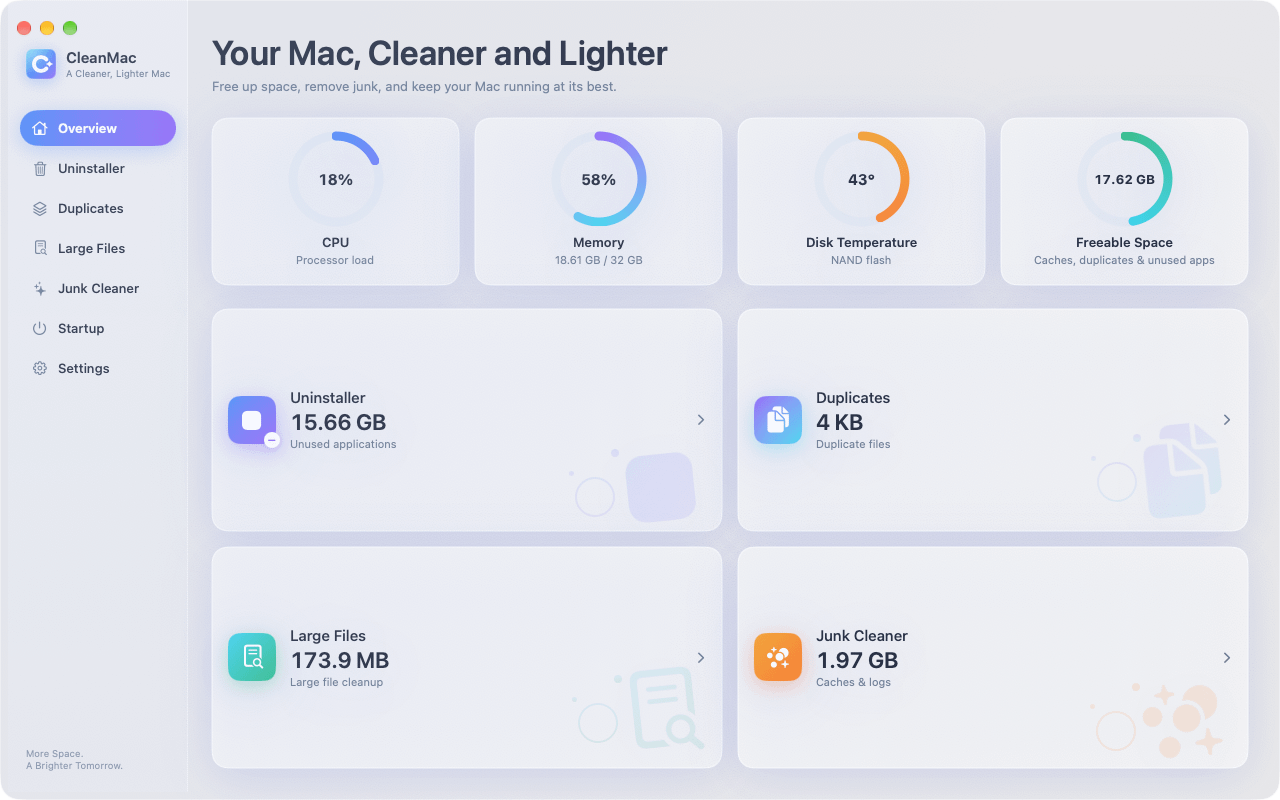
CleanMac 在感染情境中真正有幫助的地方,在於移除的 機制 ——將惡意應用程式連同其支援檔案徹底解除安裝,並稽核廣告軟體最愛藏身的啟動項目。但偵測與清除屬於專用安全工具的職責,我們會在下方列出值得使用的工具。任何聲稱同時也是你防毒軟體的「清理」應用程式,都值得懷疑,而不是你的錢。.
實際針對 Mac 的惡意軟體類型
了解你面對的是什麼,才能決定如何應對。Mac 惡意軟體大致可分為幾個不同類別,而且它們的常見程度並不均等。.
廣告軟體與瀏覽器劫持程式(迄今最常見)
大多數「我的 Mac 中毒了」的報告,實際上都是這一類。症狀包括:瀏覽器首頁自行變更、搜尋被重新導向到你從未聽過的搜尋引擎、本不該有廣告的網站出現彈出式廣告,或未經邀請就出現新的工具列與擴充功能。廣告軟體會與第三方下載網站的免費軟體捆綁在一起,或透過假的「你的 Flash Player 已過期」提示散布。它令人煩躁而非具破壞性,但具有侵入性——它會追蹤瀏覽行為並注入廣告——因此應該移除。.
潛在不受歡迎的程式(PUP)
灰色地帶:「優化」與「清理」應用程式誇大或捏造問題,嚇唬你付費;假的更新工具;以及你從未明確同意卻被捆綁安裝的軟體。諷刺的是,恐嚇式清理程式是最常見的 Mac 感染之一——那個聲稱「你的 Mac 已感染 3 種病毒!」的彈出視窗“ 本身就是惡意軟體.
木馬與下載器
偽裝成合法軟體的惡意程式碼——盜版應用程式是經典的載體。來自種子網站的破解版 Photoshop、辦公室套件和熱門工具程式,經常捆綁木馬,用來安裝後門、竊取瀏覽器儲存的密碼,或下載額外的惡意酬載。這是反對盜版軟體最有力的理由,沒有例外。.
資訊竊取程式
近年成長最快的類別:專門蒐集瀏覽器 Cookie、已儲存的密碼、加密貨幣錢包資料和工作階段權杖,然後悄悄外洩的惡意軟體。資訊竊取程式通常透過被植入木馬的應用程式,或針對特定搜尋的惡意廣告散布。它們很安靜——沒有彈出視窗、沒有首頁變更——這正是它們危險的原因。.
勒索軟體與加密貨幣挖礦程式(在 Mac 上罕見)
兩者都存在於 macOS,但並不常見。加密貨幣挖礦程式會透過持續的高 CPU 使用率和發熱暴露自己;勒索軟體則會明顯地自我宣告。如果你遇到其中任何一種,請跳過 DIY 部分,直接使用專用掃描工具。.
你的 Mac 可能已遭感染的徵兆
沒有任何單一症狀能證明感染——大多數都有無害的解釋——但這些症狀的 組合 值得進行一次掃描:
- 瀏覽器首頁或預設搜尋引擎在你未操作的情況下變更
- 搜尋結果被重新導向至不熟悉的網站
- 從未有廣告的網站出現彈出視窗或廣告,或廣告跟著你 跨 裝置的網站
- 你未安裝的新瀏覽器擴充功能或工具列
- 「應用程式」檔案夾或登入項目中出現不熟悉的應用程式
- 持續出現「你的 Mac 已感染!」警告(記住:這些通常是惡意軟體,而不是解藥)
- 活動監視器中無故持續高 CPU 使用率/風扇狂轉
- 朋友收到你並未傳送的訊息
讓你保持理智的反面論點:Mac 變慢、磁碟已滿和風扇狂轉,通常 不是 不是惡意軟體。先檢查平凡的原因——惡意軟體是排除法得出的診斷,不是預設假設。.
如何手動從 Mac 移除惡意軟體
大多數 Mac 廣告軟體和 PUP 都可以手動移除。請依序完成以下步驟,如果你懷疑有資訊竊取程式正在活動,請先中斷網路連線(拔掉乙太網路線、關閉 Wi-Fi)。.
步驟 1:結束可疑的程序
開啟 活動監視器 (應用程式 → 工具程式),掃描程序清單,找出你不認識的名稱,尤其是任何高 CPU 使用率的項目。選取可疑項目,按一下 ✕ → 強制結束. 。在採取行動前,先上網搜尋任何不熟悉的程序名稱——合法的系統程序有大量文件可查,而惡意軟體程序通常會出現在移除指南中。.
步驟 2:徹底移除惡意應用程式
檢查你的「應用程式」檔案夾,找出任何你不記得安裝過的項目。將可疑應用程式拖到「垃圾桶」只會移除應用程式本身,但 leaves its support files behind — and adware often regenerates from exactly those leftovers.
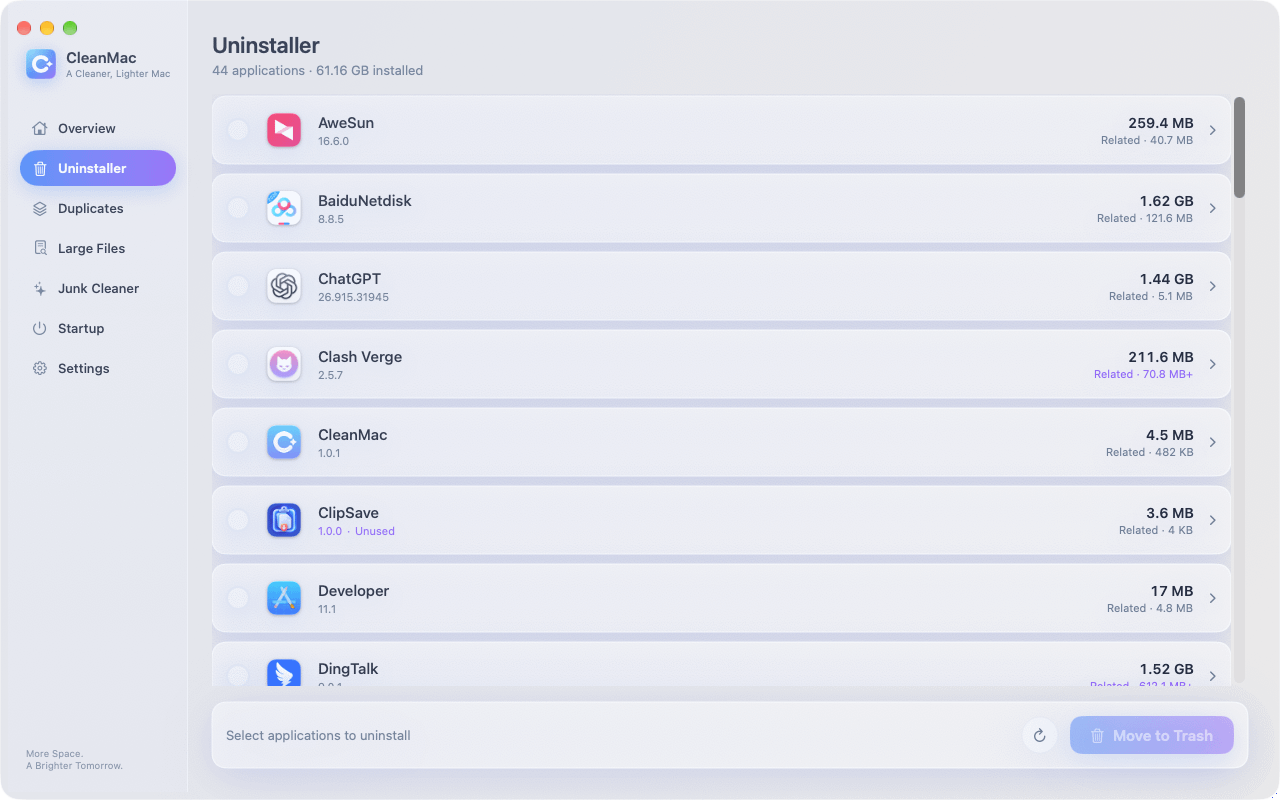
This is where a proper uninstaller matters: CleanMac 的 免費 解除安裝工具 module removes an app 與 its caches, preferences, and support folders in one pass, which closes the “it came back after I deleted it” loop that plagues manual adware removal. It also flags apps you haven’t opened in 30+ days — a useful audit view when you’re hunting for software you never knowingly installed at all.
Step 3: Clean out LaunchAgents and LaunchDaemons
This is where Mac malware establishes persistence — the mechanism that relaunches it after every restart. In Finder, press Cmd+Shift+G and check each of these folders:
- `~/Library/LaunchAgents/`
- `/Library/LaunchAgents/`
- `/Library/LaunchDaemons/`
Look for recently-modified `.plist` files with names you don’t recognize — random-looking strings, misspellings of legitimate companies, or names mimicking system processes. Move suspects to the Trash (don’t delete permanently yet). 注意: these folders also contain legitimate entries from Adobe, Google, Microsoft, and your other real software — search any name before removing it, and when in doubt, leave it.
Step 4: Audit Login Items and browser extensions
In 系統設定 → 一般 → 登入項目與擴充功能, remove anything unfamiliar from both the “Open at Login” list and the “Allow in Background” section. CleanMac’s 啟動項目 module shows the same launch points consolidated in one list, which makes the audit faster.
Then clean each browser:
- Safari: Settings → Extensions → uninstall anything you didn’t install; Settings → Websites → check Notifications and remove unknown entries; Settings → Privacy → Manage Website Data if redirects persist
- Chrome: Settings → Extensions → remove unknowns; Settings → Reset settings → “Restore settings to their original defaults” if the hijack survives extension removal
- 檢查 System Settings → Privacy & Security → Profiles too — if a “configuration profile” you didn’t install is present (some adware installs one to lock browser settings), remove it. On a personal Mac, it’s normal to have no profiles at all.
Step 5: Restart and verify
Restart, then re-check the folders and settings above. Malware that survives a restart has a persistence mechanism you missed — look again at LaunchAgents, Login Items, and profiles. If everything stays clean across two restarts, the manual removal worked.
The Free Scanners Worth Using
For anything beyond simple adware — or simply for confirmation — run a dedicated scanner. The trustworthy options:
- Malwarebytes for Mac (free version): the standard recommendation, and deservedly so. The free tier scans and removes on demand (real-time protection is the paid feature), and its Mac malware definitions are the most current in the business. For a suspected infection, this should be your first download — from the official site only.
- Apple’s built-in defenses: macOS already includes XProtect (signature-based malware detection that updates silently in the background) and Gatekeeper/Notarization (blocking unsigned, unvetted software). These catch known-bad apps at install time, but they’re a perimeter, not a cleanup crew — XProtect won’t remove an infection that’s already established.
- A second opinion: if Malwarebytes finds nothing but symptoms persist, a scan with another reputable engine (CleanMyMac’s malware module, or Bitdefender’s free scanner) can catch what one engine misses.
One warning that can’t be repeated enough: only download security tools from their official websites. Searching “mac virus cleaner” and clicking the first ad is precisely how many infections happen — fake cleaners ranking for exactly that query are a real and thriving scam category.
Prevention: Not Getting Infected Again
Removal is an afternoon; prevention is a set of habits:
- Install software from the App Store or the developer’s official site — never from download aggregators or sponsored search results. This single habit eliminates the majority of Mac malware exposure.
- Never enter your Mac’s admin password because a website or installer told you to. Your password is the keys to the kingdom; legitimate macOS prompts come from the system, not a browser page.
- Don’t pirate software. Cracked apps are the number-one trojan carrier on the Mac platform.
- Keep macOS updated. Apple ships XProtect definition updates and security patches continuously; automatic updates are your silent immune system.
- Be skeptical of urgency. “Act now,” “your Mac is infected,” “update required immediately” — urgency is the signature of social engineering. Real system updates come from System Settings, full stop.
- Audit periodically. A monthly glance at Login Items, browser extensions, and your installed apps catches squatters early — the same habit that keeps your Mac fast keeps it clean.
總結
Removing malware from a Mac is usually less dramatic than the infection itself: quit the process, uninstall the malicious app completely — support files and all, which is where CleanMac’s free Uninstaller genuinely helps — purge its persistence from LaunchAgents and Login Items, reset the browser, and confirm with a scan from Malwarebytes’ free tier. Trust Apple’s built-in XProtect as your always-on perimeter, and treat any cleaning app — ours included — as exactly what it honestly claims to be.
Then close the door behind you: official sources only, no pirated software, no passwords for websites, automatic updates on. Those four habits make a repeat infection genuinely unlikely. For more trustworthy free Mac tools, browse our 應用程式精選集.
常見問題
Can Macs actually get viruses?
Yes. Mac-specific malware is less common than Windows malware but absolutely real, and adware, browser hijackers, trojans, and infostealers all target macOS actively. The most common infection route isn’t a drive-by exploit — it’s social engineering that talks the user into installing the malware themselves, which is why skepticism toward installers and pop-ups is the core defense.
Does my Mac have built-in antivirus protection?
Yes, two layers of it. XProtect provides signature-based detection of known malware and updates silently in the background, while Gatekeeper and notarization block unsigned or unvetted apps from launching. These defenses are good at stopping known threats at install time, but they don’t remove established infections — for that you need an on-demand scanner like Malwarebytes.
Is “Your Mac is infected with 3 viruses!” a real warning?
No — it’s a scam, and usually it’s the infection itself rather than the cure. Legitimate macOS security warnings never appear as web page pop-ups with countdown timers and phone numbers. Close the tab (force-quit the browser if it resists), never call the number, and never install the “cleaner” it advertises — that fake cleaner is the payload.
What’s the best free malware remover for Mac?
Malwarebytes for Mac is the consensus answer: its free version scans and removes infections on demand, its Mac-specific definitions are the most current available, and it doesn’t nag aggressively for upgrades. Download it only from the official Malwarebytes website — fake clones of popular security tools rank in search ads precisely to catch people looking for malware removal.
Will resetting my Mac to factory settings remove malware?
Yes, a full erase and reinstall eliminates any malware on the drive — it’s the nuclear option and it’s effective. But it’s rarely necessary: the manual removal steps plus a reputable scanner clear the vast majority of Mac infections in under an hour. Reserve the erase for persistent infections that survive proper removal attempts, or for peace of mind after a serious infostealer incident.
Does CleanMac remove viruses?
No — and we say so plainly. CleanMac is a storage and performance cleaner, not an antivirus; it doesn’t detect or disinfect malware. Its role in an infection scenario is mechanical: completely uninstalling a malicious app along with its leftover files, and auditing startup items where adware hides. Detection and removal belong to dedicated tools like Malwarebytes.
How do I know if a Mac “cleaner” app is legitimate?
Legitimate cleaners show you exactly what they’ll delete before deleting it, move files to the Trash rather than erasing permanently, and never invent threat counts to frighten you. The red flags of scareware: it arrived via an ad or pop-up, it demands payment before showing scan details, it claims to have found hundreds of “viruses” on a healthy Mac, or it installs a configuration profile. When in doubt, search the app’s name plus “scam” before installing.

