
Uninstalling an app on a Mac seems laughably simple: drag it from Applications to the Trash, done. And for the app itself, that’s true. But here’s what almost nobody tells you: the app you dragged away is only part of what it installed.
Nearly every macOS app scatters supporting files across your system the moment you first launch it — caches, preferences, application support folders, containers, logs, crash reports, saved state, and sometimes background agents that keep running even after the app is gone. Drag-to-trash removes the 100 MB app bundle and leaves the 400 MB of debris behind. Multiply that by every app you’ve installed and removed over the years, and it’s common to find 5–20 GB of orphaned leftovers from apps that no longer exist.
This guide explains where those leftovers hide, how to remove them manually, and how to do the whole job in a few clicks with a free uninstaller like CleanMac — including how to find apps you haven’t touched in a month and batch-remove them properly.
The Problem with Drag-to-Trash
macOS apps ship as bundles — the `.app` icon in your Applications folder is actually a folder containing everything the app needs to run. Apple’s design philosophy says an app should be self-contained, and for the bundle itself, it is. But once launched, apps are required to write user data outside the bundle (the bundle is often read-only, and user data shouldn’t vanish when the app updates).
That design is sensible. The uninstall story, however, is not: macOS has no built-in uninstaller. Windows has “Add or Remove Programs”; macOS has a Trash can. When you drag an app to the Trash:
- ✅ The app bundle is removed
- ❌ Its caches remain in `~/Library/Caches`
- ❌ Its preferences remain in `~/Library/Preferences`
- ❌ Its support files remain in `~/Library/Application Support`
- ❌ Its containers and group containers remain in `~/Library/Containers` and `~/Library/Group Containers`
- ❌ Its logs, crash reports, saved state, and HTTP storage remain
- ❌ Its launch agents (if any) may still try to run at every login
Small apps leave a few megabytes. Browsers, creative tools, and games routinely leave hundreds of megabytes — a single removed Adobe app can leave over a gigabyte across plug-ins, fonts, and support folders. None of it harms your Mac, but it wastes space, clutters your Library, and leftover background agents can even cause error messages at login.
Where Leftover Files Hide
Before you can clean leftovers, you need to know the hunting grounds. All paths below starting with `~` are inside your user Library, which is hidden by default — in Finder, press Cmd+Shift+G and paste the path to jump straight there.
`~/Library/Caches/`
Temporary data apps create to speed themselves up. Usually the single largest leftover category. Safe to delete an app’s cache folder; the app (if still installed) simply rebuilds it.
`~/Library/Preferences/`
Small `.plist` files storing an app’s settings — window positions, license state, toggles. Individually tiny (a few KB each), but hundreds of orphaned plists accumulate over the years. Named like `com.vendorname.appname.plist`.
`~/Library/Application Support/`
The heavyweight: databases, plug-ins, templates, game saves, downloaded content, license files. For creative and pro apps this folder can hold gigabytes per app. This is where deleting leftovers pays off most.
`~/Library/Containers/` and `~/Library/Group Containers/`
Sandboxed apps (including all App Store apps) live in containers — each gets a private mini-Library with its own caches and support files inside `Data/Library/`. These leftovers are often the biggest of all, and the hardest to match to an app by name because folders use bundle identifiers.
Also worth checking
- `~/Library/Logs/` and `~/Library/DiagnosticReports/` — logs and crash reports
- `~/Library/Saved Application State/` — window restoration data
- `~/Library/HTTPStorages/` and `~/Library/WebKit/` — web data for apps with embedded browsers
- `~/Library/LaunchAgents/` — per-user background items (be careful here)
- `/Library/Application Support/` and `/Library/Caches/` — system-wide equivalents (admin password required)
The Manual Method: Uninstall an App Completely, Step by Step
If you enjoy doing things by hand — or want to understand what an uninstaller automates — here’s the full manual procedure:
- Quit the app. Check the menu bar and Activity Monitor for helper processes; an app can’t be fully removed while running.
- Move the app to the Trash from `/Applications`. Some apps (especially those with background agents) will ask for your admin password.
- Find the leftovers. Press Cmd+Shift+G in Finder and visit each location above. In each folder, use the search field to look for both the app’s name and the developer’s name — Adobe apps file things under “Adobe,” not the product name.
- Match bundle identifiers when names fail. Sandboxed apps use identifiers like `com.spotify.client`. If you’re unsure which folder belongs to the app, right-click the app (before deleting it) → Show Package Contents → open `Contents/Info.plist` and note the `CFBundleIdentifier`.
- Check LaunchAgents. In `~/Library/LaunchAgents/`, look for plists named after the vendor. Leftover agents cause “app can’t be found” errors at login.
- Empty the Trash only after confirming everything still works — your Trash is your undo button.
Time cost: 5–15 minutes per app, assuming you find everything. Risk: moderate — the Library is full of folders that look disposable but aren’t. The golden rules: only delete folders clearly named after the removed app or its developer, never delete anything you’re unsure about, and keep everything in the Trash until you’ve restarted and verified your Mac behaves normally.
The Easier Way: CleanMac’s App Uninstaller
If that manual routine sounded tedious, that’s because it is. CleanMac automates the entire hunt — and it’s completely free.
Here’s what the workflow looks like:
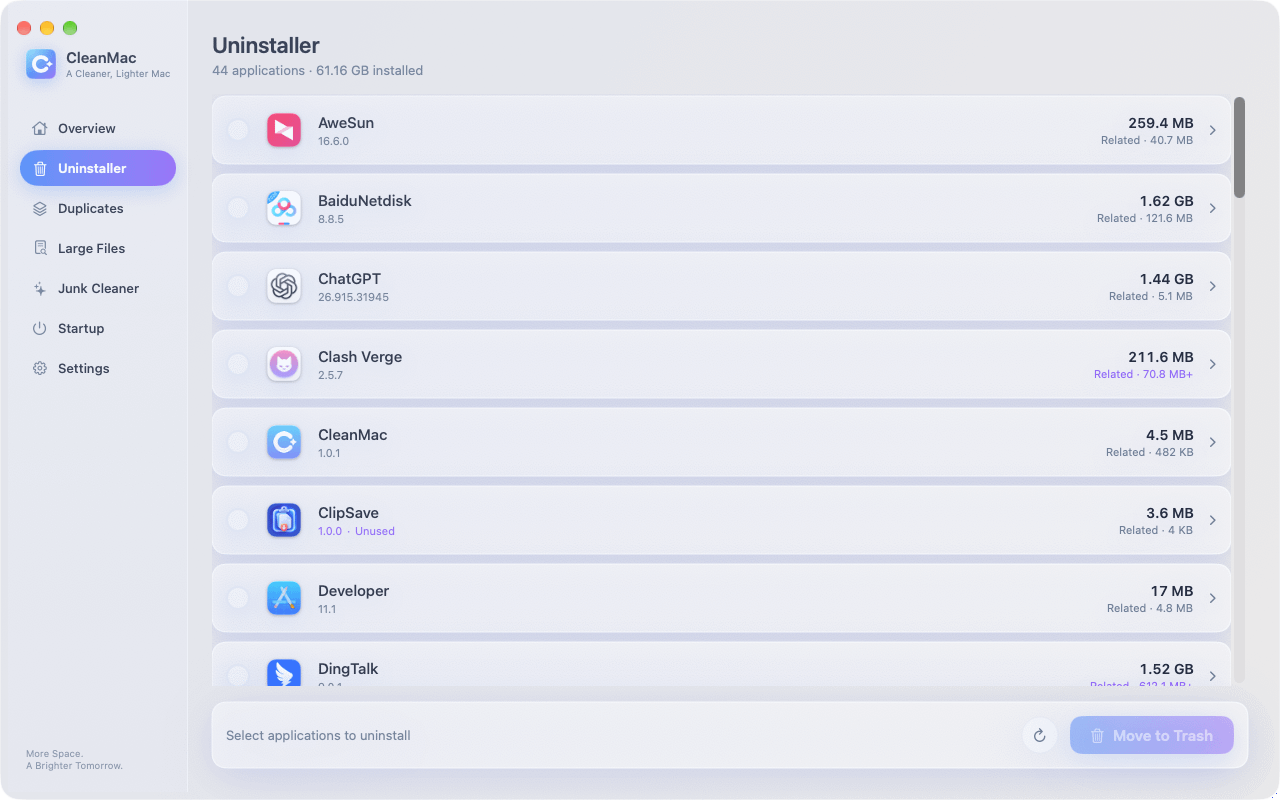
- Open CleanMac and choose the Uninstaller module.
- It lists every installed application along with its total footprint — the app bundle plus all related files it has found across the Library: caches, preferences, application support, containers, logs, saved state, and more. No more checking nine folders by hand.
- Select an app, review the preview of exactly what will be removed, and click to clean. Everything moves to the Trash first — nothing is permanently erased, so you can restore if you change your mind.
- Repeat, or select multiple apps and uninstall them in one batch.
Two details make it especially trustworthy:
- Preview-first. You see the exact file list before anything happens — the same list the manual method produces, generated in seconds.
- Local-only. The scan runs entirely on your Mac. No account, no uploads, no analytics touching your file list — appropriate for a tool that reads your entire Applications folder.
CleanMac requires macOS 13 Ventura or later, supports 11 languages, and every module — including this uninstaller — is free with no trial or subscription. Download CleanMac free.
Find Apps You Haven’t Used in 30+ Days
The most valuable uninstalls aren’t the apps you know you hate — they’re the ones you forgot existed. Most Macs carry a thick layer of “someday” software: the video editor from one project, the game from one weekend, the three note-taking apps from your comparison phase.
CleanMac’s uninstaller tracks last-opened dates and surfaces apps you haven’t launched in over 30 days as a dedicated view. Work through it with honest triage:
- Unused 30–90 days: candidate for removal unless it’s seasonal (tax software) or emergency-use (disk recovery).
- Unused 90+ days: almost certainly safe to remove. If you haven’t missed it in three months, you won’t.
- “I might need it someday”: remember that reinstalling is usually free and fast. Keeping 2 GB of software “just in case” for two years costs more in clutter than a five-minute re-download.
One caution: check the app’s role, not just its last-opened date. Menu bar utilities and background sync tools may show old “last opened” dates because you interact with their menu bar icon rather than the app window. If it does something automatic for you, keep it.
Batch Uninstalling: Spring-Clean Your Applications Folder
Removing apps one at a time by hand is fine for one app. For a serious cleanup — say, reclaiming space before a macOS upgrade — batch uninstalling changes the economics completely.
The efficient approach:
- Sort by size first. Open the uninstaller and order apps by total footprint (app + leftovers). Removing the top five usually recovers more space than the next twenty combined. Games, creative suites, virtual machine apps, and old Xcode versions dominate this list.
- Then sweep the 30-day-unused view. Select everything that fails the triage above.
- Review the combined preview. One screen shows every file about to be removed across all selected apps — skim for surprises.
- Uninstall in one action, then restart your Mac and empty the Trash once you’ve confirmed all is well.
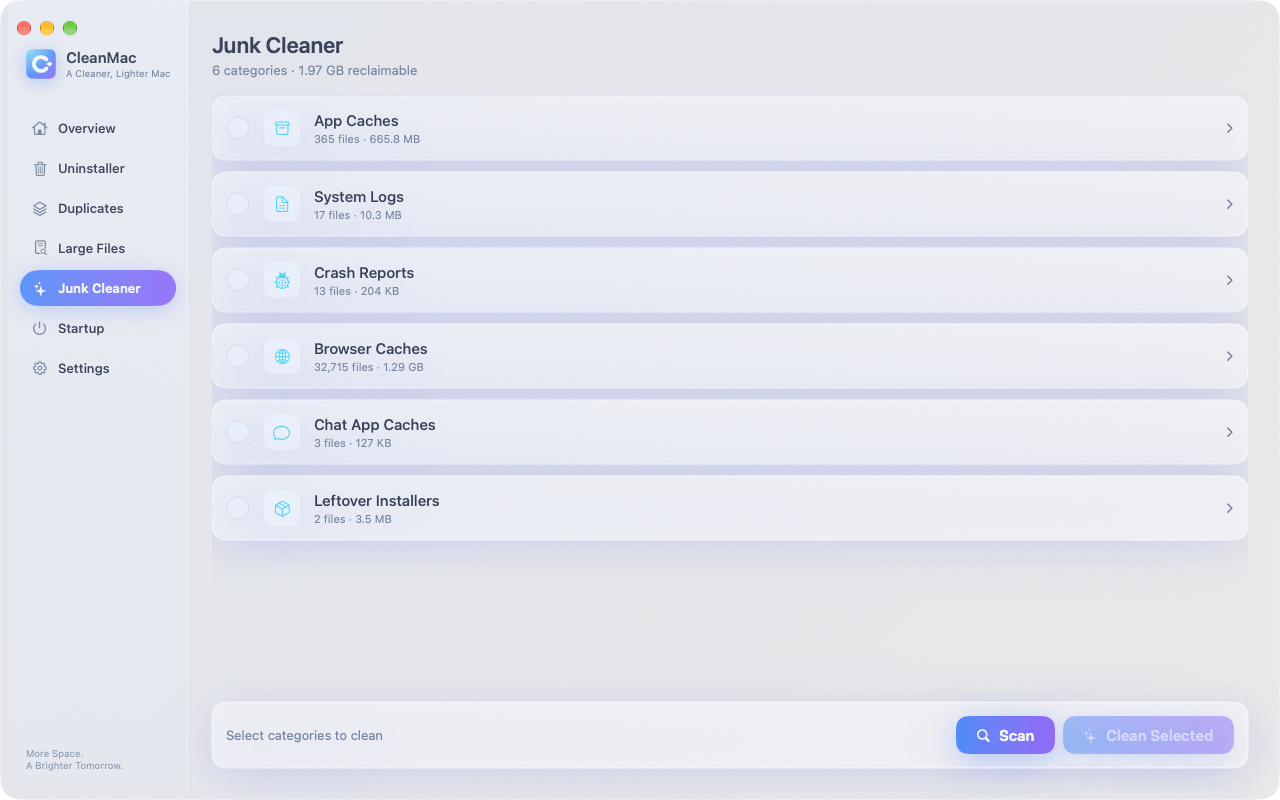
A realistic first-time batch cleanup on a two-year-old Mac: 15–30 apps removed, 5–25 GB reclaimed, twenty minutes spent. For a broader storage sweep beyond apps — duplicates, large files, junk caches — pair this with the techniques in our guide to freeing up disk space on Mac, or just run CleanMac’s other modules from the same dashboard.
Conclusion
Drag-to-trash removes the app you can see and leaves the parts you can’t — caches, preferences, support folders, containers, and background agents that quietly accumulate for years. Now you know where they hide and how to remove them, whether you prefer the manual Library hunt or a two-click uninstall with a proper tool.
For most people, the practical path is simple: use CleanMac’s free uninstaller, let it find the leftovers automatically, review the preview, and batch-remove everything your 30-day-unused view turns up. Twenty minutes, once a quarter, and your Applications folder stays as clean as the day you unboxed your Mac. Want to go further? Pair your uninstall sweep with junk and duplicate cleaning from our disk space guide, and browse more hand-picked Mac utilities in our app collection.
Frequently Asked Questions
Why do Mac apps leave files behind after I delete them?
Because of how macOS is designed. The app bundle in `/Applications` is treated as read-only program code; anything user-specific — your settings, caches, databases, downloaded content — is written to your Library folders instead, so that updating or replacing the app never touches your data.
Is it safe to delete files in the Library folder?
Yes, if you follow two rules. First, only delete folders and files that are clearly named after an app you’ve already removed (or its developer) — an app’s leftover folders are inert once the app is gone.
What are preference (.plist) files, and should I delete them?
Preference files — named like `com.apple.finder.plist` — are small XML or binary files where apps store your settings: window sizes, toolbar layouts, license state, toggle positions. They live in `~/Library/Preferences`.
How do I find leftover files from apps I deleted long ago?
The manual route is tedious: search each Library folder (Caches, Preferences, Application Support, Containers, Group Containers, Logs, Saved Application State, HTTPStorages, LaunchAgents) for the app’s name, its developer’s name, and its bundle identifier — three different naming conventions, nine different folders. Orphaned leftovers are identifiable because nothing on your system references them anymore, but proving that by hand is nearly impossible.
Can I reinstall an app after uninstalling it completely?
Yes — a complete uninstall never blocks reinstallation. Download the app again from the App Store or the developer’s site and install as normal; it will recreate its support folders, caches, and preferences fresh on first launch.
What about system apps — can I uninstall those?
Mostly no, and you shouldn’t try. macOS protects its built-in apps (Safari, Mail, Messages, Photos, etc.) with System Integrity Protection, which prevents their removal — for good reason, since parts of the system expect them to exist.
How often should I clean out unused apps?
A quarterly review hits the sweet spot for most people — every three months, open the uninstaller, sort by last-opened date, and remove whatever fails the “have I used this in 90 days?” test. Add an immediate uninstall (with leftovers) any time you finish a one-off project tool or abandon a trial.


