

Your Mac has duplicate files. That isn’t a guess — it’s a near certainty. Every time you import the same batch of photos twice, download a file you already had, or save a document to both Desktop and Documents, you create a copy that sits on your drive doing nothing but consuming space. On a Mac that’s been in use for a year or two, duplicates commonly account for 5–15 GB of wasted storage, and photo libraries alone can hide thousands of redundant images.
The frustrating part is that macOS gives you almost no help finding them. Finder can sort by name or size, but it can’t tell you that `IMG_4521.jpg` and `IMG_4521 2.jpg` are actually the same photo — or worse, that two files with completely different names are byte-for-byte identical. This guide covers how to find and delete duplicate files on Mac using free methods: the manual approaches that work (and their limits), why duplicates pile up in the first place, and how a free duplicate finder like CleanMac automates the entire job with content-based matching that never deletes your last copy of anything.
Why Do Duplicate Files Accumulate on Mac?
Duplicates aren’t a sign of disorganization — they’re a side effect of how modern Macs are used. Understanding where they come from helps you both clean them up and slow their return.
Photos get imported more than once
The single biggest source. You import photos from your iPhone, then a month later connect the phone again and Photos (or Image Capture) re-imports shots it doesn’t recognize as already present. Lightroom, Dropbox camera uploads, and iCloud sync can each create their own copies of the same images. A single vacation can easily produce two or three copies of every photo scattered across different apps and folders.
Downloads repeat themselves
You download a PDF, a ZIP archive, or an installer, use it, and forget it. Weeks later you need it again, can’t find the original, and download it again — macOS obligingly names it `file (1).zip`. The Downloads folder on a typical Mac is a graveyard of repeated installers, documents, and attachments.
Drag-copy instead of drag-move
When you drag a file between folders on the same volume, macOS moves it. But drag it to another drive, or hold no modifier while dragging from certain locations, and you get a copy. Many users also duplicate files deliberately “just for now” — a working copy on the Desktop, the original in Documents — and the temporary copy becomes permanent.
Backups and sync tools multiply everything
Copy a folder to an external drive “as a backup,” sync a folder to a cloud service that also keeps a local cache, or export a project “final_v2_REAL_final” — each workflow creates legitimate-looking copies that outlive their purpose. Time Machine local snapshots aside (those are managed by macOS), manual backups are among the largest duplicate collections on any drive.
Apps create their own copies
Some apps duplicate files as part of normal operation: email clients cache attachments you’ve already saved, messaging apps keep their own copy of every image you send, and music apps may re-import tracks into a managed library folder while leaving the originals in place.
How to Find Duplicate Files Manually (Free, Built-In Methods)
Before reaching for a tool, it’s worth knowing what macOS can do on its own. These methods are free and sometimes sufficient for small, targeted cleanups.
Method 1: Finder Smart Folders
Smart Folders can surface likely duplicates by name or size:
- In Finder, choose File → New Smart Folder.
- Click the + button and set criteria like Name matches a pattern, or File Size is greater than a threshold.
- Sort results by name or size and look for telltale pairs: names ending in ` 2`, ` copy`, or ` (1)`.
The limitation is fundamental: Smart Folders match metadata, not content. Two identical files with different names won’t be matched, and two different files with the same name (very common with photos named `IMG_0001.jpg` from different devices) will be falsely flagged. You’ll spend a lot of time opening files to verify.
Method 2: Sort and eyeball in list view
In any folder, switch to list view (Cmd+2) and sort by Size. Identical sizes are a hint — two 3.2 MB files with consecutive timestamps are often the same download. Select both and press Space to Quick Look them side by side. This works reasonably well inside a single folder like Downloads, but it can’t help you find duplicates scattered across different folders, which is where most of them live.
Method 3: The Photos app (limited)
The Photos app in recent macOS versions has a built-in Duplicates album (look in the sidebar under Utilities) that detects identical and near-identical photos in your Photos library. It’s genuinely useful — but only for photos that live inside Photos. Duplicates in Finder folders, on external drives, or in other apps’ libraries are invisible to it.
Method 4: Terminal (for the brave)
Command-line diehards can generate checksums and find matches:
“`
find ~/Downloads -type f -exec md5 -r {} \; | sort | awk ‘{print $1}’ | uniq -d
“`
This lists MD5 hashes that appear more than once. It works, but it’s slow on large folders, cryptic to interpret, and one wrong move with a follow-up delete command is unrecoverable. It’s a proof of concept, not a workflow.
The honest summary: manual methods can catch obvious duplicates in one folder, but they can’t answer the real question — “show me every file on my Mac whose content exists more than once.” For that, you need content-based comparison.
The Right Way: Content-Based Duplicate Detection
File names lie. File sizes hint. Only content hashing tells the truth: two files are duplicates if and only if their contents are identical, regardless of what they’re named or where they’re stored.
The technique is straightforward. A duplicate finder reads each file and computes a cryptographic hash (a fingerprint like MD5 or SHA) of its contents. Files with matching hashes are grouped as duplicates. To keep this fast, smart tools compare in stages — first by file size (different sizes can’t be duplicates), then by partial hash (hashing just the first chunk of each file eliminates most non-matches), and only then by full hash for the survivors. The result is both fast and exact: zero false positives, because a full content match is definitive.
The second half of the problem is deciding which copy to keep. The safe, standard rule is keep one, remove the rest — and the deletion must go to the Trash, not into permanent erasure, so a mistake is reversible.
How CleanMac’s Duplicates Finder Solves It
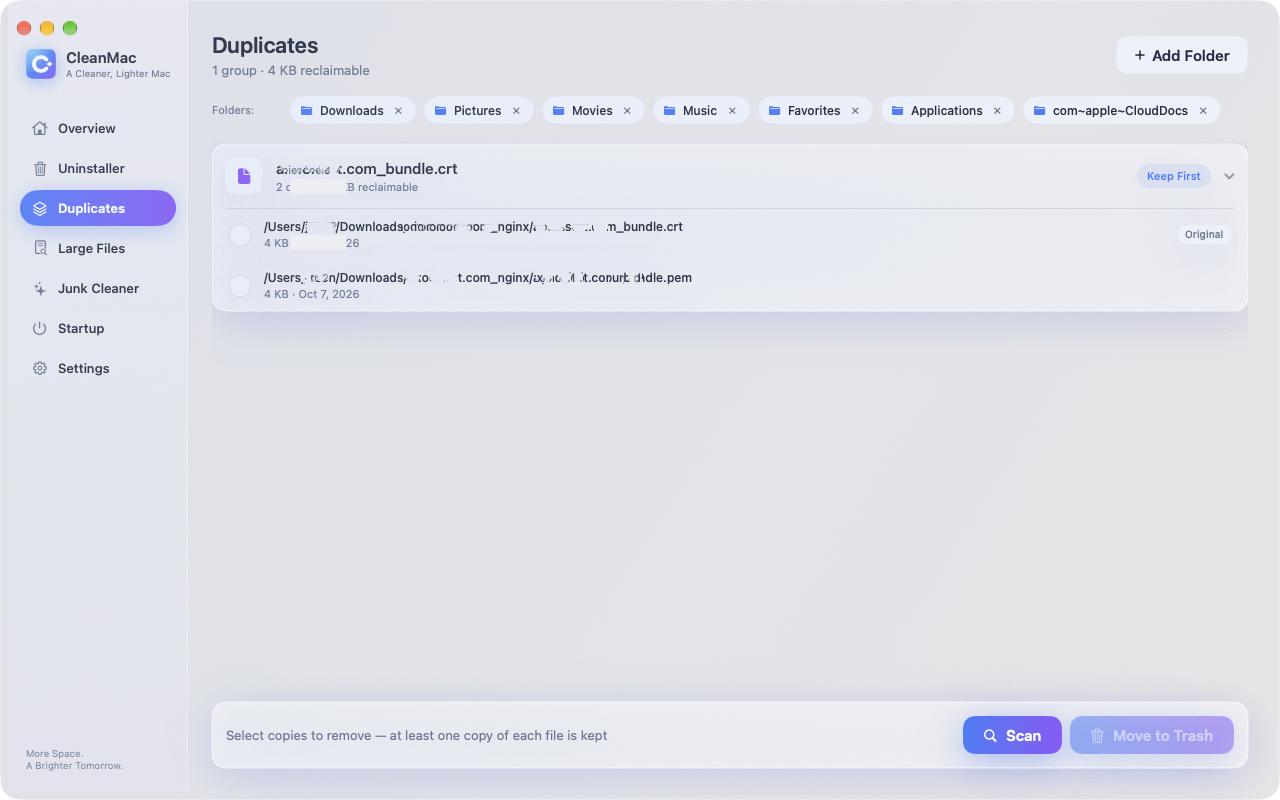
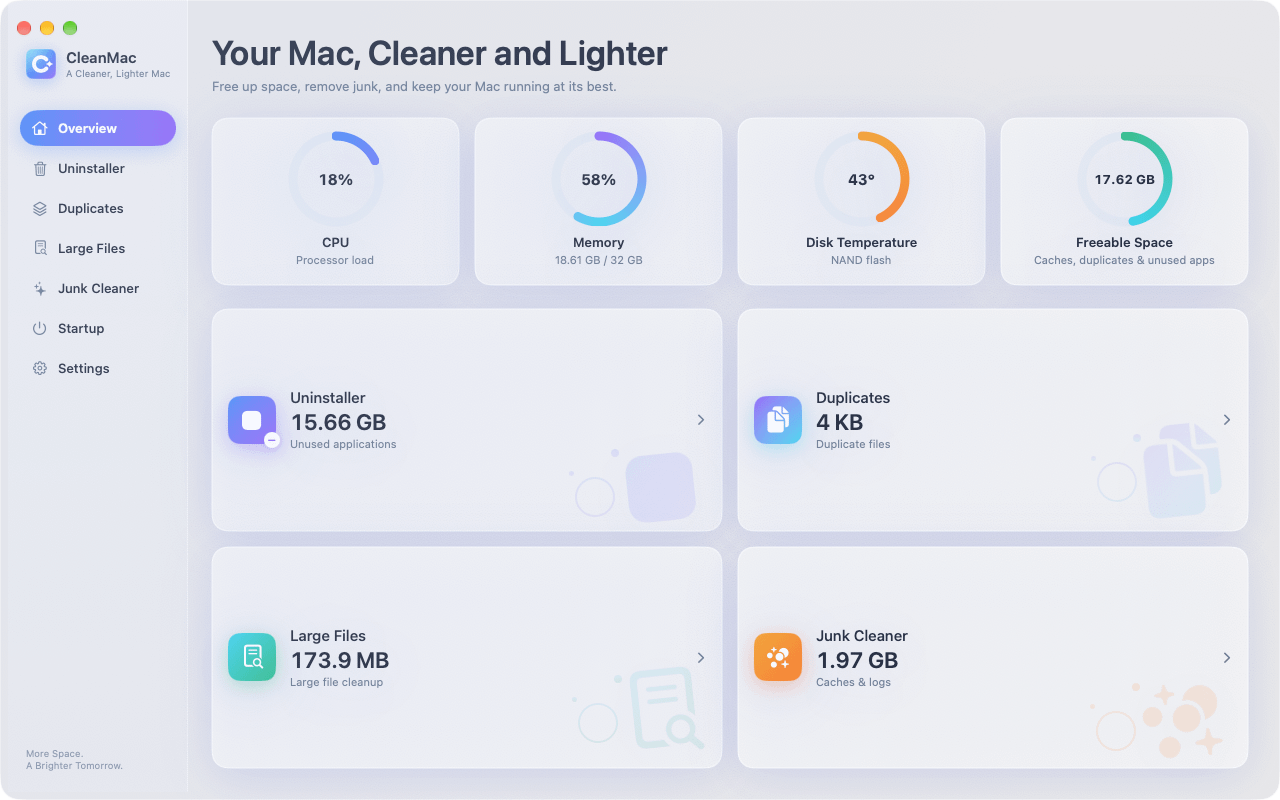
CleanMac includes a full duplicate file finder in its free toolkit, built around exactly the content-hash approach described above. Here’s the workflow:
- Open CleanMac and choose the Duplicates module.
- Select what to scan — your whole home folder, specific directories like Pictures or Downloads, or external drives.
- CleanMac compares files by content, not name, and groups exact duplicates together.
- Review the groups side by side — you can preview files directly to confirm they’re what they appear to be.
- CleanMac always keeps the first copy safe in every group; you select which additional copies to remove.
- Confirmed selections move to the Trash — nothing is permanently erased until you empty it yourself.
Three design choices make it safe for cautious users:
- Content matching, zero false positives. Files are only grouped when their contents are byte-identical. Similar-but-different photos (a burst series, an edited export) are never flagged.
- Preview-first. Every group shows its files before anything is deleted, and you choose per-group or per-file.
- Trash-based removal. Deleted copies sit in your Trash until you explicitly empty it. If you realize you removed the wrong copy, restore it in seconds.
Like every CleanMac module, scanning runs entirely on your Mac — no account, no uploads, no analytics on your file list. It requires macOS 13 Ventura or later, runs natively on Apple Silicon and Intel, and is free with no trial or feature limits. Download CleanMac free.
What to Do With the Biggest Categories of Duplicates
Not all duplicates deserve the same treatment. Here’s how to approach the usual suspects.
Duplicate photos
The highest-value target and the one needing the most care. Exact duplicates (same file content) are always safe to reduce to one copy. Near-duplicates — the same shot at different resolutions, or an original plus an edited version — are not duplicates and shouldn’t be treated as such; a content-hash finder correctly ignores them. For photos inside the Photos app, use its built-in Duplicates album first; for everything in Finder folders, external drives, and old exports, run a content-based scan. After cleaning, pick one canonical place for your photo library and import only into it.
Duplicate downloads
The easiest win. Sort your Downloads folder by size, and anything duplicated there can go — the canonical copy of an installer is the developer’s website anyway. Running a duplicate scan across Downloads plus Desktop plus Documents catches the same file saved to multiple places.
Duplicate documents
Working copies pile up: `report.docx`, `report final.docx`, `report final (shared).docx`. Content-identical copies are safe to deduplicate, but watch for files with identical names and different content — these are versions, not duplicates, and a content-based tool correctly keeps them separate. Keep the newest, archive the rest if you’re sentimental.
Duplicates on external drives
Old backup drives are duplicate factories — people routinely find their entire photo library exists twice. Scan external drives the same way, but think before deleting: if the external copy is your only backup, it’s not a duplicate, it’s redundancy. Deduplicate only when the original safely exists elsewhere or in a real backup system like Time Machine.
Safety Tips Before You Delete Anything
Duplicate cleaning is safe when you follow a few ground rules:
- Only delete true content matches. Never delete based on name or size alone — that’s how people lose the only copy of something that merely looked like another file.
- Keep one copy, always. Every deletion decision should be “remove copies 2 through N,” never the whole group. CleanMac enforces this by design.
- Delete to the Trash, not permanently. Permanent deletion (`Cmd+Option+Delete`) has no undo. The Trash is your safety net; empty it only after a few days of normal use.
- Don’t deduplicate inside app-managed libraries. iTunes/Music libraries, Photos libraries, and Xcode projects manage their own internal file structures. Deleting “duplicates” from inside a `.photoslibrary` package by hand can corrupt the library. Clean the sources (your import folders) instead.
- Back up first if you’re doing a big sweep. If you’re about to reclaim 20 GB of duplicates in one session, a current Time Machine backup turns any mistake into a non-event.
- Skip system folders. Duplicates under `/System` or `/Library` are usually intentional (macOS keeps multiple copies of components for good reasons). Stick to your user folders: Documents, Downloads, Desktop, Pictures, Music, Movies.
Conclusion
Duplicate files are the quietest storage drain on any Mac — invisible to Finder, untouched by ordinary cleaning, and constantly growing. The manual methods (Smart Folders, size sorting, the Photos Duplicates album) will catch the obvious few, but only content-hash comparison finds them all, including same-content files with different names scattered across different folders.
The practical routine: run a content-based scan with CleanMac’s free Duplicates finder, review the groups, keep one copy of each, and send the rest to the Trash. Then keep duplicates from coming back by importing photos into a single library, clearing your Downloads folder monthly, and copying deliberately rather than reflexively. For a broader storage sweep, pair deduplication with junk cleaning and large-file hunting from the same app — and browse more hand-picked Mac utilities in our app collection.
Frequently Asked Questions
Are duplicate files safe to delete?
Yes, as long as two conditions are met: the files are true content-identical duplicates, and you keep at least one copy. A proper duplicate finder compares file contents with cryptographic hashes, so it only groups files that are byte-for-byte identical — there is no risk of deleting a unique file that merely has a similar name. Always delete to the Trash rather than permanently, so you can restore a copy if you change your mind.
How do I identify duplicate photos on my Mac?
For photos inside the Photos app, check the built-in Duplicates album in the sidebar — it finds exact and near-identical shots in your library. For photos stored in regular folders, external drives, or other apps, you need a content-based duplicate finder, since the same image often exists under different names. CleanMac scans any folder and groups photos by exact content match, letting you preview them side by side before removing extra copies.
Why does my Mac have so many duplicate files?
Duplicates mostly come from normal behavior, not mistakes: importing the same photos twice, re-downloading files you already had, dragging files in ways that copy instead of move, saving working copies to the Desktop, and making manual backups to external drives. Apps contribute too — email clients and messaging apps keep their own copies of attachments. Over a year or two, this typically adds up to 5–15 GB of redundant data.
Can I find duplicate files on Mac without downloading an app?
Partially. Finder Smart Folders can surface files with matching names or sizes, and sorting a folder by size helps you spot obvious pairs. But these methods match metadata, not content, so they miss duplicates with different names and can false-flag different files that share a name. For anything beyond a quick sweep of one folder, content-hash comparison is the only reliable method — and that requires a tool.
Will a duplicate finder delete my only copy of a file?
A well-designed one won’t. The standard safety rule is to always keep one copy per duplicate group — CleanMac enforces this by automatically keeping the first copy safe in every group and letting you choose which additional copies to remove. Combined with Trash-based deletion instead of permanent erasure, a mistaken selection is always recoverable.
Should I delete duplicates from my Photos or iTunes library directly?
No — not from inside the library package itself. App-managed libraries like `.photoslibrary` maintain internal databases, and removing files by hand can corrupt them. Use the app’s own duplicate handling (Photos has a Duplicates album) for content inside the library, and use a duplicate finder on the folders where files originate, such as import directories, Downloads, and external drives.
How often should I scan for duplicate files?
Every two to three months is a good rhythm for most people, plus a scan after any large import — a phone photo dump, a project archive, or restoring files from a backup. Regular scans keep each session small: a quarterly scan usually finishes review in ten minutes, while a once-every-two-years scan can surface thousands of groups. Pair it with clearing your Downloads folder for the best results.


