

A Mac is one of the longest-lived computers you can buy — it’s normal to meet people happily working on eight- or ten-year-old MacBooks. But longevity isn’t automatic. The difference between a Mac that feels finished at year four and one that’s still earning its keep at year nine is mostly a set of small, boring, consistent habits: keeping storage from filling up, keeping heat down, keeping the battery in its comfort zone, and keeping software current. None of it is difficult. All of it compounds.
Short on space already? CleanMac finds junk, leftover apps, and duplicates on your Mac — and shows you exactly what it will remove before anything is deleted. Download free →
This guide covers the complete maintenance picture — digital and physical — organized by what actually moves the needle on lifespan. Where a maintenance task involves the tedious mechanical work of scanning and cleaning, we’ll show where CleanMac, our free Mac cleaner, takes that work off your plate.
Keep at Least 15% of Your Disk Free
If you only adopt one habit from this article, make it this one. A Mac’s SSD needs free space to do its job: wear-leveling algorithms shuffle data across free blocks to prevent any part of the flash memory from wearing out early, and macOS needs room for virtual memory swap, system updates, and temp files. When free space drops below roughly 10–15%, everything degrades at once — the Mac slows down, the SSD wears faster, and system updates start failing.
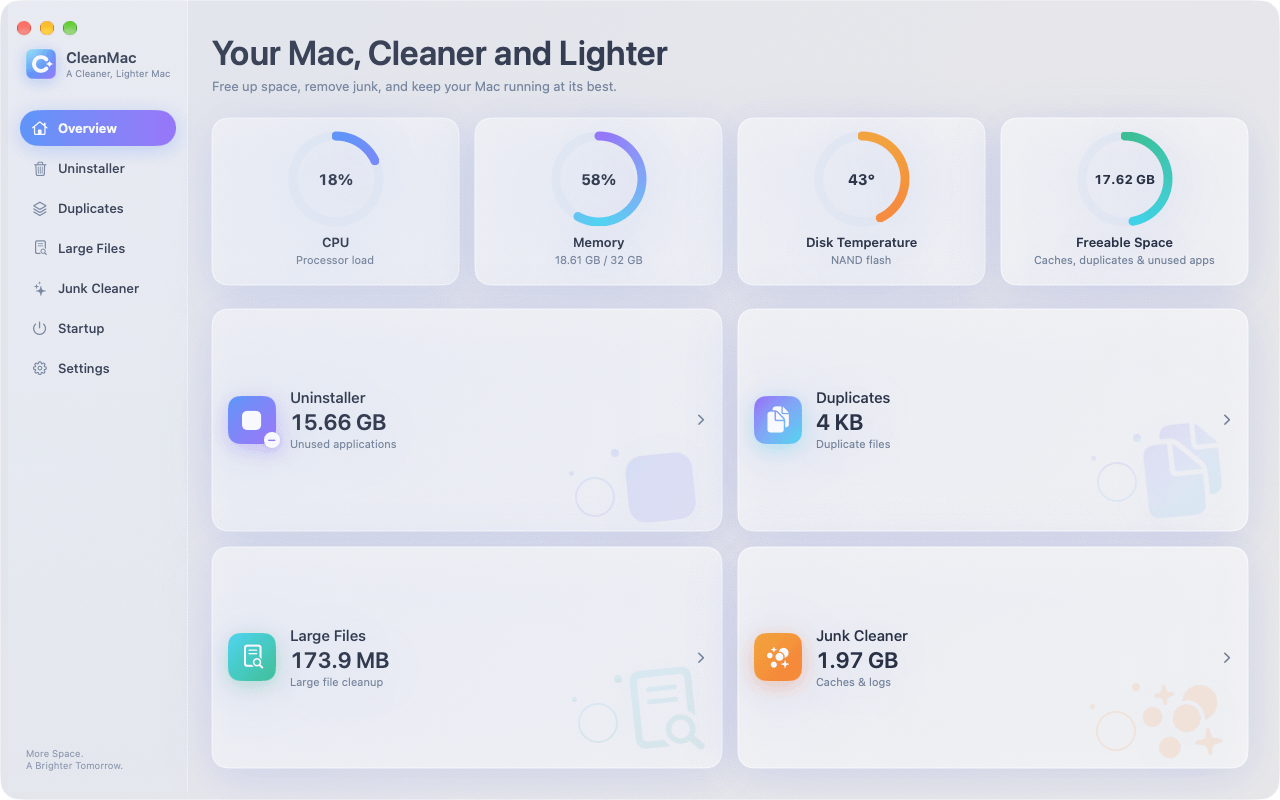
The problem is that storage fills silently. Caches grow, duplicate files multiply, downloads pile up, and old iPhone backups sit forgotten. The fix is a two-part habit: a monthly light sweep and a quarterly deeper clean. CleanMac’s free modules map directly onto this: the Junk Cleaner clears caches and logs, the Duplicate Finder removes redundant copies, and the Large File Cleanup surfaces the forgotten 4 GB files that are invisible in normal browsing. Ten minutes a month keeps you permanently above the threshold where wear accelerates.
Keep macOS and Apps Updated
Software updates are unglamorous, and they’re the single biggest security and stability lever you have. Every macOS point release patches vulnerabilities that are, by the time the update ships, publicly documented — meaning an unpatched Mac is a Mac with a map to its front door circulating on the internet. App updates matter for the same reason, plus they fix the memory leaks and bugs that make old app versions slow and crashy.
The habit: turn on automatic macOS updates (System Settings → General → Software Update → Automatic updates) and let them install. For apps, check for updates monthly — most apps self-update or prompt, and the App Store handles its share. One nuance on major macOS upgrades: you don’t need to install version .0 on day one. Waiting for the .1 or .2 point release, a few weeks later, lets early bugs get patched on other people’s machines. But once the point releases land, upgrade — staying a full major version behind eventually costs you app compatibility and security patches.
Care for the Battery Like a Consumable — Because It Is
Your MacBook’s battery is the one component guaranteed to wear out, and how you treat it determines whether it holds 80% capacity at 1,000 cycles or at 400. The physics are settled: lithium-ion batteries age fastest at the extremes — fully charged, fully drained, and hot.
The practical habits: keep Optimized Battery Charging enabled (System Settings → Battery → Battery Health), which learns your routine and holds the charge at 80% until you need the rest. Avoid living at 0% — regular deep discharges stress the cells; plug in when you can rather than running to empty as a default. And keep the Mac cool: a battery that spends its life at 35°C+ ages dramatically faster than one at room temperature, which connects battery care directly to the next habit.
Manage Heat: The Silent Lifespan Killer
Heat ages everything in your Mac — battery, SSD, display adhesive, thermal paste, and the solder joints themselves. Macs are designed to handle their rated thermal load, but ambient conditions and blocked airflow push real-world temperatures well past design assumptions.
The habits are physical: use the Mac on hard surfaces, not beds and couches that block the vents. Keep the exhaust areas clear. In hot climates, avoid direct sun on the chassis. Every year or two, clean the vents with compressed air — dust buildup inside is the classic reason a four-year-old MacBook’s fans scream during tasks that used to be silent. And watch the software side: a runaway process pinning the CPU at 100% for days generates constant heat for no reason. An occasional glance at Activity Monitor (or the CPU readout on CleanMac’s free system dashboard) catches these early.
Audit What Runs in the Background
Every app that launches at startup and lives in the background costs memory, CPU cycles, battery, and boot time — for as long as your Mac lives. Launch agents accumulate relentlessly: every app you install adds one, and uninstalled apps leave theirs behind, orphaned and firing at every login.
The habit: quarterly, open System Settings → General → Login Items & Extensions and remove what you don’t need. For the deeper layer — launch agents and daemons that Apple’s interface only partially shows — CleanMac’s free Startup Items module lists them all in one place with safe, reversible disabling. A Mac that boots lean runs cooler and lasts longer, and this is one of the few maintenance tasks that takes five minutes and lasts for months.
Physical Care: Boring, Effective, Free
The physical maintenance list is short and almost embarrassingly simple. Wipe the screen with a microfiber cloth, slightly dampened with water — never glass cleaner, which strips the anti-reflective coating on modern MacBook displays. Clean the keyboard with compressed air in short bursts, holding the Mac at an angle so debris falls out rather than deeper in. Don’t eat over it. Carry it in a padded sleeve — the number one cause of premature Mac death isn’t component failure, it’s drops. And keep liquids at a different elevation than the keyboard; a spill through the keyboard deck is the other great Mac killer, and no amount of rice fixes it.
Back Up — Because Lifespan Includes Your Data
A Mac that lasts ten years will, at some point, have a bad day: a drop, a spill, a failed SSD, a theft. Hardware is replaceable; your files aren’t. Time Machine is built in and free — connect an external drive, say yes when macOS offers to use it for backup, and you’re protected with hourly incremental backups forever after. Verify it quarterly: open Time Machine, browse back a month, confirm a file restores. A backup you’ve never tested is a hope, not a backup. When it does come time to replace the Mac, a clean, current backup also makes migration a two-hour non-event instead of a weekend of loss.
The Maintenance Calendar
Putting it together, the whole program fits on one small calendar:
| Frequency | Task | Time |
|---|---|---|
| Monthly | Junk/cache sweep, Downloads purge, restart | 10 min |
| Quarterly | Duplicate scan, app audit, startup review, backup verification | 45 min |
| Annually | Deep clean, vent dusting, battery health check, full storage review | 2 hours |
That’s roughly eight hours of maintenance per year to add years to a machine that cost a thousand dollars or more. Few investments pay that well.
Conclusion
Macs last a long time by default, and a very long time with modest care: keep 15% of the disk free, keep software current, keep the battery between the extremes, keep heat down, keep background programs lean, keep the machine physically clean, and keep a tested backup. The digital half of that list — the scanning, the cleaning, the auditing — is exactly what CleanMac automates for free, with local processing and preview-first deletion, so maintenance stays a ten-minute habit instead of a dreaded chore. Treat your Mac like the long-term tool it’s built to be, and it will return the favor well past the year most laptops are landfill. For more free Mac utilities, browse our app collection.
Frequently Asked Questions
How long should a Mac last with proper maintenance?
A well-maintained Mac typically remains fully useful for 7–10 years, and many stay in service longer for lighter workloads. The limiting factors are usually battery capacity (replaceable), macOS version support (Macs get roughly 7–8 years of major updates), and performance headroom for modern software — not sudden hardware failure. Consistent maintenance directly extends all three timelines by reducing heat, wear, and clutter.
What is the single most important Mac maintenance habit?
Keeping at least 15% of your disk free has the largest impact, because low disk space simultaneously slows the Mac, accelerates SSD wear through reduced wear-leveling room, and causes system updates to fail. A monthly sweep of caches, duplicates, and forgotten large files — about ten minutes with a free tool like CleanMac — keeps you permanently above the threshold.
Does keeping my MacBook plugged in all the time damage the battery?
Not significantly, as long as Optimized Battery Charging is enabled, which holds the charge around 80% when the Mac learns you stay plugged in. Modern MacBooks manage charging intelligently and stop drawing power to the battery at full charge. What does age the battery is heat — so a plugged-in MacBook that’s also running hot will age faster than the charging habit itself would ever cause.
How do I know if my Mac’s battery needs replacing?
Check System Settings → Battery → Battery Health, or Option-click the battery menu. macOS reports condition as Normal or Service Recommended, along with maximum capacity as a percentage of original. Apple considers a battery consumed at 80% capacity within 1,000 cycles; below that threshold, or if you see Service Recommended, a battery replacement restores near-original unplugged life and is far cheaper than a new Mac.
Can dust really shorten my Mac’s lifespan?
Yes — dust clogging vents and coating internal components acts as insulation, raising operating temperatures for every component inside. Sustained higher temperatures accelerate battery aging, degrade thermal paste, and stress solder joints, and they force fans to run constantly at high speed. A compressed-air cleaning of the vents once or twice a year is one of the cheapest lifespan extensions available.
Should I shut down my Mac every night or let it sleep?
Sleep is fine for daily use — modern Macs use minimal power sleeping and wake instantly. A full restart every week or two is worthwhile, though: it clears accumulated memory fragmentation, flushes temp directories, finishes pending system tasks, and shrinks some system-level storage that only resets at boot. Think of the restart as maintenance, not the nightly shutdown.
What maintenance should I do before storing a Mac long-term?
Charge or discharge the battery to about 50% — the ideal storage charge for lithium-ion cells — then shut down fully rather than sleeping. Store it in a cool, dry place away from temperature extremes, and power it on to recharge to 50% every six months if storage runs long. Before storing, it’s also worth running a cleanup and confirming a current backup exists, so the Mac returns to service clean and your data is protected regardless.


