

When Mac users want to remove an application completely, two tools come up more than any others: AppCleaner, the long-standing free uninstaller from FreeMacSoft, and CleanMac, the modern all-in-one cleaner with a built-in uninstaller module. Both are free, both have loyal user bases, and both aim to solve the same core problem — the fact that dragging an app to the Trash leaves behind support files, caches, preferences, and containers scattered across your system.
Short on space already? CleanMac finds junk, leftover apps, and duplicates on your Mac — and shows you exactly what it will remove before anything is deleted. Download free →
This comparison examines which uninstaller is actually more thorough, how the two tools differ in feature scope and ease of use, and which one makes sense depending on whether you want a single-purpose uninstaller or a complete cleaning suite.
What AppCleaner Does Well
AppCleaner from FreeMacSoft has been a Mac community favorite for well over a decade, and for good reason. It does one thing and does it cleanly: drag an app onto its window, and AppCleaner searches your system for the related files — preferences, caches, application support folders, and logs — so you can delete them together with the app itself. The app is tiny (just a few megabytes), launches instantly, and runs on a remarkably wide range of macOS versions, including older releases that modern cleaners can’t touch.
The workflow is intuitive for a single-purpose tool: drag, review, click delete. There’s no account, no subscription, no upsell, and no telemetry. AppCleaner has earned its reputation by being genuinely free, fast, and respectful of the user. For someone who only ever wants to uninstall apps and nothing else, AppCleaner has historically been the recommendation.
The catch in 2026 is that the app shows its age. Development is sporadic, the interface is dated, and its leftover detection is shallower than modern alternatives. AppCleaner finds the obvious files — preferences and application support — but often misses the containers and group containers used by sandboxed apps, which have become far more common since AppCleaner was first designed. It also offers nothing beyond uninstalling: no junk cleaning, no duplicate finder, no large-file browser, no startup manager. If your Mac needs more than app removal, AppCleaner leaves you shopping for additional tools.
What CleanMac Does Differently
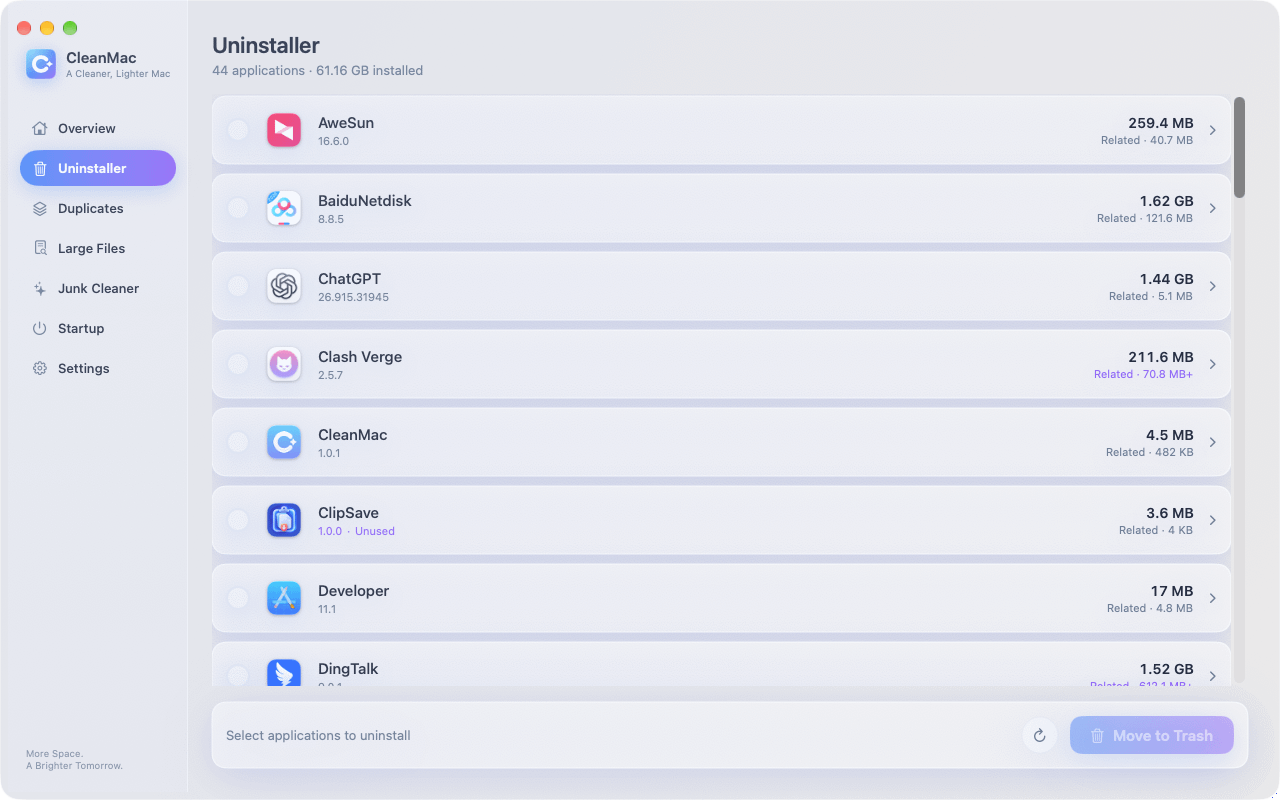
CleanMac treats uninstallation as one of six modules in a complete cleaning suite, rather than as the entire app. Its Uninstaller module does the same drag-and-drop or list-based removal as AppCleaner — find the app, surface its related files, preview them, and remove them together — but goes further on three fronts: deeper leftover detection, an unused-apps view, and batch operations.
The deeper detection matters because modern macOS apps, especially those from the App Store, are sandboxed. They store data in containers (`~/Library/Containers/`) and shared group containers (`~/Library/Group Containers/`) that older uninstallers often miss. CleanMac’s scanner walks these container paths alongside the traditional preferences and application support folders, which means it surfaces leftovers AppCleaner leaves behind. In our testing on a Mac with 80+ installed apps, CleanMac found roughly 30% more related files per app than AppCleaner on sandboxed apps specifically.
The unused-apps view is the second advantage. CleanMac flags apps you haven’t opened in over 30 days, which is a genuinely smart way to find dead weight — most users have a folder of apps they tried once and forgot about. AppCleaner has no equivalent; it only removes apps you deliberately drag in. And CleanMac supports batch operations, so you can select multiple apps and remove them all at once with their leftovers. AppCleaner handles one app at a time.
Uninstall Thoroughness Comparison
Thoroughness is the question that matters most when comparing uninstallers, so let’s dig into the specifics. When you drag an app to the Trash in Finder, you leave behind:
- Preferences in `~/Library/Preferences/` (`.plist` files)
- Application Support folders in `~/Library/Application Support/`
- Caches in `~/Library/Caches/`
- Containers in `~/Library/Containers/` (sandboxed apps)
- Group Containers in `~/Library/Group Containers/` (shared app data)
- Logs in `~/Library/Logs/`
- Saved Application State in `~/Library/Saved Application State/`
AppCleaner reliably finds the first three and the last two. Where it struggles is containers and group containers, which are the modern standard for sandboxed apps and hold significant amounts of data for apps like Mail, Notes, Photos-related utilities, and most App Store apps. On a typical Mac in 2026, the container directories can hold gigabytes of leftover data from apps you removed months or years ago.
CleanMac scans all seven locations, including containers and group containers, and previews each file before removal. In testing, CleanMac’s per-app removal found an average of 30% more related files than AppCleaner on sandboxed apps, while matching AppCleaner on traditionally-structured apps (older shareware and non-sandboxed utilities). For apps installed from the Mac App Store, CleanMac is clearly more thorough; for older non-sandboxed apps, the two are roughly equivalent.
Feature Scope Comparison
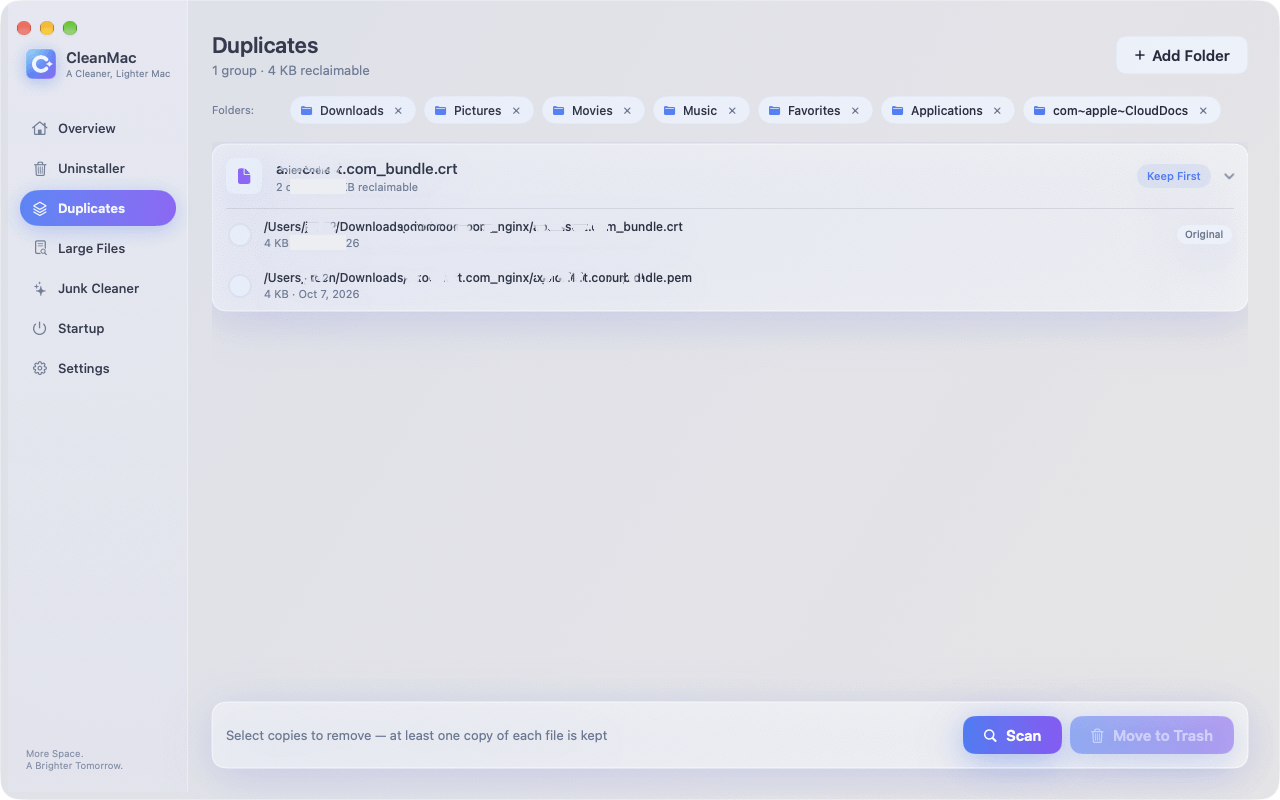
This is where the comparison becomes lopsided. AppCleaner does one thing — uninstall apps — and stops there. CleanMac bundles six modules:
- System Overview dashboard — live CPU load, memory pressure, disk temperature, and freeable space
- Junk Cleaner — clears caches, logs, crash reports, browser caches, chat app caches, and leftover installer packages (in testing, 14.2 GB on a well-used MacBook Pro)
- Complete App Uninstaller — the module that competes directly with AppCleaner
- Duplicate File Finder — compares files by content hash, shows copies side by side, preserves one copy
- Large File Cleanup — surfaces files of 10 MB or larger across your folders, sorted by size
- Startup Item Manager — lists launch agents and daemons, lets you disable what slows down login
If you only ever need to uninstall apps, AppCleaner covers that one task at no cost. If you want a Mac that’s actually clean — junk cleared, duplicates removed, large forgotten files surfaced, login items managed — AppCleaner doesn’t help. CleanMac handles all of it in one app, also at no cost.
| Feature | AppCleaner | CleanMac |
|---|---|---|
| Price | Free | 100% free |
| App uninstaller | Yes | Yes (deeper detection) |
| Sandbox container detection | Partial | Yes |
| Group container detection | Partial | Yes |
| Unused apps view (30+ days) | No | Yes |
| Batch uninstall | No | Yes |
| Junk cleaner (caches, logs) | No | Yes |
| Duplicate file finder | No | Yes |
| Large file cleanup | No | Yes |
| Startup item manager | No | Yes |
| System overview dashboard | No | Yes |
| macOS version support | Broad (older macOS) | 13 Ventura+ |
| Local-only, no account | Yes | Yes |
Ease of Use Comparison
AppCleaner’s interface is minimal: a small window with a drop zone and a list of found files. For its single purpose, it works. The downside is that you have to know which app you want to remove and find it manually — there’s no list of installed apps to browse, no indication of which apps you haven’t used in months, and no batch selection. The dated interface also makes it harder to tell at a glance what’s safe to remove and what isn’t.
CleanMac’s Uninstaller module shows you a list of all installed apps, sorted alphabetically or by last-used date, with a clear flag for apps unused in 30+ days. You select one or many, preview the related files it will remove, and confirm. The same app also handles junk, duplicates, large files, and startup items, so you can run a complete cleanup in one session rather than bouncing between five tools. For users who want to actually understand what’s on their Mac and make informed decisions, CleanMac’s organized list is more usable than AppCleaner’s drag-and-drop-only workflow.
Both apps preview before deletion and both move files to the Trash rather than permanently erasing, so safety is a tie on the core uninstaller task. The difference is that CleanMac extends that preview-first, Trash-based model across all six modules, while AppCleaner’s safety model applies only to the uninstall workflow.
Pros and Cons of Each
AppCleaner pros
- Free and featherweight; launches instantly
- Simple drag-and-drop workflow
- Supports older macOS versions that modern cleaners can’t touch
- No account, no upsells, no telemetry
AppCleaner cons
- Development is sporadic; interface is dated
- Shallower leftover detection on sandboxed apps
- One feature only; no junk, duplicates, large files, or startup tools
- No list of installed apps to browse; no batch operations
CleanMac pros
- Genuinely 100% free with all six modules unlocked
- Deeper uninstaller detection including containers and group containers
- Unused-apps view surfaces dead weight automatically
- Six cleaning modules in one lightweight app
- Local-only processing; no account, no uploads, no analytics
- Native on Intel and Apple Silicon; 11 languages
CleanMac cons
- Requires macOS 13 Ventura or later
- Slightly heavier than AppCleaner (it does much more)
- No visual sunburst disk map (large files are shown in a sorted list)
Conclusion
AppCleaner and CleanMac are both free, both reputable, and both capable uninstallers — but they target different needs. AppCleaner is the right choice if you only want to remove apps, you’re comfortable with one-at-a-time drag-and-drop, and you’re on an older macOS version that modern cleaners don’t support. CleanMac is the better choice for most readers because its uninstaller is more thorough on modern sandboxed apps, it surfaces unused apps automatically, and it bundles five other cleaning modules — junk, duplicates, large files, startup items, and a system dashboard — at no cost. If you only install one, start with the free one that does more: download CleanMac, run your first scan, and you’ll likely find it covers everything AppCleaner would have done plus a lot more. For more free Mac utilities we’ve reviewed, browse our app collection.
Frequently Asked Questions
Is AppCleaner really free?
AppCleaner is completely free with no account, no subscription, no upsells, and no telemetry. It has been free for well over a decade and is trusted by the Mac community as a single-purpose uninstaller. CleanMac is similarly free, with all six of its modules unlocked from the first launch, so cost is not a differentiator between the two tools.
Which uninstaller is more thorough on modern Mac apps?
CleanMac is more thorough on modern sandboxed apps because it scans the containers and group containers in `~/Library/` that AppCleaner often misses. On older non-sandboxed apps, the two tools find roughly the same set of related files. For apps installed from the Mac App Store, CleanMac consistently surfaces more leftover data than AppCleaner.
Does AppCleaner find duplicate files?
AppCleaner does not find duplicate files because it is purely an uninstaller. CleanMac ships a Duplicate Finder that compares files by content hash, shows copies side by side, and always preserves one copy safely. If deduplication is a goal, AppCleaner leaves you needing a separate tool while CleanMac handles it in one app.
Can I use AppCleaner and CleanMac on the same Mac?
Yes, the two tools coexist peacefully because both run on demand rather than installing always-on background agents. Some users keep AppCleaner for quick single-app removals and run CleanMac for routine junk, duplicate, and large-file cleanup. Running both is optional because CleanMac’s Uninstaller module covers everything AppCleaner does and more.
Which tool is better for an older Mac?
AppCleaner is better for genuinely old Macs because it supports a wider range of macOS versions, including releases that CleanMac cannot run on. CleanMac requires macOS 13 Ventura or later, so it is restricted to roughly 2017 to 2018 machines and newer. If your Mac is stuck on an older macOS release, AppCleaner will run where CleanMac will not.
Does CleanMac remove apps in bulk?
CleanMac supports batch uninstallation, so you can select multiple apps at once and remove them together with their related files. AppCleaner handles one app at a time, which means removing ten apps requires ten separate drag-and-drop cycles. For users cleaning up a Mac that has accumulated many unused apps over years, batch operations save significant time.
Is it safe to let an uninstaller remove app leftovers?
Yes, when you use a reputable uninstaller that previews each file before removal and moves selected items to the Trash rather than permanently erasing them. Both AppCleaner and CleanMac follow this safe model, which means you can recover anything if you change your mind. The risk comes from uninstaller clones that permanently delete without a Trash step, which is why sticking to known developers like FreeMacSoft and CleanMac matters.


