
You clicked “Update Now,” waited through the progress bar, and logged back in expecting improvements — and instead your Mac feels like it’s wading through mud. Apps bounce in the Dock forever, the fans are louder than before, and everything from Finder windows to browser tabs opens with a beat of hesitation. If this sounds familiar, you’re experiencing one of the most common Mac complaints there is: post-update slowdown.
The good news is that most of it is temporary, almost all of it is explainable, and all of it is fixable. This guide covers why a macOS update slows your Mac down, what to wait out versus what to fix, and how to clear the update debris — caches, old system files, and leftover installer data — with a free tool like CleanMac once the dust settles.
Why Your Mac Is Slow Right After an Update
A macOS update isn’t finished when the progress bar completes and you log in. In the hours (sometimes days) that follow, your Mac is running a queue of heavy background jobs that the update scheduled. Your machine is doing all of this at once:
Spotlight is reindexing everything
The update replaced or touched tens of thousands of system files, and Spotlight responds by rebuilding its search index — reading your entire drive and cataloging every file, email, and document. You’ll see this as mdworker and mds_stores processes at high CPU in Activity Monitor, plus a search that returns incomplete results. On a drive with a lot of files, full reindexing takes hours. Until it finishes, your Mac is effectively sharing its processor with a second full-time job.
Photos is re-analyzing your library
After major updates, the Photos app often re-scans your entire library for faces, objects, and scenes to rebuild its machine-learning indexes. A large library means days of background analysis — and it’s disk-, CPU-, and energy-hungry the whole time. Photos is polite about it (it pauses when you’re busy and mostly works on charger power), but “polite” still consumes resources.
Apps are rebuilding caches
System and app caches were invalidated by the update, so every app you launch for the first time post-update is rebuilding its working data from scratch. First launches are slow; second launches are fast. This is the most misread symptom of all: people interpret one slow launch per app as “the update broke my Mac,” when it’s actually one-time rebuild work that cures itself.
iCloud is re-syncing
Major updates can trigger iCloud Drive, Photos, and other sync services to re-verify or re-download content. If your Mac seems hot and the network is busy for no obvious reason, bird and cloudd processes in Activity Monitor are the explanation — your Mac is re-establishing its sync state.
The update left gigabytes of debris behind
This one doesn’t fix itself. macOS updates leave behind the installer remnants, old system caches, replaced system files staged for rollback, logs, and update packages. A major version upgrade can leave 10–20 GB of genuinely disposable data sitting on your drive — and if you were already low on free space (below ~15%), that pressure alone makes everything slower, because macOS needs breathing room for virtual memory and temp files.
First: Give It 24–48 Hours (Seriously)
Before fixing anything, separate transient slowdown from persistent slowdown:
- Keep the Mac plugged in and awake when you can — background jobs like Photos analysis prioritize charger time
- Leave it on overnight. Much of the heavy indexing happens when you’re not using the machine
- Don’t panic-restart repeatedly. Restarts don’t cancel the queue; the jobs resume. (One restart after the update settles is good hygiene — ten restarts accomplish nothing.)
The rule of thumb: if your Mac is still noticeably slow 48 hours after the update, with the Mac plugged in overnight at least once, the transient phase is over and what remains is worth fixing actively. If it’s fast again after two days, you never had a problem — you had an update doing its homework.
You can verify the background jobs directly: open Activity Monitor (Applications → Utilities), sort the CPU tab descending, and look for `mdworker`, `mds_stores`, `photoanalysisd`, `bird`, or `cloudd` near the top. Their presence confirms your Mac is still doing post-update work.
Then: The Post-Update Cleanup
Once the indexing queue empties, it’s time to clear what the update left behind. This is where the persistent slowdowns live.
Clear out update debris and rebuilt-cache bloat
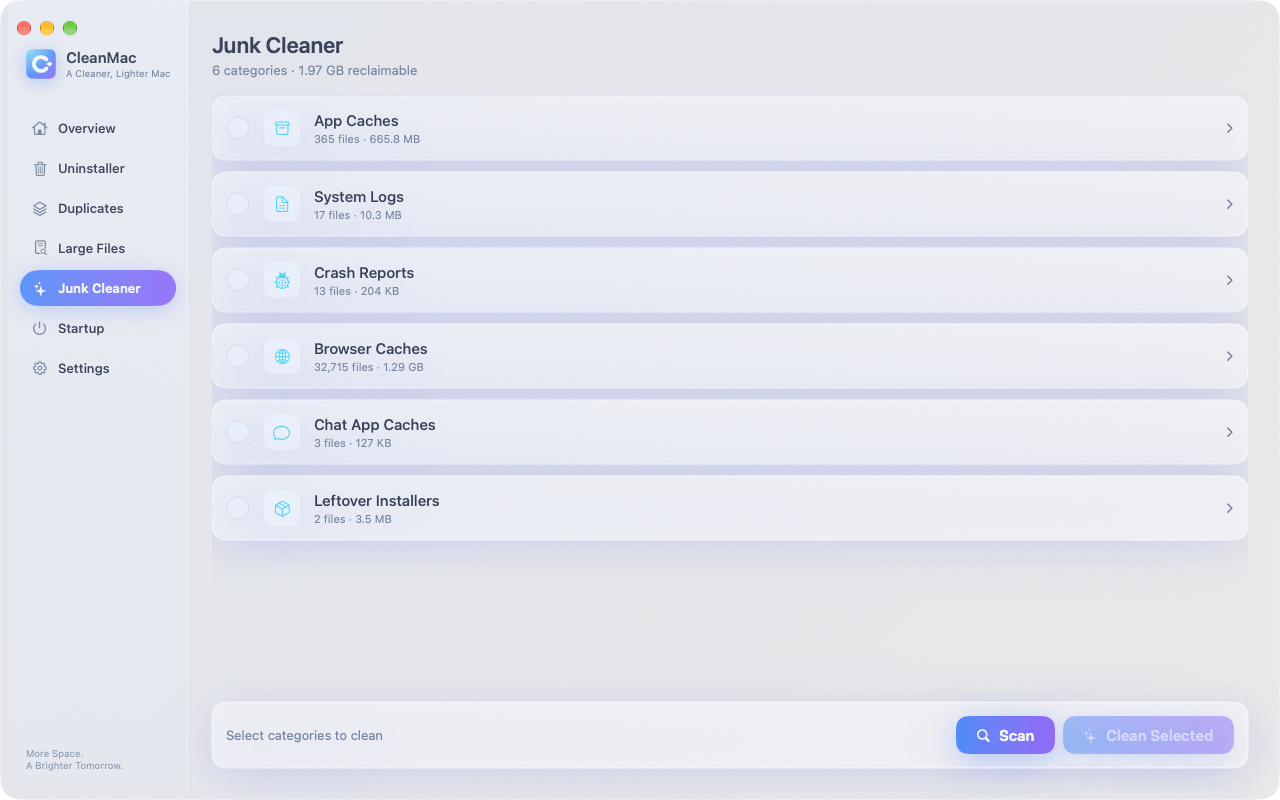
The single most effective post-update cleanup is a junk sweep: old system caches, update logs, leftover installer packages, crash reports from the upgrade process, and the stale caches that apps replaced. You can dig through `~/Library/Caches` and `/Library/Logs` by hand — the process is doable but tedious, and it requires knowing which folders are safe to touch.
The faster path: CleanMac includes a free Junk Cleaner module that scans exactly these categories — app caches, system logs, crash reports, browser caches, and leftover installer packages — and presents everything in a preview before deleting. Nothing is removed without your approval, and deletions go to the Trash rather than being permanent, so you can confirm your Mac is healthy before emptying it. On a Mac that’s just been through a major update, this scan routinely finds several gigabytes of update-related debris on top of the usual accumulation.
CleanMac runs locally only (no account, no uploads), requires macOS 13 Ventura or later, and works natively on both Intel and Apple Silicon. Download CleanMac free.
Check what’s launching at login
Updates have a habit of resurrecting login items — apps re-register their background helpers, and newly installed system features add their own. If your Mac was quick before the update and is slow from the moment you log in now, this is a prime suspect.
Review System Settings → General → Login Items & Extensions and trim anything you don’t need launching at boot. CleanMac’s Startup Items module shows the same information consolidated in one list, which makes the audit faster — especially for spotting items an update quietly re-enabled.
Reclaim the space the update consumed
If your disk was already more than 85% full, the update’s debris may have pushed you into the danger zone where macOS itself slows down — the system needs free space for virtual memory swap, and a nearly-full drive forces constant housekeeping. Check System Settings → General → Storage: if you’re below ~15% free, freeing space is your highest-impact fix, ahead of everything else in this article.
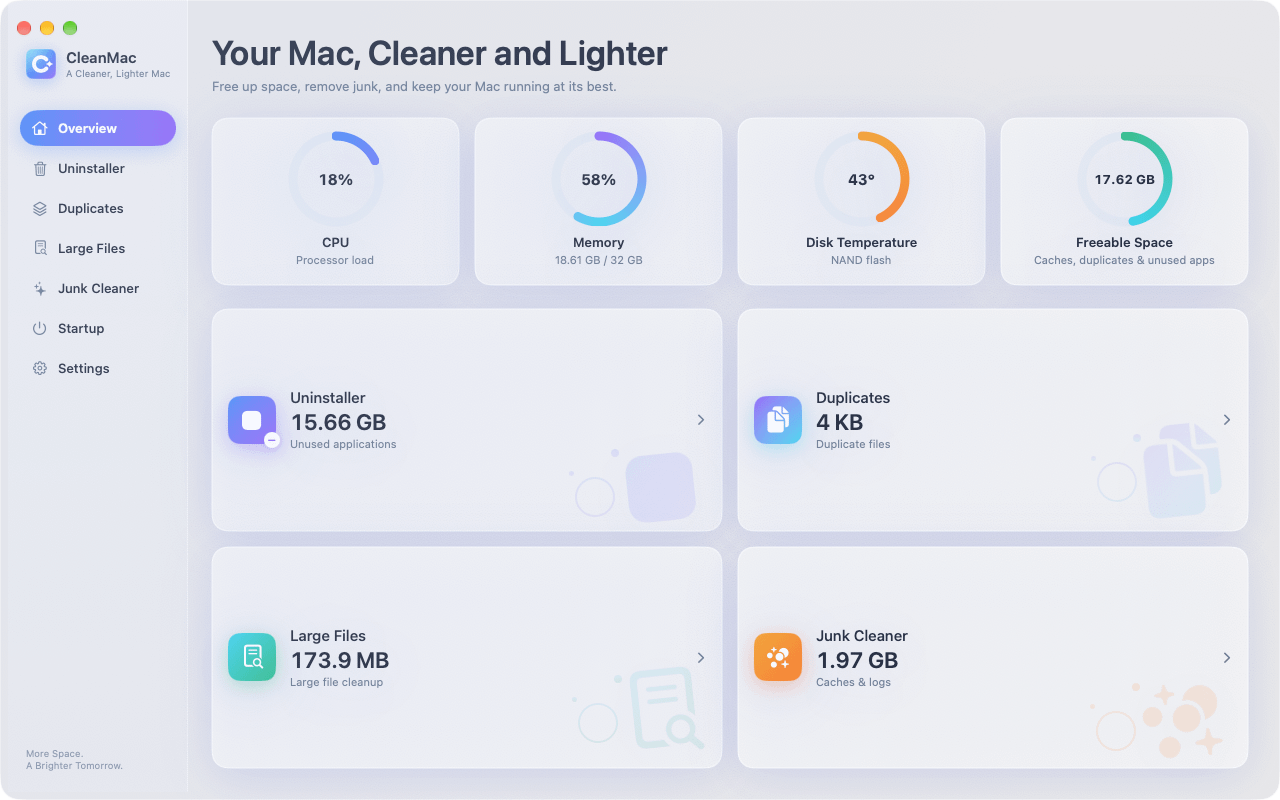
After the junk sweep, the two biggest wins are usually large forgotten files and duplicates — CleanMac’s Large File Cleanup (everything 10 MB+, sorted by size) and Duplicates modules cover both in the same app.
If It’s Still Slow: The Deeper Fixes
Worked through everything above and the Mac is still sluggish days later? Move down this list.
Reset SMC and NVRAM (Intel Macs only)
On Intel Macs, the System Management Controller controls power, fans, and thermal behavior, and updates occasionally leave it in a confused state — fans racing, performance throttled. An SMC reset (procedure varies by model; Apple’s support site lists the key combinations) and an NVRAM reset (restart holding Cmd+Option+P+R for ~20 seconds) are five-minute fixes that resolve a surprising share of post-update weirdness. Apple Silicon Macs don’t have this procedure — a plain restart performs the equivalent functions automatically.
Check for a bad third-party extension
Major macOS versions sometimes break compatibility with older kernel extensions, drivers, and system utilities — and a broken low-level extension can drag the whole system. Test by booting in Safe Mode (Apple Silicon: shut down, hold power button → select startup disk → hold Shift and click “Continue in Safe Mode”; Intel: restart holding Shift). If the Mac is fast in Safe Mode, a third-party extension or login item is the problem: update or uninstall your system utilities, VPN clients, and drivers, starting with anything that predates the update.
Update your apps
Check the App Store and in-app updaters. App developers ship compatibility updates in the weeks following a major macOS release, and running pre-update app versions on the new system is a common source of beachballs and crashes. An app that’s spinning after the OS update often just needs its own update.
The last resorts
If weeks pass and nothing helps: reinstall macOS from Recovery (non-destructive — it replaces the system while keeping your files and apps), or as the true last resort, back up, erase, reinstall, and migrate back. Both are rare necessities; in practice, the combination of patience (48 hours), a junk cleanup, login item trimming, and app updates resolves the overwhelming majority of post-update slowdowns.
Preventing the Next One
A little preparation makes every future update smoother:
- Keep 15–20% of your drive free at all times. Updates need working room, and a Mac with free space absorbs update debris without slowing down.
- Update apps before the OS when a major macOS version lands — or wait two weeks and let developers catch up.
- Schedule major updates for the evening. Start the install after dinner, leave the Mac plugged in and awake overnight, and the indexing finishes while you sleep.
- Run a junk cleanup before major upgrades — starting clean means less to migrate, less to reindex, and less debris afterward.
Conclusion
A Mac that’s slow after an update is usually a Mac doing its homework — Spotlight reindexing, Photos re-analyzing, caches rebuilding — plus a layer of update debris that never cleans itself up. Give the background jobs a day or two, then clear what’s left: sweep the junk and leftover installer data with CleanMac’s free Junk Cleaner, trim your login items, reclaim disk space if you’re running low, and update your apps. Save the SMC resets and reinstalls for the rare cases that survive all of the above.
Handled in that order, “my Mac got slower after updating” almost always ends with a machine that’s faster than before the update — and a process that takes under an hour of actual effort. For more free Mac maintenance tools, browse our app collection.
Frequently Asked Questions
How long should my Mac be slow after a macOS update?
Expect noticeable slowness for a few hours after logging back in, with full recovery typically within 24–48 hours as Spotlight reindexing, Photos analysis, and cache rebuilding complete. Keeping the Mac plugged in and awake overnight accelerates the process. If your Mac is still clearly slower after two full days, the transient phase is over and it’s time for active cleanup.
Why is my Mac fan so loud after an update?
The fans are responding to sustained CPU load from post-update background jobs — Spotlight indexing (`mdworker`), Photos library analysis, and iCloud re-syncing all push the processor hard for hours. The noise is temporary and stops when the queue empties. If fans stay loud for days with no visible load in Activity Monitor, check for a runaway third-party process or, on Intel Macs, try an SMC reset.
Is it safe to delete caches and update files after a macOS update?
Yes — post-update is actually the ideal time for a junk cleanup, because the update invalidates old caches and leaves behind installer remnants, logs, and replaced system files that serve no further purpose. Stick to the standard safe categories (caches, logs, crash reports, leftover packages), preview before deleting, and delete to the Trash. A tool like CleanMac automates exactly this sweep.
Should I reinstall macOS if my Mac is slow after updating?
Almost never as a first response. Reinstallation is the last resort after the proven fixes: waiting out the indexing period, clearing update debris, trimming login items, updating apps, and testing in Safe Mode. In practice those steps resolve the vast majority of post-update slowdowns, and a non-destructive reinstall from Recovery remains available if they somehow don’t.
Does every macOS update slow down older Macs?
Not permanently in most cases — the post-update slump hits all Macs and passes. The legitimate concern with major version upgrades on aging hardware is that new features (heavier window effects, new background services) raise the baseline load. On Macs from the last six or seven years the difference is usually minor; on machines near the end of the supported list, staying on a well-patched older major version is a reasonable choice.
Can I stop Spotlight from reindexing to speed things up?
You can pause indexing by adding your drive to Spotlight’s Privacy list, but it’s counterproductive: search stops working properly, and the index has to be built eventually anyway. The better approach is to let it finish — leave the Mac plugged in and awake, and indexing of a typical drive completes overnight. Killing the `mdworker` process doesn’t help either; it simply restarts.
Will freeing up disk space make my Mac faster after an update?
Yes, if you were low on space — below roughly 15% free, macOS struggles with virtual memory, temp files, and its own housekeeping, and the update’s debris makes the pressure worse. Clearing junk files, large forgotten files, and duplicates to get back above 15–20% free is one of the highest-impact speed fixes available, and it costs nothing but a few minutes of review.


