

A MacBook that’s hot enough to warm your lap through your jeans, with fans spinning like it’s preparing for takeoff, is telling you something: the processor inside is working hard and generating heat faster than the cooling system can quietly shed it. Some heat is normal — Apple Silicon MacBooks are designed to run warm under load, and the MacBook Air doesn’t even have a fan. But constant heat, loud fans during light work, or a machine that’s uncomfortably hot at idle means something is wrong, and it’s almost always fixable.
This guide explains why Macs overheat, how to find the exact process responsible, and the practical fixes — from trimming runaway apps and browser tabs with a free monitor like CleanMac, to physical maintenance like dust removal and knowing when thermal paste is the real answer.
Why Macs Overheat: The Short Physics Lesson
Every watt of power your Mac’s processor consumes becomes heat. Under heavy load — video export, compiling code, a game — the chip draws more power, heats up, and the cooling system responds: heat pipes move warmth to the chassis, fans push it out. This is the design working as intended.
Problems start when the balance breaks, which happens for four reasons:
- Software load you didn’t ask for. A single runaway process — a stuck app, a crashed background helper, a browser tab running a runaway script — can pin a CPU core at 100% indefinitely. This is the most common cause of “my Mac is hot for no reason,” and it’s never no reason; it’s a reason you haven’t found yet.
- Blocked airflow. MacBooks intake and exhaust air through vents along the hinge (and on some models, the sides). Use the machine on a bed, couch, or your actual lap, and you smother the intake. Dust buildup inside does the same thing over months and years.
- Ambient conditions. A Mac in a 35°C room, or in direct sunlight on a desk, starts with a handicap — the cooling system can only shed heat into air cooler than the chassis.
- Aging thermal hardware. Fan bearings wear out, dust mats the heatsink fins, and the thermal paste between chip and heatsink dries and cracks after years, crippling heat transfer. This is the domain of older Intel MacBooks especially.
The reassuring summary: causes 1 and 2 account for the overwhelming majority of overheating complaints, and both are fixable tonight, for free.
Step 1: Find Out What’s Actually Using Your CPU
Before changing anything, identify the load. Guessing wastes time; measuring takes thirty seconds.
Check CPU and memory at a glance with CleanMac
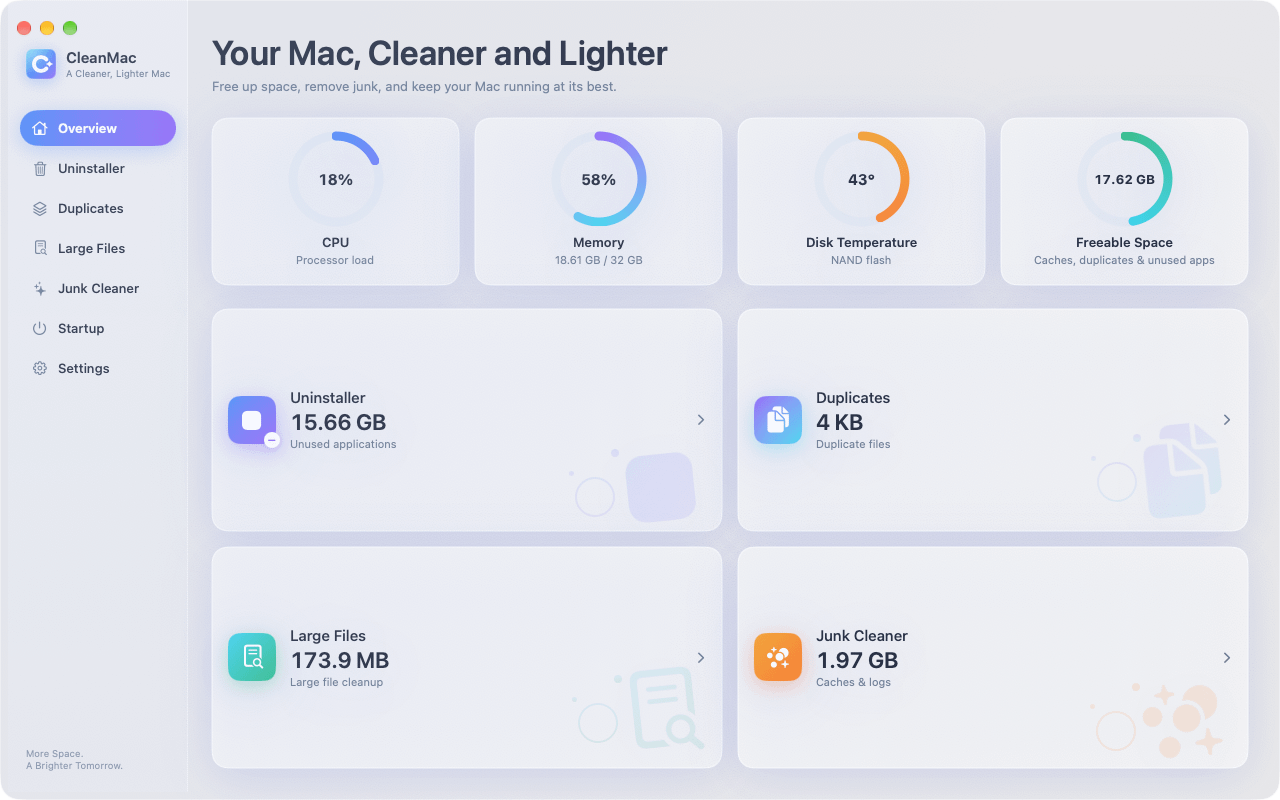
CleanMac — a free Mac utility — puts live CPU and Memory gauges on its Overview dashboard, so the moment you open the app you can see whether your processor is genuinely under load or your memory is saturated (memory pressure forces the system to swap to disk, which generates its own heat and slowdowns). If you don’t already have a monitoring habit, this is the lowest-friction way to build one: glance at the gauges when the fans spin up and you’ll immediately know whether you’re dealing with a CPU problem, a memory problem, or neither.
Drill down with Activity Monitor
For the per-process answer, macOS’s built-in Activity Monitor (in Applications → Utilities) is the tool:
- Open Activity Monitor and click the CPU tab.
- Sort by % CPU descending.
- Look at the top entries. Anything holding above ~70% CPU for minutes at a time while you’re doing light work is your suspect.
What you’ll typically find:
- A specific app you recognize (browser, video call, editor) — the fix is to quit or restart it
- A process you don’t recognize — search its name before killing it; some are legitimate system tasks
- kernel_task at high CPU — this is macOS deliberately throttling the processor to shed heat; it’s a symptom of heat, not a cause, and it means something else (or blocked airflow) is driving temperatures up
- mdworker / mds_stores — Spotlight indexing, normal after updates or large file copies; let it finish
To stop a runaway process: select it, click the ✕ button, choose Quit (or Force Quit if it ignores you). If the same process reappears at high CPU every day, you haven’t fixed it — you’ve identified it. The next steps address why it keeps happening.
Step 2: Fix the Software Causes
Tame the browser
Browsers are the number-one CPU offender on modern Macs, and tabs are the mechanism. Each open tab is its own process; a few dozen tabs — especially ones playing video, running ads-heavy pages, or hosting web apps like Figma or Google Docs — can keep multiple cores busy and memory pressure red.
The fixes, in order of impact:
- Close tabs you aren’t using. Bookmark-and-close is genuinely fine; the “I might need it” pile is what your bookmarks folder exists for.
- Audit extensions. An ad-heavy page blocked by a good content blocker uses a fraction of the CPU of an unblocked one. Conversely, too many extensions each add their own background overhead — keep the few you use, remove the rest.
- Watch for the one bad tab. In Chrome, Window → Task Manager shows per-tab CPU; in Safari, Activity Monitor lists tabs as separate “Safari Web Content” processes. One misbehaving page is often the whole problem.
- Quit browsers fully when not needed — a minimized browser with 40 tabs is still 40 tabs of load.
Cull your startup items
Everything that launches at login runs all day, and a crowded login sequence means a dozen background helpers competing for CPU and memory from the moment you boot — updaters, sync agents, menu bar widgets, “helper” processes from apps you barely use. Each one is small; together they’re a constant warm hum of background load.
Check System Settings → General → Login Items & Extensions and remove what you don’t recognize or need. For a faster pass, CleanMac’s Startup Items module lists everything launching at boot or login in one place, so you can disable the freeloaders in a single review instead of hunting through settings panes.

Deal with genuinely heavy apps
Video editors, virtual machines, games, Xcode builds, and local AI tools will legitimately push your Mac hot — that’s work, not malfunction. The management strategy is scheduling: run exports and builds when you don’t need the machine cool and quiet, plug in (some Macs sustain higher performance on power), and close everything else during the heavy job. If a heavy app stays hot after the job finishes, that’s the runaway-process situation again — restart the app.
Restart regularly
Uptimes measured in weeks let stuck processes and memory leaks accumulate. A restart clears them, purges swap files, and resets thermal management. If your Mac is “always” hot and you can’t remember the last restart, that alone may be the fix.
Step 3: Fix the Physical Causes
Give the vents room to breathe
Use the MacBook on hard, flat surfaces. Beds, cushions, blankets, and laps block the intake and insulate the chassis — the two things cooling hates most. If you work from a couch regularly, a lap desk or even a large hardcover book under the machine makes a measurable difference. A laptop stand improves both ergonomics and airflow, and on clamshell setups with external monitors, keep the lid-side vents unobstructed.
Clean out the dust
Dust is the silent killer of laptop cooling. It mats into the heatsink fins and coats fan blades, and by the time fans sound strained, the blockage is usually significant. Intel-era MacBooks are far more prone to this than Apple Silicon models, simply because they run hotter and their fans work harder.
The safe cleaning routine:
- Shut down and unplug.
- Use compressed air in short bursts at the vent openings along the hinge, keeping the can upright to avoid propellant spray.
- If you’re comfortable opening the bottom case on an older MacBook (a P5 pentalobe screwdriver and a guide from iFixit are all you need), clean the fans and heatsink directly — hold fan blades still while blowing so you don’t overspin the bearings.
The thermal paste question
On MacBooks five or more years old — especially Intel models that lived hot — the thermal paste between the processor and heatsink dries out, and heat transfer degrades badly. The classic symptom: fans at full speed and a hot chassis under moderate load, with software causes ruled out. Repasting is a real fix (it can drop temperatures 10–15°C on an old machine), but it means disassembling the cooling system. It’s a reasonable DIY with an iFixit guide and patience, or an inexpensive job at a repair shop. On Apple Silicon Macs, which run far cooler, this is rarely necessary.
Check the environment
Keep the Mac out of direct sunlight, and know that Apple rates MacBooks for use up to 35°C (95°F) ambient. Charging adds its own heat, so a machine gaming in the sun while plugged in is stacking three heat sources at once.
When Heat Is a Hardware Warning
Most heat is workload; some is a cry for help. Watch for these patterns:
- Fans at maximum constantly, even at idle with nothing running — a failing fan, a dead temperature sensor, or serious dust blockage
- Sudden shutdowns under load — the thermal protection circuit killing power to save the chip; treat this as urgent
- The bottom case hot enough to be painful to touch — beyond normal “warm”
- A swollen trackpad or a case that’s lifting — this is a swollen battery, not a heat issue to troubleshoot: stop using and charging the Mac immediately and take it to Apple or an authorized service. Swollen batteries are a fire risk.
For anything in this list, Apple Diagnostics (restart holding the power button on Apple Silicon, or the D key on Intel) can flag fan and sensor failures, and a service visit is the right move.
Conclusion
A hot Mac is almost always a working-too-hard Mac, and the fix follows a simple order: measure first — the CPU and Memory gauges in CleanMac and the per-process detail in Activity Monitor — then quit the runaway process, cull the tabs and startup items that create constant background load, and finish with the physical basics of airflow and dust. Save thermal paste and service visits for the older machines that have genuinely earned them.
Your Mac is designed to run warm under real work — but it should be cool and quiet when you aren’t asking much of it. If it isn’t, now you know exactly where to look. For more free tools to keep your Mac healthy, browse our app collection.
Frequently Asked Questions
Is it normal for my MacBook to get hot?
Warm under load is completely normal — video calls, exports, games, and even a dozen browser tabs push the processor hard enough to heat the chassis and spin the fans. What’s not normal is heat and fan noise during light use or at idle, which points to a runaway process, blocked airflow, or a hardware issue worth investigating.
Why is my Mac hot when I’m not doing anything?
“Nothing” from your perspective is rarely nothing to the system. Background processes — a stuck app, Spotlight indexing after an update, a browser tab running a script in the background, or a cloud sync client churning through files — can pin a CPU core indefinitely. Open Activity Monitor, sort by CPU, and the culprit usually reveals itself in seconds.
Does a hot Mac mean it has a virus?
Almost never. Genuine Mac malware is rare, and while cryptominers do cause constant high CPU, the far more common explanation is mundane: a misbehaving app, too many browser tabs, or heavy background sync. Check Activity Monitor first — the process at the top of the CPU list will be something you recognize nine times out of ten.
How can I check my Mac’s CPU temperature?
macOS doesn’t expose internal temperatures in Activity Monitor, which shows CPU load rather than heat. For actual sensor readings, third-party tools like TG Pro or the open-source Hot can display chip temperatures and fan speeds. In practice, load is the more actionable number anyway — high sustained CPU is what generates the heat you feel.
Will a laptop cooling pad help my MacBook?
A cooling pad can drop surface temperatures a few degrees, mainly by lifting the machine and moving air across the chassis. It’s a comfort improvement rather than a fix — if your Mac needs a cooling pad to stay sane during normal work, the real problem is software load or internal dust, and addressing those is free and more effective.
Can overheating damage my Mac permanently?
Modern Macs protect themselves: the chip throttles its speed when hot, and the system force-shuts-down before temperatures reach damaging levels. Chronic heat over years does accelerate wear on the battery and can shorten component lifespan, so it’s worth fixing persistent overheating — but a hot week won’t kill your Mac.
Why is my MacBook Air hot even though it has no fan?
The MacBook Air cools passively, radiating heat through the aluminum chassis — so warmth you can feel is the cooling system working, by design. Under sustained heavy load the chip throttles to stay within limits, which is why long exports run slower on an Air. If an Air is hot during light tasks, the cause is software: find the runaway process in Activity Monitor or check the CPU gauge in a tool like CleanMac.


