

Press the power button on your Mac and, before you’ve typed your password, dozens of programs are already running. A cloud sync client is checking for file changes. An updater is polling its server. A helper for a printer you no longer own is listening for a device that will never connect. A vendor’s “agent” — installed alongside an app you tried once, two years ago — is still launching at every login, doing nothing useful, consuming memory and CPU for eternity. These invisible programs are launch agents and launch daemons, and understanding them is the single most useful piece of systems knowledge a Mac owner can have.
Short on space already? CleanMac finds junk, leftover apps, and duplicates on your Mac — and shows you exactly what it will remove before anything is deleted. Download free →
This guide explains the topic properly: what launch agents and daemons actually are, how macOS’s launch system works, the difference between the two (and between them and ordinary login items), why they accumulate and slow your startup, and how to audit and disable them safely — manually or with the free Startup Items manager in CleanMac.
The Problem: Why Macs Get Slower to Boot Over Time
A new Mac reaches the login screen in seconds and is fully responsive within moments of signing in. A three-year-old Mac often takes twice as long — and then sits at a sluggish desktop for another minute while the menu bar populates, sync clients spin up, and background helpers fight for CPU. The hardware didn’t change. What changed is the population of background programs that installed themselves over the years and registered to launch automatically.
Every one of those programs runs on your schedule — at boot, at login, continuously — and each one costs memory, CPU cycles, battery, and boot time. Individually they’re small; collectively, a cluttered startup population can add 30–90 seconds to boot time and permanently consume a gigabyte or more of RAM. This is why “disable startup programs” is perennially among the most effective Mac speedup advice. But to do it well, you need to know what you’re looking at — because macOS has not one but several mechanisms for auto-launching software, and they live in different places.
What Are Launch Agents?
Launch agents are background programs that run on behalf of a user. They’re defined by small configuration files — property lists, or “plists” — that live in specific Library folders and tell macOS’s launch system (`launchd`, the master process that boots everything else) what to run, when, and under what conditions.
Launch agents live in three locations, and the location tells you whose they are:
- `~/Library/LaunchAgents/` — agents for your user account only, typically installed by apps you chose. This is where most third-party agents live.
- `/Library/LaunchAgents/` — agents for all users, installed by software with administrator access.
- `/System/Library/LaunchAgents/` — Apple’s own agents, part of macOS itself. Never touch these.
An agent’s plist specifies the program to run and its triggers: run at login, run every 300 seconds, run whenever a network connection appears, run when a file in a watched folder changes. Typical third-party launch agents include cloud sync helpers, update checkers, crash reporters, menu bar utilities, and vendor “agents” that monitor licensing or phone home analytics.
What Are Launch Daemons?
Launch daemons are the system-level counterpart: background programs that run as root, on behalf of the system itself, whether or not any user is logged in. They live in `/Library/LaunchDaemons/` (third-party) and `/System/Library/LaunchDaemons/` (Apple’s).
The practical differences from agents:
- They start at boot, not login. A daemon is running before anyone signs in — that’s the point.
- They run with elevated privileges. Daemons operate as root, which is why installing one requires your administrator password. Anything that has ever asked for your password during installation may have installed a daemon.
- They do system-wide work. VPN services, antivirus engines, hardware drivers, backup services, disk utilities, developer tools like Docker — anything that must work regardless of who’s logged in runs as a daemon.
Because daemons run as root, they’re also the more sensitive category from a security standpoint: unwanted software with persistence ambitions (adware, enterprise monitoring tools, and worse) installs daemons. A periodic audit of `/Library/LaunchDaemons/` is genuinely good security hygiene, not just performance hygiene.
Where Login Items Fit In
Complicating the picture, macOS has a third, older mechanism: login items — ordinary apps that launch when you sign in, the way apps have auto-started since classic Mac OS. These are managed in System Settings → General → Login Items & Extensions, which is also where modern macOS surfaces background items it knows about. Login items are the visible tip of the startup iceberg; launch agents and daemons are the much larger mass below the waterline.
So when someone says “startup programs,” they may mean any of three things: login items (visible in Settings), launch agents (per-user background programs), and launch daemons (system-wide background programs). A complete startup audit covers all three.
Why They Accumulate — and What They Cost
The startup population grows because installation is easy and removal is rare. Every app that wants to “helpfully” check for updates, pre-launch a helper for faster startup, or keep a sync engine alive registers an agent at install time. When you later delete the app by dragging it to the Trash, its agents frequently remain — orphaned plists pointing at programs that may still exist in leftover folders, launching forever for no reason. This is one of the strongest arguments for uninstalling apps properly with their support files, something CleanMac’s free Uninstaller handles as part of removal.
The costs are concrete:
- Boot and login time. Every agent that launches at login adds work to the critical path between entering your password and having a responsive Mac.
- Memory pressure. Each resident background process holds RAM. Ten vendor agents at 80–150 MB each is a gigabyte-plus of memory that your actual work can’t use.
- Battery life. Background programs wake the CPU. A polling updater that wakes every few minutes measurably shortens unplugged time on a MacBook.
- Attack surface and privacy. Every persistent background program is code running with your privileges (or root’s) that you didn’t consciously choose to keep.
How to Audit Your Startup Items
Step 1: The visible layer. Open System Settings → General → Login Items & Extensions. Review “Open at Login” and remove anything you don’t need launching. Scroll to “Allow in the Background” — this is modern macOS’s window into third-party agents and daemons, labeled by developer. Toggle off anything you don’t recognize or no longer use.
Step 2: The file-system layer. In Finder, press Cmd+Shift+G and inspect `~/Library/LaunchAgents/`, `/Library/LaunchAgents/`, and `/Library/LaunchDaemons/`. Every plist corresponds to a registered background program. Look for vendor names you don’t recognize, products you uninstalled, and duplicates.
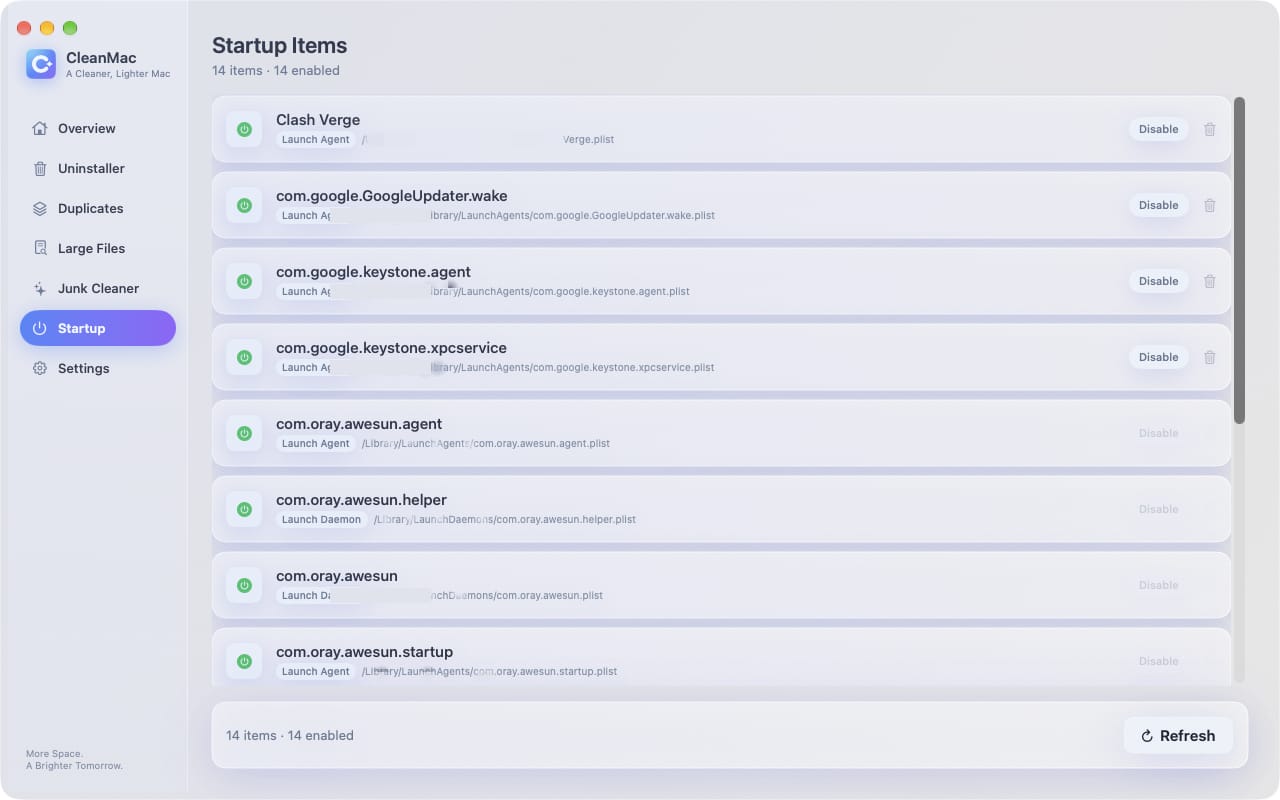
Step 3: The consolidated view. CleanMac’s free Startup Items module lists launch agents, daemons, and login items together in one interface — with one-click disable rather than manual plist surgery. Disabling (rather than deleting) is the safe first move: the item stops launching, but nothing is uninstalled, so you can re-enable instantly if something turns out to depend on it.
Step 4: Reboot and verify. Restart, then use the Mac normally for a few days. If nothing you care about has broken — sync still syncs, printers still print, your VPN still connects — the disabled items were dead weight, and you can remove their plists permanently.
What’s Safe to Disable
Usually safe to disable or remove: update checkers (apps still update when you open them), sync clients for services you no longer use, helpers for uninstalled apps, vendor analytics/telemetry agents, “quick launch” pre-loaders, and helper tools for hardware you no longer own.
Leave alone: anything in `/System/Library/` (Apple’s own), your password manager’s agent if you rely on auto-fill, your backup software’s daemon, cloud sync clients you actively use, and security software you intentionally installed. When in doubt, disable rather than delete, and observe for a few days.
Conclusion
Launch agents and launch daemons are macOS’s machinery for running background programs — agents on behalf of users at login, daemons on behalf of the system at boot with root privileges. They’re legitimate and necessary in principle, but they accumulate relentlessly: every installed app adds one, and uninstalled apps leave theirs behind. The result is slower boot times, wasted memory and battery, and a larger attack surface — all fixable with a periodic audit. Start with Login Items in System Settings, review the LaunchAgents and LaunchDaemons folders, or use CleanMac’s free Startup Items manager for a consolidated list with safe, reversible disabling. Your Mac will boot faster, run leaner, and do it all without a single visible change to how you work. For more free Mac utilities, browse our app collection.
Frequently Asked Questions
What are launch agents on Mac?
Launch agents are background programs that macOS runs on behalf of a user account, typically starting at login. They’re defined by plist configuration files in `~/Library/LaunchAgents/` (your account), `/Library/LaunchAgents/` (all users), or `/System/Library/LaunchAgents/` (Apple’s own). Third-party apps install agents to run update checkers, sync helpers, menu bar utilities, and similar background services without you opening the app itself.
What is the difference between a launch agent and a launch daemon?
Launch agents run on behalf of a user and start at login, while launch daemons run as root on behalf of the system and start at boot, before anyone signs in. Daemons handle system-wide services like VPNs, drivers, and backup engines, and installing one requires administrator privileges. Both are managed by `launchd`, macOS’s master launch process, and both accumulate as you install software over time.
How do I see what launch agents and daemons are on my Mac?
For a partial view, open System Settings → General → Login Items & Extensions and check the “Allow in the Background” list. For the complete picture, inspect `~/Library/LaunchAgents/`, `/Library/LaunchAgents/`, and `/Library/LaunchDaemons/` in Finder, where each plist file represents one registered background program. CleanMac’s free Startup Items module shows all of them in one consolidated list with the option to disable each item.
Is it safe to disable launch agents and daemons?
It is safe to disable third-party agents and daemons for software you no longer use, update checkers, and vendor analytics tools — especially if you disable rather than delete, which is fully reversible. You should leave Apple’s own items in `/System/Library/` untouched, and keep agents for tools you actively depend on, like your password manager, backup software, and cloud sync clients. Disabling followed by a few days of normal use is the safe way to confirm nothing breaks.
Do launch agents slow down my Mac?
Yes, collectively. Each agent that launches at login adds time to the boot-to-usable-desktop path, and each resident background process holds memory and periodically wakes the CPU, costing battery life on MacBooks. A Mac with years of accumulated agents can take 30–90 seconds longer to boot and permanently lose a gigabyte or more of RAM to background programs that provide no value.
Why are there launch agents for apps I already deleted?
Because dragging an app to the Trash removes the application bundle but not the launch agent plist it registered in a Library folder. The orphaned agent either points at a deleted program and fails silently at every login, or — worse — points at leftover support files that still exist and still run. Uninstalling apps with a tool that removes associated files, like CleanMac’s Uninstaller, prevents these orphans from being created.
How often should I review my startup items?
A monthly glance at Login Items in System Settings plus a quarterly deeper audit of launch agents and daemons is a good rhythm for most users. Also review immediately after uninstalling any large application, and any time you notice your Mac booting more slowly than it used to. Startup populations only grow on their own; they never shrink without intervention.


