
Time Machine is the best backup system most Mac users never think about — until the day it announces “Time Machine backup disk is full,” or until you notice your internal drive mysteriously missing 100 GB that you can’t account for. Both problems have the same root: Time Machine keeps history, history accumulates, and eventually something has to give.
This guide explains how Time Machine actually stores backups (understanding this makes every fix obvious), how to delete old backups safely from the backup drive, how to manage the hidden local snapshots that eat space on your Mac’s internal disk, and when it makes sense to start over or switch strategies entirely. We’ll also show where a free space-reclamation tool like CleanMac fits when the real problem is that your whole drive — backups aside — needs attention.
How Time Machine Works (The 60-Second Version)
Everything in this guide follows from three facts about Time Machine’s design:
- It keeps versions, not copies. Each hourly backup only stores what changed since the last one, linked against everything unchanged. A year of backups isn’t 8,000 full copies of your drive — it’s one full copy plus a year of deltas. This is why you can browse “last March” without owning a dozen drives.
- It self-prunes — but only on its own schedule. Time Machine keeps hourly backups for 24 hours, daily backups for the past month, and weekly backups until the disk is full. When the backup disk fills, it automatically deletes the oldest weekly backups to make room. “Disk full” warnings appear when it’s running out of pruning room.
- It also backs up to your internal drive. When the backup disk isn’t connected, macOS keeps local snapshots on your Mac’s own storage — a safety net for laptop users on the go. These are invisible in the Finder and are the usual answer to “where did 80 GB of my internal storage go?”
So there are really two separate “delete old Time Machine backups” problems: pruning the external backup drive, and clearing local snapshots from your internal drive. They have completely different solutions.
Part 1: Deleting Old Backups from the Backup Drive
The normal case: let Time Machine prune itself
If your only symptom is the occasional “backup disk is nearly full” notice, the honest answer is that you don’t have to do anything. Time Machine deletes the oldest weekly backups automatically when it needs room. The system is designed to run this way indefinitely, and a backup drive that’s 90% full of history is a backup drive working as intended.
Deleting specific backups manually
Sometimes you want specific backups gone — backups of a huge folder you’ve since deleted, or ancient history you don’t need. The proper method:
- Connect the backup drive.
- Click the Time Machine icon in the menu bar (enable it in System Settings → Control Center if hidden) and choose Browse Time Machine Backups.
- Navigate to the date or the folder you want to remove.
- Right-click (or use the Action/gear menu) and choose Delete Backup — for a whole snapshot — or Delete All Backups of [item] — to purge a specific file or folder from every snapshot at once.
- Authenticate with your admin password and wait. Deleting linked backups takes time; don’t disconnect the drive mid-operation.
The “Delete All Backups of” option is the hidden gem here: it’s the clean way to scrub a 200 GB folder of old video projects from your entire backup history, instantly relieving the fullness problem.
What NOT to do
Don’t drag `Backups.backupdb` folders to the Trash in Finder. The backup database uses hard links that Finder doesn’t understand, and manual deletion this way is slow, error-prone, and can corrupt the backup set. Use the Time Machine interface (or `tmutil` in Terminal, for advanced users) — never the Finder — for surgery on backup data.
The nuclear option: erase and start fresh
If the backup drive’s history is a tangled mess, or it’s inherited backups from a Mac you no longer own, starting over is legitimate:
- System Settings → General → Time Machine → Select Disk — remove the old disk from Time Machine’s configuration.
- Open Disk Utility, select the backup drive, and Erase it (APFS for modern macOS, GUID Partition Map).
- Re-add it in Time Machine settings and let a fresh full backup run — expect hours for the first one.
You lose all historical versions, so do this only when the history genuinely has no value — and ideally when you have a second backup (even a recent clone or cloud backup) covering the gap.
Part 2: Deleting Local Snapshots (Your Internal Drive’s Hidden Appetite)
This is the section most people actually need. Local snapshots live on your Mac’s internal storage, and they show up in System Settings → General → Storage inside the opaque “System Data” category — they don’t appear in the Finder at all.
Check whether snapshots are your problem
Open Terminal (Applications → Utilities) and run:
“`
tmutil listlocalsnapshots /
“`
You’ll see a list like `com.apple.TimeMachine.2026-10-01-103521.local` — one entry per snapshot, typically created hourly when the backup disk is away, plus snapshots macOS makes automatically before system updates. Each can hold gigabytes of “deleted” file data.
Understand the deal before deleting
Local snapshots are self-managing: macOS deletes them automatically when your drive needs the space, and it thins them to keep roughly the last 24 hours. Deleting them manually frees space now — but it also removes your ability to recover files deleted since your last real backup. If your backup disk is connected and current, that trade is usually fine. If you’ve been away from your backup drive for a week, think twice.
Delete them
Remove a specific snapshot by its listed date:
“`
tmutil deletelocalsnapshots 2026-10-01-103521
“`
Or thin them in bulk — this asks macOS to reclaim a target amount (10 GB shown here) urgently:
“`
tmutil thinlocalsnapshots / 10000000000 4
“`
After deletion, check Storage settings again — the “System Data” category should shrink within a minute or two as the space is actually reclaimed.
Prevent snapshot buildup
The durable fix is simply connecting your backup drive regularly — snapshots exist to cover the gaps between real backups, and a Mac that backs up every evening never accumulates more than a day’s worth. If your Mac is a desktop that stays home, consider leaving the backup drive connected permanently so Time Machine works hourly and snapshots never pile up at all.
When “Backups Full” Is Really “Everything Full”
A common scenario: you go hunting for Time Machine space because your Mac’s drive is nearly full, and you discover snapshots are only part of the story. System Data is swollen, but so are your own files — and deleting snapshots buys you a few gigabytes when you need fifty.
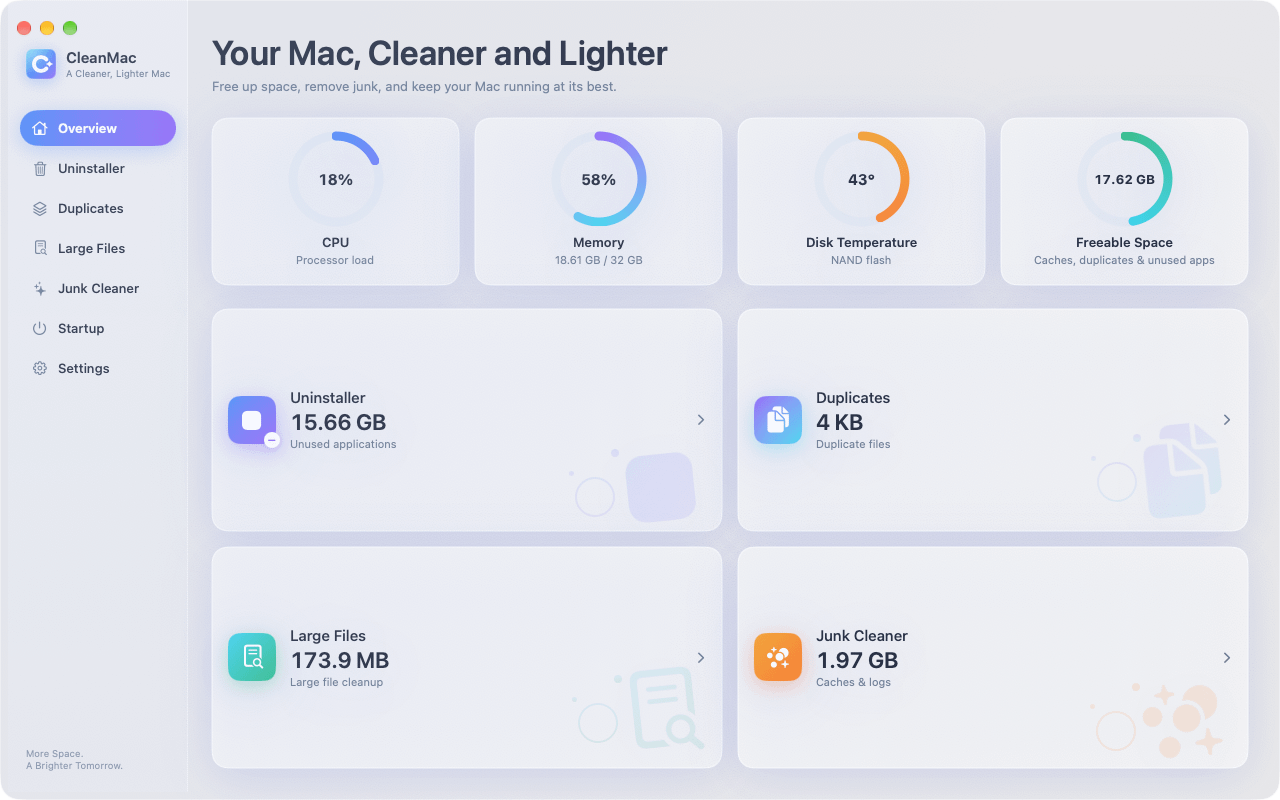
That’s the moment for a whole-drive cleanup, and it’s what CleanMac is built for. The free app’s six modules cover the categories that actually fill drives:
- Large File Cleanup lists every file above 10 MB sorted by size — old exports, disk images, forgotten downloads — the fastest way to reclaim serious space.
- Duplicates finds identical files by content, which commonly hides another 5–15 GB.
- Junk Cleaner sweeps caches, logs, and crash reports (the rest of what’s bloating “System Data”).
- Uninstaller removes unused apps with their support files.
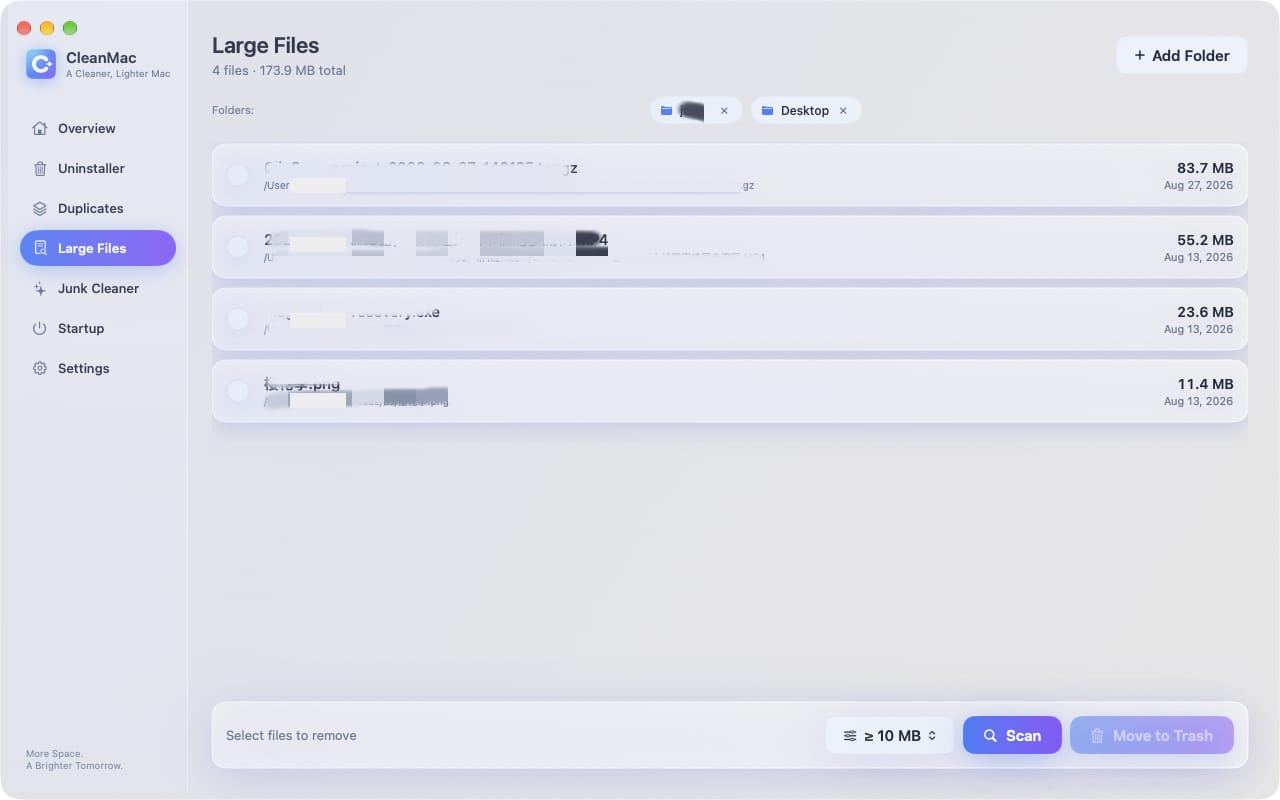
Everything CleanMac deletes goes to the Trash for recovery, scans run entirely locally with no account or uploads, and the app requires macOS 13 Ventura or later on Intel or Apple Silicon. Download CleanMac free — it pairs naturally with Time Machine housekeeping: snapshots and backups protect your data, while regular cleaning keeps the drive from filling in the first place.
Time Machine Alternatives Worth Knowing
If managing Time Machine’s appetite has you considering options, the honest landscape:
- Larger backup drive. The least clever and most effective fix: Time Machine wants a drive at least 2× your data size, and 3–4× gives history room to breathe. Drives are cheap; history is priceless.
- Cloud backup (Backblaze, iCloud Drive with Optimize Mac Storage). Off-site protection against theft and fire — which a backup drive sitting next to your Mac doesn’t provide. iCloud’s “Optimize” feature also reduces local storage pressure by keeping older files cloud-only.
- Bootable clones (Carbon Copy Cloner, SuperDuper). A different philosophy: an exact, bootable copy of your drive, updated on a schedule. Faster to recover an entire machine from, but no deep version history.
The strongest setup isn’t choosing one — it’s layering: Time Machine for versions and convenience, plus any one of these for off-site or catastrophic coverage.
Good Time Machine Hygiene Going Forward
- Exclude what doesn’t need backing up. In Time Machine settings → Options, add exclusions for folders that are huge and re-downloadable: cloud-synced folders already protected elsewhere, Steam game libraries, virtual machine disks if you back those up separately. Smaller backups mean longer history on the same drive.
- Let it run. Interrupting backups constantly is what builds snapshot debt.
- Check in monthly. A glance at Storage settings and the last-backup time in the Time Machine menu catches problems while they’re small.
- Test a restore occasionally. A backup you’ve never restored from is a hypothesis, not a backup.
Conclusion
Deleting old Time Machine backups is really two tasks wearing one name. On the backup drive, prune through Time Machine’s own interface — “Delete Backup” and the powerful “Delete All Backups of” — or erase and restart when history has no value; never surgery the backup database through Finder. On your internal drive, list local snapshots with `tmutil`, thin or delete the ones you don’t need, and keep your backup disk connected so they stop accumulating.
And when the fullness runs deeper than snapshots — as it usually does — sweep the rest of the drive with CleanMac’s free tools so you’re solving the problem once instead of monthly. For more hand-picked free Mac utilities, browse our app collection.
Frequently Asked Questions
Why is my Time Machine backup disk full?
Time Machine keeps hourly backups for 24 hours, daily backups for a month, and weekly backups until the disk fills — so a full disk usually just means the history has grown into all available space. Time Machine prunes the oldest weekly backups automatically to make room, but if your data is large relative to the drive, you’ll see fullness warnings regularly. A drive 2–3 times the size of your data eliminates the issue.
What are Time Machine local snapshots, and can I delete them?
Local snapshots are backups stored on your Mac’s internal drive when the backup disk isn’t connected — a safety net for recent changes. You can list them with `tmutil listlocalsnapshots /` and delete them with `tmutil deletelocalsnapshots
Can I delete Time Machine backups from the Finder?
You shouldn’t. The backup database uses hard links that Finder mishandles, and dragging backups to the Trash is slow and risks corrupting the entire backup set. Delete backups through the Time Machine interface instead — browse your backups, right-click a snapshot, and choose Delete Backup — or use `tmutil delete` in Terminal for advanced control.
Will deleting old backups delete my current files?
No. Time Machine backups are entirely separate from the live data on your Mac — deleting any snapshot, even the oldest or the most recent, touches only the backup drive’s history. Your current files are never affected. The one caution is the reverse: deleting backups removes your ability to recover older versions, which is the entire point of keeping them.
How do I stop local snapshots from filling my internal drive?
Connect your backup drive regularly — ideally daily or permanently for a desktop Mac. Snapshots exist to bridge the gap between real backups, so frequent backups keep them naturally thin. macOS also deletes snapshots automatically when space is needed, but manual thinning with `tmutil thinlocalsnapshots` reclaims space immediately when you can’t wait.
Why did my “System Data” storage shrink after deleting snapshots?
Because local snapshots live inside the System Data category — they’re invisible to the Finder and counted as system storage. Deleting snapshots releases the “deleted” file data they were preserving, which shows up as System Data shrinking within a minute or two. If System Data stays huge afterward, the next suspects are caches, logs, and old iOS backups.
Should I erase my Time Machine drive and start over?
Starting fresh is reasonable when the backup history covers Macs you no longer own, the backup set has become unreliable, or you’re repurposing a drive inherited from another machine. You lose all version history, so only do it when history has no value — and ideally when a second backup covers you during the fresh full backup, which takes hours. For most full-drive complaints, pruning or a bigger drive is the better answer.


