

You open Apple menu → About This Mac → Storage (or System Settings → General → Storage on newer macOS versions) and stare at the colored bar. Apps are blue, Documents are yellow, and then there’s that huge gray block at the end — labeled “Other” on older macOS versions or “System Data” on macOS Monterey and later. On many Macs it consumes 50 GB, 100 GB, sometimes 200 GB or more, and macOS gives you almost no tools to see what’s inside it or do anything about it.
That mystery is why “what is Other storage on Mac” is one of the most-searched Mac questions of all time. This article answers it completely: what the category actually contains, why it grows so relentlessly, how to inspect it, and — most importantly — how to shrink it safely without breaking your system. We’ll also show where CleanMac, a free Mac cleaner, fits into the process, because several of the biggest components of Other storage are exactly what its scanners are built to find.
What “Other” (System Data) Actually Is
The storage bar in About This Mac is macOS’s attempt to sort everything on your disk into a handful of friendly categories: Apps, Documents, Photos, Music, Mail, Messages, and so on. The system identifies files by type and by where they live — your Photos library counts as Photos, files in your Documents folder count as Documents.
Everything that doesn’t fit a friendly category gets dumped into the residual bucket. On macOS Catalina and earlier that bucket is labeled Other. Starting with macOS Monterey, Apple renamed it System Data — a more honest name, because most of what’s in it is data the system (or apps acting like the system) created for its own purposes rather than files you deliberately saved.
So the short answer to “what is Other storage” is: it’s everything macOS can’t attribute to you directly — caches, logs, backups, containers, disk images, and support files. None of it is labeled with your name, but most of it was created because of things you did.
What’s Actually Inside Other Storage
Here’s the real breakdown, roughly ordered by how much space each component typically consumes on a well-used Mac.
Cache files (usually the biggest chunk)
Every app on your Mac maintains caches — temporary working data it keeps so it doesn’t have to recompute or redownload things. Browsers cache website resources. Streaming apps cache video segments. Developer tools cache build artifacts. macOS itself caches font data, system resources, and update files. Individually these caches are hundreds of megabytes; together, on a Mac that hasn’t been cleaned in a year, they commonly total 20–60 GB, all of it classified as System Data.
Old iPhone and iPad backups
If you’ve ever backed up an iPhone or iPad to your Mac — through Finder on modern macOS or iTunes on older versions — those backups live in `~/Library/Application Support/MobileSync/Backup/`. Each one can be 10–60 GB depending on the device, and Macs accumulate them silently: plug in a new phone, get a new backup; the old ones stay forever. This single folder is often the largest item in Other storage, and it’s completely invisible in the storage bar.
Disk images and installer packages
Every `.dmg` file you’ve downloaded and every `.pkg` installer you’ve run sits somewhere on your disk, usually in Downloads. Because these are container files rather than documents, macOS sorts them into Other. A few macOS installer images (6–13 GB each) plus years of accumulated app installers easily add 20–40 GB.
Time Machine local snapshots
On MacBooks, macOS keeps local snapshots of your disk — a rolling 24 hours of restore points — so you can recover recent files even when your backup drive isn’t connected. These snapshots live in a hidden system area and are counted as System Data. On a Mac that changes a lot of files, snapshots can hold 10–50 GB. macOS claims to purge them automatically when space runs low, but the purging is famously conservative.
App support files, containers, and leftovers
Every app stores data in `~/Library/Application Support/` and `~/Library/Containers/`. Some of it is tiny (settings files); some of it is enormous (a video editor’s render cache, a virtual machine’s disk image, a chat app’s message history). When you delete an app by dragging it to the Trash, most of these support files stay behind — orphaned data that macOS counts as Other storage forever.
System files and logs
Swap files, sleep images, crash reports, diagnostic logs, and core macOS components round out the category. A sleep image on a Mac with 16 GB of RAM is itself around 8–16 GB. Logs and crash reports are smaller individually but accumulate endlessly.
Why Other Storage Grows So Large
Other storage grows for the same reason junk drawers fill up: everything without a designated home ends up there, and almost nothing ever leaves. Three forces drive the growth.
First, caches are write-mostly by design. Apps add to their caches constantly and expire entries lazily, if ever. A browser you’ve used daily for two years carries two years of cached data unless something clears it.
Second, nothing warns you. Your Mac doesn’t notify you when iPhone backups pile up or when snapshots balloon. The storage bar shows the symptom (a giant gray block) with zero diagnosis.
Third, manual cleanup is genuinely hard. The biggest offenders live in hidden `~/Library` subfolders with cryptic names. Deleting the wrong folder can break an app, so most people sensibly delete nothing — and the pile grows.
How to See What’s Actually in Your Other Storage
Before clearing anything, get a picture of what you’re dealing with.
Method 1: System Settings breakdown. Go to System Settings → General → Storage and wait for the calculation to finish. Click the ⓘ button next to categories. This gives you Apple’s view — useful but shallow; System Data remains a single undifferentiated number.
Method 2: Finder’s Library inspection. Open Finder, press Cmd+Shift+G, and visit these folders, sorting by size (Cmd+J → Calculate all sizes, or use Get Info on each):
- `~/Library/Caches/` — app caches
- `~/Library/Application Support/MobileSync/Backup/` — iOS backups
- `~/Library/Containers/` — sandboxed app data
- `~/Library/Developer/` — Xcode artifacts (huge if you’re a developer)
- `~/Library/Logs/` and `~/Library/DiagnosticReports/` — logs and crashes
Method 3: Terminal spot checks. Commands like `du -sh ~/Library/Caches/* 2>/dev/null | sort -hr | head -20` reveal the twenty largest cache folders in seconds, and `tmutil listlocalsnapshots /` lists local Time Machine snapshots.
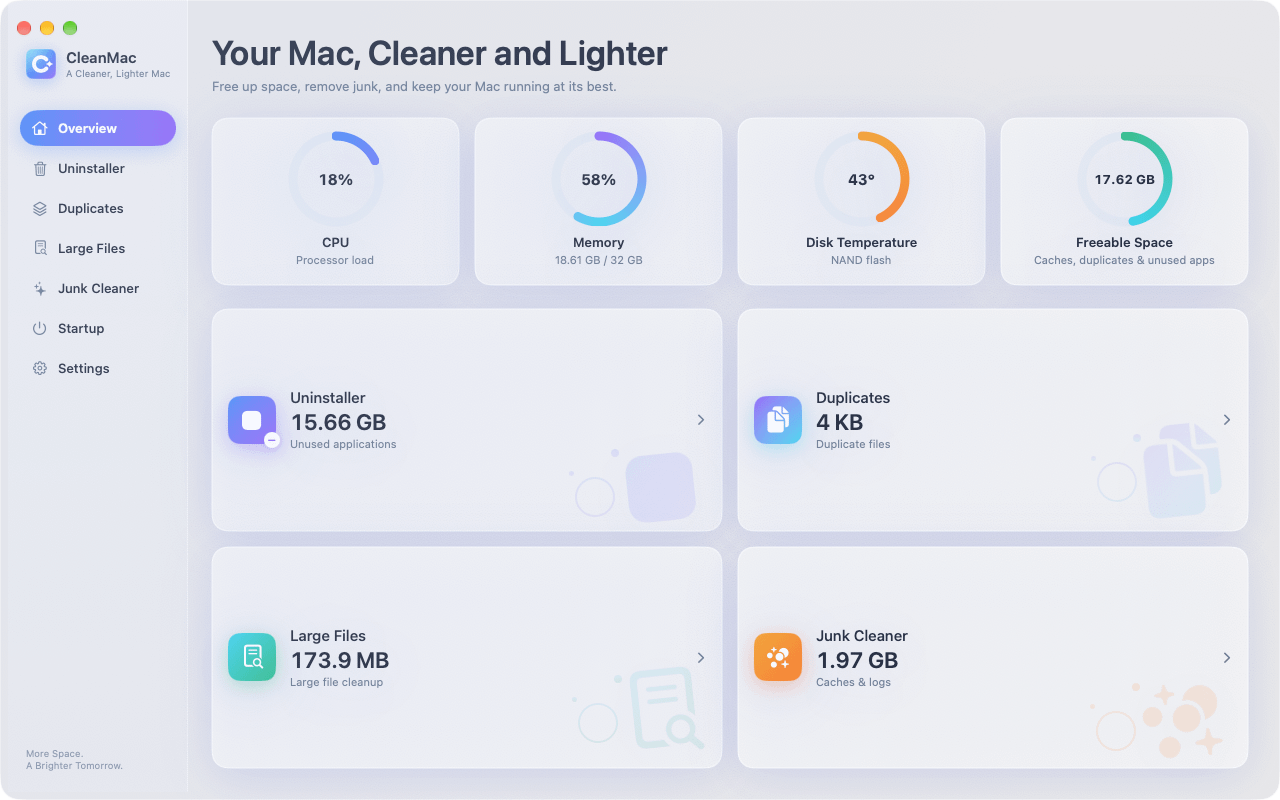
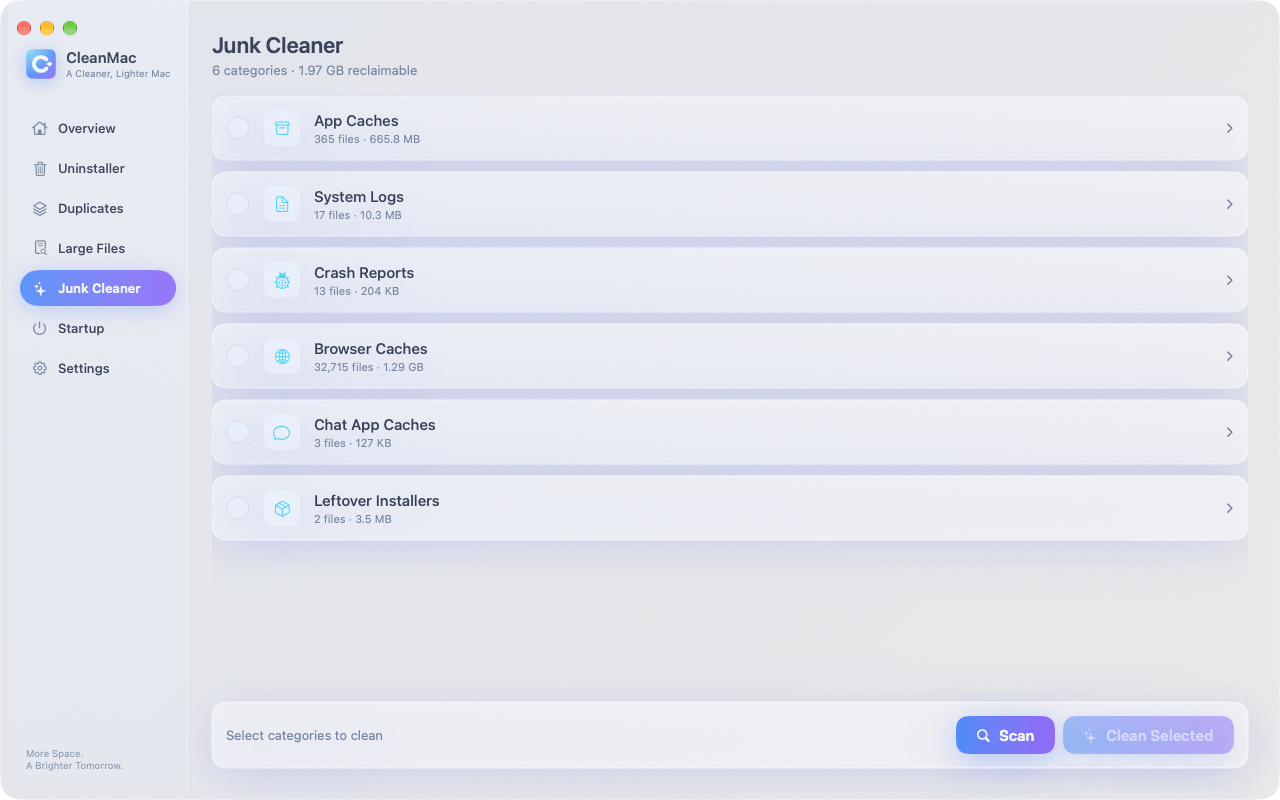
Method 4: Let a scanner do it. CleanMac’s free Junk Cleaner module scans exactly these locations — caches, logs, crash reports, browser caches — and presents the results as a readable, itemized list with sizes. It turns a half-hour of folder archaeology into a two-minute review.
How to Clear Other Storage Safely
Now the part everyone came for. Work through these in order — the early steps recover the most space with the least risk.
Step 1: Clear caches. Quit your apps, then delete the contents (not the folders themselves) inside `~/Library/Caches/`. Apps will rebuild what they need. Expect 10–40 GB back on a never-cleaned Mac. CleanMac’s Junk Cleaner automates this and knows which system-critical folders to skip — a meaningful safety margin over doing it by hand.
Step 2: Delete old iOS backups. In Finder, connect your iPhone, select it, and click Manage Backups — or delete the folders in `~/Library/Application Support/MobileSync/Backup/` directly. Keep only the most recent backup per device.
Step 3: Purge disk images and installers. Sort Downloads by size and delete old `.dmg` and `.pkg` files. If an app is already installed, its installer is dead weight.
Step 4: Thin local snapshots. Run `tmutil thinlocalsnapshots / 10000000000 4` to trim snapshots aggressively, or simply let them expire — they roll off after 24 hours anyway once the underlying need passes.
Step 5: Remove app leftovers. When you uninstalled apps in the past by dragging them to the Trash, their support files stayed. Hunting them folder-by-folder is tedious; CleanMac’s Uninstaller module lists installed apps with all their associated files and removes everything together — and for apps already gone, its scans surface orphaned leftovers.
Step 6: Restart. Some system-level Other storage (swap files, sleep images, temp directories) only shrinks on reboot. A restart after steps 1–5 finalizes the recovery.
What Not to Touch
A few areas inside System Data should be left alone unless you know exactly what you’re doing: `/System` and `/Library` at the root level (as opposed to your user `~/Library`), anything SIP-protected (macOS won’t let you delete it anyway), and app container folders for apps you still use daily. When in doubt, use a scanner with a curated safe-list rather than manual deletion — preview everything, and delete to the Trash rather than permanently so recovery is possible.
Conclusion
“Other” or “System Data” storage isn’t mysterious once you unpack it: it’s mostly caches, old iPhone backups, disk images, local snapshots, and the digital residue of apps past and present. It grows because macOS files it away silently and provides no built-in way to inspect or trim it. The fix is systematic — clear caches, purge old backups and installers, thin snapshots, remove app leftovers, restart — and most of it can be done safely in under an hour. CleanMac automates the cache and leftover portions of that job for free, with preview-before-delete and Trash-based removal so nothing is ever unrecoverable. A Mac with 100 GB of System Data usually has 50–70 GB of pure recoverable space hiding inside that gray bar. For more free Mac utilities, browse our app collection.
Frequently Asked Questions
What is Other storage on Mac?
Other storage — renamed System Data in macOS Monterey and later — is the catch-all category in your Mac’s storage bar for everything macOS can’t attribute to a standard user category like Apps, Documents, or Photos. It’s mostly caches, iOS device backups, disk images, local Time Machine snapshots, app support files, logs, and core system data. Most of it was created automatically by macOS and your apps rather than by files you deliberately saved.
Why is my Mac’s Other storage so huge?
Other storage grows huge because its biggest components accumulate silently and nothing clears them automatically. Caches grow continuously as you use apps, old iPhone and iPad backups stay forever after you replace devices, downloaded disk images and installers pile up in Downloads, and local Time Machine snapshots can hold tens of gigabytes. On a Mac that has never been cleaned, Other storage of 80–200 GB is common and mostly recoverable.
Is it safe to delete Other storage on Mac?
It is safe to delete the user-level components of Other storage: app caches, logs, crash reports, old iOS backups you no longer need, disk images for apps you’ve already installed, and orphaned files from uninstalled apps. You should avoid touching root-level system folders and current app container data for apps you actively use. Deleting to the Trash first, rather than permanently, gives you a recovery window if anything behaves oddly afterward.
How do I clear Other storage on Mac quickly?
The fastest path is: clear your user caches, delete old iOS device backups from `~/Library/Application Support/MobileSync/Backup/`, remove old `.dmg` and `.pkg` installers from Downloads, thin local Time Machine snapshots with `tmutil`, and restart. A free scanner like CleanMac’s Junk Cleaner automates the cache and log portions, which are usually the largest and most tedious to clear by hand.
Does Apple provide a way to clear System Data?
Only partially. System Settings → General → Storage offers recommendations like emptying the Trash automatically and optimizing TV storage, but it cannot break down or clear the System Data category itself. For the components that make up most of System Data — caches, backups, snapshots — Apple expects you to use Finder, Terminal, or third-party tools.
Will clearing Other storage delete my personal files?
No — your personal documents, photos, and downloads are categorized separately and are not part of the Other/System Data bucket. Clearing Other storage targets caches, backups, installers, and leftovers, none of which are your documents. That said, always review before deleting and keep at least one current iPhone backup if you remove old ones.
How often should I clean System Data?
A monthly cache sweep plus a quarterly deeper pass through backups, installers, and leftovers keeps System Data in check for most users. After each macOS major upgrade is another good moment, since update caches and old system files inflate the category. Regular light maintenance prevents the 100 GB gray-block scenario from developing in the first place.

