

Nobody creates duplicate files on purpose. Nobody downloads a photo three times because they want three copies, or saves a document twice under two names for fun. Yet on almost every Mac that has been in use for a year or more, duplicate files account for a startling share of the disk — commonly 10–30% of user data, tens of gigabytes of pure redundancy sitting in folders nobody ever opens. Duplicates are the silent tax of digital life: invisible, inevitable, and completely recoverable once you understand where they come from.
Short on space already? CleanMac finds junk, leftover apps, and duplicates on your Mac — and shows you exactly what it will remove before anything is deleted. Download free →
This article explains the whole phenomenon: what duplicate files actually are (including the surprising fact that many “duplicates” aren’t byte-identical at all), the seven mechanisms by which they accumulate, why they’re so hard to find manually, and how content-based detection — the kind CleanMac uses in its free Duplicate Finder — finds them reliably even when names, dates, and locations all differ.
What Counts as a Duplicate File
The obvious definition — two files with identical content — covers only part of the real-world problem. It’s worth distinguishing the types, because they need different handling.
Exact duplicates are byte-for-byte identical files: same content, possibly different names, locations, or dates. The photo you downloaded twice. The document a colleague sent by email and again by Slack. The song that exists in both your Music folder and an old backup folder. These are pure waste — every copy after the first is recoverable space.
Near-duplicates are files that are functionally the same but technically different: the same photo at two resolutions, the same video in two formats, a document and its PDF export. These aren’t pure waste — sometimes you need both versions — but they’re worth reviewing because often you don’t.
Burst and serial photo duplicates deserve special mention: the twelve near-identical shots your iPhone took in burst mode, the five almost-same selfies. Modern phones create these by the thousand, and they flow into your Mac through photo sync.
For the rest of this article, “duplicates” means exact duplicates — the category that is unambiguously safe to reduce to a single copy.
The Seven Ways Duplicates Accumulate
Duplicates feel mysterious until you enumerate their sources. Almost all of them come from seven ordinary behaviors, none of which feel like mistakes at the time.
1. Repeated downloads. You download a file, can’t find where it went, and download it again. macOS helpfully names it `file (1).pdf`, then `file (2).pdf`. The Downloads folder of a three-year-old Mac is an archaeological dig of repeated downloads — installers, documents, images — many in triplicate.
2. Photo import loops. You import photos from your iPhone to your Mac, then later sync the same photos back through iCloud, then export some to edit, then re-import the exports. Each cycle creates copies. Photos is smart about detecting duplicates on import, but exports, edits, and cross-app moves defeat that detection completely.
3. Email and messaging attachments. Every attachment you save lands in Downloads. The same document sent in three threads gets saved three times. Chat apps like Slack, WeChat, and WhatsApp keep their own internal copies of every file and image that passes through them, in addition to wherever you saved your copy.
4. Copy instead of move. Dragging a folder to an external drive with the intent to “move it off the Mac” — but doing a copy, then never deleting the original. Half the “backups” on home Macs are duplicate sources: the files went to the backup drive and stayed on the internal disk.
5. App migrations and restores. Restoring from a Time Machine backup to a new Mac, migrating libraries between apps, or letting a “helpful” migration assistant copy data that also syncs from the cloud — each creates parallel copies of entire folder trees.
6. Multiple cloud sync services. Running iCloud Drive, Dropbox, and Google Drive simultaneously, with some folders dragging between them, produces cross-service duplicates that then sync back down to your Mac through each client.
7. Deliberate “just in case” copies. The folder named `Tax Docs OLD`, `Tax Docs backup`, `Tax Docs (final)`. Self-made duplicates created from a sensible instinct to preserve — which then never get cleaned up once their purpose passes.
Why Duplicates Are Nearly Impossible to Find Manually
If duplicates are so common, why doesn’t everyone just delete them? Because finding them by hand is effectively impossible at scale, for three reasons.
They hide under different names. The second copy of `IMG_4521.jpg` might be called `photo-final.jpg` in a different folder. Name-based searching finds almost nothing — the duplicates that matter have been renamed, moved, and reorganized since they were copied.
They’re scattered across the disk. A duplicate pair typically lives in two different folder hierarchies — Downloads and Documents, Photos and an external-drive backup folder. You can’t find them by browsing; you have to compare everything against everything else, which is precisely what humans can’t do and computers do trivially.
The volume defeats inspection. A typical home Mac holds 100,000+ user files. Even if you could check a hundred files a day, a complete manual duplicate audit would take years. This is a problem that exists because computers create copies effortlessly; only computers can audit them.
How Content-Hash Detection Works
The reliable way to find duplicates is to ignore everything superficial — names, dates, locations — and compare what the files actually contain. This is what content-based duplicate finders do, and the mechanism is worth understanding because it explains both their reliability and their speed.
The tool reads each file and feeds its contents through a cryptographic hash function — typically SHA-256 or MD5. A hash function is a mathematical operation that converts any input, of any size, into a fixed-length fingerprint. A 4 GB video file and a 4 KB text file each produce a hash the same length. The critical properties are: identical content always produces an identical hash, and different content (even differing by a single byte) produces a completely different hash.
So the detection process is: hash every file, group files by hash, and any group with more than one member is a duplicate set — byte-for-byte identical, regardless of what the files are named or where they live. It’s deterministic and has no false positives at the content level. (Well-designed tools optimize the process: they first group by file size, since files of different sizes can’t be identical, and only hash same-sized candidates — which is why a scan of a million files finishes in minutes.)
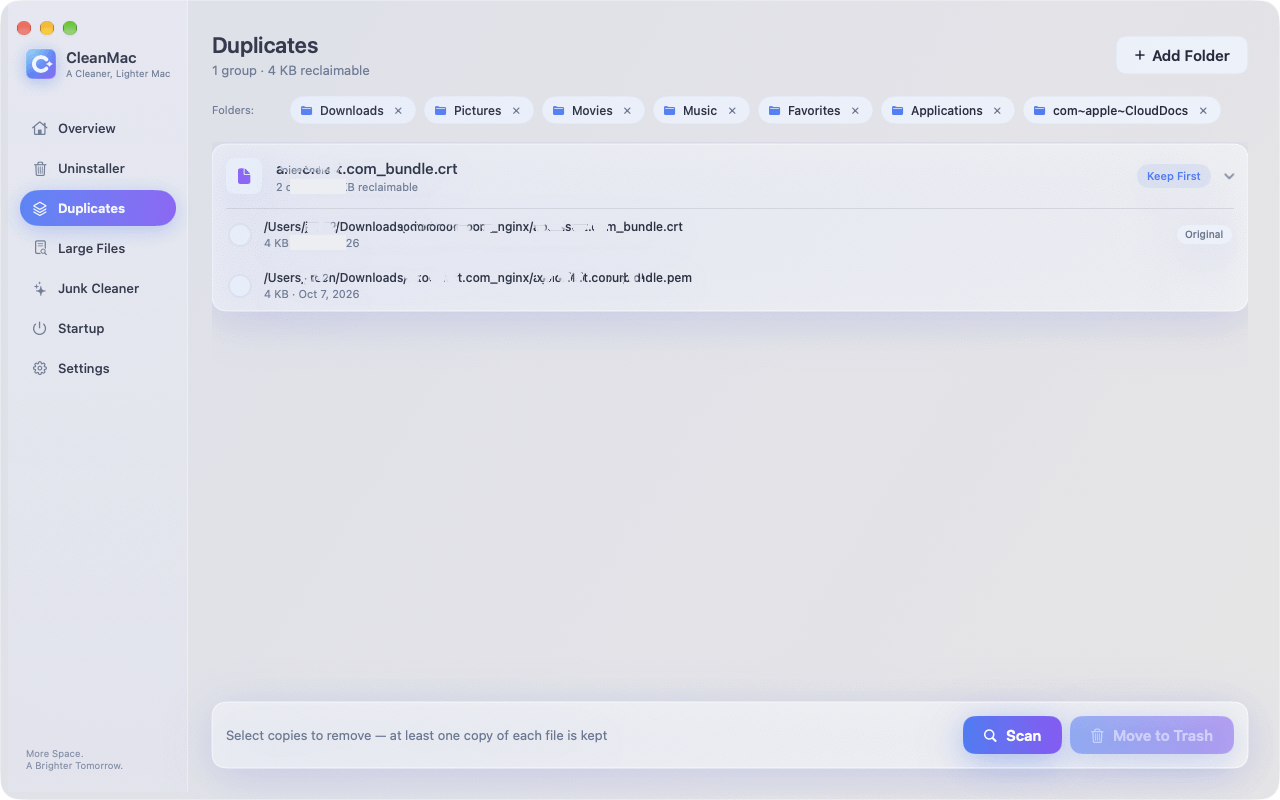
This is exactly the approach CleanMac’s free Duplicate File Finder takes: content-hash comparison, results grouped into duplicate sets with each file shown side by side — name, location, size, and a preview for images — and a selection model that always keeps one copy safe. You choose which copies to remove; selected files go to the Trash, not into permanent deletion, so recovery is possible until you empty it.
How to Deduplicate Safely
Finding duplicates is the easy half. Removing them without regret takes a little discipline. Follow these principles.
Always keep one copy. It sounds tautological, but batch-selection interfaces make it possible to select all members of a duplicate set. Any tool you use should guard against this; if doing it manually, double-check each set keeps a survivor.
Prefer keeping the organized copy. When choosing which copy survives, keep the one that’s properly filed — the photo that’s in your organized library rather than the loose one in Downloads, the document in its project folder rather than the one on the Desktop.
Start with the big fish. Sort duplicate sets by total size and work from the top. The top fifty sets — usually videos, disk images, photo libraries, and archives — typically hold 80% of the recoverable space. You don’t need to adjudicate ten thousand small text files to reclaim 40 GB.
Delete to Trash, verify, then empty. After your deduplication pass, use the Mac normally for a week before emptying the Trash. If some app or workflow turns out to have depended on a path you removed, you can restore it. In practice this almost never happens with true duplicates, but the safety margin is free.
Leave system and app-library duplicates alone. Duplicate finders sometimes surface files inside application bundles or system folders — these are intentional (apps ship duplicate resources by design). Restrict your deduplication to your own data: Documents, Downloads, Pictures, Movies, Music, and Desktop.
The Payoff: What Deduplication Actually Recovers
What should you expect? Benchmarks from real-world scans are consistent: a Mac with two or more years of active use and no prior deduplication typically holds 10–30% of user data as exact duplicates. On a 256 GB Mac that’s 15–50 GB; on a 1 TB machine with a large photo library it can exceed 150 GB. The recovery is immediate, permanent, and — unlike cache clearing — the files don’t come back on their own, because they were never needed in the first place.
Conclusion
Duplicate files accumulate because modern computing creates copies frictionlessly — downloads repeat, photos sync in loops, attachments pile up, and “temporary” copies become permanent. They’re invisible to manual browsing because they scatter across folders and hide behind renamed files, which is why content-hash detection — comparing what files contain rather than what they’re called — is the only reliable way to find them. A systematic deduplication pass recovers 10–30% of user storage on a typical Mac, permanently. CleanMac’s free Duplicate Finder runs the whole process — content-hash scan, side-by-side comparison, keep-one-safe selection, Trash-based deletion — in minutes, with nothing uploaded anywhere and no account required. For more free Mac utilities, browse our app collection.
Frequently Asked Questions
What are duplicate files on Mac?
Duplicate files are two or more files with byte-for-byte identical content, regardless of their names, locations, or modification dates. They typically result from repeated downloads, photo import loops, saved email attachments, copy-instead-of-move operations, and backups that left the originals in place. Every copy after the first is recoverable storage space with zero loss of information.
Why do duplicate files accumulate on my Mac?
Duplicates accumulate through ordinary behavior rather than mistakes: downloading a file again when you can’t find the first copy, syncing photos through multiple paths, saving the same attachment from several email threads, copying folders to external drives without deleting originals, and making “just in case” backup copies that never get cleaned up. Because macOS never warns you about duplicates, the accumulation is silent and continuous.
How do I find duplicate files on Mac?
macOS has no built-in duplicate finder, so you need a dedicated tool. Content-based finders work by hashing every file — computing a cryptographic fingerprint of its contents — and grouping files with identical hashes, which reveals exact duplicates regardless of names or locations. CleanMac’s free Duplicate Finder does this with side-by-side previews and always keeps one copy of each set safe.
Is it safe to delete duplicate files?
Yes, with two rules: always keep at least one copy of each duplicate set, and restrict deletion to your own data folders like Documents, Downloads, Pictures, and Movies — never inside application bundles or system folders, where identical files are often intentional. Deleting to the Trash rather than permanently, and waiting a week before emptying it, adds a free safety margin.
Are files with the same name always duplicates?
No — same-named files often have different content (think of how many different files are called `report.pdf` or `IMG_0001.jpg` from different sources), and true duplicates frequently have different names. Name comparison is unreliable in both directions, which is why serious duplicate detection compares file contents via hashing instead.
How much space do duplicate files typically waste?
On a Mac that has been actively used for two or more years without deduplication, exact duplicates typically account for 10–30% of user data. That translates to roughly 15–50 GB on a 256 GB machine and potentially over 150 GB on a 1 TB machine with a large photo or video library. The largest individual duplicate sets are usually videos, disk images, and archives.
Can duplicates come back after I delete them?
The specific duplicates you remove don’t regenerate — they were redundant copies, not caches. However, the behaviors that create duplicates continue, so new ones accumulate over time. A duplicate scan once or twice a year, paired with habits like filing downloads promptly and moving rather than copying to external drives, keeps the problem permanently small.


