

Type “Mac cleaner” into a search engine and you’ll get two kinds of results: companies insisting their cleaner is essential for every Mac owner, and forum commenters insisting that all Mac cleaners are snake oil. Both are oversimplifying. The truth is more useful: Mac cleaners are a category of utility software that does specific, definable things — some of which genuinely help, some of which macOS already does, and some of which are marketing noise. Whether you need one depends entirely on what those things are and whether they match your situation.
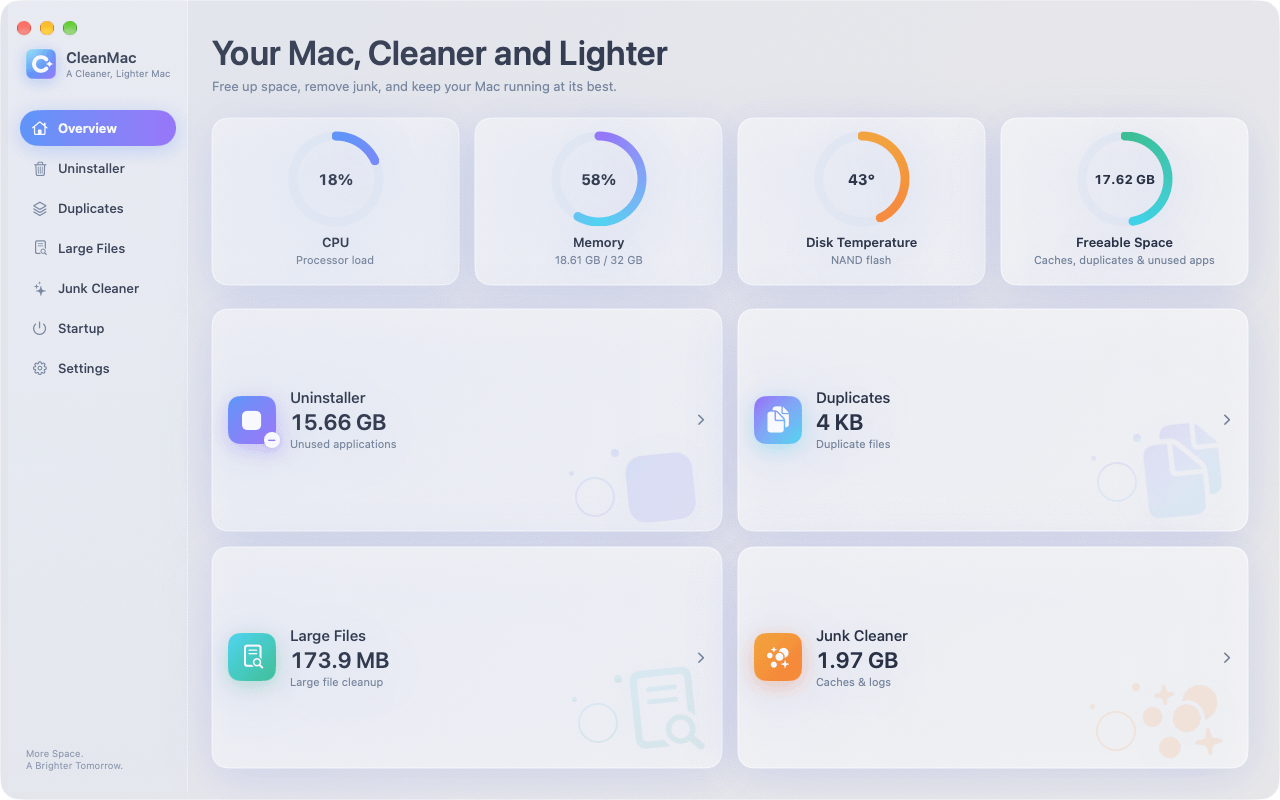
Short on space already? CleanMac finds junk, leftover apps, and duplicates on your Mac — and shows you exactly what it will remove before anything is deleted. Download free →
This article gives you the honest version. We’ll define what a Mac cleaner actually is, walk through what the category’s features really do, compare what macOS already handles on its own, identify the situations where cleaning software earns its place and the ones where it doesn’t, and explain how to choose one safely if you decide you want one — including why we built CleanMac as a free option for exactly this purpose.
What Is a Mac Cleaner?
A Mac cleaner is a utility application that finds and removes files your Mac no longer needs, and in some cases manages the programs that run on it. The category has existed since the early 2000s, and despite wide variation in quality and honesty, the core feature set is remarkably consistent across products. A typical Mac cleaner combines:
- Junk file cleaning — scanning for and deleting caches, logs, crash reports, temp files, browser caches, and other disposable data that accumulates with use.
- App uninstallation — removing applications together with the support files, preferences, and caches that a simple drag-to-Trash leaves behind.
- Duplicate file finding — locating files with identical content so redundant copies can be removed.
- Large file identification — surfacing the biggest files on the disk so you can decide whether they’re worth keeping.
- Startup item management — listing and disabling the background programs that launch at boot or login.
- System monitoring — dashboards showing CPU, memory, and disk status.
Some products add more: malware scanning, file shredding, app updating, menu bar monitors. But the six features above define the category, and judging a Mac cleaner means judging how well it does those six things.
What macOS Already Does by Itself
The “cleaners are snake oil” argument rests on a real fact: macOS is genuinely good at managing itself in several respects. It’s worth being precise about which ones.
Memory management is handled. macOS’s memory compression and swap systems are excellent. The “your RAM is full!” panic that some cleaners sell fixes for is not a real problem — macOS wants memory full, using spare RAM as cache. Any cleaner claiming to “free up RAM” is solving a non-problem, sometimes by forcing behavior that makes things slower.
System caches are protected. macOS manages its own core caches and purges temporary files on a schedule. The system-level temp directories are cleaned automatically.
Storage optimization exists. System Settings → General → Storage offers built-in recommendations: store in iCloud, optimize TV storage, empty Trash automatically. These help, though they’re narrow in scope.
So the honest baseline is: a Mac will not slowly choke to death without a cleaner. macOS prevents that. What macOS does not do is give you visibility or control — it won’t show you that 40 GB of your disk is app caches, won’t find your duplicate photos, won’t list the launch agents a deleted app left behind, and won’t remove an app’s leftovers when you uninstall it. Those gaps are where cleaners operate.
When a Mac Cleaner Genuinely Helps
When your disk is filling up. This is the core use case and the one where cleaners deliver unambiguous value. A Mac below 10–15% free space genuinely slows down — SSDs need free blocks, virtual memory needs swap room — and a cleaner finds the recoverable space (caches, duplicates, large forgotten files, app leftovers) in minutes instead of the hours manual hunting takes. On a well-used Mac, a first cleaning typically recovers 20–60 GB.
When you want to uninstall apps completely. Dragging an app to the Trash leaves its support files behind — sometimes gigabytes of them. If you install and remove apps regularly, an uninstaller that removes everything together prevents a steady accumulation of orphaned data.
When duplicates have piled up. Photo sync loops, repeated downloads, and backup copies create duplicates that are effectively impossible to find manually. Content-hash detection is a computer’s job, and cleaner tools do it in minutes.
When your Mac boots slowly. A startup manager that consolidates login items, launch agents, and daemons into one list makes a real difference to boot time and background memory use — and Apple’s own interface only shows part of the picture.
When you value your time. Technically, everything a cleaner does can be done manually with Finder, Terminal, and enough knowledge. The honest question is whether you’d rather spend a Saturday learning which Library folders are safe to delete, or spend ten minutes reviewing a scanner’s itemized results. A cleaner is a convenience tool — which is a legitimate thing to be.
When a Mac Cleaner Won’t Help
It won’t make a healthy Mac with free space faster. If you have 200 GB free and no misbehaving apps, deleting caches buys you nothing — caches make your Mac faster; that’s their job. Cleaning is about space and specific problems, not generic speed.
It won’t fix hardware limits. A 2015 MacBook with 8 GB of RAM running thirty browser tabs is memory-bound, and no amount of file deletion changes that. Cleaners remove clutter; they don’t add capacity.
It won’t remove malware (unless the cleaner has a real antivirus engine, which most don’t — and adware cleaners of dubious provenance are themselves a common malware vector). Use a dedicated security tool for that.
It won’t replace backups or judgment. A cleaner that deletes aggressively without previews is a liability. The tool should show you everything before removal and delete to the Trash, not into the void.
How to Choose Safely (and Why Price Should Be Zero)
The Mac cleaner market has a trust problem. The category includes genuinely excellent tools, adequate tools with aggressive subscription pricing, and outright scareware that invents “threats” to frighten you into paying. Three rules keep you safe:
Rule one: never pay to find out if it works. A cleaner’s entire value is visible in its scan results. If a product scans for free but won’t clean without payment, or shows you alarming numbers you can’t inspect item-by-item, walk away.
Rule two: demand preview-first, Trash-based deletion. Every removal should be your decision, reviewable in advance, and recoverable afterward. Permanent deletion has no place in a cleaning tool.
Rule three: prefer local, account-free operation. A cleaner reads your whole disk; that’s inherent to the job. What it must not do is upload anything, require an account, or bury you in analytics. The tool should work fully offline.
These three rules are why we built CleanMac the way we did: every feature is completely free — no subscription, no trial countdown, no feature locked behind payment — because charging annually for cache deletion is hard to justify. Everything runs locally with no account and no uploads. Every scan result is a preview, every deletion goes to the Trash, and the six core modules (junk cleaning, uninstaller with leftovers, duplicate finder, large file cleanup, startup manager, system dashboard) cover the category’s legitimate use cases with nothing superfluous added.
Conclusion
A Mac cleaner is a utility that finds and removes data your Mac no longer needs — caches, duplicates, large files, app leftovers, and background startup programs. macOS manages itself well enough that no Mac requires one, but it provides almost no visibility into where your storage went, which is exactly the gap cleaners fill. You’ll benefit from one if your disk is filling up, you install and remove apps regularly, duplicates have accumulated, or your Mac boots slowly — and you’ll see no benefit if you expect it to speed up a healthy system with free space to spare. If you do use one, choose a tool that is free or at least fully functional before payment, previews everything before deleting, removes to the Trash, and runs entirely locally. CleanMac was built to be exactly that tool, at exactly zero dollars. For more free Mac utilities, browse our app collection.
Frequently Asked Questions
What is a Mac cleaner?
A Mac cleaner is a utility application that finds and removes files your Mac no longer needs — caches, logs, duplicate files, large forgotten files, and the leftover support files of deleted apps — and typically also manages startup programs and shows system status. The category exists because macOS accumulates this disposable data silently and provides no built-in tools to inspect or remove most of it.
Do I really need a Mac cleaner?
Need is too strong a word — macOS prevents a Mac from choking to death on its own, and everything a cleaner does can technically be done manually with Finder and Terminal. You’ll genuinely benefit from a cleaner if your disk is running low on space, you frequently install and remove apps, duplicate files have accumulated, or your Mac boots slowly. If your Mac has ample free space and no specific problems, a cleaner offers convenience rather than necessity.
Can a Mac cleaner make my Mac faster?
Only in specific situations. If your disk is nearly full, freeing space removes a real performance bottleneck and your Mac will feel faster. If startup programs have multiplied, disabling them speeds up boot time. But if your Mac already has plenty of free space and no background clutter, cleaning files won’t increase speed — and claims about “freeing up RAM” are marketing, since macOS manages memory better than any cleaner can.
Are Mac cleaners safe to use?
Reputable ones are, but the category includes scareware, so choose carefully. A safe cleaner previews every file before deletion, deletes to the Trash rather than permanently, runs locally without uploading your data, and doesn’t invent alarming “threats” to pressure you into paying. Avoid any cleaner that demands payment before showing you exactly what it found.
What does macOS already clean by itself?
macOS automatically manages its own core system caches, purges system temp directories on a schedule, and handles memory compression and swap excellently on its own. System Settings → General → Storage also offers built-in recommendations like emptying the Trash automatically and optimizing TV storage. What macOS does not handle is user-level app caches, duplicate files, app leftovers, and consolidated startup management — the areas where third-party cleaners operate.
Why are some Mac cleaners so expensive?
The leading commercial cleaners charge $30–40 per year as subscriptions, primarily because the market historically tolerated it — not because the underlying technology is costly to deliver. Scanning disks and deleting files is well-understood, commodity functionality, which is why free alternatives like CleanMac can offer the same six core features — junk cleaning, uninstalling, duplicates, large files, startup management, and monitoring — at no cost without cutting corners.
What should I look for when choosing a Mac cleaner?
Four criteria: it shows you every file before deleting anything, it deletes to the Trash so removals are recoverable, it works entirely locally without requiring an account or uploading data, and it doesn’t use scare tactics or inflated threat counts. Price should factor in too — since the core features are commodity functionality, a free tool that meets the four safety criteria is a rational first choice over a $40 annual subscription.


