

Here’s a ritual every Mac user knows: you stop using an app, you drag its icon from Applications to the Trash, you empty the Trash, and you consider the app gone. It feels complete — the icon vanishes, the app no longer launches, the story seems over. But on your disk, the story is only half told. That drag-to-Trash gesture deleted one folder — often a fraction of what the app actually stored on your Mac — and left everything else exactly where it was. Understanding what really happens when you delete an app explains one of the most common sources of wasted Mac storage, and why “I delete apps I don’t use” and “my disk is still full” are so often both true.
Short on space already? CleanMac finds junk, leftover apps, and duplicates on your Mac — and shows you exactly what it will remove before anything is deleted. Download free →
This article walks through the whole process: what an app actually consists of on macOS, where it scatters its files during use, what drag-to-Trash removes and what it leaves behind, how much those leftovers add up to, and how to remove apps completely — manually or with the free Uninstaller in CleanMac.
What an App Actually Is: The Bundle
On macOS, what looks like a single file — `Photoshop.app`, `Slack.app`, `Zoom.app` — is actually a bundle: a folder disguised as a file. Right-click any app and choose “Show Package Contents” to peek inside. You’ll find the executable code, libraries, images, translations, and resources the app needs, all organized in a standard internal structure.
This bundle design is one of macOS’s elegant ideas: an app is self-contained, installable by drag-and-drop, and — in theory — removable by dragging one object to the Trash. When you delete an app the classic way, this bundle is the only thing that gets deleted. For some genuinely self-contained apps, that’s the whole story. For most modern apps, it’s a small fraction of it.
Where Apps Scatter Files During Use
The moment you first launch an app, it starts writing data outside its bundle — to folders the bundle system was never designed to track back. macOS actually requires much of this: apps are supposed to keep user data and caches out of the bundle so the app can be replaced on update without losing anything. The result is that a living app touches at least six locations:
- `~/Library/Application Support/[AppName]/` — the app’s working data: databases, saved state, downloaded resources, extensions, templates. For creative and professional apps this is often gigabytes.
- `~/Library/Caches/[AppName]/` — the app’s cache: temporary working data that rebuilds on demand, routinely hundreds of megabytes per app.
- `~/Library/Preferences/[vendor.appname].plist` — settings files. Small individually, but they accumulate.
- `~/Library/Containers/` and `~/Library/Group Containers/` — sandboxed apps (including everything from the Mac App Store) keep all their data in container folders, which for apps like chat clients and virtual machine tools can be enormous.
- `~/Library/Logs/`, `~/Library/Saved Application State/`, `~/Library/WebKit/`, `~/Library/Cookies/` — logs, window state, web data, and cookies for apps with embedded browsers.
- `~/Library/LaunchAgents/` — background agents the app registered to launch at login, which keep running (or failing silently) after the app is gone.
A large creative suite can touch thirty or more folders. And none of these locations contain a pointer back to “this belongs to an app that may one day be deleted.” macOS doesn’t track the relationship. Nothing does — except uninstaller software built for exactly this purpose.
What Drag-to-Trash Actually Does — and Leaves Behind
So here’s the precise anatomy of a drag-to-Trash deletion:
Removed: the app bundle in `/Applications` — the executable and its bundled resources. The app stops launching because its code is gone.
Left behind: everything in the six categories above. Application Support data. Caches. Preferences. Containers. Logs. Saved state. Launch agents that now point at a deleted program. If the app installed a launch daemon (with your admin password), that system-level background program remains too, along with any kernel extensions, helper tools, or receipt entries.
These leftovers aren’t malicious — they’re just orphaned. The data an app wrote for you stays because macOS has no mechanism to know it should go. And because the folders live in a hidden Library with cryptic names, you’ll never trip over them or think to delete them. They simply sit, consuming space, forever.
How Much Do Leftovers Actually Add Up To?
The scale depends on the app. Small utilities leave a few megabytes — a plist, a small cache, a support folder. But the apps people most often uninstall are the big ones, and big apps leave big remains:
- Creative suites (Adobe, Affinity, video editors): 1–10+ GB each in Application Support, caches, and preview data.
- Virtualization tools (Parallels, VMware, Docker): virtual disk images in containers can be 20–100 GB — and dragging the app to the Trash does not delete the VMs.
- Chat and meeting apps: message databases, downloaded files, and media caches in containers, often 1–5 GB each.
- Games: saved games, downloaded content, and shader caches, frequently several gigabytes.
- Browsers you tried once: profiles, caches, and web data, often 1–3 GB.
A Mac whose owner has installed and drag-deleted fifty apps over three years — a normal pattern — typically carries 10–40 GB of pure leftovers from apps that no longer exist. Worse, some leftovers keep working: launch agents for deleted apps still fire at every login, adding to boot time and occasionally throwing errors. This is why proper uninstallation is also a startup hygiene issue — CleanMac’s Startup Items module surfaces those orphaned agents alongside everything else that launches at boot.
How to Uninstall an App Completely
The manual method is doable but tedious: drag the app to the Trash, then visit each Library location — Application Support, Caches, Preferences, Containers, Group Containers, Logs, Saved Application State, LaunchAgents — and delete the folders and files matching the app’s or vendor’s name. It takes 10–15 minutes per app, requires knowing your way around the Library, and carries a real risk of deleting the wrong vendor’s folder when names are ambiguous. For sandboxed apps, `~/Library/Containers/` is the big one — but container folder names are bundle identifiers like `com.vendor.app`, so you need to recognize them.
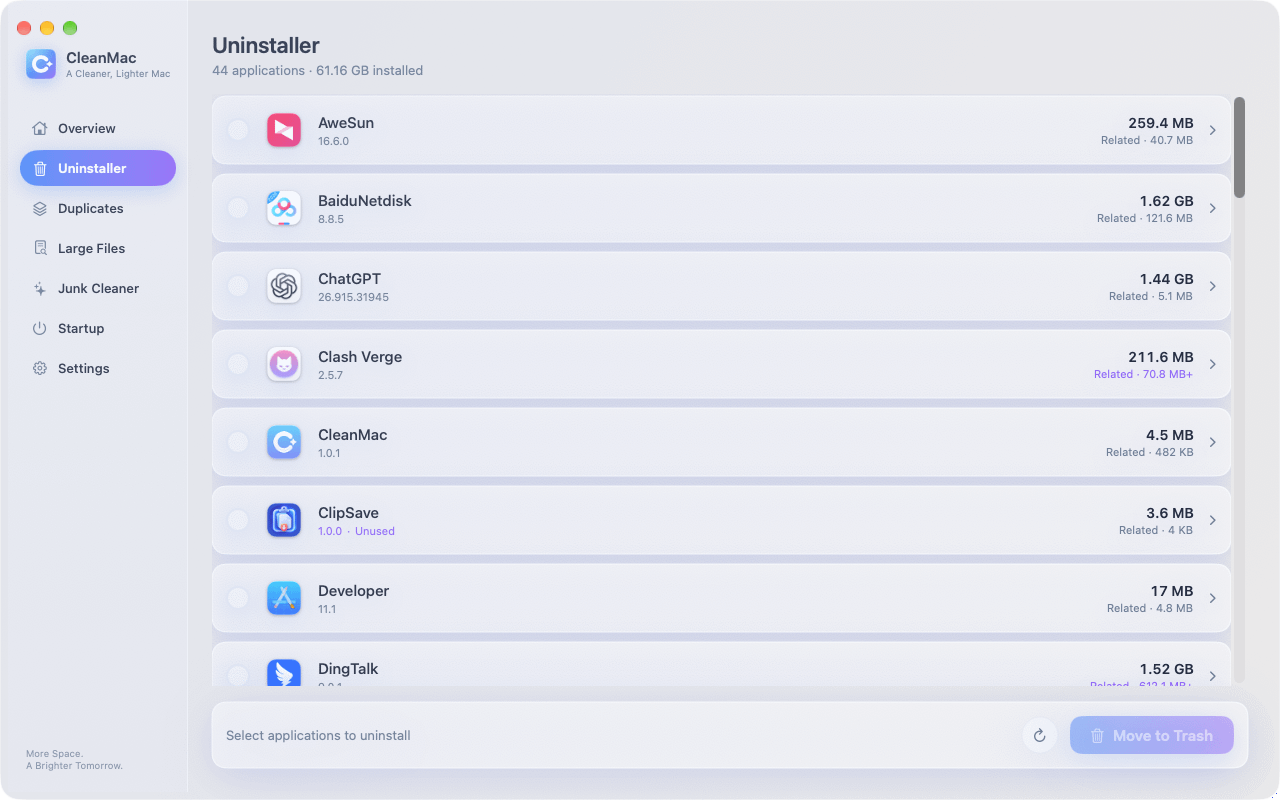
The uninstaller method exists because the manual method doesn’t scale. CleanMac’s free Uninstaller module scans your installed apps and, for each one, locates its associated files across all the Library locations automatically — support files, caches, preferences, containers, and agents. You see the complete file list with sizes before anything is removed, select what goes, and deletion goes to the Trash for recoverability. An app that would take 15 minutes of careful Library spelunking to remove by hand takes about fifteen seconds, with lower risk.
The Uninstaller also flags apps you haven’t opened in 30+ days — a useful prompt, since the apps worth removing are usually the ones you’ve forgotten you have. And for apps already drag-deleted in the past, CleanMac’s junk scans surface the orphaned leftovers they left behind, so you can clean up historical debris too.
Two Special Cases Worth Knowing
Apps with their own uninstallers. Some large apps — notably antivirus tools, Adobe Creative Cloud, and virtualization software — ship official uninstallers, sometimes required because they install system extensions that only their own removal process can cleanly detach. If an app provides one, use it; then sweep for leftovers afterward anyway, because vendor uninstallers are notoriously incomplete about user data.
Mac App Store apps and Launchpad deletion. Holding an icon in Launchpad and clicking the × deletes App Store apps — but it’s the same partial deletion as drag-to-Trash. Sandboxed App Store apps keep their data in Containers, and Launchpad deletion leaves the container behind. The leftover logic applies identically.
Conclusion
When you drag a Mac app to the Trash, you delete its bundle — the executable and its internal resources — and nothing else. The app’s support files, caches, preferences, containers, logs, and launch agents, scattered across six or more Library locations, remain on your disk indefinitely, typically totaling 10–40 GB on a Mac that has seen a few years of normal app turnover. Removing apps completely means finding and removing those scattered files too — a tedious manual process that an uninstaller automates safely. CleanMac’s free Uninstaller maps each app to all its associated files, shows you everything before deletion, and removes to the Trash, so an app and all of its footprint leave together. For more free Mac utilities, browse our app collection.
Frequently Asked Questions
What happens when you delete an app on Mac by dragging it to the Trash?
Dragging an app to the Trash deletes only the app bundle — the executable and resources packaged inside the .app file in your Applications folder. Everything the app wrote outside its bundle during use stays behind: application support data, caches, preferences, container folders, logs, saved state, and any background launch agents it registered. The app stops working because its code is gone, but its data footprint remains on your disk indefinitely.
Where do deleted apps leave leftover files on Mac?
Leftovers concentrate in your user Library: `~/Library/Application Support/` for working data, `~/Library/Caches/` for temporary data, `~/Library/Preferences/` for settings, `~/Library/Containers/` and `~/Library/Group Containers/` for sandboxed app data, plus Logs, Saved Application State, WebKit, and Cookies folders. Apps that registered background helpers also leave plists in `~/Library/LaunchAgents/`, which continue to fire at every login even after the app is gone.
How much disk space do app leftovers take?
It varies enormously by app — small utilities leave a few megabytes, while creative suites leave 1–10 GB or more, and virtualization tools can leave 20–100 GB in virtual disk images. On a Mac that has seen a few years of installing and drag-deleting apps, total leftovers typically reach 10–40 GB. Because the folders are hidden in the Library, this accumulation is completely invisible until you go looking for it.
Is it safe to delete app leftover files?
Yes, once the app itself is gone — its support files, caches, and preferences serve no further purpose. The caution applies to active apps: never delete the container or Application Support folder of an app you still use, since that destroys its data. When removing leftovers manually, verify folder names against the deleted app’s vendor, and delete to the Trash rather than permanently so anything removed in error can be restored.
Do Mac App Store apps leave leftovers when deleted?
Yes, identically to other apps. Deleting an App Store app via Launchpad or the Trash removes the bundle, but sandboxed App Store apps keep all their data in `~/Library/Containers/`, and that container folder remains after deletion. For chat apps, editors, and other data-heavy App Store apps, the orphaned container can hold gigabytes of cached and stored content.
Why do some apps have their own uninstallers?
Apps that install system-level components — kernel extensions, system extensions, privileged helper tools, or launch daemons — need a removal process that can properly detach those components, which ordinary file deletion can’t do safely. Antivirus tools, VPNs, virtualization software, and large creative suites commonly ship official uninstallers for this reason. Even after running one, a leftover sweep is worthwhile, since vendor uninstallers typically remove the system components but leave user data behind.
How do I uninstall a Mac app completely with all its files?
The complete method is: remove the app bundle, then delete its folders in Application Support, Caches, Preferences, Containers, and Group Containers, plus its logs, saved state, and any launch agents it registered. Doing this manually takes 10–15 minutes per app and requires care in the Library folders. CleanMac’s free Uninstaller automates the whole process — it maps every installed app to its associated files across all these locations, shows you the full list before deletion, and removes everything to the Trash in one action.


