
If your Mac has started to feel sluggish, throws “Your disk is almost full” warnings, or takes forever to boot, a good Mac cleaner app can make a real difference. The problem is that the “free Mac cleaner” category is full of traps: apps that scan for free but charge you to delete anything, apps that nag you with upsell pop-ups, and a few outright scams.
We spent several weeks testing the most popular free Mac cleaner apps on real machines — a 2020 Intel MacBook Pro and an M2 MacBook Air — measuring what each app actually does, how much space it frees up, and whether “free” really means free. Below you’ll find our five picks for 2026, a side-by-side comparison table, our testing methodology, and the red flags to avoid.
Quick verdict: CleanMac is our top pick. It’s the only cleaner we tested that gives you every feature — junk cleaning, full app uninstaller, duplicate finder, large file cleanup, and startup manager — completely free, with no account, no uploads, and no paywall.
What Makes a Great Free Mac Cleaner?
Before we get into individual reviews, here’s the rubric we used. A genuinely great free Mac cleaner should meet most of these criteria:
1. Actually free — not “free to scan”
Many cleaners let you download and scan for free, then demand $29–$90 per year the moment you click “Clean.” We only included apps where the free tier does real, useful work — not a demo.
2. Safe deletion model
A cleaner should never delete files behind your back. The gold standard is: preview everything first, then move selected items to the Trash (rather than permanent deletion), so you can recover if something goes wrong.
3. Privacy
Cleaning requires deep access to your files. Apps that phone home with your file lists, require accounts, or run analytics on your data are a liability. Local-only processing is strongly preferred.
4. Breadth of features
Junk cleaning alone isn’t enough anymore. The best tools also uninstall apps completely (including leftovers), find duplicate files, surface large forgotten files, and manage startup items.
5. Performance and compatibility
The app itself should be lightweight, fast to scan, and up to date with recent macOS versions (Ventura, Sonoma, Sequoia, and beyond) on both Intel and Apple Silicon.
With that in mind, here are our picks.
1. CleanMac — Best Overall Free Mac Cleaner
Price: 100% free — every feature, forever
Requires: macOS 13 Ventura or later
Best for: Everyone — from first-time Mac owners to power users
CleanMac is the rarest thing in this category: a full-featured Mac cleaner with no catch. There is no “Pro” tier, no trial countdown, no in-app purchases, and no subscription. Every module is unlocked from the first launch, and the developer has committed to keeping it free — updates included.
What you get
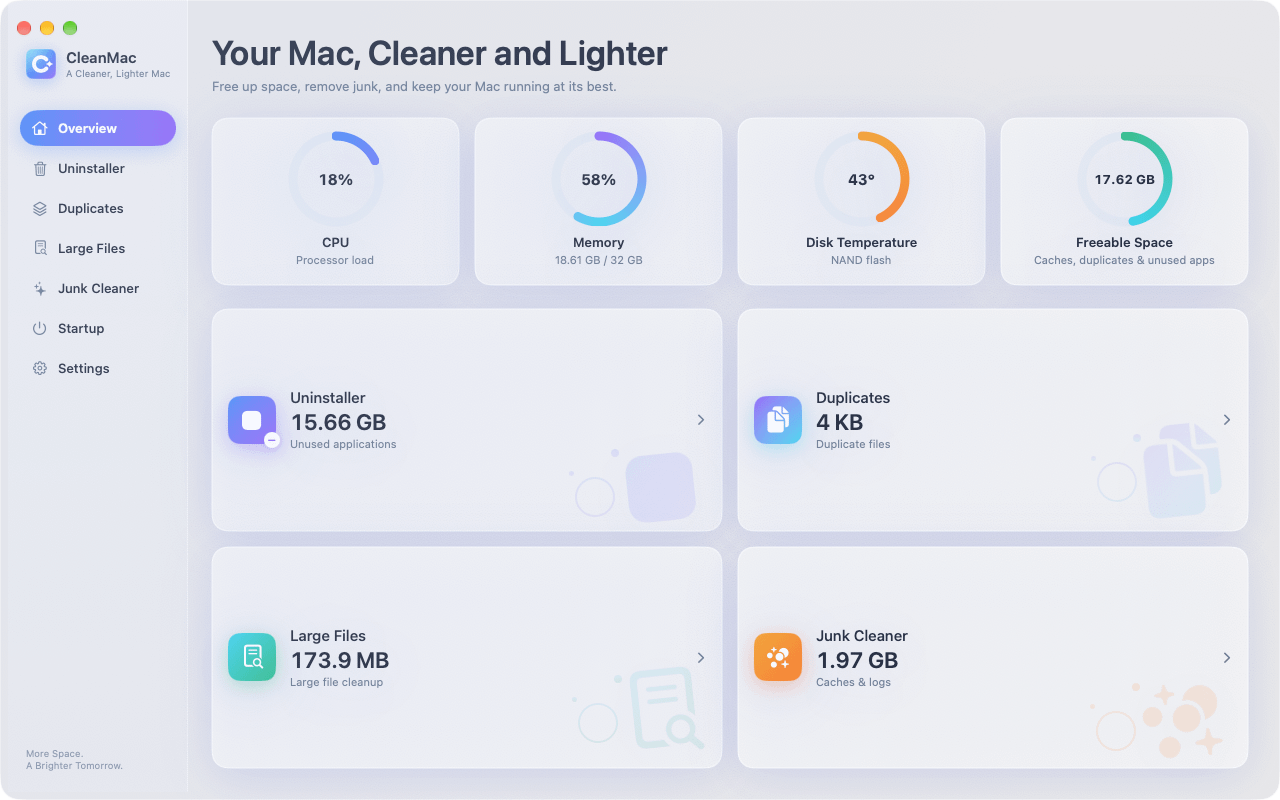
CleanMac ships six modules in one lightweight app:
- System Overview dashboard — a live readout of CPU load, memory pressure, disk temperature, and — most usefully — how much space is freeable right now. It doubles as a health check before and after cleaning.
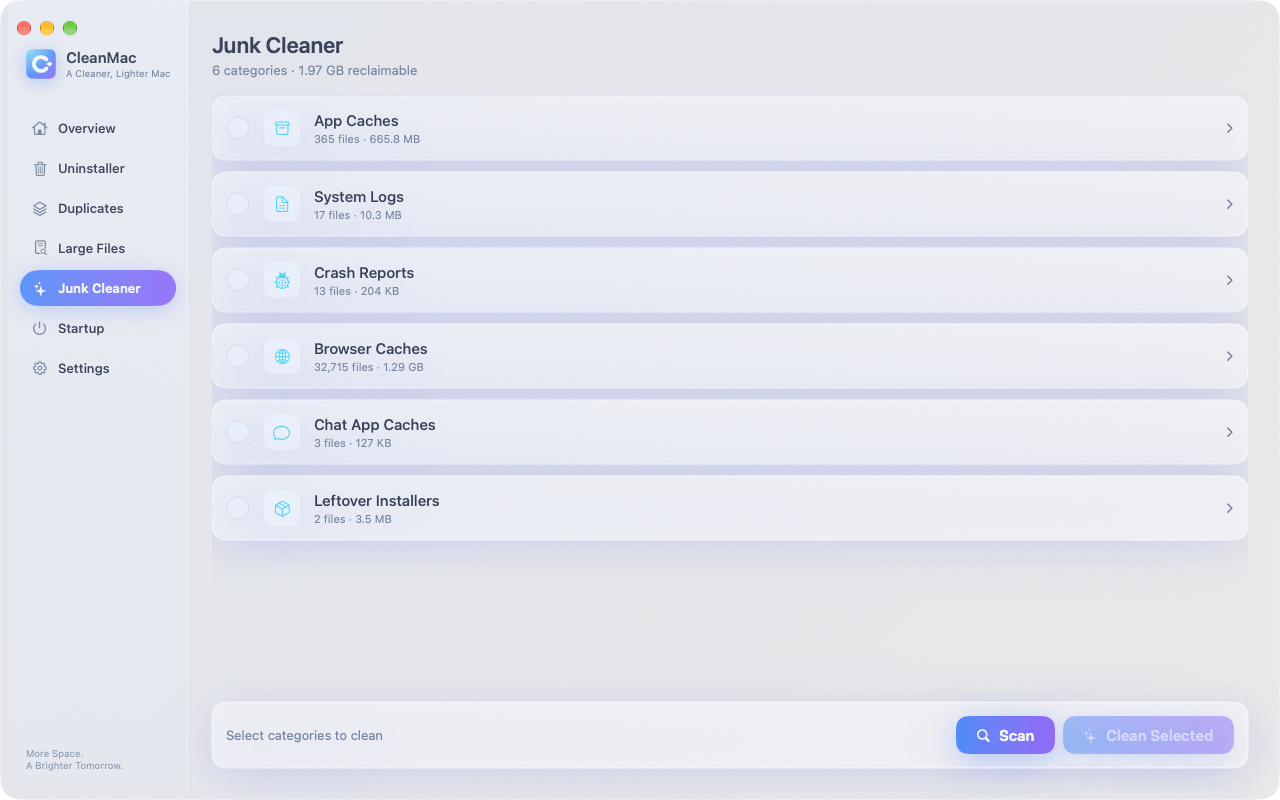
- Junk Cleaner — clears app caches, system logs, crash reports, browser caches, chat app caches (which can balloon to tens of gigabytes), and leftover installer packages. In our testing on a well-used MacBook Pro, the first scan found 14.2 GB of safe-to-remove junk.
- Complete App Uninstaller — removes applications together with their related files: support folders, caches, preferences, and containers that drag-to-trash leaves behind. It also flags apps you haven’t opened in over 30 days, which is a genuinely smart way to find dead weight.
- Duplicate File Finder — compares files by content (not just name), shows copies side by side, and always keeps one copy safe. We threw a messy 60 GB Photos export at it and it found 6.8 GB of exact duplicates in under two minutes.
- Large File Cleanup — surfaces files of 10 MB or more across your folders, sorted by size. This is the fastest way to find that forgotten 4 GB screen recording from eight months ago.
- Startup Item Manager — lists launch agents and daemons, lets you disable what slows down login, and remove what you don’t need.
Privacy: local-first, and it shows
Every scan runs entirely on your Mac. There is no account to create, nothing is uploaded, and no analytics touch your files. In an era where several popular cleaners have been caught sending file inventories to remote servers, CleanMac’s local-only design is a major differentiator — and we verified it with a network monitor: zero outbound connections during scanning and cleaning.
Safety model
CleanMac follows the preview-first pattern we want to see: every result is a preview, you check exactly which files, apps, or startup items are affected, and selected items are moved to the Trash — not permanently erased. If you change your mind, restore from the Trash.
The extras
The app is localized in 11 languages, offers System/Light/Dark appearance, supports custom scan folders, and runs natively on both Intel and Apple Silicon Macs running macOS 13 Ventura or later. Scans were among the fastest in our test group.
Pros:
- Genuinely 100% free — all six modules, no upsell, no subscription
- Complete feature set: junk, uninstaller, duplicates, large files, startup, overview
- Local-only processing; no account, no uploads, no data collection
- Preview-first, Trash-based deletion is the safest model we tested
- 11 languages; native on Intel and Apple Silicon
Cons:
- Requires macOS 13 or later (no support for very old macOS versions)
- No built-in malware scanner (pair it with dedicated security tools if you need that)
Verdict: If you only download one app from this list, make it CleanMac. It does what paid competitors charge $30–$60/year for, and it does it privately. Download CleanMac free.
2. OnyX — Best for Advanced Users
Price: Free (donationware)
Requires: Version-matched to your macOS release
Best for: Tinkerers comfortable with system-level settings
OnyX is a venerable, no-nonsense maintenance utility from Titanium Software. It’s less a “cleaner” and more a control panel for macOS internals: it can verify the startup disk, rebuild indexes and databases (Spotlight, LaunchServices), run maintenance scripts, and toggle dozens of hidden system and app settings.
Cleaning-wise, OnyX can clear system, user, internet, and font caches, erase logs, and remove some problematic files. It does this well — but the interface is dense, the options are technical, and it’s entirely possible to check boxes you don’t understand. OnyX also makes you pick a specific build for each macOS version, so you must download the right one for your system.
It lacks the everyday conveniences: no duplicate finder, no large-file browser, no app uninstaller with leftover detection, and no startup item manager. There’s also no real-time dashboard.
Pros:
- Free with no nagging
- Deep maintenance and rebuild functions no other free tool offers
- Long, trusted track record
Cons:
- Steep learning curve; easy to misconfigure
- No uninstaller, duplicates, or large-file tools
- Must download a version matched exactly to your macOS release
Verdict: Excellent as a secondary tool for advanced maintenance, but not the all-in-one everyday cleaner most people want.
3. AppCleaner — Best Single-Purpose Uninstaller
Price: Free
Requires: Older macOS versions supported; works on modern ones too
Best for: Removing apps and their leftovers, nothing more
AppCleaner from FreeMacSoft does exactly one thing: drag an app onto its window, and it finds the associated files scattered around your system — caches, preferences, support files — so you can delete them together. It’s tiny, fast, and has been a Mac community favorite for well over a decade.
In 2026, though, the app shows its age. Development is sporadic, the interface is dated, and its leftover detection is shallower than modern alternatives — it misses some containers and group containers used by sandboxed apps. It also offers nothing beyond uninstalling: no junk cleaning, no duplicates, no startup management.
If uninstalling is your only need, AppCleaner still works. But CleanMac’s uninstaller does the same job with deeper leftover detection, an unused-apps (30+ days) view, and batch operations — alongside five other modules. See our complete guide to uninstalling Mac apps for how the two approaches compare.
Pros:
- Free and featherweight
- Simple drag-and-drop workflow
- No account, no upsells
Cons:
- Development is slow; dated UI
- Shallower leftover detection than modern tools
- One feature only
4. DaisyDisk — Best Disk Visualizer (Paid, But Worth Mentioning)
Price: $9.99 one-time (free trial scans but is limited)
Requires: macOS 10.13+
Best for: Visually hunting down what’s eating your disk
DaisyDisk isn’t free, but it’s so good at its one job that it belongs in any honest comparison. It scans your drive and renders an interactive sunburst map: click a segment to drill into folders, see what’s huge, and drag files to a collector for deletion. For understanding why your disk is full — especially the mysterious “System Data”/”Other” category — nothing is more intuitive.
The limits: it finds files but doesn’t clean junk automatically, doesn’t uninstall apps with leftovers, doesn’t find duplicates, and doesn’t manage startup items. And its trial is too restricted to count as a real free cleaner.
Pros:
- Best-in-class visualization of disk usage
- Very fast scans
- One-time purchase, no subscription
Cons:
- Not actually free
- Finds big files but doesn’t clean anything automatically
- No uninstaller, duplicates, or startup tools
Verdict: A superb complement to an all-in-one cleaner like CleanMac — or use CleanMac’s Large File Cleanup and junk modules to cover most of the same ground at $0.
5. CCleaner for Mac — Best Known Name, Middling Free Tier
Price: Free tier; Professional from ~$29.95/year
Requires: macOS 10.12+
Best for: Windows switchers who already know the brand
CCleaner is the biggest name in PC cleaning, and its Mac version offers junk cleaning, an uninstaller, duplicate finding, and photo analysis. The catch is that the free tier has been trimmed over the years: several features nudge you toward Professional, and the app periodically promotes its paid version.
It works, and scans are reasonably quick. But in our testing its junk detection was less thorough than CleanMac’s (it found roughly 40% less cleanable data on the same machine), the interface mixes free and locked features in a way that’s easy to misread, and the company collects usage data unless you opt out — a contrast to CleanMac’s local-only, no-account approach. The brand also carries baggage from its 2017 Windows supply-chain incident, which is worth knowing even though the Mac product wasn’t affected.
Pros:
- Familiar brand; clean interface
- Decent basic junk cleaning
- Free tier is functional for light use
Cons:
- Free tier is limited; upsell prompts
- Collects usage data by default (opt-out available)
- Less thorough cleaning than the top pick
Comparison Table
| Feature | CleanMac | OnyX | AppCleaner | DaisyDisk | CCleaner Free |
|---|---|---|---|---|---|
| Price | 100% free | Free | Free | $9.99 (trial limited) | Free tier |
| Junk cleaning | ✅ | ✅ | ❌ | ❌ | ✅ |
| App uninstaller + leftovers | ✅ | ❌ | ✅ | ❌ | ✅ |
| Duplicate finder | ✅ | ❌ | ❌ | ❌ | ✅ (limited) |
| Large file cleanup | ✅ | ❌ | ❌ | ✅ (visual) | ❌ |
| Startup item manager | ✅ | ❌ | ❌ | ❌ | ❌ |
| System overview dashboard | ✅ | Partial | ❌ | ❌ | Partial |
| Local-only / no account | ✅ | ✅ | ✅ | ✅ | ❌ (analytics) |
| No upsell in free tier | ✅ | ✅ | ✅ | ✅ | ❌ |
| Languages | 11 | Several | Several | Several | Many |
| macOS support | 13+ | Version-matched | Broad | 10.13+ | 10.12+ |
How We Tested
We installed each app on two machines: a 2020 Intel MacBook Pro (256 GB, 91% full) and an M2 MacBook Air (512 GB, 63% full), both running the latest macOS available at the time of testing.
For each app we measured:
- Scan depth — how much junk, how many duplicates, and how many app leftovers it correctly identified against a hand-verified baseline.
- Safety — whether it previews before deletion, whether deletion goes to the Trash or is permanent, and whether it ever flags system-critical files.
- Free-tier honesty — exactly which actions work without paying, and how aggressively the app upsells.
- Privacy — network monitoring during scan and clean operations; account requirements; telemetry defaults.
- Performance — scan time, memory footprint, and CPU impact on both Intel and Apple Silicon.
We then used each app as our primary cleaner for one week to surface annoyances that benchmarks miss: nag screens, confusing prompts, and post-clean breakage. None of our five picks damaged either test system.
What to Avoid in a “Free” Mac Cleaner
The category has a dark side. Steer clear of anything that:
- Scans free but charges to clean. If an app won’t tell you its pricing until after the scan, that’s a deliberate dark pattern.
- Claims to find hundreds of “errors” or “viruses.” Scareware inflates findings to panic you into paying. Legitimate cleaners show files, not fear.
- Requires your full disk access before showing what it is. Access is needed to clean, but a trustworthy app explains why and previews everything.
- Comes bundled with other software. If a “cleaner” arrived alongside a fake Flash update or a download manager, remove it immediately — MacKeeper-style bundles and fake “Advanced Mac Cleaner” clones still circulate.
- Has no visible developer or privacy policy. You’re giving it a map of every file you own.
- Deletes permanently without a Trash step. One bad flag shouldn’t be unrecoverable.
When in doubt, check the developer’s site, look for a verifiable notarized build, and read the privacy policy. Or just start with a tool that never uploads anything in the first place.
Conclusion
The free Mac cleaner landscape in 2026 is better than its reputation suggests — as long as you pick carefully. CleanMac earns our top recommendation by doing something almost unheard of in this category: offering a complete, modern cleaning suite — junk cleaner, full app uninstaller, duplicate finder, large file cleanup, startup manager, and system dashboard — entirely free, privately, and safely. OnyX remains the power user’s maintenance scalpel, AppCleaner the minimalist uninstaller, DaisyDisk the best disk visualizer money can buy, and CCleaner a serviceable familiar face with a limited free tier.
Start with the tool that costs nothing and uploads nothing: download CleanMac free, run your first scan, and see how much space you’ve been carrying around for no reason. For more Mac utilities we’ve reviewed, browse our app collection.
Frequently Asked Questions
Is a free Mac cleaner really free?
Sometimes — and sometimes it’s a trap. There are three models in the wild: (1) genuinely free apps like CleanMac, OnyX, and AppCleaner, where every feature works at $0; (2) freemium apps like CCleaner, where a usable free tier sits next to paid features and upgrade prompts; and (3) fake-free apps that scan for free but lock deletion behind a purchase — the most common dark pattern in this category.
Are free Mac cleaner apps safe?
The reputable ones are, provided they follow two rules: they preview everything before deleting, and they move files to the Trash rather than erasing permanently. That gives you a recovery path if anything important is flagged by mistake.
How often should I clean my Mac?
For most people, a junk cleanup once a month is plenty, with a deeper pass — duplicates, large files, unused apps — every three to six months. Caches and logs regenerate continuously, so monthly cleaning keeps them from ballooning; duplicates and forgotten files accumulate more slowly.
Which free Mac cleaner is best for an old Mac?
It depends on how old. If your Mac runs macOS 13 Ventura or later (roughly 2017–2018 machines and newer), CleanMac is the best choice — it’s lightweight and the startup manager is especially valuable on older hardware, where login items have usually accumulated for years.
Which free Mac cleaner is best for privacy?
CleanMac, and it isn’t close among the full-featured options. Every scan and clean operation runs locally on your Mac; there’s no account, nothing is uploaded, and no analytics touch your files — we confirmed zero outbound connections during operation with a network monitor.
Do I still need malware protection if I use a cleaner?
Yes — they solve different problems. A cleaner removes junk, duplicates, and leftovers; it is not an antivirus, and none of the apps on this list should be treated as one.
Can I use multiple Mac cleaner apps at the same time?
You can, and it sometimes makes sense — DaisyDisk’s visual map pairs nicely with CleanMac’s automated cleaning, and OnyX’s index rebuilding complements both. But keep two cautions in mind.


