
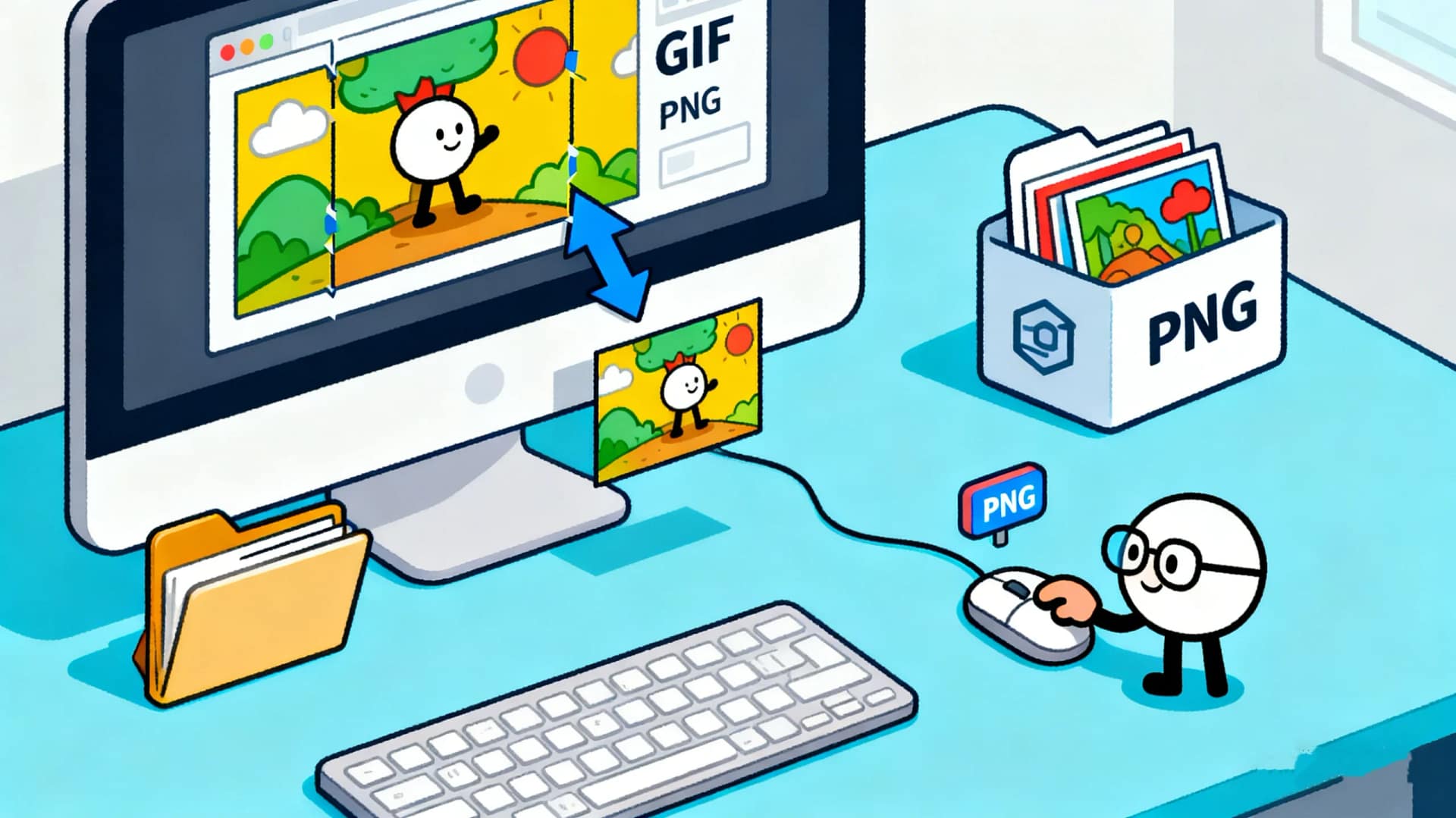
In today’s digital world, image formats play a critical role in how visuals are displayed and shared online. Among the popular formats, GIF and PNG are widely used but serve different purposes. Sometimes, you may need to convert a GIF to PNG, whether for design projects, presentations, or online content optimization. In this guide, we’ll explore the scenarios, best practices, and a recommended tool to make the conversion smooth.
Table of Contents
Why Convert GIF to PNG?
While GIFs are known for their animation capabilities, PNGs are preferred for static images due to their high quality and transparency support. Converting GIF to PNG is often necessary in situations like:
High-Quality Static Images: If you only need a single frame from a GIF animation, PNG preserves the image quality better than other formats.
Transparent Backgrounds: PNG supports transparency, making it ideal for overlays, logos, and web graphics.
Image Editing: PNG files are easier to edit in most image editing software without losing quality.
Web Optimization: Some web projects require PNG images instead of GIFs to reduce file size or enhance image rendering.
Things to Keep in Mind When Converting GIF to PNG
Animation Loss: PNG does not support animation. Converting an animated GIF to PNG will only save a single frame. Choose the frame you want carefully.
File Size Consideration: PNGs can sometimes have larger file sizes than GIFs, especially for complex images. Optimize PNGs if needed.
Color Accuracy: Ensure the PNG conversion maintains the original GIF’s color quality.
Transparency Handling: Some GIFs with transparency may look slightly different when converted to PNG. Double-check the output.
How to Convert GIF to PNG Online
The easiest way to convert a GIF to PNG is by using an online tool. AiToolSoft’s Image Format Converter provides a simple, free, and fast solution. Here’s how you can do it:
Visit AiToolSoft Image Format Converter online.
Upload your GIF file.
Choose PNG as the output format.
Click Convert and download the resulting PNG image.
This tool ensures high-quality conversion without any software installation, making it convenient for both personal and professional use.
Benefits of Using AiToolSoft Image Format Converter
Fast and Easy: Simple interface suitable for beginners and professionals.
High-Quality Output: Maintains image clarity and color accuracy.
Supports Multiple Formats: Besides GIF to PNG, you can convert other formats like JPG, BMP, and more.
No Installation Needed: Fully online, saving time and storage space.


