

Two folders consume most of the clutter on a typical Mac: the Desktop, where files land because it’s the easiest place to drop something “for now,” and the Downloads folder, where everything you’ve ever saved from a browser, email, or AirDrop has been accumulating for years. Together, these two folders can hold dozens of gigabytes of forgotten files, duplicate downloads, and old installers — and they slow your Mac in ways you might not notice until Finder struggles to render icons or your disk fills up.
Short on space already? CleanMac finds junk, leftover apps, and duplicates on your Mac — and shows you exactly what it will remove before anything is deleted. Download free →
This guide walks through a complete cleanup of both folders: how to organize the Desktop with Stacks and Smart Folders, how to triage the Downloads folder by size and date, how to remove duplicates safely, and how a free tool like CleanMac helps surface the large files and junk that manual sorting would miss.
Why the Desktop and Downloads Folder Get Messy
Both folders have the same root cause: they’re the default destination for “I’ll deal with this later.” When you save a file from a browser, it goes to Downloads. When you take a screenshot, it lands on the Desktop. When you AirDrop something from your phone, it lands on the Desktop or Downloads depending on your settings. When you drag a file out of an email, it lands on the Desktop by default. None of these actions feels like clutter in the moment — but over months and years, the accumulation is enormous.
The Desktop also has a hidden performance cost. Every file on the Desktop is rendered as an icon by Finder, and WindowServer (the process that manages the graphical interface) keeps those icons in memory. A Desktop with 500 files doesn’t just look messy — it actively consumes RAM and slows down window switching. Apple has improved this over the years with Stacks, but the underlying cost remains.
The Downloads folder is less visibly problematic (it’s a single folder, not a screen full of icons) but it tends to hold the largest files: installer packages, video downloads, archived ZIP files, PDFs, and the long tail of “I downloaded this once” clutter. A typical Downloads folder that’s been used for a year or two can hold 10 to 30 GB of files, most of which are no longer needed.
Step 1: Triage the Desktop With Stacks
If your Desktop is covered in files, the first move is to enable Stacks. In Finder, click View → Use Stacks (or right-click the Desktop and choose Use Stacks). macOS groups files by type — images, documents, PDFs, spreadsheets, installers — into tidy stacks rather than scattering them across the screen.
You can also group by date (Clean Up By → Date Last Opened), which is genuinely useful for triage: you’ll see a stack of files you haven’t touched in months, which is usually safe to archive or delete. Click any stack to expand it and review its contents.
Stacks don’t delete anything — they just organize what’s already there. But the visual reorganization makes it far easier to see what you actually have and decide what to keep, archive, or remove.
Step 2: Set Up Smart Folders for Ongoing Organization
A Smart Folder is a saved search that updates automatically. For the Desktop and Downloads folder, two Smart Folders are particularly useful.
“Old Downloads” Smart Folder
Open Finder, press Command-F, and set the search location to your Downloads folder. Add search criteria: “Last opened date” is not in the last 90 days. Save the search (Save button, choose to add it to the sidebar). You now have a saved view that shows every file in Downloads you haven’t touched in three months — which is usually the bulk of what’s safe to delete or archive.
“Large Files” Smart Folder
Set up another saved search: “File size” is greater than 100 MB, location scoped to your Desktop and Downloads folders. This shows the heavy hitters — the multi-gigabyte video downloads, installer packages, and archives that consume most of the space. Addressing these first gives you the biggest space savings per minute spent.
Smart Folders are dynamic, so they update as files are added and removed. Once set up, they give you an ongoing organizational view rather than a one-time cleanup.
Step 3: Clean Out the Downloads Folder
The Downloads folder cleanup follows a clear order: tackle the largest files first, then the oldest, then duplicates.
Remove large files you no longer need
Sort Downloads by file size (View → as List, click the Size column). You’ll typically see installer packages (`.dmg`, `.pkg`), video downloads, ZIP archives, and PDFs at the top. Installers are almost always safe to delete — once an app is installed, you don’t need the installer. Large video downloads should be reviewed and either moved to a permanent location (external drive, cloud storage) or deleted if you’ve already watched them.
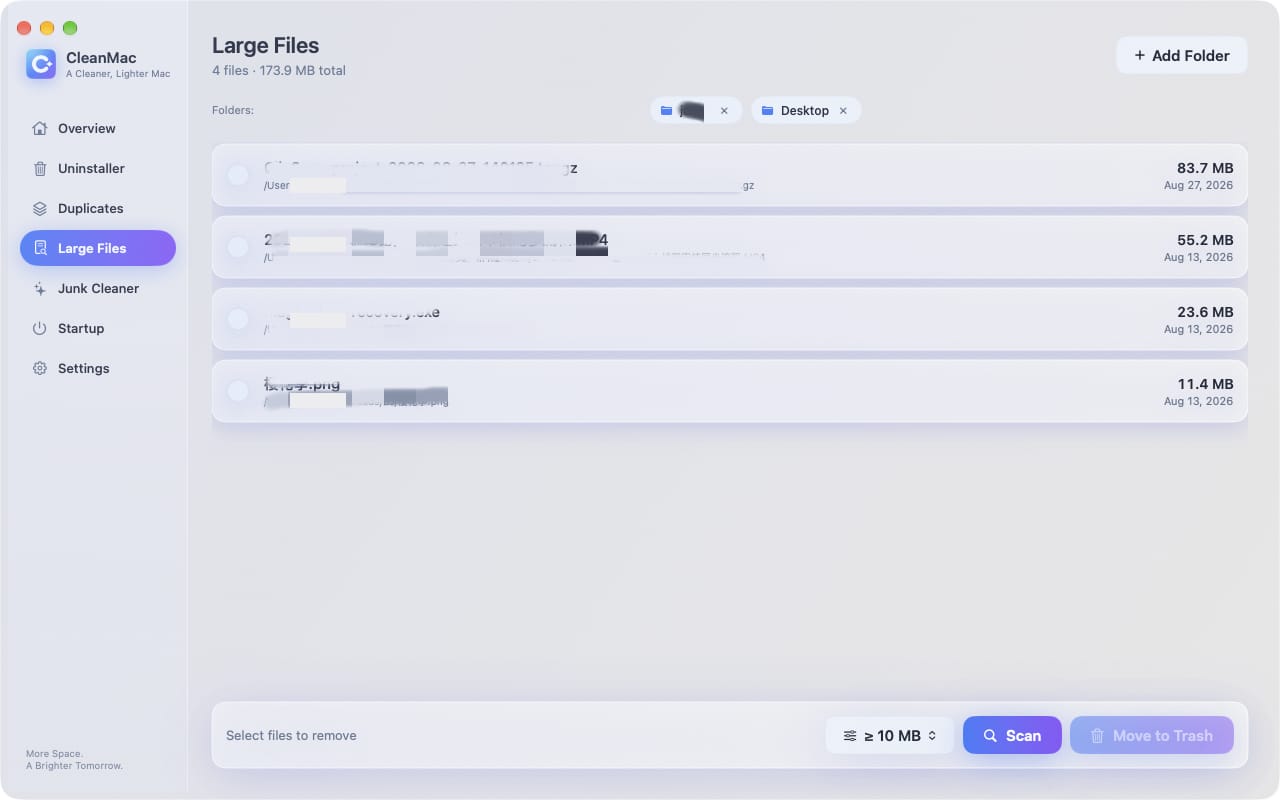
CleanMac’s Large File Cleanup module is the faster way to do this across your whole Mac, not just Downloads. It surfaces every file of 10 MB or larger, sorted by size, with previews. For files inside Downloads specifically, you can scope the scan to that folder or scan everything and review. In testing, CleanMac’s Large File Cleanup found a forgotten 4 GB screen recording and a stack of 1 to 2 GB installer archives that had been sitting in Downloads for over a year.
Remove files you haven’t opened in months
Sort Downloads by date last opened. Anything you haven’t opened in 90 days is a candidate for deletion — but review before you delete, because some files (tax documents, important PDFs, archived receipts) need to be moved to a permanent folder rather than deleted. The “Old Downloads” Smart Folder from Step 2 makes this triage faster.
Find and remove duplicates
Downloads accumulate duplicates because of how browsers handle re-downloads: if you download a file twice, you get `file.pdf` and `file (1).pdf`. If you AirDrop the same photo twice, you get two copies. Over time, these duplicates consume real space.
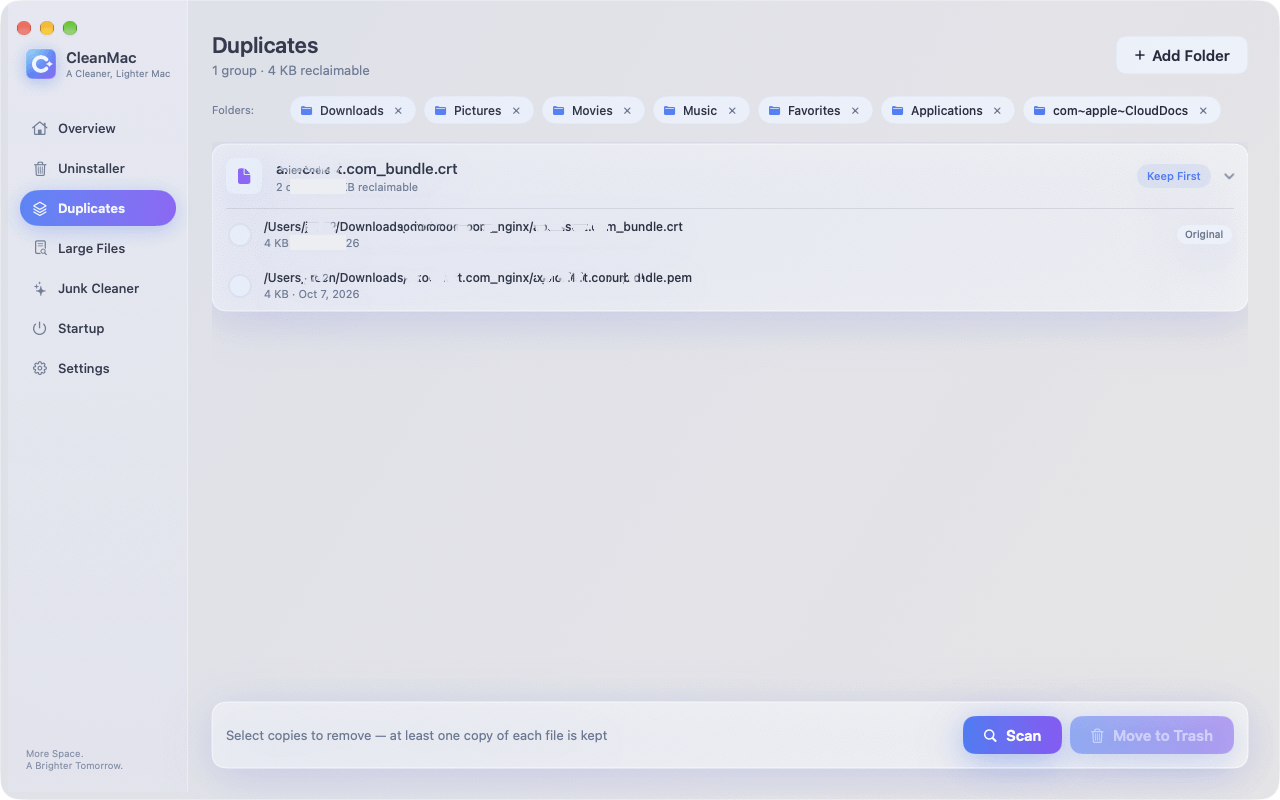
CleanMac’s Duplicate Finder compares files by content hash (not just by name), so it catches duplicates that have been renamed — which is exactly the case in a messy Downloads folder. It shows copies side by side and always preserves one copy safely, so you can review and remove the redundant copies without losing the original. This is a much safer approach than manually hunting for files with “(1)” in the name, which misses renamed duplicates entirely.
Step 4: Clear Out Junk From the Downloads Folder
Beyond the obvious large files and duplicates, the Downloads folder holds a layer of junk that accumulates silently: leftover installer files after you’ve installed apps, browser cache files that wandered into Downloads by accident, and temporary download fragments that never got cleaned up.
CleanMac’s Junk Cleaner handles this category automatically. It identifies leftover installer packages (`.dmg` files that remain after an app is installed), crash reports, log files, and browser cache files that can be removed safely. In testing on a well-used Mac, the Junk Cleaner found 14.2 GB of safe-to-remove data, including a stack of installer DMGs that had accumulated in Downloads over months.
The advantage of using the Junk Cleaner for this is that it knows what’s safe to remove. Manually deleting files from Downloads is risky if you’re not sure what something is — a `.dmg` is obviously an installer, but a `.crdownload` file or a temp fragment might not be obvious. CleanMac categorizes these for you and previews each item before removal, with selected files moving to the Trash rather than being permanently erased.
Step 5: Establish a Maintenance Habit
A one-time cleanup is satisfying but temporary. A few habits keep the Desktop and Downloads folder manageable going forward.
Change your browser’s download location
If your browser dumps everything into Downloads by default, consider changing it to prompt for a save location on each download. This forces you to consciously file each download rather than letting it accumulate. Most browsers support this in their preferences: Chrome, Safari, Edge, and Firefox all let you choose “Always ask where to save each file.”
Set Downloads to clear on a schedule
If you use a browser that supports it (Safari on recent macOS), set the Downloads list to clear automatically — daily, weekly, or upon successful download. This doesn’t delete the files themselves but keeps the Downloads list from accumulating forever.
Review the Desktop weekly
A weekly 5-minute Desktop review is enough to keep it under control. Anything you finished with gets filed, archived, or deleted. Stacks make this faster because files are grouped by type. If the Desktop has more than 20 files, it’s time for a review.
Run CleanMac monthly
A monthly CleanMac pass handles the things manual sorting misses: junk files that have accumulated, large files you forgot about, and duplicates that have crept in. The scan takes a few minutes, the results are previewed before any action, and selected items move to the Trash for safety. This monthly pass keeps the Desktop and Downloads folder from regrowing to their original mess.
How CleanMac Helps With Desktop and Downloads Cleanup
CleanMac isn’t a replacement for the manual organization steps above — Stacks, Smart Folders, and a weekly review habit are the foundation. But CleanMac handles the parts manual sorting is bad at: finding every large file across your whole Mac (not just the obvious ones in Downloads), identifying duplicates by content rather than name, and surfacing junk files like installer packages that you might not recognize as safe to remove.
The three modules that matter most for Desktop and Downloads cleanup are:
- Large File Cleanup — surfaces files of 10 MB or larger, sorted by size, with previews. The fastest way to find the forgotten multi-gigabyte files eating your disk.
- Duplicate Finder — compares by content hash, catches renamed duplicates, preserves one copy safely. The only reliable way to catch duplicates that don’t share a filename.
- Junk Cleaner — clears installer leftovers, caches, and crash reports that accumulate in Downloads. Safe-by-category removal with Trash-based recovery.
All three run locally, require no account, and move selected items to the Trash rather than permanently erasing. For users who want a thorough cleanup without the risk of manually deleting something important, CleanMac’s preview-first model is the safer approach.
Conclusion
Cleaning up your Mac’s Desktop and Downloads folder is mostly a matter of organization and triage: enable Stacks on the Desktop, set up Smart Folders for old and large files, sort Downloads by size and date, remove duplicates, and clear out installer leftovers. A weekly review habit keeps the Desktop under control, and a monthly pass with CleanMac handles the things manual sorting misses — large files across your whole Mac, duplicates that don’t share a name, and junk files you might not recognize as safe to remove. Together, the manual habits and the free tool keep two of the messiest folders on your Mac manageable without turning cleanup into a constant chore. For more free Mac utilities we’ve reviewed, browse our app collection.
Frequently Asked Questions
How do I organize my Mac Desktop quickly?
The fastest fix is to enable Stacks by right-clicking the Desktop and choosing Use Stacks, which groups files by type into tidy stacks rather than scattering them. For deeper organization, set up a Smart Folder that searches the Desktop for files you haven’t opened in 90 days, which makes it easy to find candidates for archiving or deletion. A weekly 5-minute review keeps the Desktop from regrowing.
How do I clean up my Downloads folder on a Mac?
Start by sorting Downloads by file size in Finder’s list view and removing large installer packages and video downloads you no longer need. Then sort by date last opened and remove files you haven’t touched in months, moving important documents to a permanent folder first. CleanMac’s Large File Cleanup and Duplicate Finder modules handle the large-file and duplicate discovery across your whole Mac faster than manual sorting.
What are Smart Folders on a Mac?
A Smart Folder is a saved search that updates automatically as files are added or removed. You create one by pressing Command-F in Finder, setting your search criteria (such as file size or date last opened), and clicking Save. Smart Folders are useful for ongoing views like “every file in Downloads I haven’t opened in 90 days” without having to rebuild the search each time.
How do I find large files on my Mac?
Sort any folder by file size in Finder’s list view, or set up a Smart Folder with “File size is greater than 100 MB” scoped to your Desktop and Downloads folders. CleanMac’s Large File Cleanup module is the faster alternative because it surfaces every file of 10 MB or larger across your whole Mac in one sorted list with previews, rather than requiring you to search folder by folder.
How do I find duplicate downloads on my Mac?
Duplicates in Downloads often have names like `file (1).pdf`, but manual hunting misses renamed copies. CleanMac’s Duplicate Finder compares files by content hash rather than name, so it catches duplicates that have been renamed entirely. It shows copies side by side and always preserves one copy safely, which makes removal safe even on a large and messy Downloads folder.
Is it safe to delete installer files from Downloads?
Yes, installer packages like `.dmg` and `.pkg` files are safe to delete once the app has been installed, because the installer is no longer needed after installation. CleanMac’s Junk Cleaner identifies these leftover installers automatically and categorizes them as safe to remove. If you ever need to reinstall an app, you can re-download its installer from the developer’s site.
How often should I clean my Mac’s Desktop and Downloads folder?
A weekly 5-minute Desktop review keeps the screen manageable, and a monthly Downloads triage handles the larger files and duplicates that have accumulated. A monthly CleanMac pass covers the things manual sorting misses — large files across your whole Mac, content-hash duplicates, and junk installer leftovers. Together, these habits keep both folders under control without cleanup becoming a constant chore.


