

Open System Settings → General → Storage (or Apple menu → About This Mac → Storage on older macOS) and your Mac draws you a colorful bar: bands of blue, yellow, green, and gray, each labeled with a category — Apps, Documents, Photos, System, and that enormous mystery at the end called System Data or Other. The bar tells you that your disk is full. It barely tells you why. If you’ve ever stared at it wondering what each color actually contains — and which ones you can safely shrink — this guide is the missing manual.
Short on space already? CleanMac finds junk, leftover apps, and duplicates on your Mac — and shows you exactly what it will remove before anything is deleted. Download free →
We’ll go through every storage category macOS reports, explain what files actually fall into each one (the answers are sometimes surprising), show how to check your own breakdown, and identify which categories respond to cleanup and which don’t. Where a category needs hands-on work, we’ll point to the right tool — several of them built into CleanMac, our free Mac cleaner.
How to Check Your Mac’s Storage Breakdown
Before the categories, the mechanics. There are three ways to see your storage picture, each with different depth:
System Settings → General → Storage is the primary view on macOS Ventura and later. Wait a minute for the calculation to finish — the numbers update as macOS indexes. Clicking the ⓘ icon next to a category expands a per-category panel, and for some categories (Documents, Apps, Mail) you get file lists and deletion controls right there.
About This Mac → Storage on macOS Monterey and earlier shows the classic colored bar with hover-over category sizes. Less interactive, but the category logic is the same.
Finder and Get Info remain the ground truth for any specific folder: select it, press Cmd+I, and macOS calculates its real size. When the storage bar’s numbers look strange, folder-level checks are how you verify.
One caveat applies to all Apple’s storage views: they’re estimates based on Spotlight indexing. After major changes — big deletions, system updates, new user accounts — the categories can lag reality by hours until indexing catches up.
The Categories, One by One
macOS (System)
This is the operating system itself: the core files in `/System`, system frameworks, fonts, dictionaries, voice data, and the sealed system volume that modern macOS runs from. On a current macOS version this is typically 12–20 GB.
Can you shrink it? Essentially no. The system volume is cryptographically sealed and SIP-protected; it’s not user-serviceable, and nothing in it is safe to remove manually. It grows modestly with each major macOS version. If your System category looks wildly larger than 20 GB, the usual cause is failed update remnants — a restart, or completing a pending update, typically resolves it.
Apps
Everything in your `/Applications` folder (and apps elsewhere), measured by bundle size. A fresh Mac shows 5–10 GB here; a developer’s or designer’s Mac can show 100 GB+.
Can you shrink it? Yes, in two ways. Delete apps you don’t use — but remember that dragging an app to the Trash removes only its bundle, leaving support files behind in your Library (those leftovers get counted in System Data, not Apps). A complete uninstaller like CleanMac’s free Uninstaller module removes the bundle and its scattered support files together, so the space actually leaves your disk instead of migrating into the Other category.
Documents
The Documents category is broader than it sounds. It isn’t just your Documents folder — it’s every file macOS recognizes as user content, wherever it lives: files on your Desktop, in Downloads, in custom folders, plus contents of packages it can index. Subcategories in the expanded view include Documents, Downloads, and the ever-useful Large Files list.
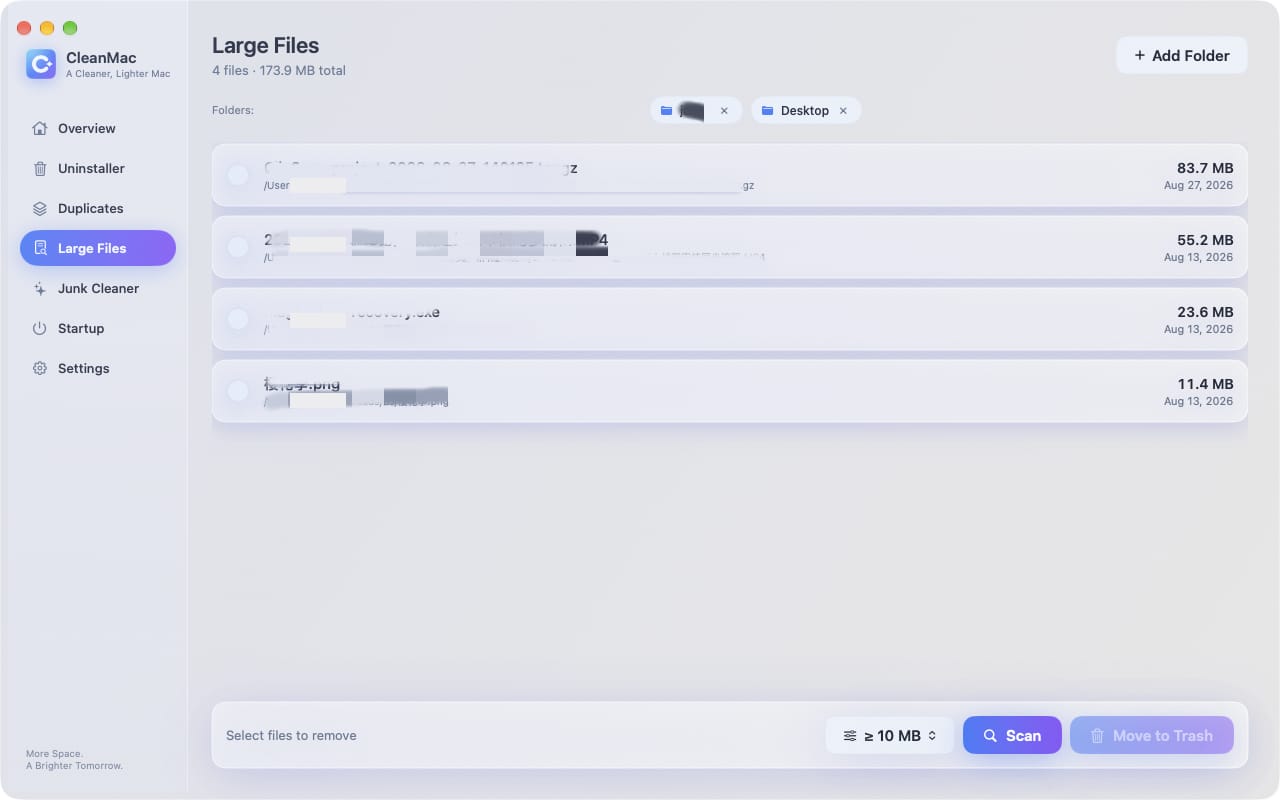
Can you shrink it? Yes, and this is where human judgment pays best. Sort Downloads by size and purge old `.dmg` installers and repeated downloads. Archive finished projects to an external drive. Review the Large Files list — a handful of forgotten videos and archives usually dominates it. CleanMac’s free Large File Cleanup module does this surfacing automatically: every file above a size threshold, sorted descending, with preview, so the 4 GB screen recording from last March stops hiding.
Photos
The size of your Photos library (or libraries), measured as the library package on disk. If iCloud Photos with “Optimize Mac Storage” is enabled, this number reflects only the locally held originals and thumbnails — which is why it sometimes shows less than you expect.
Can you shrink it? Partially. The biggest wins: enable Optimize Mac Storage if you use iCloud, delete bursts and rejected shots, and empty Photos’ Recently Deleted album (deleted photos hold space for 30 days). Also check for duplicate photos that arrived via import loops — Photos won’t flag them, but content-hash duplicate finders will.
Music (and TV)
Your Music app library, downloaded Apple Music tracks, and TV app downloads. Ranges from zero (pure streaming) to enormous (lossless libraries and downloaded video).
Can you shrink it? Yes — remove downloads you can re-stream, and note that Apple’s built-in “Optimize Storage” for TV automatically removes watched movies and shows.
Mail and Messages
Mail stores every message and attachment of every configured account locally; Messages keeps conversation attachments (photos, videos people sent you) in its own library. Heavy mail users commonly see 10–30 GB here.
Can you shrink it? Yes. In Mail, Mailbox → Erase Deleted Items and removing attachments from old messages recovers real space. In Messages, deleting large attachment threads (Settings → General → keep messages 30 days/1 year) trims the rest.
Other Users
If multiple accounts exist on the Mac, their combined data shows as one block. Only meaningful on shared machines — shrink it by cleaning within those accounts.
System Data (formerly “Other”)
The residual category — everything macOS can’t attribute to the categories above. This is the one that mystifies everyone, and on many Macs it’s the largest band of all: 50–200 GB is common. Its real contents, in rough order of typical size:
- App and system caches — temporary working data, 20–60 GB on an uncleaned Mac
- iPhone and iPad backups in `~/Library/Application Support/MobileSync/` — often 10–60 GB each, kept forever
- Local Time Machine snapshots — rolling restore points, 10–50 GB
- Disk images and installers — `.dmg` and `.pkg` files
- App leftovers — orphaned support files from drag-deleted apps
- Swap files, sleep images, logs, crash reports
Can you shrink it? Yes — this is the single most recoverable category, and it’s also the one Apple gives you no tools to inspect. The cleanup sequence: clear user caches, delete old device backups, thin local snapshots, purge installers, remove app leftovers, restart. CleanMac’s free Junk Cleaner automates the cache and log portions with a curated safe-list, while its Uninstaller clears the leftover component. Most Macs recover 40–70% of System Data this way.
A Realistic Example: Where 400 GB Goes
On a typical well-used 512 GB MacBook showing 400 GB used, the honest breakdown is usually something like: macOS 18 GB, Apps 45 GB, Documents 140 GB (of which Downloads and forgotten large files are 50+), Photos 90 GB, Mail and Messages 15 GB, and System Data 95 GB (of which 60+ is caches, an old iPhone backup, and leftovers). A focused afternoon — deduplicating, purging Downloads, clearing caches, deleting the stale backup — recovers 100–150 GB of that without touching anything irreplaceable.
Conclusion
Your Mac’s storage bar is a map once you can read it: macOS is fixed at 12–20 GB, Apps and Documents respond to human decisions, Photos and Mail respond to settings and pruning, and System Data — the gray mystery — is mostly caches, device backups, snapshots, and leftovers waiting to be reclaimed. Check your breakdown in System Settings → General → Storage, work the recoverable categories in order, and let tools carry the mechanical load: CleanMac handles junk cleaning, duplicate finding, large file surfacing, and complete app uninstallation for free, locally, with preview-first deletion to the Trash. The colored bar stops being a source of anxiety and becomes a to-do list. For more free Mac utilities, browse our app collection.
Frequently Asked Questions
How do I check my Mac storage breakdown?
Open System Settings → General → Storage on macOS Ventura or later, or Apple menu → About This Mac → Storage on earlier versions, and wait a minute for the calculation to complete. Clicking the info icon next to each category expands per-category details, and some categories like Documents offer built-in file lists. For any specific folder, select it in Finder and press Cmd+I to see its true size.
What is the difference between System and System Data on Mac?
The System (or macOS) category is the operating system itself — core files, frameworks, and the sealed system volume, typically 12–20 GB and not user-modifiable. System Data is everything else macOS can’t categorize: app caches, iOS device backups, local Time Machine snapshots, disk images, app leftovers, swap files, and logs. System is essentially fixed, while System Data is highly recoverable through cleanup.
Why is my Documents category so large?
The Documents category includes far more than your Documents folder — it counts user files on your Desktop, in Downloads, and in any custom folders. The usual drivers of a large Documents category are accumulated Downloads (especially .dmg installers and repeated downloads), forgotten large files like videos and archives, and finished projects that were never archived to external storage.
How can I reduce the Apps category without losing app data?
Delete apps you no longer use, but do it completely: dragging an app to the Trash removes only its bundle while leaving gigabytes of support files in your Library, which then count toward System Data instead. Using a complete uninstaller like CleanMac’s free Uninstaller removes the app and all its associated files together, so the space is actually reclaimed.
What counts as Photos storage if I use iCloud?
With iCloud Photos enabled and “Optimize Mac Storage” turned on, the Photos category reflects only the originals currently held locally plus thumbnails — your full library lives in iCloud and downloads on demand. If you use “Download Originals to this Mac” instead, the category shows your entire library at full size. Recently deleted photos also hold space for 30 days until the Recently Deleted album is emptied.
Why does my storage bar not match the actual free space?
The storage bar is built from Spotlight’s index and is an estimate, not a live measurement. After large deletions, macOS updates, or adding user accounts, the categories can lag reality by hours while indexing catches up. Local Time Machine snapshots also distort the picture — Finder’s free-space figure counts them as purgeable, while the storage bar may count them in System Data.
Which storage category should I clean first for the biggest win?
Start with System Data if it’s large — caches, old iPhone backups, and app leftovers inside it are pure recoverable space with no judgment calls required. Then work the Large Files list in Documents, where a handful of forgotten videos and archives usually dominates. A free scanner like CleanMac’s Junk Cleaner and Large File Cleanup automates both passes and typically recovers tens of gigabytes in under an hour.


