
“Macs don’t get viruses” was never quite true, and in 2026 it’s simply wrong. Mac malware is real, it’s growing, and it has a favorite disguise: it’s usually something the user was talked into installing — a fake browser update, a “free” app from a download site, a sponsored search result that looked official. The good news is that Mac malware is also overwhelmingly removable, often for free, if you know where to look.
This guide covers the honest picture: the types of malware that actually target Macs, the signs that something has infected your machine, step-by-step manual removal, the free scanners worth trusting — and an important disclosure about what CleanMac does and doesn’t do, because we make a Mac cleaning tool and you deserve a straight answer about where it fits (and doesn’t fit) in malware removal.
First, an Honest Disclosure: CleanMac Is Not an Antivirus
Let’s get this out of the way before anything else, because trust matters more than a download: CleanMac is a storage and performance cleaner, not security software. It finds junk files, duplicates, large files, unused apps, and startup items. It does not scan for, detect, or remove malware, and nothing in this article should be read as a claim otherwise.
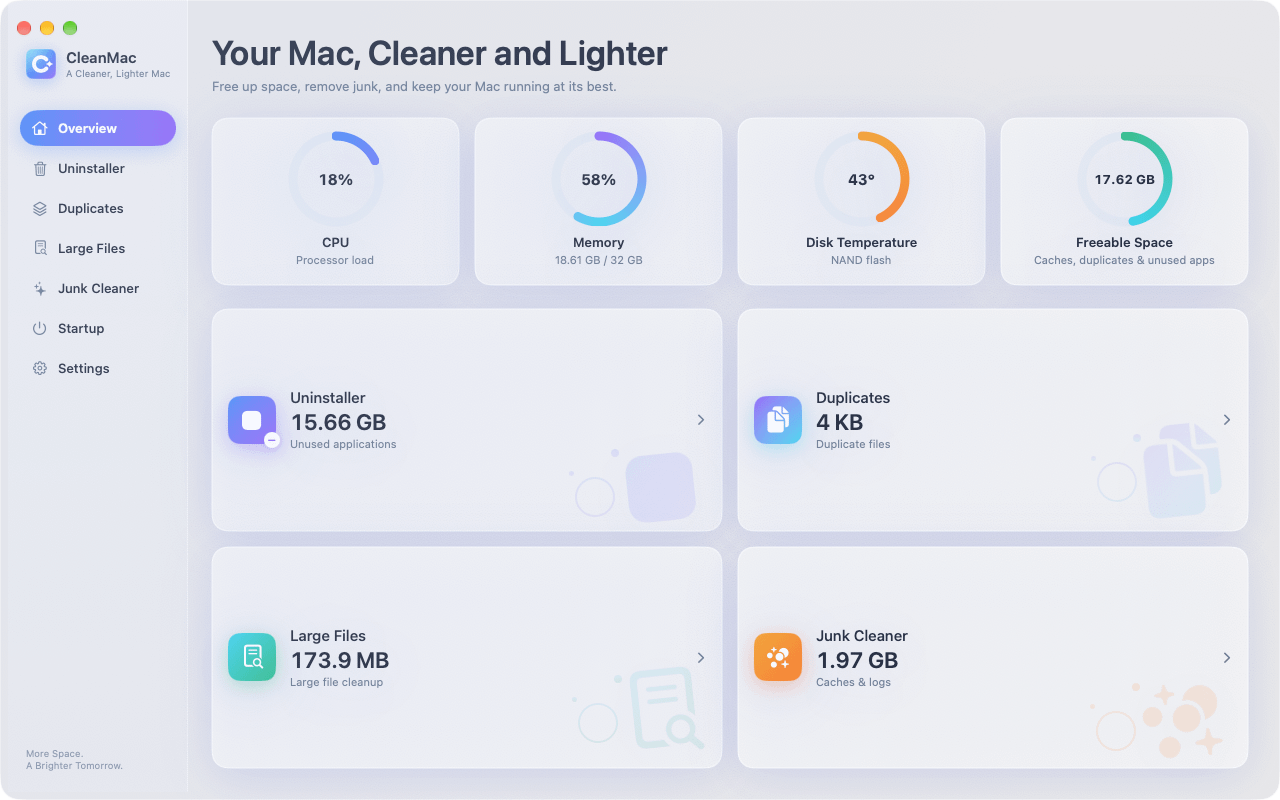
Where CleanMac genuinely helps in an infection scenario is in the mechanics of removal — completely uninstalling a malicious app along with its support files, and auditing the startup items where adware loves to hide. But detection and disinfection belong to dedicated security tools, and we’ll name the ones worth using below. Any “cleaner” app that claims to also be your antivirus deserves suspicion, not your money.
The Types of Malware That Actually Target Macs
Knowing what you’re dealing with shapes the response. The Mac malware landscape breaks into a few distinct categories, and they’re not equally common.
Adware and browser hijackers (the most common by far)
This is what most “my Mac has a virus” reports actually are. Symptoms: your browser homepage changed by itself, searches redirect through a search engine you’ve never heard of, pop-up ads appear on sites that shouldn’t have them, or new toolbars and extensions appeared uninvited. Adware arrives bundled with free software from third-party download sites, or through fake “Your Flash Player is out of date” prompts. It’s annoying rather than destructive, but it’s invasive — it tracks browsing and injects ads — and it should be removed.
Potentially Unwanted Programs (PUPs)
The gray zone: “optimizer” and “cleaner” apps that exaggerate or invent problems to scare you into paying, fake update utilities, and bundled software you never knowingly agreed to. Ironically, scareware cleaners are one of the most common Mac infections — the pop-up claiming “Your Mac is infected with 3 viruses!” is itself the malware.
Trojans and downloaders
Malicious code disguised as legitimate software — pirated apps are the classic carrier. Cracked versions of Photoshop, office suites, and popular utilities from torrent sites regularly bundle trojans that install backdoors, steal browser-stored passwords, or fetch additional payloads. This is the strongest argument there is against pirated software, full stop.
Infostealers
The category that’s grown fastest in recent years: malware built to harvest browser cookies, saved passwords, crypto wallet data, and session tokens, then exfiltrate them quietly. Infostealers typically arrive via trojanized apps or malicious ads targeting specific searches. They’re silent — no pop-ups, no homepage changes — which is what makes them dangerous.
Ransomware and cryptominers (rare on Mac)
Both exist for macOS but are uncommon. Cryptominers reveal themselves through constant high CPU and heat; ransomware announces itself, obviously. If you hit either, skip the DIY section and go straight to a dedicated scanner.
Signs Your Mac Might Be Infected
No single symptom proves infection — most have innocent explanations — but combinations of these warrant a scan:
- Browser homepage or default search engine changed without your action
- Search results redirecting through unfamiliar sites
- Pop-ups or ads on sites that never had them, or ads that follow you between devices’ worth of sites
- New browser extensions or toolbars you didn’t install
- Unfamiliar apps in your Applications folder or Login Items
- Persistent “Your Mac is infected!” warnings (remember: these are usually the malware, not the cure)
- Sustained high CPU/fans with no explanation in Activity Monitor
- Friends receiving messages you didn’t send
The counterpoint that keeps you sane: a slow Mac, a full disk, and a loud fan are usually not malware. Check the mundane causes first — malware is a diagnosis of exclusion, not a default assumption.
How to Remove Malware from Your Mac Manually
Most Mac adware and PUPs can be removed by hand. Work through these steps in order, and disconnect from the internet first if you suspect an active infostealer (unplug ethernet, turn off Wi-Fi).
Step 1: Quit suspicious processes
Open Activity Monitor (Applications → Utilities) and scan the process list for names you don’t recognize, especially anything with high CPU. Select a suspect, click ✕ → Force Quit. Search any unfamiliar process name online before acting — legitimate system processes have plenty of documentation, while malware processes typically show up in removal guides.
Step 2: Remove the malicious app completely
Check your Applications folder for anything you don’t remember installing. Dragging a suspicious app to the Trash removes the app itself but leaves its support files behind — and adware often regenerates from exactly those leftovers.
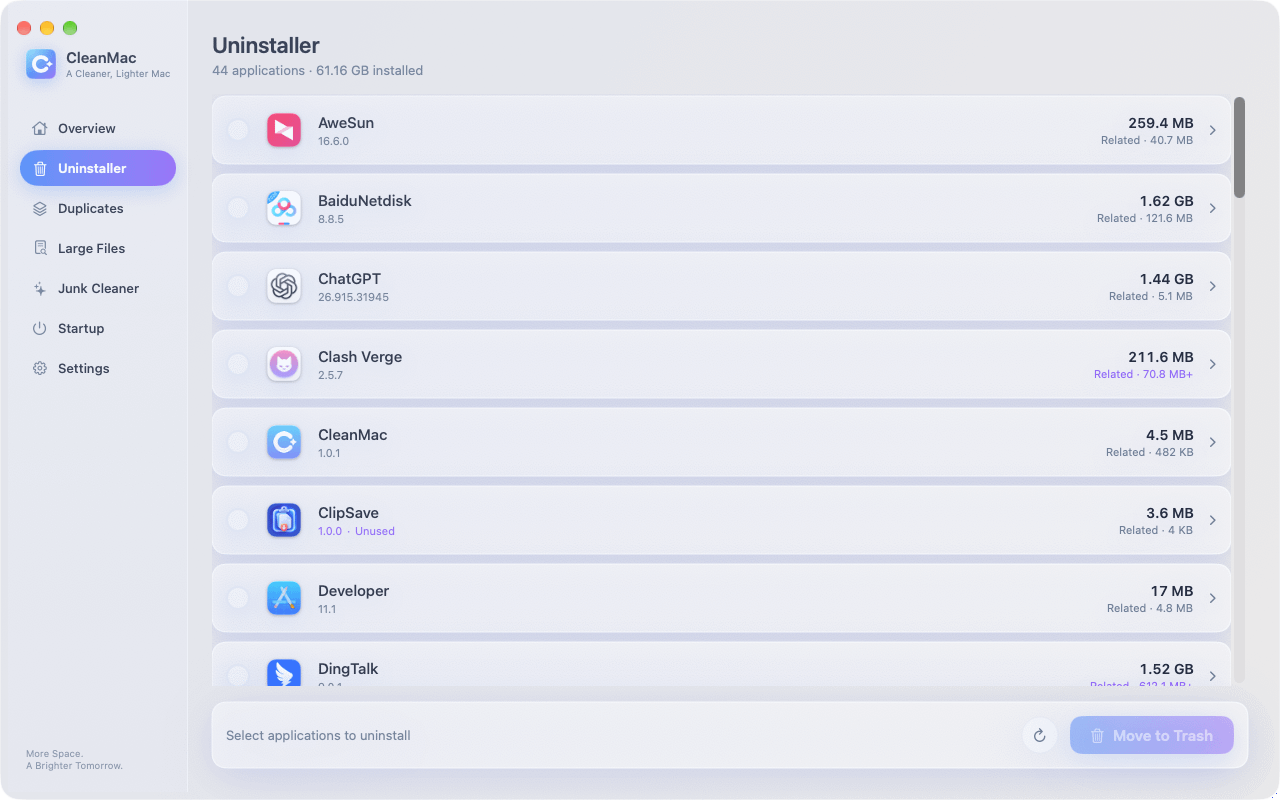
This is where a proper uninstaller matters: CleanMac’s free Uninstaller module removes an app with its caches, preferences, and support folders in one pass, which closes the “it came back after I deleted it” loop that plagues manual adware removal. It also flags apps you haven’t opened in 30+ days — a useful audit view when you’re hunting for software you never knowingly installed at all.
Step 3: Clean out LaunchAgents and LaunchDaemons
This is where Mac malware establishes persistence — the mechanism that relaunches it after every restart. In Finder, press Cmd+Shift+G and check each of these folders:
- `~/Library/LaunchAgents/`
- `/Library/LaunchAgents/`
- `/Library/LaunchDaemons/`
Look for recently-modified `.plist` files with names you don’t recognize — random-looking strings, misspellings of legitimate companies, or names mimicking system processes. Move suspects to the Trash (don’t delete permanently yet). Caution: these folders also contain legitimate entries from Adobe, Google, Microsoft, and your other real software — search any name before removing it, and when in doubt, leave it.
Step 4: Audit Login Items and browser extensions
In System Settings → General → Login Items & Extensions, remove anything unfamiliar from both the “Open at Login” list and the “Allow in Background” section. CleanMac’s Startup Items module shows the same launch points consolidated in one list, which makes the audit faster.
Then clean each browser:
- Safari: Settings → Extensions → uninstall anything you didn’t install; Settings → Websites → check Notifications and remove unknown entries; Settings → Privacy → Manage Website Data if redirects persist
- Chrome: Settings → Extensions → remove unknowns; Settings → Reset settings → “Restore settings to their original defaults” if the hijack survives extension removal
- Check System Settings → Privacy & Security → Profiles too — if a “configuration profile” you didn’t install is present (some adware installs one to lock browser settings), remove it. On a personal Mac, it’s normal to have no profiles at all.
Step 5: Restart and verify
Restart, then re-check the folders and settings above. Malware that survives a restart has a persistence mechanism you missed — look again at LaunchAgents, Login Items, and profiles. If everything stays clean across two restarts, the manual removal worked.
The Free Scanners Worth Using
For anything beyond simple adware — or simply for confirmation — run a dedicated scanner. The trustworthy options:
- Malwarebytes for Mac (free version): the standard recommendation, and deservedly so. The free tier scans and removes on demand (real-time protection is the paid feature), and its Mac malware definitions are the most current in the business. For a suspected infection, this should be your first download — from the official site only.
- Apple’s built-in defenses: macOS already includes XProtect (signature-based malware detection that updates silently in the background) and Gatekeeper/Notarization (blocking unsigned, unvetted software). These catch known-bad apps at install time, but they’re a perimeter, not a cleanup crew — XProtect won’t remove an infection that’s already established.
- A second opinion: if Malwarebytes finds nothing but symptoms persist, a scan with another reputable engine (CleanMyMac’s malware module, or Bitdefender’s free scanner) can catch what one engine misses.
One warning that can’t be repeated enough: only download security tools from their official websites. Searching “mac virus cleaner” and clicking the first ad is precisely how many infections happen — fake cleaners ranking for exactly that query are a real and thriving scam category.
Prevention: Not Getting Infected Again
Removal is an afternoon; prevention is a set of habits:
- Install software from the App Store or the developer’s official site — never from download aggregators or sponsored search results. This single habit eliminates the majority of Mac malware exposure.
- Never enter your Mac’s admin password because a website or installer told you to. Your password is the keys to the kingdom; legitimate macOS prompts come from the system, not a browser page.
- Don’t pirate software. Cracked apps are the number-one trojan carrier on the Mac platform.
- Keep macOS updated. Apple ships XProtect definition updates and security patches continuously; automatic updates are your silent immune system.
- Be skeptical of urgency. “Act now,” “your Mac is infected,” “update required immediately” — urgency is the signature of social engineering. Real system updates come from System Settings, full stop.
- Audit periodically. A monthly glance at Login Items, browser extensions, and your installed apps catches squatters early — the same habit that keeps your Mac fast keeps it clean.
Conclusion
Removing malware from a Mac is usually less dramatic than the infection itself: quit the process, uninstall the malicious app completely — support files and all, which is where CleanMac’s free Uninstaller genuinely helps — purge its persistence from LaunchAgents and Login Items, reset the browser, and confirm with a scan from Malwarebytes’ free tier. Trust Apple’s built-in XProtect as your always-on perimeter, and treat any cleaning app — ours included — as exactly what it honestly claims to be.
Then close the door behind you: official sources only, no pirated software, no passwords for websites, automatic updates on. Those four habits make a repeat infection genuinely unlikely. For more trustworthy free Mac tools, browse our app collection.
Frequently Asked Questions
Can Macs actually get viruses?
Yes. Mac-specific malware is less common than Windows malware but absolutely real, and adware, browser hijackers, trojans, and infostealers all target macOS actively. The most common infection route isn’t a drive-by exploit — it’s social engineering that talks the user into installing the malware themselves, which is why skepticism toward installers and pop-ups is the core defense.
Does my Mac have built-in antivirus protection?
Yes, two layers of it. XProtect provides signature-based detection of known malware and updates silently in the background, while Gatekeeper and notarization block unsigned or unvetted apps from launching. These defenses are good at stopping known threats at install time, but they don’t remove established infections — for that you need an on-demand scanner like Malwarebytes.
Is “Your Mac is infected with 3 viruses!” a real warning?
No — it’s a scam, and usually it’s the infection itself rather than the cure. Legitimate macOS security warnings never appear as web page pop-ups with countdown timers and phone numbers. Close the tab (force-quit the browser if it resists), never call the number, and never install the “cleaner” it advertises — that fake cleaner is the payload.
What’s the best free malware remover for Mac?
Malwarebytes for Mac is the consensus answer: its free version scans and removes infections on demand, its Mac-specific definitions are the most current available, and it doesn’t nag aggressively for upgrades. Download it only from the official Malwarebytes website — fake clones of popular security tools rank in search ads precisely to catch people looking for malware removal.
Will resetting my Mac to factory settings remove malware?
Yes, a full erase and reinstall eliminates any malware on the drive — it’s the nuclear option and it’s effective. But it’s rarely necessary: the manual removal steps plus a reputable scanner clear the vast majority of Mac infections in under an hour. Reserve the erase for persistent infections that survive proper removal attempts, or for peace of mind after a serious infostealer incident.
Does CleanMac remove viruses?
No — and we say so plainly. CleanMac is a storage and performance cleaner, not an antivirus; it doesn’t detect or disinfect malware. Its role in an infection scenario is mechanical: completely uninstalling a malicious app along with its leftover files, and auditing startup items where adware hides. Detection and removal belong to dedicated tools like Malwarebytes.
How do I know if a Mac “cleaner” app is legitimate?
Legitimate cleaners show you exactly what they’ll delete before deleting it, move files to the Trash rather than erasing permanently, and never invent threat counts to frighten you. The red flags of scareware: it arrived via an ad or pop-up, it demands payment before showing scan details, it claims to have found hundreds of “viruses” on a healthy Mac, or it installs a configuration profile. When in doubt, search the app’s name plus “scam” before installing.

