

When your Mac slows to a crawl, the culprit is often not disk space — it’s memory. RAM (random access memory) is the working space your Mac uses to run apps, hold browser tabs, and keep background processes alive, and when it fills up, your Mac starts swapping to disk, which is dramatically slower. The result is the familiar symptom: spinning beachballs, laggy window switching, and apps that take forever to respond.
Short on space already? CleanMac finds junk, leftover apps, and duplicates on your Mac — and shows you exactly what it will remove before anything is deleted. Download free →
This guide walks through what actually uses RAM on a Mac, how to check your memory pressure, the practical steps to free up memory without breaking anything, and how a free tool like CleanMac helps by surfacing memory hogs and managing the startup items that quietly consume RAM at every login.
What Actually Uses RAM on a Mac
Memory isn’t consumed by one thing — it’s consumed by a combination of active apps, browser tabs, background helpers, and the operating system itself. Understanding where your RAM goes is the first step to reclaiming it.
Active applications
Every open app holds its working set in RAM. Heavy apps like Adobe Photoshop, Final Cut Pro, Logic Pro, and Xcode can each consume multiple gigabytes when actively in use. Even lighter apps add up: Mail, Messages, Photos, and Calendar together can hold 1 to 2 GB on a Mac that’s been running for days.
Browser tabs
Browsers are the single biggest memory consumer for most users. Chrome, Safari, and Edge each hold every open tab in memory (with some modern exceptions for background-tab suspension). A session with 50 to 100 open tabs can easily consume 4 to 8 GB of RAM — more than many Macs have in total. Each tab runs its own JavaScript engine instance, holds its rendered page state, and tracks its own caches.
Background processes and helpers
Apps install launch agents and daemons that run invisibly in the background: cloud sync clients (Dropbox, Google Drive, OneDrive), chat app helpers (Slack, Discord, Teams), update checkers, and a long tail of small utilities that each take a modest slice of RAM but collectively add up. On a typical Mac that’s been used for a couple of years, it’s common to find 30 to 50 background processes consuming 1 to 3 GB combined.
The operating system
macOS itself uses RAM for kernel tasks, WindowServer (which manages the graphical interface), Spotlight indexing, and various system daemons. This is unavoidable and healthy — you want the OS to use RAM. But when other apps push memory pressure high, the OS’s own footprint contributes to the squeeze.
How to Check Your Memory Pressure
Before freeing up RAM, you need to know whether you actually have a memory problem. There are two reliable ways to check.
Activity Monitor
Open Activity Monitor (in Applications → Utilities), click the Memory tab, and look at the bottom of the window. You’ll see a graph labeled Memory Pressure. A green graph means your Mac has plenty of memory headroom; yellow means memory is getting tight and your Mac is starting to compress or swap; red means you’re actively swapping to disk, which is when slowdowns become severe.
The same window shows a list of every process using memory, sorted by how much RAM each one consumes. The columns to watch are Memory (real RAM used) and Swap Used (how much has spilled to disk). If Swap Used is in the gigabytes, you have a memory problem.
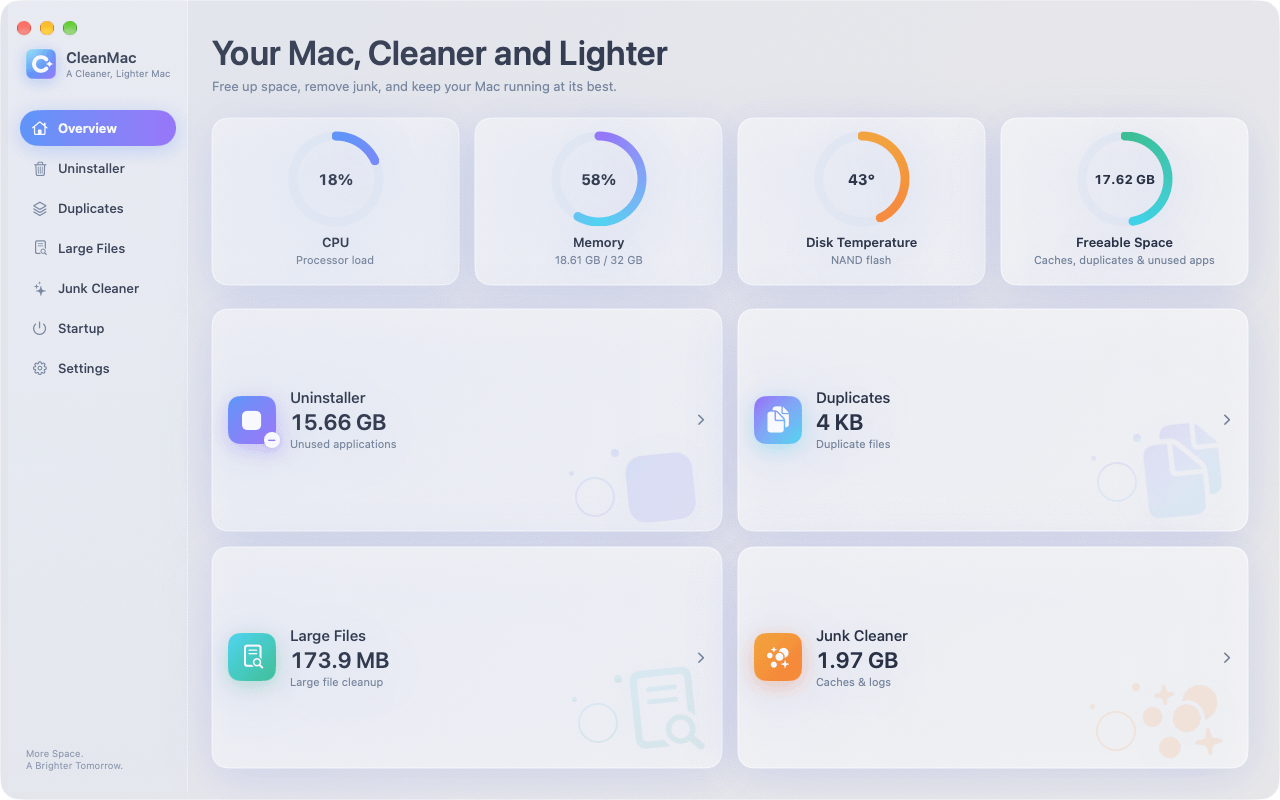
CleanMac’s System Overview dashboard
CleanMac shows a live memory pressure gauge on its System Overview dashboard alongside CPU load and disk temperature. It’s a faster at-a-glance check than Activity Monitor, and it doubles as a health check before and after you’ve freed up memory. If you want to monitor memory pressure regularly without digging into Activity Monitor, CleanMac’s dashboard is the more convenient view.
Practical Ways to Free Up RAM
Once you’ve confirmed memory pressure is high, here are the steps that actually help, ordered from easiest to most impactful.
1. Close browser tabs you don’t need
This is the single most effective RAM fix for most users. If you have 80 tabs open across Chrome and Safari, closing the ones you don’t actively need can free 2 to 5 GB instantly. For users who genuinely need to keep many tabs available, use a tab-suspension extension (Auto Tab Discard for Chrome, or Safari’s built-in tab suspension in recent macOS versions) that unloads background tabs without losing them.
2. Quit apps you’re not using
It sounds obvious, but many users leave heavy apps open for days. If you finished editing in Photoshop three days ago, quit it. Mail, Messages, and Calendar are fine to leave running, but anything that consumes a gigabyte or more should be quit when you’re not actively working in it. The keyboard shortcut Command-Q is faster than clicking the red close button, which on Mac leaves the app running.
3. Reduce login and startup items
This is where most users find the biggest persistent win. Every launch agent and login item that starts at boot keeps running in the background, consuming RAM for as long as your Mac is on. Over years of installing apps, these accumulate: cloud sync clients, chat helpers, update checkers, and utilities you forgot you installed.
To review them manually, go to System Settings → General → Login Items. You’ll see a list of apps that open at login, plus a list of background processes allowed to run in the background. Disable anything you don’t recognize or don’t need — but be aware that some are legitimate (your cloud sync client, for instance, if you actively use it).
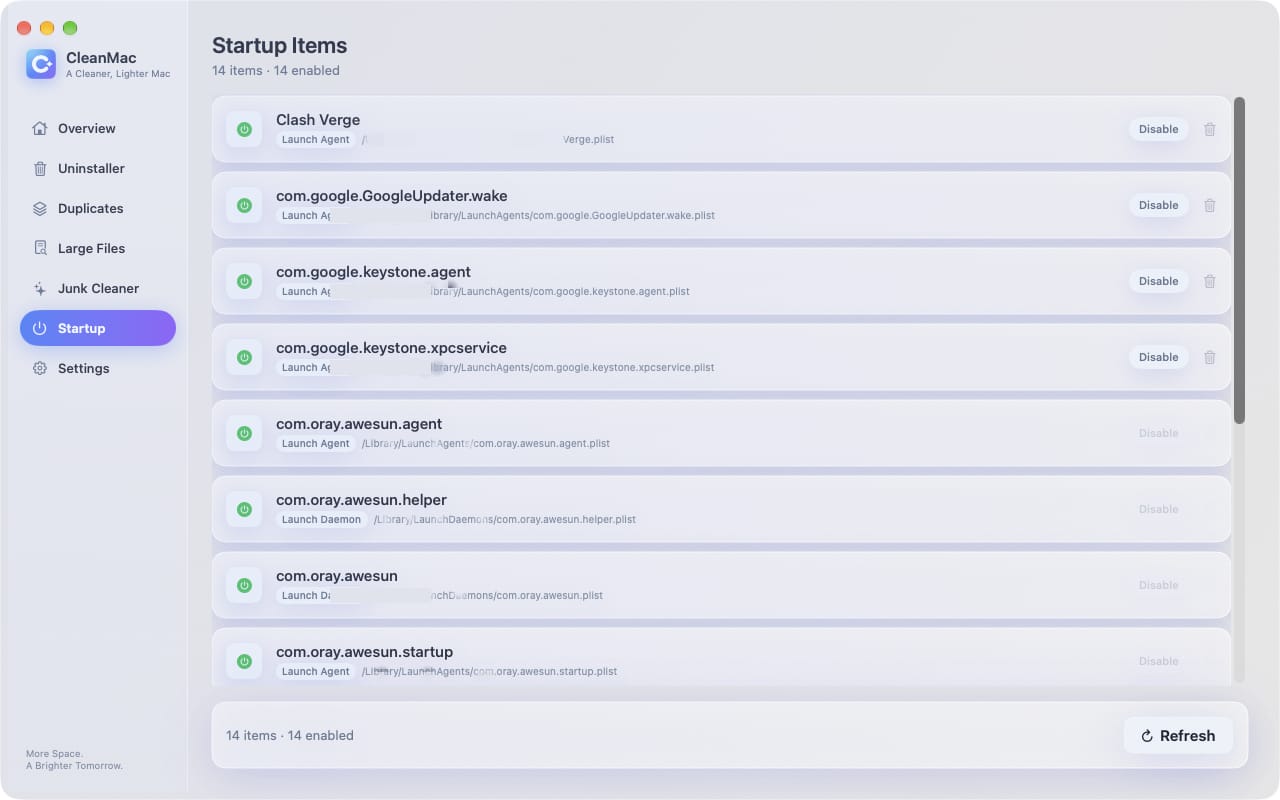
CleanMac’s Startup Item Manager is the safer, more thorough way to handle this. It lists every launch agent and daemon on your Mac, identifies which ones slow down login, and lets you disable or remove what you don’t need — all with a preview before any action. On a Mac that’s been in use for two or three years, this typically surfaces 10 to 20 background processes that can be disabled, freeing 500 MB to 2 GB of RAM permanently.
4. Restart your Mac regularly
A restart clears everything from RAM and starts fresh. Macs are stable enough that many users go weeks or months without rebooting, which means memory leaks, stale caches, and accumulated background state all pile up. If your Mac has been running for weeks and feels sluggish, a restart is the fastest fix. For users who leave their Mac asleep overnight, a weekly restart is a reasonable habit.
5. Use Activity Monitor to find the worst offenders
Sort Activity Monitor’s Memory tab by the Memory column and look at the top consumers. If a single app is using 3 GB and you didn’t realize it, quit it. If a process you don’t recognize is using a gigabyte, search its name to identify it — it may be a legitimate system process or it may be a helper from an app you can uninstall. Killing system processes you don’t understand is risky; identifying and removing the apps that spawn runaway helpers is safer.
6. Don’t fall for “RAM cleaner” scams
There are apps that promise to “free up RAM” by forcibly purging memory from other processes. These work technically — they trigger memory pressure that makes macOS reclaim cached pages — but the result is often worse performance, because the apps whose memory was purged have to rebuild their caches from disk. Modern macOS manages memory well on its own; the wins come from closing tabs, quitting apps, and reducing startup items, not from aggressive memory-purging tools.
When High RAM Usage Is Actually Normal
Not all high memory usage is a problem. macOS intentionally uses available RAM for file caching, which speeds up disk operations. A Mac with 16 GB of RAM that’s using 14 GB may be perfectly healthy — the system is putting unused RAM to good use. The signal to watch is memory pressure (the graph in Activity Monitor or CleanMac’s dashboard), not the absolute RAM usage number.
If memory pressure is green, your Mac is fine even if RAM appears “full.” If pressure is yellow or red, you have a real memory problem and the steps above will help. Swapping to disk is the symptom that matters; cached file usage is not.
How CleanMac Helps With Memory
CleanMac isn’t a “memory cleaner” in the purge-RAM sense — and that’s a good thing, because those tools don’t really help. What CleanMac does is address the root causes of high memory usage: runaway background processes and accumulated startup items.
The System Overview dashboard gives you a live memory pressure gauge so you know whether you actually have a problem before you start fixing anything. The Startup Item Manager lets you disable launch agents and daemons that consume RAM at every login, which is the most persistent memory win available. And the Uninstaller helps you remove apps you don’t use — and their associated background helpers — so they stop consuming RAM altogether rather than just being temporarily disabled.
For most users, the combination of monitoring memory pressure with CleanMac’s dashboard and trimming startup items with its Startup Manager is enough to keep memory usage healthy long-term. The dashboard runs locally, requires no account, and uploads nothing — which matters for a tool that has visibility into every process on your Mac.
Conclusion
Freeing up RAM on a Mac is rarely about a single magic button — it’s about understanding what’s consuming memory and addressing the root causes. Close browser tabs you don’t need, quit heavy apps when you’re done with them, trim your login and startup items so background processes don’t pile up, restart your Mac regularly, and watch memory pressure (not absolute usage) to know when you actually have a problem. CleanMac helps on the monitoring side with its live memory pressure gauge, and on the persistent side with its Startup Item Manager that trims the launch agents quietly consuming RAM at every login. For more free Mac utilities we’ve reviewed, browse our app collection.
Frequently Asked Questions
How do I check RAM usage on my Mac?
Open Activity Monitor from Applications → Utilities and click the Memory tab to see every process and its memory consumption, plus a Memory Pressure graph at the bottom. A green graph means you have headroom, yellow means memory is getting tight, and red means your Mac is actively swapping to disk. CleanMac’s System Overview dashboard shows the same memory pressure as a live gauge, which is faster for at-a-glance checks.
What uses the most RAM on a Mac?
For most users, the biggest memory consumers are browser tabs (a session with dozens of open tabs can use 4 to 8 GB), heavy creative apps like Photoshop and Final Cut Pro (multiple gigabytes each), and accumulated background helpers like cloud sync clients and chat apps. The operating system itself uses RAM for kernel tasks and WindowServer, which is unavoidable and healthy. Identifying your specific offenders is best done in Activity Monitor’s Memory tab sorted by the Memory column.
Does closing browser tabs really free up RAM?
Yes, closing browser tabs is one of the most effective RAM fixes because each open tab holds its rendered page state, JavaScript engine instance, and caches in memory. Closing 50 tabs you don’t actively need can free 2 to 5 GB instantly. If you need to keep many tabs available, use a tab-suspension extension that unloads background tabs without losing them, which preserves the convenience of returning to them later.
Do Mac memory cleaner apps actually work?
Most “RAM cleaner” apps that purge memory from other processes work technically but often make performance worse, because the apps whose memory was purged have to rebuild their caches from disk. Modern macOS manages memory well on its own, and the real wins come from closing tabs, quitting apps, and reducing startup items. A tool like CleanMac helps by monitoring memory pressure and trimming the launch agents that quietly consume RAM, not by aggressively purging memory.
How do I stop apps from opening at login on my Mac?
Go to System Settings → General → Login Items to see and disable apps that open at login and background processes allowed to run. CleanMac’s Startup Item Manager provides a more thorough view that lists every launch agent and daemon, identifies which ones slow down login, and lets you disable or remove what you don’t need with a preview before any action. On a Mac that’s been used for a couple of years, trimming startup items typically frees 500 MB to 2 GB of RAM permanently.
How often should I restart my Mac to free up RAM?
A weekly restart is a reasonable habit for most users, especially if you leave your Mac asleep overnight rather than shutting it down. Restarting clears everything from RAM and starts fresh, which resolves accumulated memory leaks, stale caches, and background state. If your Mac has been running for weeks and feels sluggish, a restart is the fastest fix and often resolves the symptoms without any deeper troubleshooting.
How much RAM does my Mac need in 2026?
For light use (browsing, email, documents), 8 GB is the practical minimum and works fine for most users. For heavier work (creative apps, development, many browser tabs, multitasking), 16 GB is a more comfortable target and avoids most memory pressure issues. Power users running multiple heavy apps simultaneously may want 32 GB or more. The best test is to watch memory pressure in Activity Monitor or CleanMac’s dashboard — if you regularly see yellow or red pressure, more RAM would help.


